# Stacking: z-index and What Sits on Top

When boxes overlap, the browser stacks them like papers on a desk, and z-index, positioning and stacking contexts decide which one ends up on top, including why z-index 9999 sometimes still loses.

Journeyman · CSS · Updated November 14, 2026

By Gregor Dzierzon

## After this lesson you can

- Decide which overlapping element sits on top from position, z-index and order in the HTML
- Explain why a z-index loses inside a stacking context, and fix it at the right level
- Show a tooltip or a menu when its parent is hovered or has keyboard focus, with display, :hover and :focus-within

## Key takeaways

- When boxes overlap, positioned elements sit above ones in normal flow, and among equals, the one later in the HTML sits on top.
- z-index picks a layer. A higher number sits in front, and a negative one goes behind. It works on positioned elements and on flex and grid items, not on static ones.
- A stacking context is a group whose layers stack together, like papers in a folder. A z-index only competes inside its group, so when one loses, raise the group's z-index.
- A positioned element with a z-index, any fixed or sticky element, opacity below 1, a transform and isolation isolate each start a new stacking context.
- Hide a tooltip or a menu with display: none, and show it with .parent:hover and .parent:focus-within, so keyboard users can open it too.

A dropdown menu that opens behind the photos instead of in front of them. A pop-up that slides under the sticky header. A badge that disappears under an overlay. Each time, someone types `z-index: 9999;`, and sometimes it still doesn't work. "Why won't my z-index work?" is one of the most searched CSS questions there is, and by the end of this lesson you'll know the answer, and the fix.

As soon as you position things, they start to overlap: a badge on a photo, an overlay on a photo, a header that cards scroll under, a button fixed above everything. The browser has to choose which one shows on top.

## Papers on a desk

Drop a few sheets of paper on a desk, one after another. The one you dropped last is on top. Now put a heavy book on the pile: whatever order the papers came in, the book sits above them all.

A browser stacks overlapping boxes the same way, in an order called the **stacking order**:

1. Boxes in normal flow come first, at the bottom, in the order they appear in the HTML.
2. Positioned boxes (any `position` except `static`) come next, above them, also in the order they appear in the HTML. They're the heavy books.

```html
<div class="photo">
  <span class="badge">New!</span>
  <img src="images/clover.svg" alt="Clover, a gray lop-eared rabbit, nibbling a carrot">
  <p class="pending-overlay">Adoption pending</p>
</div>
```

Say the `.photo` frame is `position: relative`, and the badge and the overlay are both `position: absolute`: the badge in the frame's top right corner, and the overlay covering the whole frame. The picture is in normal flow, so both positioned boxes sit above it. Between the two of them, the overlay comes later in the HTML, so it's on top, and it covers the badge.
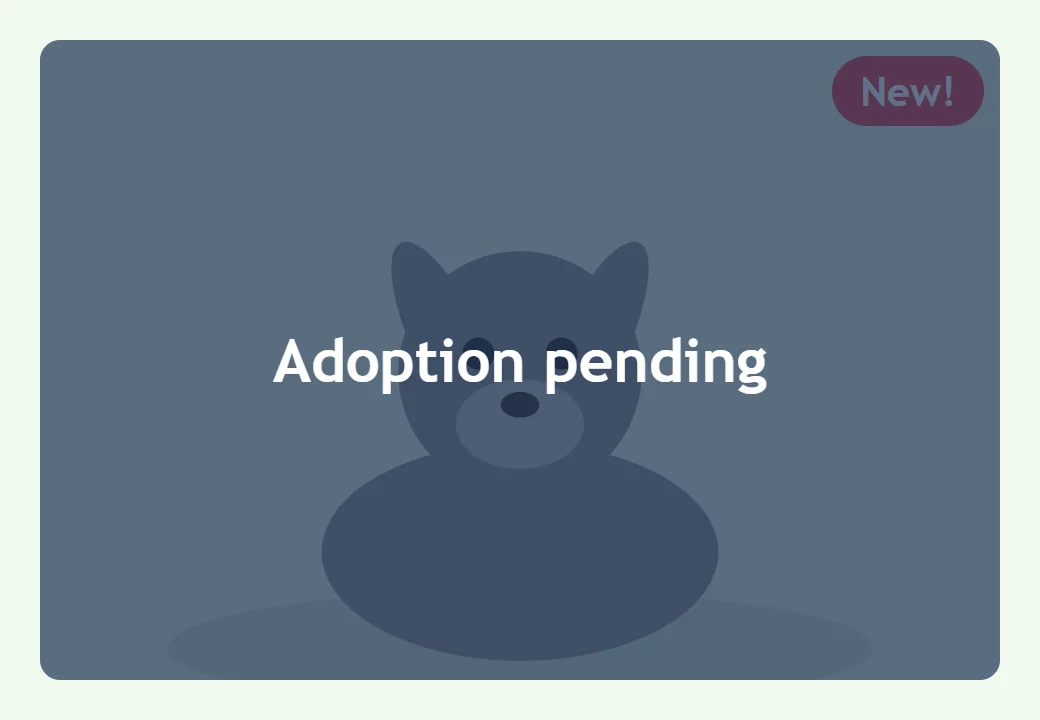
![Clover's photo with the see-through Adoption pending overlay on top of it, and the New! badge hidden underneath the overlay because the overlay comes later in the HTML](https://fsdtrainingmedia.blob.core.windows.net/public/images/2026/10/4078b91551de4c04bd9277e4f4e309a1.webp)

## z-index: choosing the layer

The page is flat, but think of it as having depth. Left to right is the **x** direction, top to bottom is **y**, and the direction from the screen toward your eyes is **z**. The **z-index** property (read "z index") gives an element a layer number along that direction. A higher number sits in front of a lower one:

```css
.pending-overlay {
  position: absolute;
  inset: 0;
  z-index: 1;
}

.badge {
  position: absolute;
  top: 8px;
  right: 8px;
  z-index: 2;
}
```

Now the badge, at layer 2, sits in front of the overlay, at layer 1, whatever their order in the HTML. Elements with no `z-index` (its starting value is `auto`) count as layer 0. A negative value such as `z-index: -1;` puts an element behind the boxes in normal flow.

`z-index` works on positioned elements, and on flex and grid items (the boxes inside a flexbox or grid layout, which the next two chapters teach), even when they're `static`. On any other static element, it does nothing. So when a z-index seems to do nothing, check the element's position first:

```css
.photo-caption {
  z-index: 10;
}
```

This caption is static, so its 10 is ignored. Adding `position: relative;` makes it count.

**Try it.** In your `adoption-list` folder, make `stacking.html` with Clover's photo frame above, a `<style>` element with the two rules, and `.photo { position: relative; }`. Give the badge and the overlay background colors. Swap the two z-index values, save, and watch the badge disappear under the overlay.

## Stacking contexts: folders on the desk

Back to the desk. Now some of the papers are in folders. Inside a folder, you can shuffle the papers into any order. But a paper inside a folder can never come out above a folder that's lying on top of its own folder, however high it sits in its pile.

That folder is a **stacking context**: a group of boxes that stack together, as one layer, among the boxes around it. A `z-index` only competes with other z-index values inside the same stacking context. These start a new one:

- a positioned element (`relative` or `absolute`) with a `z-index` other than `auto`;
- every `fixed` and `sticky` element;
- a flex or grid item with a `z-index` other than `auto`;
- an element with `opacity` below 1, or with a `transform` or a `filter`;
- an element with `isolation: isolate;`, which does nothing else, so it's the way to start one on purpose.

The page itself is the outermost stacking context: the desk.

## Why z-index: 9999 still loses

Here is the shelter's bug. The sticky header has a "Find a pet" menu that drops down over the cards. Each card has `z-index: 2`, so a card can lift above its neighbors when the mouse is over it:

```css
.site-header {
  position: sticky;
  top: 0;
  z-index: 1;
}

.find-menu {
  position: absolute;
  z-index: 9999;
}

.pet-card {
  position: relative;
  z-index: 2;
}
```

The menu opens behind the cards. Its 9999 doesn't help, because the menu is inside the header's folder, and that whole folder is at layer 1. The cards' folders are at layer 2, so every card sits on top of the header and everything in it. The 9999 only beats other boxes inside the header.

**The fix is at the folder level.** Give the header a z-index higher than the cards, such as `z-index: 10;`, and the menu can drop down in front of them. The menu's own z-index can go back to a small number.

![Two versions of the adoption list with the Find a pet menu open: before the fix, the menu's bottom half is hidden behind the first row of pet cards; after the fix, the menu sits in front of the cards](https://fsdtrainingmedia.blob.core.windows.net/public/images/2026/10/ef3fe12a8cce4c338a2b4af942254548.webp)

A small plan keeps this from happening on a real site: use only a few z-index numbers, each with a job, such as 1 for layers inside a card, 10 for the header, and 100 for anything fixed above everything. Pick the numbers once, write them down, and every new piece fits in.

## Something that appears: a tooltip and a menu that opens

The "Find a pet" menu shouldn't hang over the cards all the time. It should stay out of the way until someone wants it, then drop down in front of everything. A tooltip is the same idea, smaller: point at a pet's name, and a little box above it says "3 years old, good with kids". Both are something that appears, and you already know every piece they need.

Here's a pet's name with its tooltip:

```html
<p class="has-tip">
  <a href="#biscuit">Biscuit</a>
  <span class="tip">3 years old, good with kids</span>
</p>
```

The first try hides the tip and shows it when the name is hovered:

```css
.has-tip {
  position: relative;
}

.tip {
  display: none;
  position: absolute;
  bottom: 100%;
  left: 0;
  z-index: 20;
  padding: 4px 8px;
  background-color: #1d3557;
  color: #ffffff;
}

.has-tip:hover .tip {
  display: block;
}
```

Read the last rule as "the tip inside a `.has-tip` that the mouse is over". `display: none` (from *Normal Flow and the display Property*) takes the tip out of the page until then. `position: absolute` inside the relative `.has-tip` places it, and `bottom: 100%` puts its bottom edge at the top of its parent, 100% of the parent's height up, so it sits right above the name. `z-index: 20` lifts it above the cards, as long as no folder holds it down.

Now put the mouse away and press **Tab** until the Biscuit link has focus. Nothing appears: a keyboard doesn't hover. People who use a keyboard, and many people with screen readers, never see the tip. **`:focus-within`**, read "focus within", fixes that. It matches an element when it, or anything inside it, has focus, so `.has-tip:focus-within` is "a `.has-tip` whose link has been tabbed to":

```css
.has-tip:hover .tip,
.has-tip:focus-within .tip {
  display: block;
}
```

Now the tip appears for the mouse and for the keyboard alike, and goes away when either one moves on. The tip needs something inside its parent that can take focus, such as a link or a button, or the keyboard has nothing to land on.

The menu that opens works the same way, with a button to tab to:

```html
<div class="find">
  <button>Find a pet</button>
  <ul class="find-menu">
    <li><a href="#dogs">Dogs</a></li>
    <li><a href="#cats">Cats</a></li>
    <li><a href="#rabbits">Rabbits</a></li>
  </ul>
</div>
```

```css
.find {
  position: relative;
}

.find-menu {
  display: none;
  position: absolute;
  top: 100%;
  left: 0;
  z-index: 20;
}

.find:hover .find-menu,
.find:focus-within .find-menu {
  display: block;
}
```

`top: 100%` hangs the menu right under the button. Tab to the button and the menu opens; tab on into its links and it stays open, because the focus is still within `.find`; tab past the last link and it closes. If the menu sits in the sticky header, the folder rule from the last section still holds: the header's own `z-index` decides whether the menu can drop down in front of the cards.

This is fine for small extras, such as a tooltip or a short menu. A site's main menu usually needs more: opening on a click and staying open, closing when someone presses **Escape**, and telling a screen reader whether it's open or closed. That takes JavaScript, the right tool for a menu that has to remember what the visitor did.

**Try it.** Add Biscuit's tooltip and the Find a pet menu to your `stacking.html`, with the hover rules only. Point at each, then press **Tab** to reach them: nothing shows. Add the `:focus-within` selectors and Tab again.

## Do it: bring the menu and the badge to the front

Two things on Paws & Whiskers' page are hidden behind other things. The *Find a pet* menu (shown open here) drops down behind Clover's card, even with `z-index: 9999`. And on Clover's photo, the **New!** badge is covered by the *Adoption pending* overlay. The stylesheet is in the box:

- The *Find a pet* menu drops down **in front of** the cards. Fix it at the folder level: the header stays sticky, and the cards keep their `z-index: 2`, so one can still lift above its neighbors.
- The **New!** badge shows **in front of** the *Adoption pending* overlay, whose layer is `1`.

Practiced live on the lesson page: write the CSS right there and check it.

## Check yourself

2 questions to try on the lesson page.

## So what

Whenever two things overlap, there's an order behind them, and now you can read it. When a z-index loses, look for the folder it's in: the fix is almost always one level up.

## Key terms

- [Z-index](https://www.ask-codey.com/glossary/z-index)
- [Stacking order](https://www.ask-codey.com/glossary/stacking-order)
- [Stacking context](https://www.ask-codey.com/glossary/stacking-context)
- [:focus-within](https://www.ask-codey.com/glossary/focus-within)

## Cheat sheets

- [Stacking: z-index and What Sits on Top](https://www.ask-codey.com/cheat-sheets/css-z-index-and-stacking-cheat-sheet)

## Related

- [Positioning: relative and absolute](https://www.ask-codey.com/lessons/css-position-relative-and-absolute)
- [Positioning: fixed and sticky](https://www.ask-codey.com/lessons/css-position-fixed-and-sticky)

Source: https://www.ask-codey.com/lessons/css-z-index-and-stacking
