Background Jobs: &, jobs, fg and bg
An & at the end of a command runs it in the background and gives you the prompt back; jobs lists what's running, Ctrl+Z pauses the job in front, fg and bg bring a job back or let it carry on behind you, and nohup keeps a job running after the terminal closes.
Journeyman · Unix · Linux · Updated
After this lesson you can
- Run a command in the background with &, and move a job with jobs, Ctrl+Z, fg and bg
- Keep a job running after the terminal closes with nohup, its output sent to a log file
Key takeaways
- An & at the end of a command runs it in the background: bash prints its job number and PID, and the prompt comes straight back. $! holds that PID.
- Send a background job's output into a file, so it doesn't mix with your typing.
- jobs lists this terminal's jobs. fg brings one to the front, Ctrl+Z pauses it, and bg lets a paused job carry on in the background. %1 means job 1.
- A paused job does nothing until you resume it, and bash reminds you about it when you try to exit.
- Closing a terminal sends its jobs the HUP signal, which stops them. nohup COMMAND > log 2>&1 & keeps one running.
You're exporting a vacation video from the terminal, and it'll take ten minutes. Until it's done, the terminal is busy, and you can't type a thing. You could open another tab, but on a server you've logged in to, one terminal may be all you have, and when you close the laptop, the export stops halfway. A web developer starts a development server and keeps working beside it; an administrator starts a long backup on a server and logs off. Both run the program in the background, behind their typing.
These examples use export-video.sh from the practice folder in What's Running: ps, top and htop, a pretend export that writes one line a second for ten minutes. Run them in ~/terminal-practice/processes.
Run it in the background: &
An & (read "and keep going") at the end of a command starts it in the background and hands the prompt straight back. A background job still prints into your terminal, right in the middle of your typing, so send its output into a file with > (Three Streams: Output, Errors and Input):
./export-video.sh > export.log &
[1] 3124
[1] is its job number in this terminal, and 3124 is its PID. $! (read "the last background PID") remembers that PID, so a script can save it and stop the job later:
echo $!
3124
Check how far it's got whenever you like:
tail -n 1 export.log
Exported frame 5 of 600
jobs, fg, Ctrl+Z and bg
jobs lists the jobs this terminal started:
jobs
[1]+ Running ./export-video.sh > export.log &
fg (for foreground) brings a job back to the front: bash prints its command, and the terminal is busy again. Now press Ctrl+Z. It pauses the job in front and gives you the prompt back; bash calls a paused job "Stopped":
fg
./export-video.sh > export.log
^Z
[1]+  Stopped                    ./export-video.sh > export.log
Paused really means paused. Ctrl+Z sends the job a signal of its own, TSTP (terminal stop), and it freezes where it is, keeping its memory and its open files. Look at the log twice, three seconds apart:
tail -n 1 export.log; sleep 3; tail -n 1 export.log
Exported frame 10 of 600
Exported frame 10 of 600
bg (for background) lets a paused job carry on, behind you, as if you'd started it with &:
bg
[1]+ ./export-video.sh > export.log &
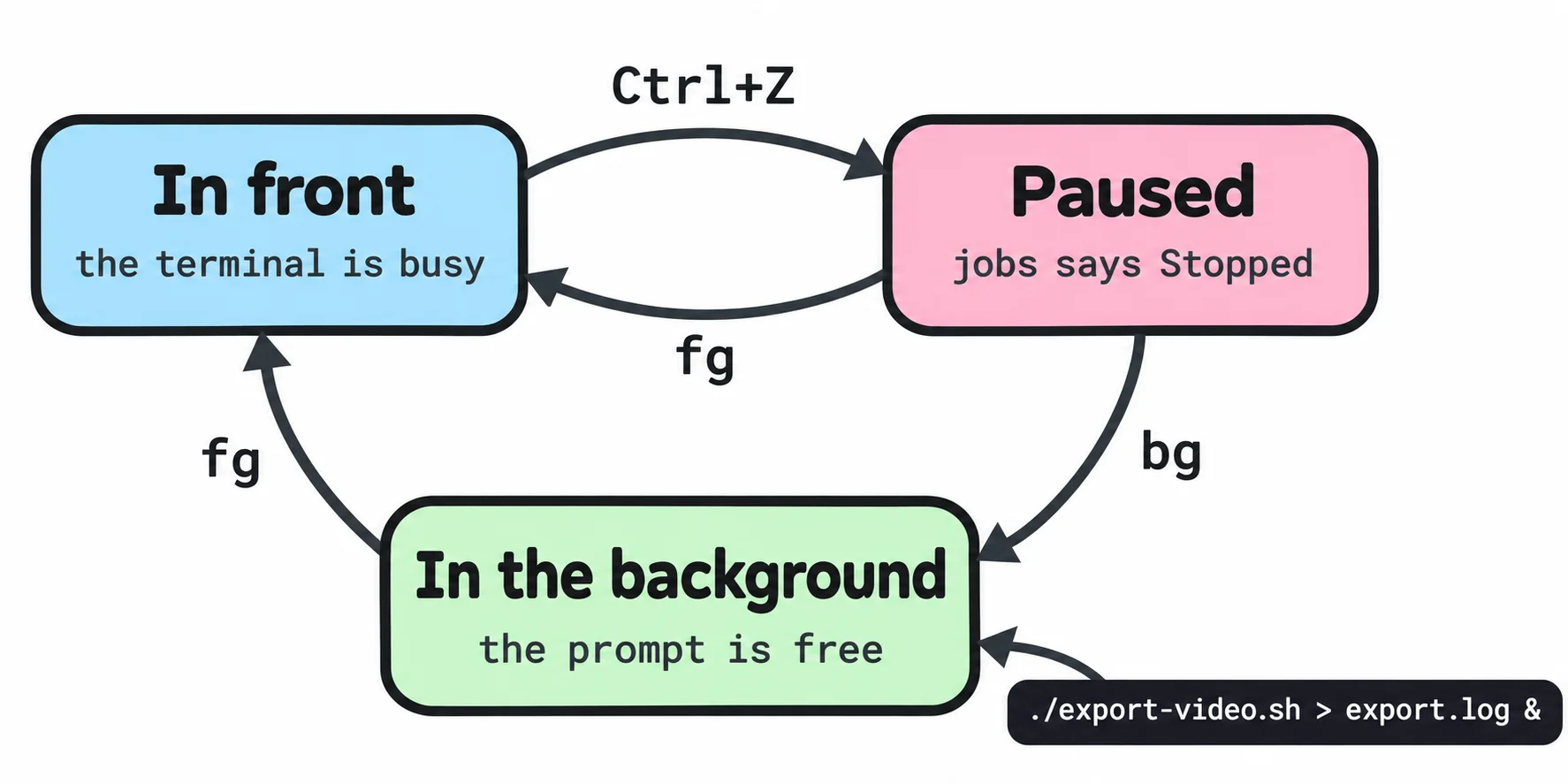
Moving jobs between the front and the back like this is called job control. With more than one job, name each with % and its number: fg %2, bg %1. kill from Stopping Things: kill and Signals takes the same names, so you don't need the PID. The Terminated line shows the next time bash prints a prompt; press Enter if it doesn't appear:
kill %1
[1]+ Terminated ./export-video.sh > export.log
Don't leave a job paused
People press Ctrl+Z by mistake all the time: in most other programs, it means undo. Some people press it to get out of a program, too, and forget that the program is still there, paused and holding its files open. bash reminds you when you try to leave. Start the export in the front, press Ctrl+Z after a second, and type exit:
./export-video.sh > export.log
^Z
[1]+  Stopped                    ./export-video.sh > export.log
exit
exit
There are stopped jobs.
The terminal stays open. jobs shows the paused job: finish it with fg, or stop it with kill %1. Type exit a second time in a row and bash closes anyway, stopping the paused job with it.
Keep it running after you close the terminal: nohup
Closing a terminal "hangs it up", a phrase from the days when terminals were wired to computers over phone lines, and the system sends each of its jobs the HUP signal (for hang up), which stops them. Try it: open a new terminal tab, start ./export-video.sh > export.log & there, close that tab, and look from your first terminal. pgrep finds nothing, because the export is gone:
pgrep -af export-video
nohup (read "no hang up") starts a program that ignores HUP. Put it in front of the command, and send the errors to the log too with 2>&1:
nohup ./export-video.sh > export.log 2>&1 &
[1] 3534
Close that terminal, and look again from another one:
pgrep -af export-video
3534 bash ./export-video.sh
Still exporting, and tail export.log shows how far. When you're done practicing, stop it with pkill -f export-video. Without >, nohup saves the output in a file called nohup.out and says so:
nohup ./export-video.sh &
[1] 3593
nohup: ignoring input and appending output to 'nohup.out'
nohup suits a one-off job: a long download, a backup, an export. A program that must run all the time, such as a website, is set up as a service instead, which the system starts by itself. On a Mac, zsh has the same commands; it words its job messages a little differently, and it reminds you about running jobs, not only paused ones, when you exit.
Check yourself
2 questions to try on the lesson page.
So what
With &, jobs, fg, bg and nohup, one terminal can run a long job and still be yours to type in, and the job can outlive the terminal that started it.