Is It the Network? ping, curl -I and Ports
When a website or server doesn't answer, four quick checks find the broken link: ping asks whether the computer answers, curl -I whether the website does, ss or lsof which program is listening on a port, and dig which address a name points to.
Journeyman · Unix · Linux · Updated
After this lesson you can
- Check whether a computer answers with ping, and whether a website answers with curl -I
- Find what is listening on a port with ss or lsof, and what address a name points to with dig
Key takeaways
- ping -c 3 host asks a computer to answer three times. Replies mean it's on and reachable. Some servers ignore ping, so silence alone proves nothing.
- curl -I asks a website for its headers only. The first line's status code, such as 200 or 404, says whether the site itself works.
- A port is a numbered door on a computer, such as 22 for SSH and 443 for websites. ss -tln, or lsof on a Mac, shows which doors a program is listening at.
- dig +short name prints the IP address a name points to. Nothing back means the name doesn't exist, or doesn't point anywhere yet.
A book club member texts Sam: "The website's down!" Is it their Wi-Fi, the club's web address, the server, or the program on the server? Each needs a different fix, and guessing wastes an evening. Four one-line checks find which link in the chain is broken: does the computer answer, does the website answer, is the program listening, and does the name point to the right place. Help-desk techs and administrators run checks like these every day, and web developers reach for them whenever a site works on their own computer and nowhere else.
To practice on a site you control, serve the book club's pages from Copying Between Computers: scp and rsync with Python's small built-in web server. Open a second terminal window and type:
cd ~/terminal-practice/book-club/site
python3 -m http.server 8000
It keeps running in that window and serves the site at http://localhost:8000 until you press Ctrl+C there. (On a Mac, the first python3 may offer to install Apple's command line tools; say yes.) Type the rest in your first window.
Does the computer answer? ping
ping sends a computer a tiny "are you there?" and times each answer. -c 3 stops after three; without it, ping goes on until you press Ctrl+C:
ping -c 3 example.com
PING example.com (104.20.23.154) 56(84) bytes of data.
64 bytes from 104.20.23.154: icmp_seq=1 ttl=55 time=15.0 ms
64 bytes from 104.20.23.154: icmp_seq=2 ttl=55 time=16.1 ms
64 bytes from 104.20.23.154: icmp_seq=3 ttl=55 time=15.9 ms

--- example.com ping statistics ---
3 packets transmitted, 3 received, 0% packet loss, time 2003ms
rtt min/avg/max/mdev = 14.960/15.652/16.058/0.491 ms
104.20.23.154 is the computer's IP address, its number on the internet. Each reply took about 15 milliseconds (thousandths of a second), and none were lost: that computer is on, and the way to it works. Your numbers will differ. A name that doesn't exist fails before anything is sent: ping: bookclub.invalid: Name or service not known (a Mac words it differently). One catch: some servers ignore ping on purpose, so no replies doesn't prove a server is down. Go on to the next check.
Does the website answer? curl -I
curl -I (a capital I) asks a website for its headers only, the short lines that come before a page, and the first line holds the status code from Talking to the Web: curl. head -n 1 keeps that line:
curl -sI https://example.com | head -n 1
curl -sI http://localhost:8000/ | head -n 1
curl -sI http://localhost:8000/menu.html | head -n 1
HTTP/2 200
HTTP/1.0 200 OK
HTTP/1.0 404 File not found
200 means the website works; 404 means the website works but that page isn't there, so check the address or the deploy. If ping answers and curl doesn't, the computer is fine and the problem is the website program on it.
Is the program listening? Ports
One computer runs many programs that talk to the network, so its IP address is like an apartment building's street address, and each program waits behind its own numbered door: a port. SSH listens at port 22, websites at 80 (http) and 443 (https), and your practice site at 8000.
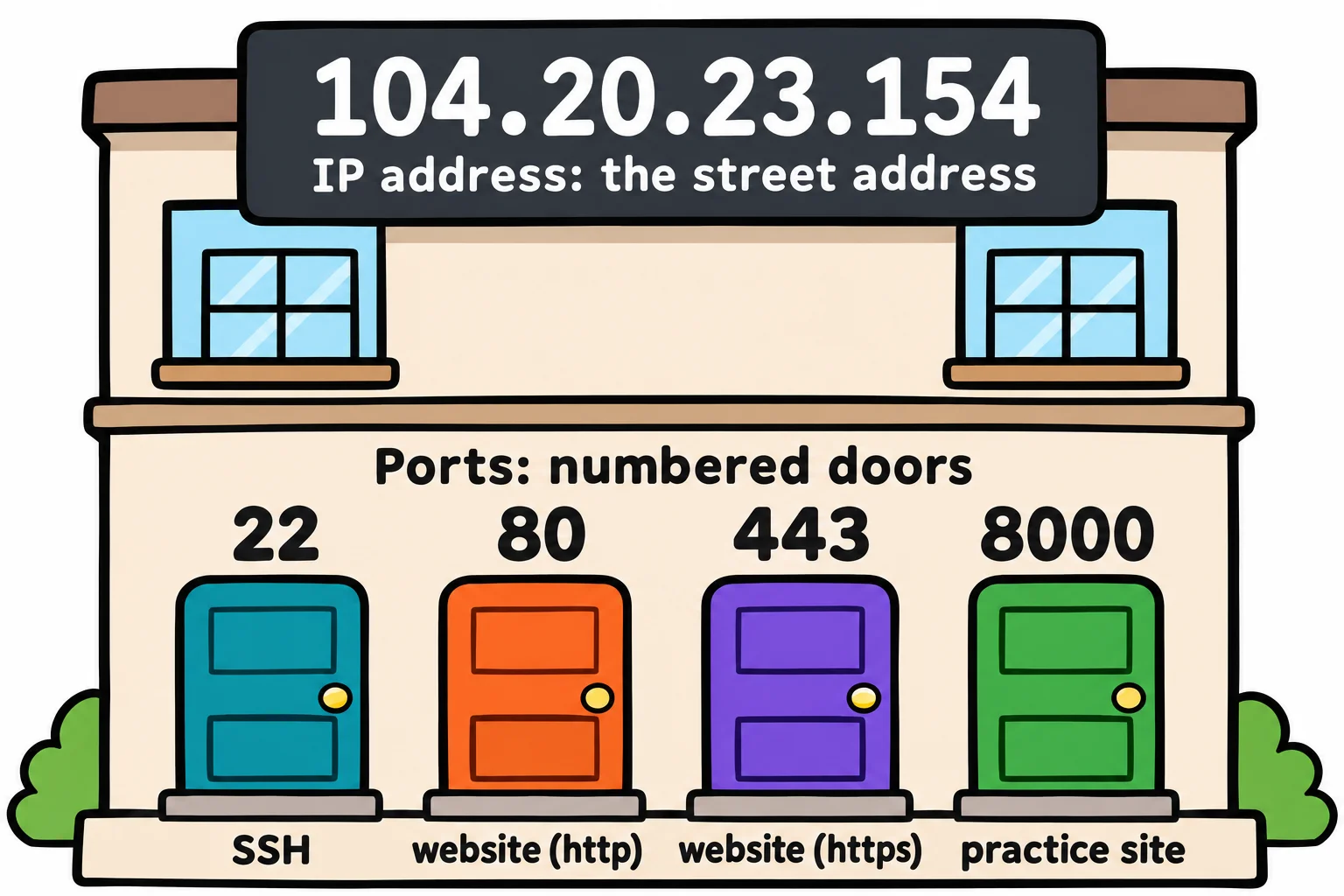
ss -tln lists the doors that programs are listening at (-t TCP, the kind websites and SSH use; -l listening; -n numbers instead of names). Ask about one port:
ss -tln 'sport = :8000'
State  Recv-Q Send-Q Local Address:Port Peer Address:Port
LISTEN 0      5            0.0.0.0:8000      0.0.0.0:*
0.0.0.0:8000 reads "listening at door 8000, on every address this computer has". lsof -i names the program behind the door, with its process number (What's Running: ps, top and htop):
lsof -i :8000
COMMAND  PID USER FD   TYPE  DEVICE SIZE/OFF NODE NAME
python3 2572  sam 3u  IPv4 1859819      0t0  TCP *:8000 (LISTEN)
Now press Ctrl+C in the second window, and ask again:
curl -sSI http://localhost:8000/
ss -tln 'sport = :8000'
curl: (7) Failed to connect to localhost port 8000 after 0 ms: Could not connect to server
State Recv-Q Send-Q Local Address:Port Peer Address:Port
Nothing listens, so nothing answers: the program stopped. On a server, ss -tln shows at a glance whether the web server is at 80 and 443 and SSH at 22. A Mac has no ss; lsof -iTCP:8000 -sTCP:LISTEN works on both. lsof shows other users' programs only with sudo.
Where does the name point? dig
Computers find each other by number; DNS, the internet's address book, turns a domain name such as example.com into an IP address. dig +short looks a name up and prints only the answer:
dig +short example.com
dig +short bookclub.invalid
172.66.147.243
104.20.23.154
example.com points at two addresses, and bookclub.invalid at none, so the second line prints nothing. When a new site's name was set up today, or moved to a new server, dig tells you whether the name already points at the new address. If Ubuntu says dig: command not found, install it with sudo apt install bind9-dnsutils; a Mac has it already.
| What you saw | Where it breaks |
|---|---|
dig prints nothing |
The name: it doesn't exist, or doesn't point anywhere yet |
ping fails, curl fails |
The computer, or the way to it |
ping answers, curl can't connect |
The website program, or its port: check ss -tln on the server |
curl shows 404 |
The page: check the address, or what the deploy sent |
Check yourself
2 questions to try on the lesson page.
So what
"It's down" can mean four different things. Four short checks, from the name to the page, tell you which one, so you fix the right thing first.