Backups That Work: rsync
rsync -a copies a folder and, every time after the first, only the files that changed; a slash at the end of the source means "what's inside"; --delete makes the backup a mirror, so rehearse it with -n first; and a backup counts only once you've restored from it and compared the result with diff -r.
Journeyman · Unix · Linux · Updated
After this lesson you can
- Back up a folder with rsync -a so only new and changed files are copied, and say what a slash at the end of the source changes
- Mirror a folder with --delete safely, rehearsing with -n first, and check a backup with a restore test
Key takeaways
- rsync -av school-work/ backup-drive/ copies everything the first time, and after that only the files that are new or changed.
- A slash at the end of the source copies what's inside it; without the slash, rsync copies the folder itself.
- --delete removes files from the backup that are gone from the source. An empty or wrong source empties the backup, so rehearse with -n first.
- -n (--dry-run) lists what rsync would do and changes nothing; the summary ends with (DRY RUN).
- Test a backup by restoring it into a new folder and comparing with diff -r: no output means every file matches.
Your school work is copied into a backup folder every evening. Tonight's copy and last night's are almost the same: you changed one essay. cp -r copies every file anyway, and once the folder holds a few gigabytes of photos for a science project, the backup takes half an hour every night. There's a second problem: nobody has ever checked whether the copies open. rsync (read "R-sync", for remote sync) fixes the first, and this lesson's last section fixes the second. Administrators back up servers with it, and web developers use it to send a site's changed files to the server.
The examples use the school folder from Scheduled Jobs: cron, with a pretend backup drive, backup-drive, as the destination.
rsync: copy only what changed
Ubuntu usually comes with rsync. Check:
rsync --version | head -n 1
rsync version 3.4.1 protocol version 32
If it's missing, sudo apt install rsync adds it (that changes your computer, so it asks for your password). A Mac has an rsync of its own, which can be older or different, so its messages and some options may not match this lesson; brew install rsync gives you the current one.
-a (read "archive") copies folders inside folders and keeps every file's date and permissions; -v (read "verbose") lists what it copies:
rsync -av school-work/ backup-drive/
sending incremental file list
created directory backup-drive
./
english/
english/essay.txt
english/old-outline.txt
english/reading-list.txt
history/
history/notes.txt
science/
science/lab-report.txt

sent 656 bytes  received 165 bytes  1,642.00 bytes/sec
total size is 145  speedup is 0.18
Everything, the first time. Run the same line again, and the list is empty: nothing changed, so nothing was copied. rsync compares each file's size and date with the copy's, which is why -a keeping the dates matters. Now change the essay and run it once more:
echo "Second draft: added the library's history" >> school-work/english/essay.txt
rsync -av school-work/ backup-drive/
sending incremental file list
english/essay.txt

sent 414 bytes  received 38 bytes  904.00 bytes/sec
total size is 187  speedup is 0.41
One file. With gigabytes of photos that haven't changed, that's the difference between half an hour and a second.
The slash at the end
school-work/, with a slash at the end, means "what's inside school-work". Without it, rsync copies the folder itself:
rsync -a school-work backup-drive-2/
ls backup-drive-2
school-work
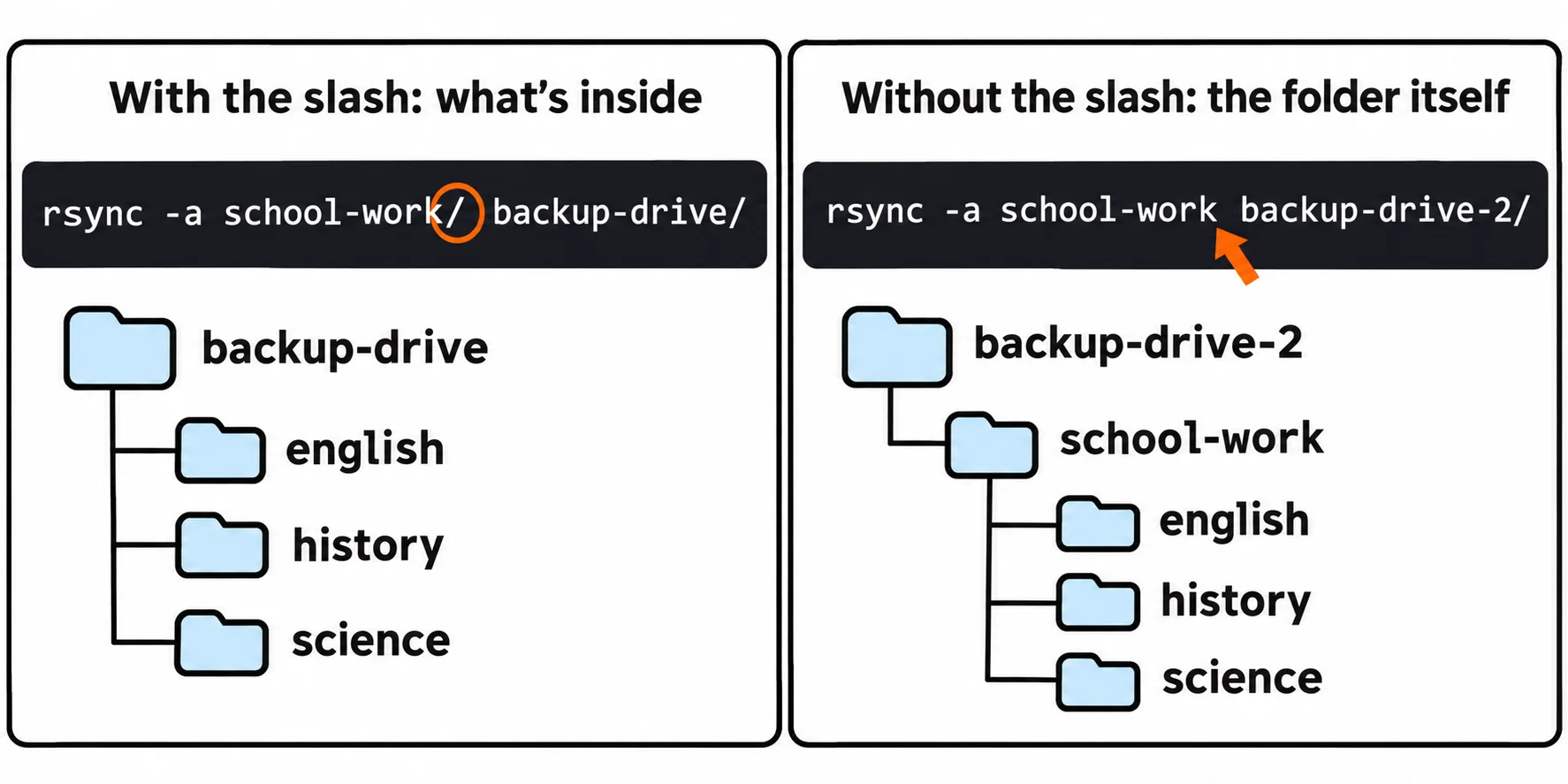
Both are useful; mixing them up gives you backup-drive/school-work/school-work. Remove the test copy with rm -r backup-drive-2. Most backups use the slash on both sides, as above.
--delete, with care, and -n to rehearse
You don't need the old outline any more. Delete it, and run the backup:
rm school-work/english/old-outline.txt
rsync -av school-work/ backup-drive/
ls backup-drive/english
sending incremental file list
english/

sent 260 bytes  received 18 bytes  556.00 bytes/sec
total size is 154  speedup is 0.55
essay.txt
old-outline.txt
reading-list.txt
The backup still has it. That's safe, but over a year the backup fills with files you threw away. --delete makes the backup a mirror: whatever is gone from the source is deleted from the backup too. Deleting is the risky part, so rehearse first. -n (read "dry run", or write --dry-run) lists what rsync would do and changes nothing:
rsync -avn --delete school-work/ backup-drive/
sending incremental file list
deleting english/old-outline.txt

sent 257 bytes  received 49 bytes  612.00 bytes/sec
total size is 154  speedup is 0.50 (DRY RUN)
One file, the right one. Run the same line without the n, and it's gone from the backup. Here's why the rehearsal matters: you meant to back up from a USB stick that isn't plugged in, and its folder is empty. A mirror of nothing is nothing:
mkdir usb-stick
rsync -avn --delete usb-stick/ backup-drive/
sending incremental file list
deleting science/lab-report.txt
deleting science/
deleting history/notes.txt
deleting history/
deleting english/reading-list.txt
deleting english/essay.txt
deleting english/
./

sent 60 bytes  received 158 bytes  436.00 bytes/sec
total size is 0  speedup is 0.00 (DRY RUN)
Without -n, that would have emptied your backup. Remove the empty folder with rmdir usb-stick. A script that uses --delete should check its source isn't missing or empty first.
A restore test
A backup you've never restored from is only a hope. Copy the backup back into a new folder, and compare it with the original with diff -r (read "diff, recursive"), which compares two folders file by file and prints only the differences:
rsync -a backup-drive/ restore-test/
diff -r school-work restore-test && echo "The restore matches."
The restore matches.
No differences, so every file came back whole. If a file differed, diff would name it and show the lines that don't match. Do this once when you set up a backup, and again every few months. In backup.sh, the cp line becomes if rsync -a --delete school-work/ backup/; then, and Exercise: Back Up While You Sleep puts it together with the log and the lock from Scripts That Run Without You.
Check yourself
2 questions to try on the lesson page.
So what
rsync makes a nightly backup fast enough that you'll keep it, -n lets you see a mirror's deletions before they happen, and a restore test turns "I think I have a backup" into "I know I do".