Sourdough loaf: 7.00
' > site/menu.html printf '%s\n' '#!/usr/bin/env bash' '# start-server.sh: serves the site folder at http://localhost:8000.' '# Like most real servers, it takes a few seconds to get going.' 'sleep 3' 'exec python3 -u -m http.server 8000 --directory site' > start-server.sh chmod +x start-server.sh ``` Start a session named `bakery`, then start the server inside it: ```bash tmux new -s bakery ./start-server.sh ``` ```text $ ./start-server.sh Serving HTTP on 0.0.0.0 port 8000 (http://0.0.0.0:8000/) ... [bakery] 0:python3* "laptop" 15:15 09-Nov-26 ``` It looks like a fresh terminal, plus a bar along the bottom: tmux's **status line**. `[bakery]` is the session's name. `0:python3*` is window 0, named after the program running in it, and `*` marks the window you're in. On the right are the computer's name and the time. (These screens are 80 columns by 12 rows, with the prompt shortened to `$`.) ## Panes: Ctrl+B, then a key tmux has to tell its keys apart from the program's keys, so every tmux key starts with the **prefix key**, Ctrl+B: press Ctrl+B, let go, then press the key, as if you said "tmux, please" first. Ctrl+B then `%` (percent) splits the window side by side into two **panes**, each a terminal of its own. Your typing goes into the new pane on the right. Ask the server for the menu from there: ```bash curl -s localhost:8000/menu.html ``` ```text Serving HTTP on 0.0.0.0 port 8000 (http:│$ curl -s localhost:8000/menu.html //0.0.0.0:8000/) ... │Sourdough loaf: 7.00
T /menu.html HTTP/1.1" 200 - │$ │ │ │ │ │ │ │ [bakery] 0:bash* "laptop" 15:15 09-Nov-26 ``` The page arrives on the right, and the server's log on the left says it sent `/menu.html` with status 200. The keys you'll use most: | Keys | What they do | |---|---| | Ctrl+B `%` | Split the pane side by side | | Ctrl+B `"` | Split the pane one above the other | | Ctrl+B and an arrow key | Move to the pane in that direction | | Ctrl+B `z` | Zoom this pane to fill the window, and back | | Ctrl+B `c` | Open a new window: a whole new screen, like a browser tab | | Ctrl+B `n`, Ctrl+B `0` | Go to the next window, or to window 0 | | Ctrl+B `d` | Detach from the session | | Ctrl+B `?` | List every key (`q` closes the list) | `exit` closes a pane, as it closes a terminal. With two windows, the status line lists both, such as `0:bash- 1:bash*`: `*` for the one you're in, `-` for the one before. ## Detach, and come back later Ctrl+B `d` **detaches**: tmux disappears and you're back in the terminal you started it from, with one line to say so: ```text [detached (from session bakery)] ``` Nothing has stopped: the server is still running, with no window showing it: ```bash tmux ls curl -sI localhost:8000/ | head -n 1 ``` ```text bakery: 2 windows (created Mon Nov 9 15:15:07 2026) HTTP/1.0 200 OK ``` `tmux ls` (*list sessions*) shows the session, with `(attached)` at the end while a window shows it. `tmux attach -t bakery` (`-t` for *target*) brings it back as you left it, with any log lines that arrived meanwhile. That's the difference from an ordinary terminal: a **tmux session** lives on the computer, not in the window. Close the terminal window while you're attached, open a new one, and `tmux ls` still lists `bakery`. A dropped ssh connection is the same. 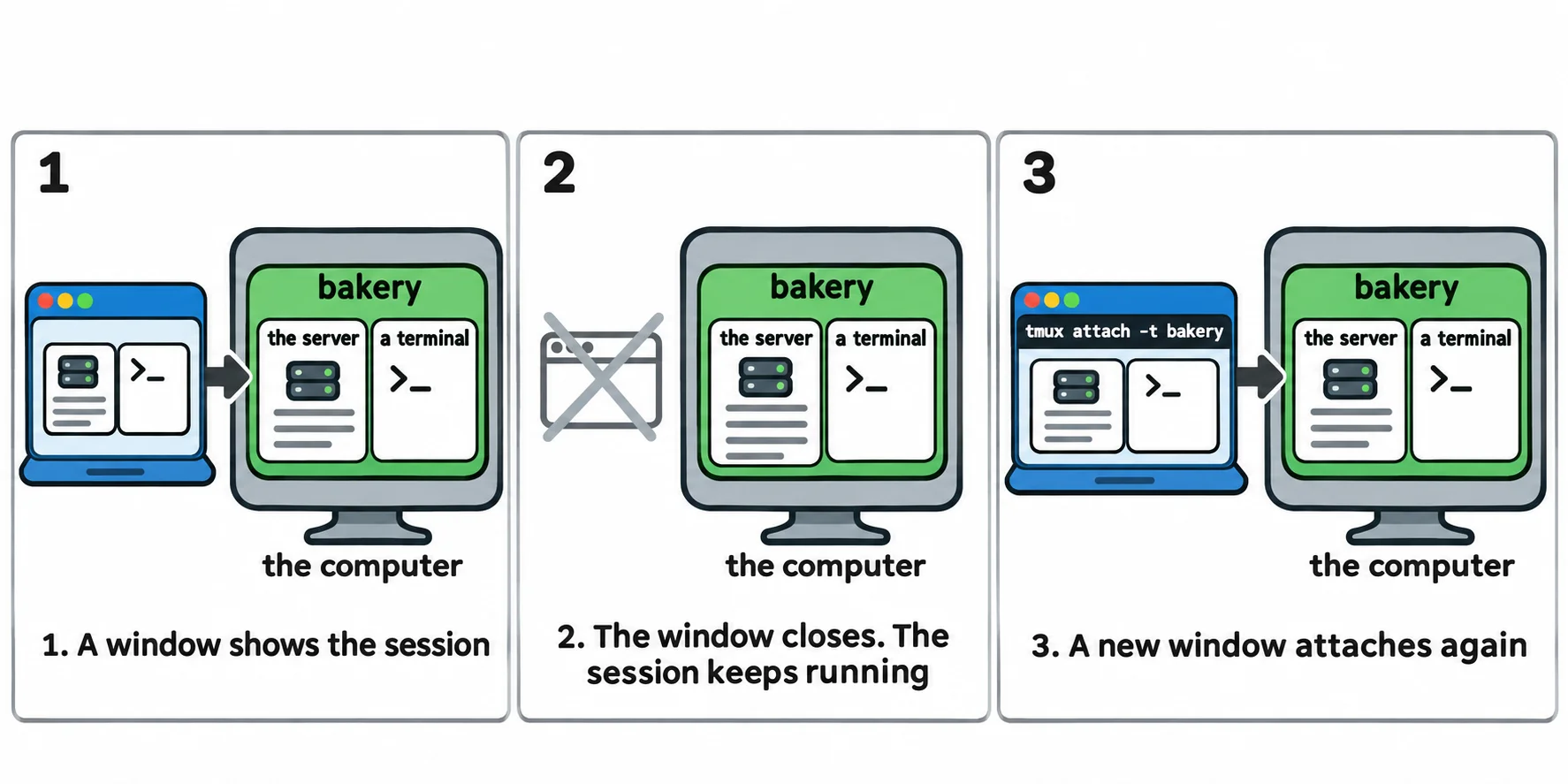 On a server, start tmux as soon as you've logged in with ssh (*Logging In to Another Computer: ssh*), and run long jobs inside it. If the connection drops, log in again and type `tmux attach`: with one session, you don't need its name. When you're finished, `tmux kill-session -t bakery` stops the session and everything in it, the server included. ## A layout from a script Building the same panes by hand every morning gets old, and every tmux key has a command a script can run. `tmux new -d` makes a session without attaching to it (`-d` for *detached*), and a command after the name runs in its first pane instead of a shell. `tmux split-window -h -t bakery` adds a pane beside it (`-h` for *horizontal*; `-v` puts it below), and it takes a command at the end too. Save this as `bakery-layout.sh` in the practice folder: ```bash #!/usr/bin/env bash # bakery-layout.sh: the site's server on the left, a terminal for you on the right. cd "$(dirname "$0")" || exit 1 if ! tmux has-session -t bakery 2>/dev/null; then tmux new -d -s bakery ./start-server.sh tmux split-window -h -t bakery fi tmux attach -t bakery ``` `tmux has-session -t bakery` succeeds only when the session exists, so a second run attaches to the one you have instead of failing with `duplicate session: bakery`. Run it: ```bash chmod +x bakery-layout.sh ./bakery-layout.sh ``` ```text Serving HTTP on 0.0.0.0 port 8000 (http:│$ //0.0.0.0:8000/) ... │ │ │ │ │ │ │ │ │ │ [bakery] 0:bash* "laptop" 15:17 09-Nov-26 ``` One command now sets up your morning. Ctrl+C in the server's pane stops the server and closes its pane. On a Mac, tmux works the same in zsh. ## Check yourself 2 questions to try on the lesson page. ## So what tmux turns one terminal into a workspace that waits for you: several terminals side by side, and a session that keeps running when the window closes or the connection drops. ## Key terms - [tmux](https://www.ask-codey.com/glossary/tmux) - [Terminal Multiplexer](https://www.ask-codey.com/glossary/terminal-multiplexer) - [tmux Session](https://www.ask-codey.com/glossary/tmux-session) - [Prefix Key](https://www.ask-codey.com/glossary/prefix-key) - [ssh](https://www.ask-codey.com/glossary/ssh) ## Cheat sheets - [tmux: Panes, Windows and Sessions](https://www.ask-codey.com/cheat-sheets/bash-tmux-cheat-sheet) ## Related - [Background Jobs: &, jobs, fg and bg](https://www.ask-codey.com/lessons/bash-background-jobs) - [Logging In to Another Computer: ssh](https://www.ask-codey.com/lessons/bash-ssh) - [Is It the Network? ping, curl -I and Ports](https://www.ask-codey.com/lessons/bash-network-checks) Source: https://www.ask-codey.com/lessons/bash-tmux