# Pictures from CSS: Background Images
background-image puts a decorative picture behind an element's content, on top of its background-color, and background-repeat, background-size and background-position decide whether it tiles, how big it is and where it sits.
Novice · CSS · Updated November 2, 2026
## After this lesson you can
- Put a decorative picture behind an element with background-image and url(), over a background-color that keeps the text readable
- Size, place and repeat a background picture with background-size, background-position and background-repeat
## Key takeaways
- A picture that tells the reader something belongs in the HTML as an `![]() ` with alt text. A picture that only decorates goes in the CSS, with `background-image` and `url()`.
- The background-color sits under the picture. It shows wherever the picture is see-through, and it fills the whole box when the picture doesn't load.
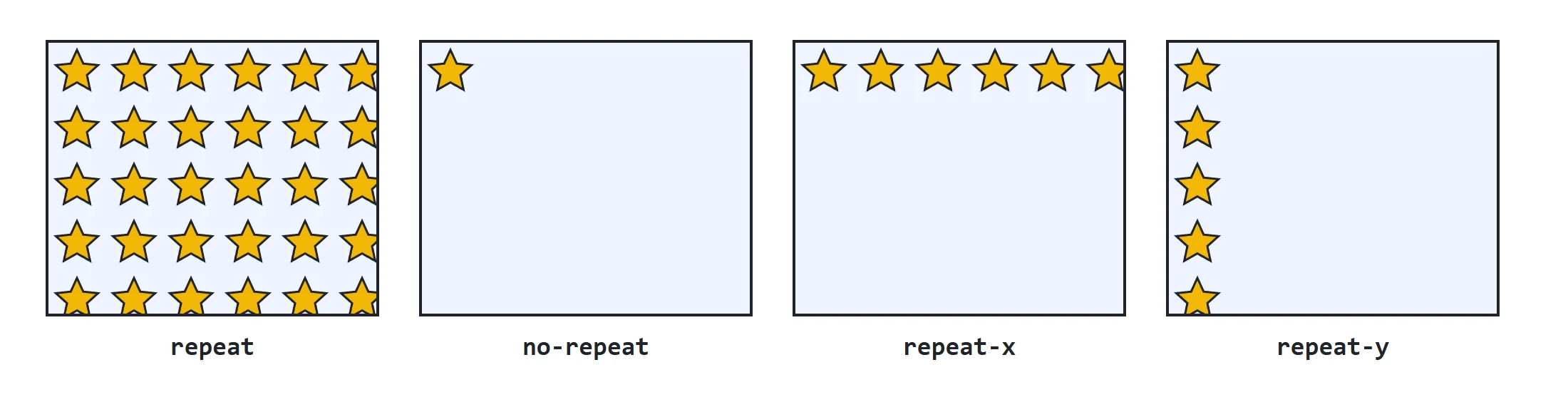
- A background picture repeats like floor tiles unless you say otherwise. `no-repeat` shows it once, and `repeat-x` makes one row of copies, a strip.
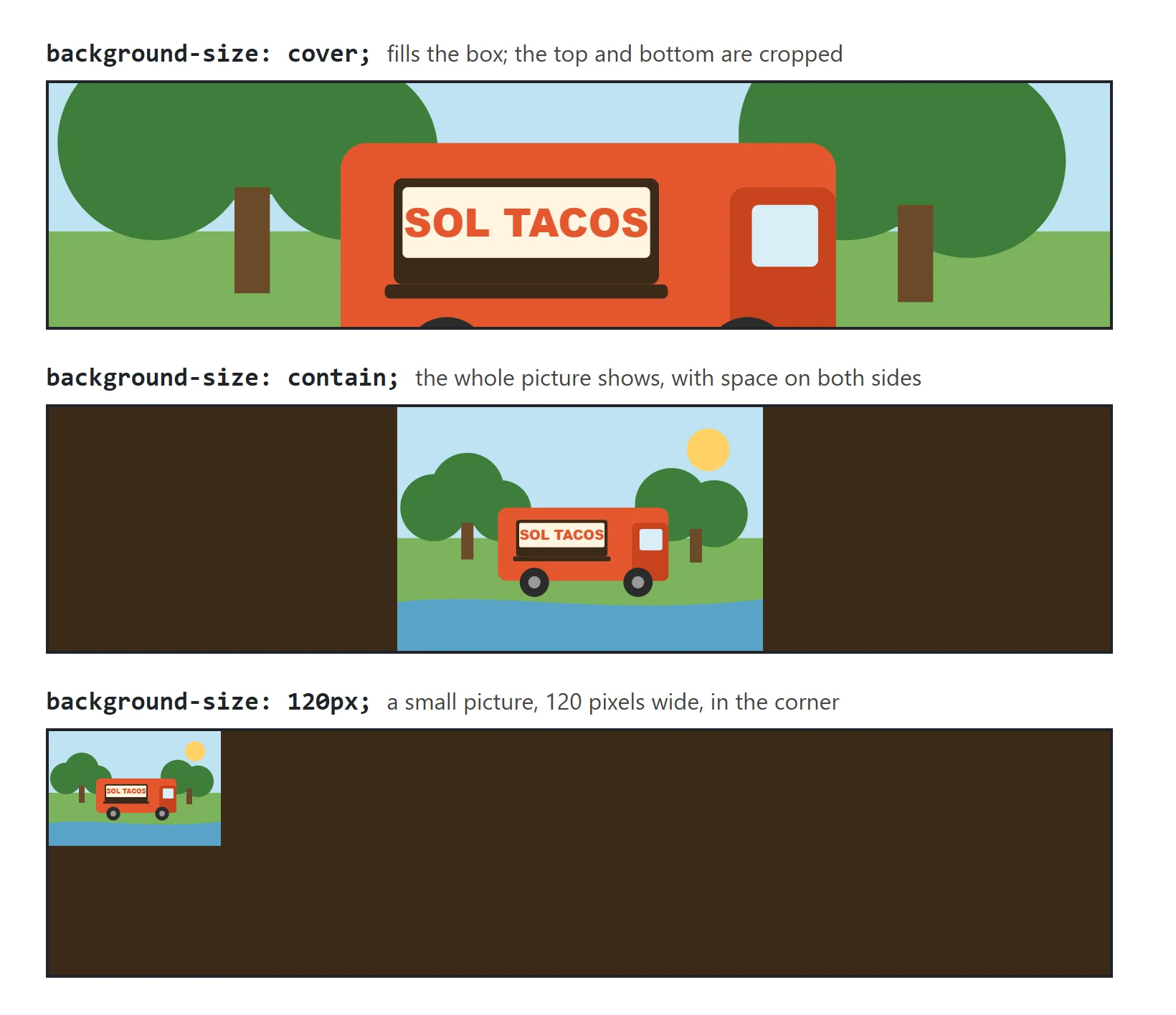
- `background-size: cover` fills the whole box and crops what doesn't fit, `contain` shows the whole picture, and a length such as `16px` sets its width.
- `background-position` sets where the picture sits, such as `center` or `left center`, and which part stays in view when `cover` crops it.
Walk up to Sol Taco Truck and you see the truck before you read a word: orange paint, a string of paper flags over the window, and the menu chalked on a blackboard. The owner wants the website to feel the same, with a photo of the truck behind the name, a chalkboard behind the menu and flags over each section. CSS can put pictures like these behind any element, from the stylesheet. You'll use it for the big photo behind a site's name, a paper or wood texture behind a page, a small icon beside a label, and a decorative strip along an edge.
## A picture to read, or a picture to set the mood?
A restaurant has two kinds of pictures. The photos on the menu show what the tacos look like: they're part of what you came to read. The wallpaper only sets the mood, and nobody would miss any information if it were gone. Web pages sort pictures the same way:
- **A picture that tells the reader something**, such as a photo of a dish, a chart, or a pet up for adoption, is content. It goes in the HTML as an `
![]() ` element with alt text, so people using a screen reader hear what it shows.
- **A picture that only decorates**, such as a texture, a banner of flags or a mood photo behind a heading, goes in the CSS as a **background image**. Screen readers skip it, which is right for decoration, and you can swap it without touching the HTML.
When you can't decide, ask: if this picture didn't load, would the reader miss information? If they would, it's an `
![]() `.
## background-image and url()
`background-image` hangs a picture behind an element's content, inside its box. The picture comes from a file, named inside `url()`, read "U R L". A URL is an address, and here it's the address of the picture file:
```css
body {
background-image: url("images/chalkboard.png");
}
```
The address is a **relative path**, directions that start from where the stylesheet is: go into the `images` folder and find `chalkboard.png`. In this course `styles.css` sits beside `index.html`, so that's the page's folder too. The quotes are optional, but they're a good habit: a file name with a space in it works only inside quotes.
`chalkboard.png` is a small square of chalkboard, 200 by 200 pixels. (A **pixel**, written `px`, is one of the tiny dots a screen is made of.) The page is far bigger, so the browser does what a tiler does with a kitchen floor: it lays copy after copy, in rows, until the box is covered. A picture drawn so its edges meet with no visible seam is called a **tile**, or a **texture**, and its copies look like one big chalkboard. Every background picture tiles until you say otherwise, with `background-repeat`, below.
**Try it.** In your `sol-taco-truck` folder from *Type, Class and ID Selectors*, make a folder named `images`, and copy a small photo of your own into it as `tile.jpg`. Add the rule above to `styles.css`, with `url("images/tile.jpg")`, and save. The page fills with copies of your photo in rows. A photo shows its seams; a texture made for tiling doesn't.
## The color underneath
Hang a poster with a torn corner on a painted wall, and the paint shows through the gap. An element's background works in the same two layers: the `background-color` is the paint, and the `background-image` is the poster on top of it. The color shows wherever the picture doesn't cover:
- where the picture is **transparent** (see-through). A PNG file can have see-through parts, such as the space around a pepper cut out of its photo;
- where the picture doesn't reach, when it isn't repeated;
- everywhere, when the picture doesn't load: a misspelled file name, a file left out when the site was uploaded, or a slow connection.
```css
body {
color: white;
background-color: #2f3b35;
background-image: url("images/chalkboard.png");
}
```
Without the `background-color`, a missing picture would leave white text on a white page, with nothing to read. With it, the page is still a dark board. So whenever text sits on a picture, give the element a background color close to the picture's own, one that keeps the text readable by itself.
A missing picture shows no error on the page. To find out why, press F12 (Cmd+Option+I on a Mac) and open the developer tools' **Console**: a red line ending in *404 (Not Found)* names the address the browser tried. Compare it with the file's real name, capital letters included.
**Try it.** Misspell the file name in your `url()` and save. The copies disappear, and only the background color is left (white, if you haven't set one). Find the 404 line in the Console, then fix the name.
## background-repeat: tiles, one copy, or a strip
Tiling suits a texture, but most pictures should appear once. `background-repeat` decides:
| Value | What it does | Good for |
|---|---|---|
| `repeat` | copies in rows and columns, filling the box (the default) | textures and patterns |
| `no-repeat` | one copy, no more | a photo, a logo, an icon |
| `repeat-x` | one row of copies, across | a strip along the top or the bottom |
| `repeat-y` | one column of copies, down | a strip down one side |
Read `repeat-x` as "repeat across" and `repeat-y` as "repeat down": x is the across direction and y the up-and-down one, as on a graph in math class.
The truck's flags are a strip. They're *papel picado*, the cut-paper flags hung at Mexican celebrations, and `papel-picado.png` is a short piece of the string, 40 pixels tall, see-through between the flags. `repeat-x` strings copies of it across each section heading:
```css
h2 {
padding-top: 48px;
background-image: url("images/papel-picado.png");
background-repeat: repeat-x;
}
```
`padding-top` adds 48 pixels of room inside the heading, above its words, so the flags hang over the text instead of behind it. Padding is part of *The Box Model: Content, Padding, Border and Margin*, in the next chapter; here, it makes space for the picture.
## background-size: cover, contain or a length
A picture comes at its own size. A photo from a phone can be 4,000 pixels wide, much wider than the screen, and the box shows only its top-left corner. `background-size` scales it:
- **`cover`**, like wallpaper that must cover the whole wall: the picture grows or shrinks, keeping its shape, until it covers the entire box. Whatever hangs over the edges is cut off, or **cropped**. No gaps, but some of the picture may be hidden.
- **`contain`**, like a photo in a frame that must show all of it: the picture grows or shrinks, keeping its shape, until the whole picture fits inside the box. Nothing is cropped, but there may be empty space on two sides.
- **A length**, such as `16px`: the picture's width. Its height follows, so it keeps its shape.
The big banner at the top of a page is called a **hero**, and the hero is where `cover` shines. The truck's name and today's special sit in a header:
```html
```
```css
.hero {
padding: 80px;
color: white;
background-color: #3b2a1a;
background-image: url("images/truck.jpg");
background-size: cover;
}
```
The 80 pixels of padding give the banner some height, and the truck photo fills it edge to edge on any screen: a phone crops more of the photo's sides, a wide screen more of its top and bottom. Choose a photo that's dark where the words sit, and keep the dark brown underneath, so the white text stays readable while the photo arrives.
`contain` has one surprise: the picture still repeats into the empty space beside it, unless you add `background-repeat: no-repeat`.
A length suits small pictures, such as an icon beside a word:
```css
.spicy {
padding-left: 22px;
background-image: url("images/jalapeno.png");
background-repeat: no-repeat;
background-size: 16px;
}
```
The jalapeño picture is 512 pixels wide, and `16px` shrinks it to sit beside the word *Spicy*, while `padding-left` makes room for it so it isn't under the letters. Around the pepper, the PNG is see-through, so the label's dark red `background-color` from *Color: Names, Hex, rgb() and hsl()* shows all around it.
To see what a length does to a big photo, give the hero's truck photo one in place of `cover`:
```css
.hero {
background-repeat: no-repeat;
background-size: 120px;
}
```
The photo shrinks to a small picture, 120 pixels wide, in the banner's top-left corner, with the dark brown all around it. Without `no-repeat`, copies of it would tile across the banner. A small length suits an icon; for a hero, `cover` is the better choice.
## background-position: where it sits
A background picture starts in the box's top-left corner. `background-position` moves it, with words you'd use to give directions: `left`, `center` or `right` across, and `top`, `center` or `bottom` down.
```css
.hero {
background-position: center;
}
.spicy {
background-position: left center;
}
```
- `center` puts the middle of the picture in the middle of the box. With `cover`, that decides which part survives the crop: the middle of the truck stays in view, and the edges are cut. If the truck's window were near the top of the photo, `center top` would keep the top in view instead.
- `left center` puts the pepper at the left edge, halfway down: right where `padding-left` made room for it.
Give one word, and the other direction is centered: `top` alone means `center top`. A position can also be lengths, such as `20px 10px` (20 pixels from the left, 10 from the top), but the words cover most needs.
**One line for all of it.** You'll see the `background` property in other people's CSS. It's a **shorthand** that sets the color, the picture, the repeat and the position in one declaration: `background: #2f3b35 url("images/chalkboard.png");`. Its trap: anything you leave out goes back to its default, so a later `background: white;` takes the picture away too. One property per line is clearer while you're learning.
**Try it.** Copy a wide photo of your own into `images`. In `index.html`, wrap the `
` and today's special in the `` above, and add the `.hero` rule to `styles.css` with your photo's name. Make the browser window narrow, then wide, and watch `cover` crop the sides, then the top and bottom. Then change `cover` to `contain`, and add `background-repeat: no-repeat`.
## Check yourself
2 questions to try on the lesson page.
## So what
A texture behind a page, a photo behind a name, a strip of flags over a heading and an icon beside a label are all `background-image` with a color underneath, plus three properties that tile, size and place it. Gradients, in *Finishing Touches: Rounded Corners, Shadows and Gradients*, are background images too: pictures the browser draws for you instead of loading from a file.
## Key terms
- [Background image](https://www.ask-codey.com/glossary/background-image)
- [Background color](https://www.ask-codey.com/glossary/background-color)
- [Background repeat](https://www.ask-codey.com/glossary/background-repeat)
- [Background size](https://www.ask-codey.com/glossary/background-size)
- [Background position](https://www.ask-codey.com/glossary/background-position)
## Cheat sheets
- [Pictures from CSS: Background Images](https://www.ask-codey.com/cheat-sheets/css-background-images-cheat-sheet)
## Related
- [Color: Names, Hex, rgb() and hsl()](https://www.ask-codey.com/lessons/css-color-values)
- [Put Your Page Online for Free](https://www.ask-codey.com/lessons/css-share-your-page-online)
- [Finishing Touches: Rounded Corners, Shadows and Gradients](https://www.ask-codey.com/lessons/css-shadows-corners-gradients)
Source: https://www.ask-codey.com/lessons/css-background-images