# Type, Class and ID Selectors
A selector tells the browser which elements a rule styles (every element of one kind, every element with a class, or the one element with an id), and commas let one rule style several selections at once.
Novice · CSS · Updated November 1, 2026
## After this lesson you can
- Choose the elements a rule styles with type, class and id selectors
- Write a selector list, the universal selector and comments in a stylesheet
## Key takeaways
- A type selector, such as `h2`, styles every element of that kind on the page.
- A class selector starts with a dot, as in `.spicy`, and styles every element with that class, whatever kind of element it is.
- An id selector starts with a hash, as in `#todays-special`, and styles the one element with that id.
- Commas make a selector list, so one rule styles several selections. The star, `*`, selects every element.
- Anything between `/*` and `*/` is a comment, a note for people that the browser skips.
Picture the window of a taco truck at lunchtime. The cook can call out "all tacos are up!", or "everything spicy, grab extra napkins", or "order 42, that one's yours". That's three ways of pointing: by kind, by a label that many things share, and by one name that belongs to one thing. CSS points in the same three ways. You'll use them in every stylesheet you write: when a class assignment says "make the prices bold", when a manager asks for the new menu items to stand out, and when a style lands on the wrong thing and you need to work out why.
## A selector says which elements
A CSS rule has two parts: a **selector**, then curly braces holding the styles. The selector is the pointing part. It names the elements the rule styles, and the browser finds every element on the page that matches. (If rules are new to you, *Your First CSS Rule* in this course's first chapter builds one step by step.)
Every example in this lesson styles the same page: the menu of Sol Taco Truck, a food truck that parks by the river. Here it is in full:
```html
Sol Taco Truck
Sol Taco Truck
Today's special: pineapple al pastor tacos
Tacos
Carne asada Spicy
Chicken tinga SpicyNew
Black bean and corn
Drinks
Horchata New
```
The `class` and `id` attributes are the hooks the selectors below hold on to. *Hooks for CSS: the class and id Attributes* explains how to add them, if you'd like a refresher.
**Try it.** In your `css-in-depth` folder, make a folder named `sol-taco-truck`, with this page as `index.html` and an empty `styles.css` beside it. Open `index.html` with Live Server. Keep it open: each section below adds a rule to `styles.css`.
## Type selectors: every element of one kind
The plainest selector is the name of an element, with no angle brackets. It's called a **type selector**, because it picks elements by their type. (In your textbook it may be called an *element selector* or a *tag selector*: same thing.)
```css
h2 {
color: darkorange;
}
```
Read it as "for every `h2`, set the color to dark orange". Both headings, *Tacos* and *Drinks*, turn orange, and a third `
` added tomorrow would turn orange too, with no change to the CSS. Type selectors are how you set a site's defaults: how every paragraph reads, how every heading looks.
## Class selectors: everything with the same label
Think of the "spicy" sticker the cook puts on a wrapper. Any item can get one, and anyone can spot every spicy item by the sticker. A **class** is that sticker for elements, and a **class selector** finds them: a dot, then the class name, read "dot spicy".
```css
.spicy {
color: white;
background-color: firebrick;
}
```
Both *Spicy* labels turn white on dark red. The selector cares only about the class, not the kind of element: a `
`, an `
` or an `
` with `class="spicy"` would be styled the same way.
One element can wear several classes, separated by spaces in the HTML: `class="label spicy"` has two. A `.label` rule styles all three labels, and a `.spicy` rule only the spicy two. That's how most real stylesheets work: a class for what every label shares, and another for what makes one kind different.
A class name in CSS must match the HTML exactly, capital letters included. `.Spicy` finds nothing on this page, because the HTML says `spicy`.
**Try it.** Add a `.new` rule that gives the *New* labels a `seagreen` background and `white` text. Save, and watch both *New* labels change, even though one is on a taco and one is on a drink.
## ID selectors: the one and only
An **id** is like the number on an order ticket: it belongs to one order, and calling it reaches exactly one person. An **id selector** is a hash, then the id, read "hash todays-special":
```css
#todays-special {
font-weight: bold;
background-color: gold;
}
```
Only today's special gets the gold background and bold text (`font-weight` gets its own section in *Fonts and Text: Family, Size, Weight and Spacing*). An id must be unique on its page, so an id selector always means one element.
Use ids sparingly in CSS. When an id rule and a class rule disagree about the same element, the id wins, and that strength makes styles hard to change later. *Specificity: Scoring a Selector*, in Module 2, shows exactly how the browser decides. For now, a good habit: style with classes, and save ids for the one-of-a-kind parts of a page and for links that jump to a spot on it.
## One rule, many selectors: commas and the star
Often several selections should look the same. Instead of writing the rule twice, list the selectors with commas between them. That's a **selector list**, and you can read each comma as "and also":
```css
h1, h2, #todays-special {
color: darkorange;
}
```
The main heading, both section headings and today's special all turn orange. Two things to know about lists:
- **The commas matter.** `h1 h2` with a space instead of a comma means something different (an `h2` inside an `h1`), which *Combinators: Descendant, Child and Sibling* teaches in Module 2. Here it would find nothing.
- **One broken selector breaks the whole list.** If one selector in the list is invalid, the browser skips the entire rule, not only that selector.
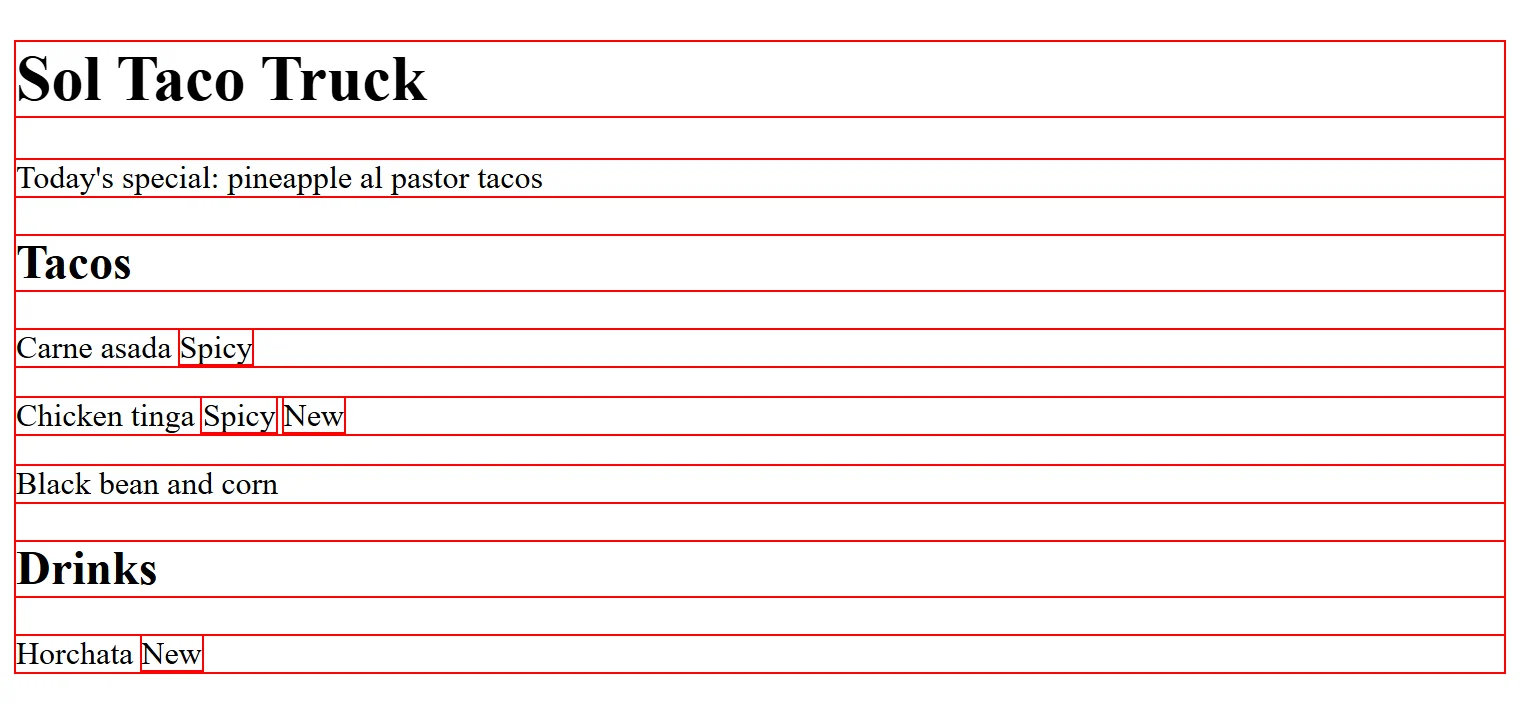
The **universal selector** is a star, `*`, read "star", and it selects every element on the page. A handy use while building a page:
```css
* {
outline: 1px solid red;
}
```
`outline` draws a line around an element, so this rule outlines every element and shows you where each one sits. Take it out when you're done. The star reaches everything, so it's for the few rules that truly belong on every element.
## Comments: notes the browser skips
A **comment** is a note for people reading the stylesheet, and the browser skips it. It starts with `/*` (read "slash star") and ends with `*/` ("star slash"), and it can cover one line or many:
```css
/* Menu labels: one class for every label, one for each kind */
.label {
font-weight: bold;
}
.spicy {
/* color: white; */
background-color: firebrick;
}
```
Comments label the parts of a long stylesheet and explain choices a reader might wonder about. They also switch a declaration off without deleting it: above, the spicy labels keep their dark red background, but their text goes back to the page's text color, until you remove the comment marks.
CSS has only the `/* */` kind. A line starting `//`, the comment of JavaScript and many other languages, is not a comment in CSS: the browser reads it as the start of a broken selector and skips the rule after it.
**Try it.** Comment out the color in your `.spicy` rule, as above, and save. Then put the line back. Finally, write `// test` on a line right above your `h2` rule, save, and watch the headings lose their orange. Delete the `//` line and they come back.
## Check yourself
2 questions to try on the lesson page.
## So what
Every style on every site starts with a selector. Pick by type for defaults, by class for most of your styling, and by id for the one-of-a-kind parts, and you can style exactly the elements you mean.
## Key terms
- [Type selector](https://www.ask-codey.com/glossary/type-selector)
- [Class selector](https://www.ask-codey.com/glossary/class-selector)
- [ID selector](https://www.ask-codey.com/glossary/id-selector)
- [Selector list](https://www.ask-codey.com/glossary/selector-list)
- [Universal selector](https://www.ask-codey.com/glossary/universal-selector)
- [Comment](https://www.ask-codey.com/glossary/comment-software-development)
## Cheat sheets
- [Type, Class and ID Selectors](https://www.ask-codey.com/cheat-sheets/css-selectors-type-class-id-cheat-sheet)
## Related
- [Hooks for CSS: the class and id Attributes](https://www.ask-codey.com/lessons/css-html-class-and-id)
- [Color: Names, Hex, rgb() and hsl()](https://www.ask-codey.com/lessons/css-color-values)
Source: https://www.ask-codey.com/lessons/css-selectors-type-class-id