HTML
HTML builds a page from elements, each an opening tag, content and a closing tag, and whether an element is block, inline or inline-block decides how it takes up room on the page.
Novice · HTML · CSS · Updated
After this lesson you can
- Write an HTML element with matching opening and closing tags and its attributes in the opening tag
- Tell block, inline and inline-block elements apart by how they share a row and whether width and height change them
- Build a page from the HTML skeleton and the common elements for headings, paragraphs, links, pictures, lists and tables
Key takeaways
- An element is an opening tag, its content and a closing tag with the same name. Void elements, such as img, have no closing tag.
- Attributes, such as id, class and href, go only in the opening tag and give the browser extra information.
- A block element takes a whole row. An inline element takes only the room its content needs, and width and height don't change it.
- An inline-block element sits in the row like an inline one, but you can change its width and height.
- Every page has the same skeleton (the doctype, then html with a head and a body), and the body holds everything the reader sees.
HTML defines the structure of a page.
HTML: Hyper Text Markup Language is a markup language designed to describe the structure of a web page.
Browsers are programmed to understand HTML markup and then display the contents on a screen. This markup is made up of elements, and each element is written with tags. Most elements come in pairs that consist of an opening <> and a closing tag </>. A few elements, such as <img>, <input> and <br>, have no closing tag; these are called void elements. The <body></body> element is the main canvas for our pages.
<html>
    <head>
    </head>
    <body>
    </body>
</html>
HTML Elements
Most HTML elements consist of an opening tag and a closing tag.
<div></div>
The closing tag name must match the name of the opening tag.
The opening tag can contain descriptive attributes. These attributes provide additional information to the browser on how to process the element.
<div id="main"
     class="container"
     style="background-color: whitesmoke;"
     title="Main content">
</div>
Attributes can only exist in the opening tag. CSS frequently uses these attributes to define an element's style.
The HTML Grid
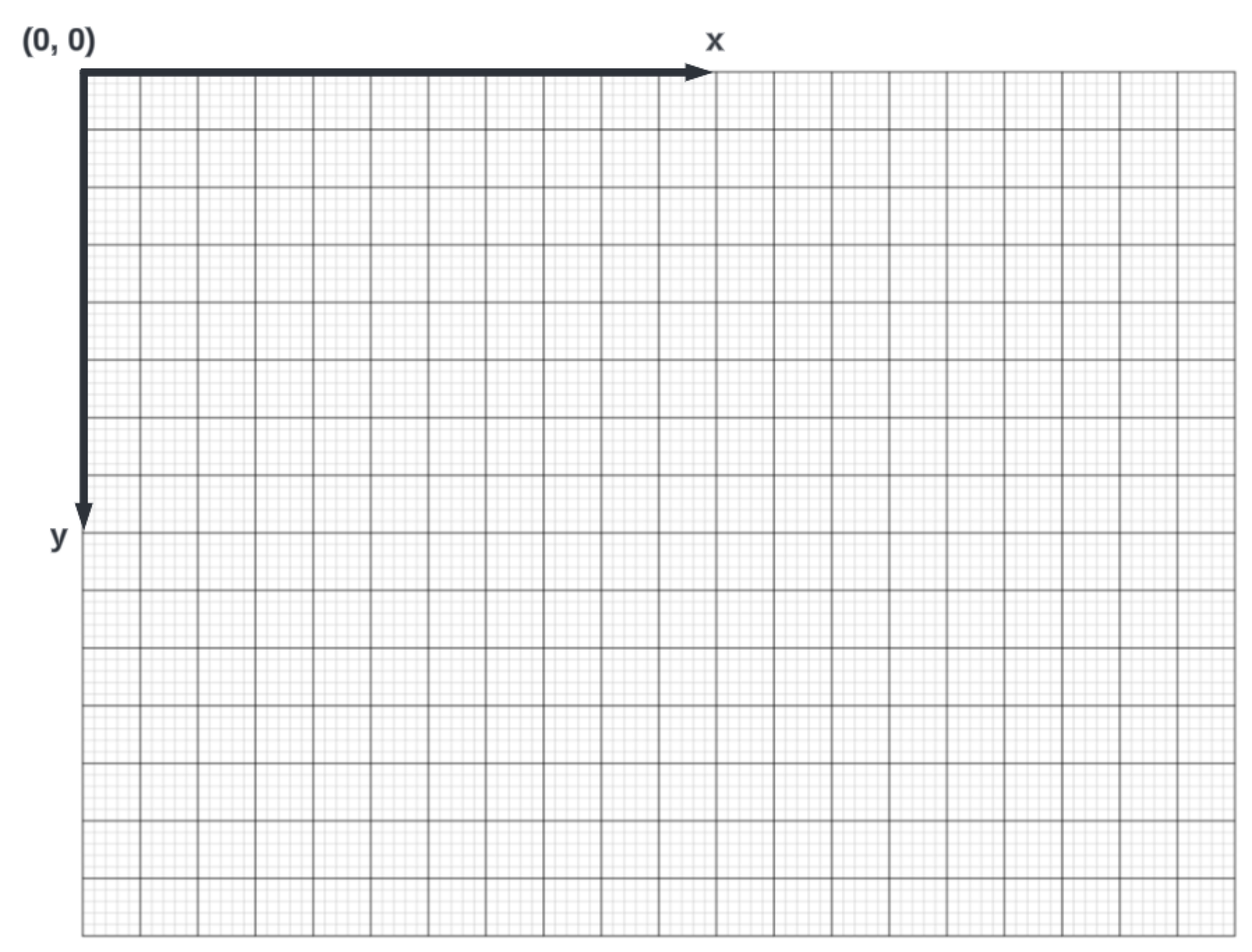
A browser window is a rectangle, so it is best to think of a screen as a rectangular canvas. The canvas is like a grid, or (x,y) coordinate plane, that begins at point (0,0) in the top left corner.
All HTML elements are also rectangular boundaries that are placed on that canvas. Each element has a beginning (x, y) point as well as a width and height. This means that each element occupies a rectangular space on the grid.
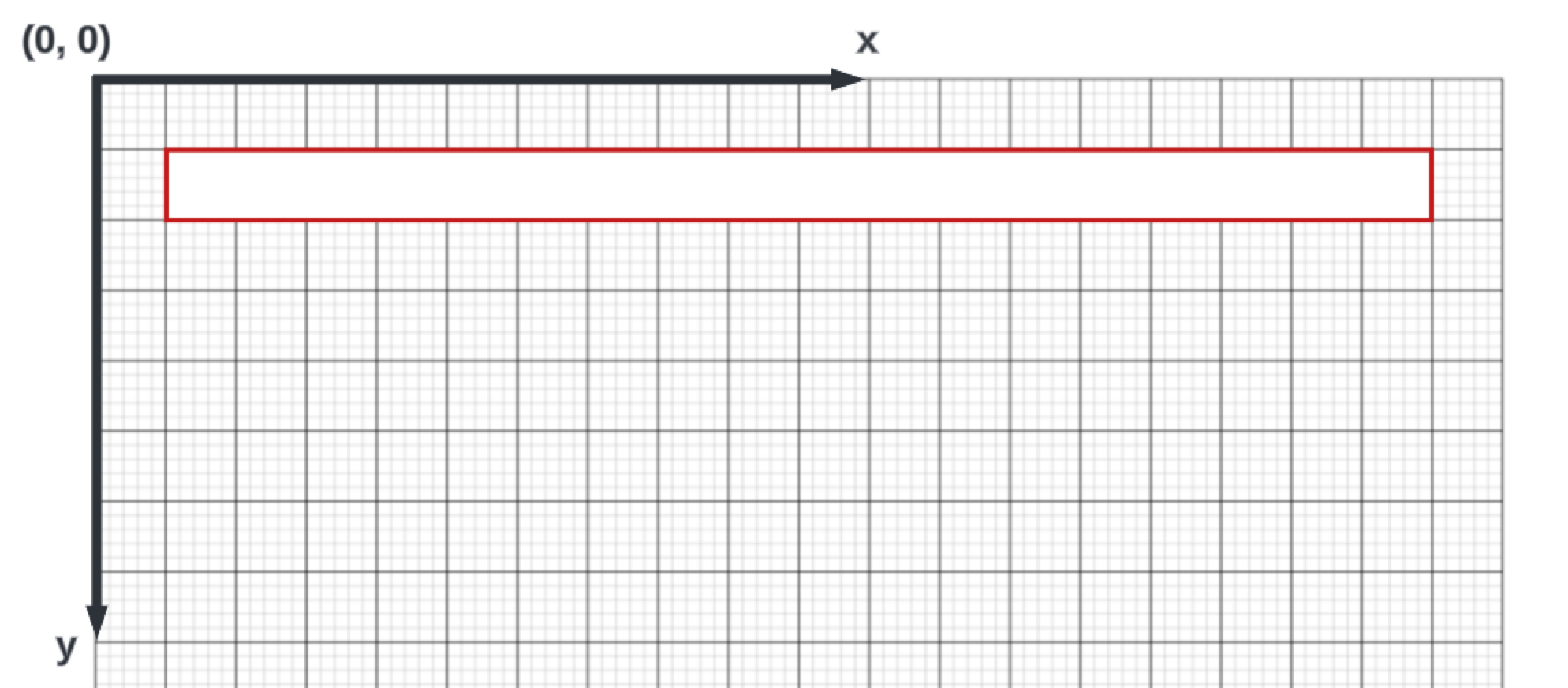
Note: The borders of elements aren't visible by default, but they occupy a defined space on the grid.
All HTML elements fall into 3 categories that define how the grid space is used: block, inline and inline-block.
W3Schools has a comprehensive list of HTML elements that fall into these categories https://www.w3schools.com/html/html_blocks.asp.
Note: On this page W3Schools does not differentiate between inline and inline-block elements. All inline-block elements are grouped with the inline elements.
`block` elements
Elements defined in the block category occupy an entire row (or block) of the grid. The browser will ensure that they are displayed at the beginning of the next line and that they occupy the entire width of that line.
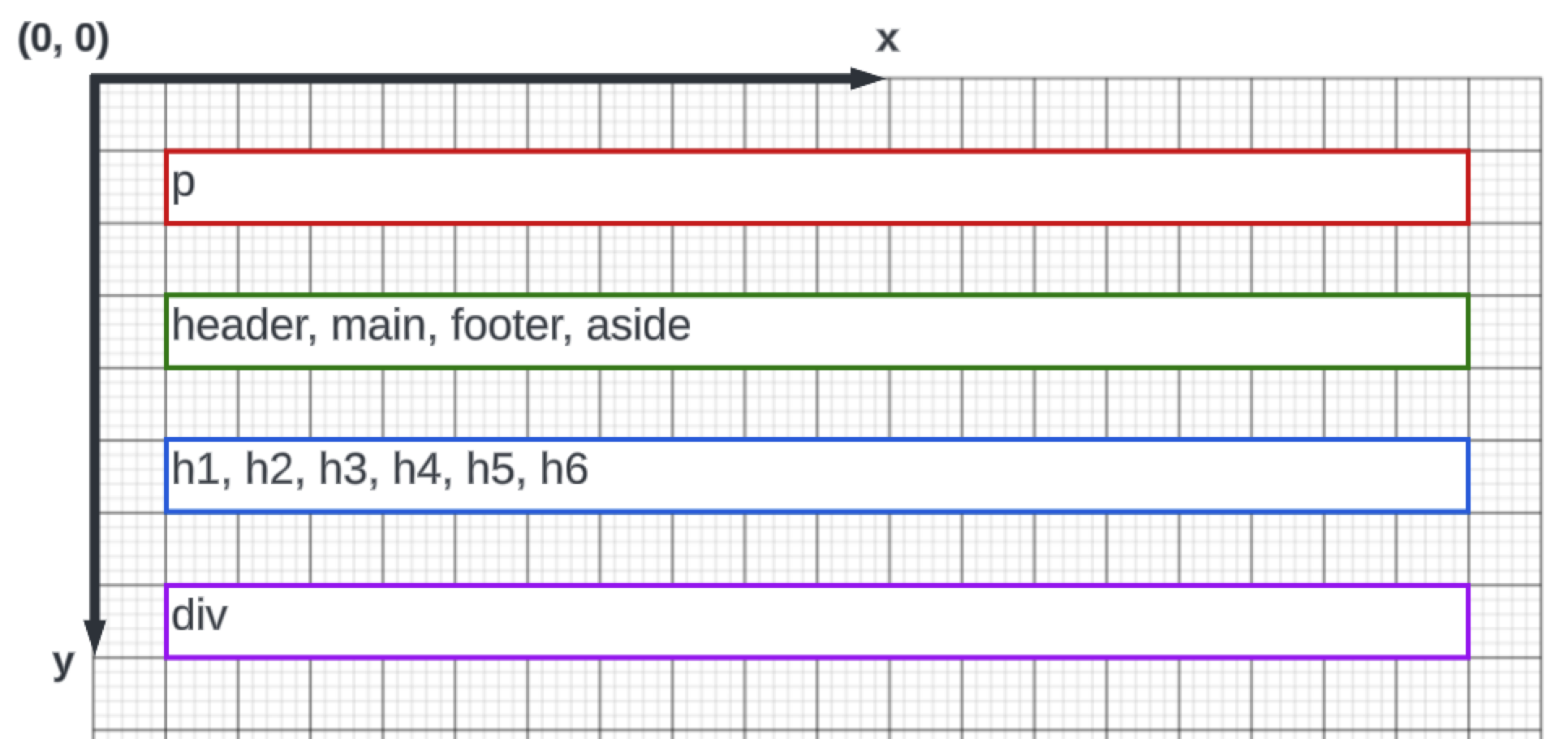
The width and height of block elements can be changed with CSS (p { width: 50%; height: 200px; }), but the rest of the row still isn't used by other elements.
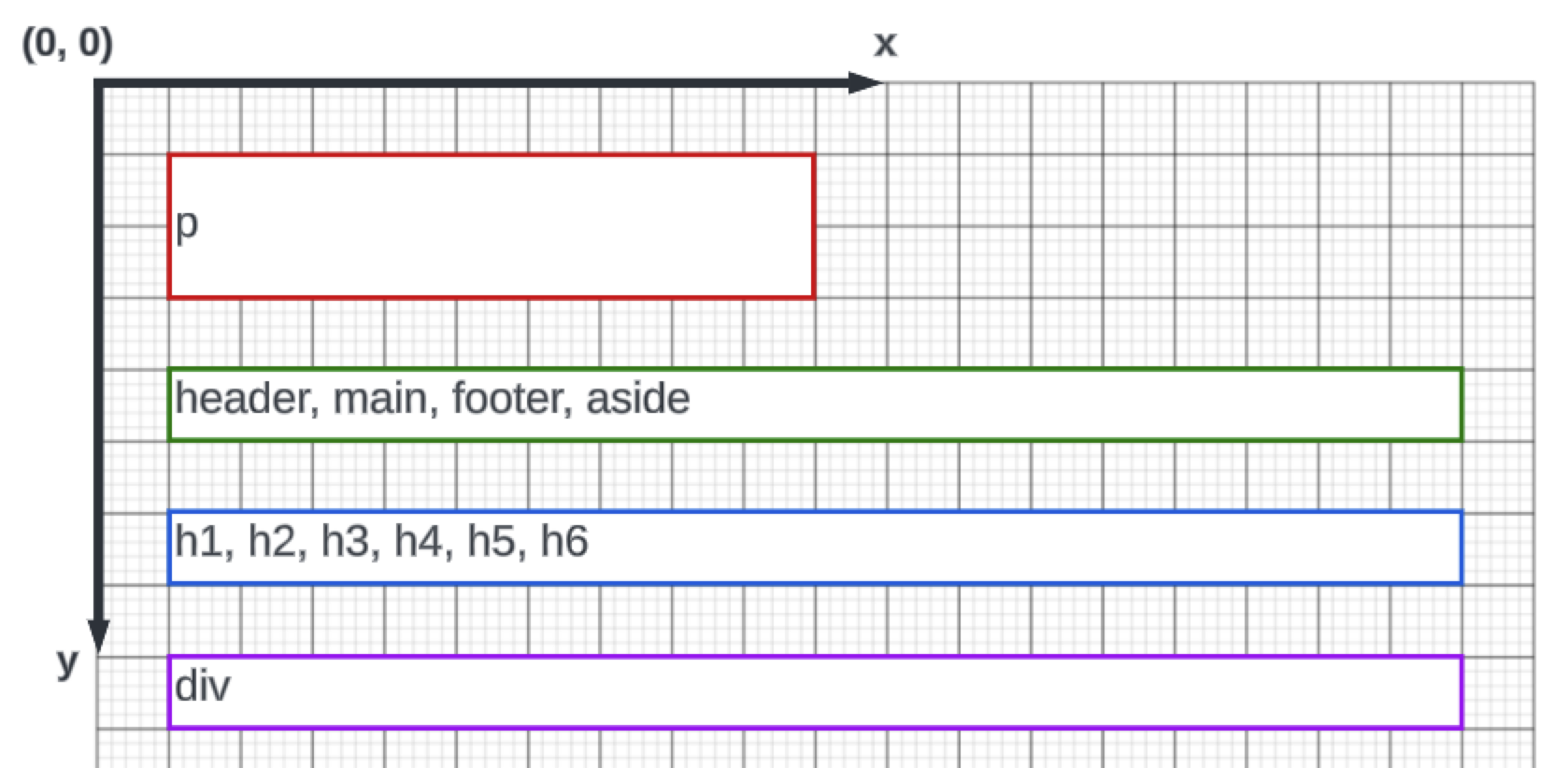
Common block elements include:
<p></p>
<header></header>
<main></main>
<footer></footer>
<h1></h1> ... <h6></h6>
<div></div>
<ul>
    <li></li>
</ul>
`inline` elements
Elements defined in the inline category will only occupy as much space as is required by their content. For example, a hyperlink will only take the space needed to display the text of the link.
Inline elements DO NOT occupy the entire row. Instead, the next inline element is placed directly after the previous element on the same row.
When there is no more space available on the row, the browser wraps the content and begins using the next row.
Plain text on a page flows like an inline element: word after word along the row, wrapping to the next row when the row is full.
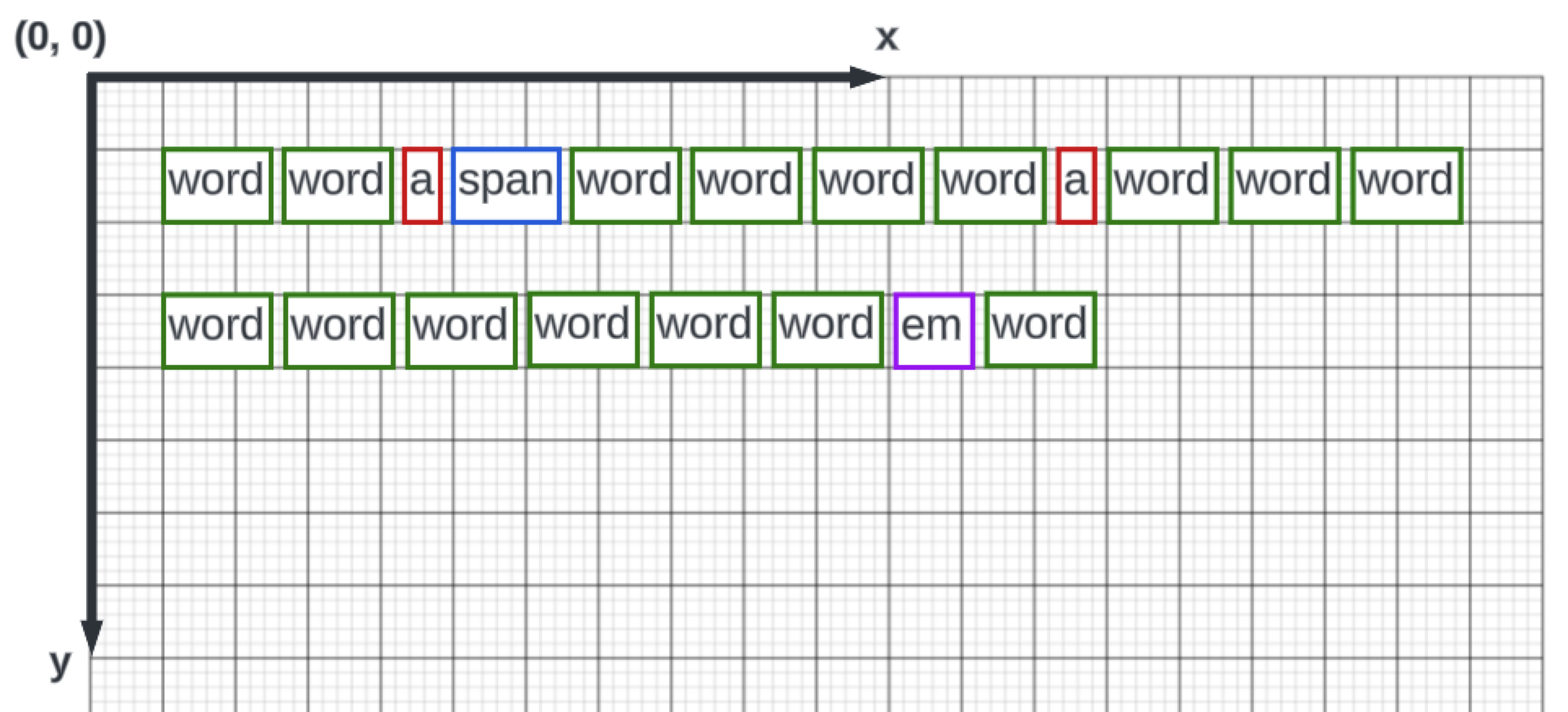
Unlike block elements, if you attempt to change the width and height of an inline element, the amount of occupied space WILL NOT be changed on the grid. For instance, if you set width: 500px; height: 200px; on a span in CSS, the browser doesn't change how the span is displayed on the screen.
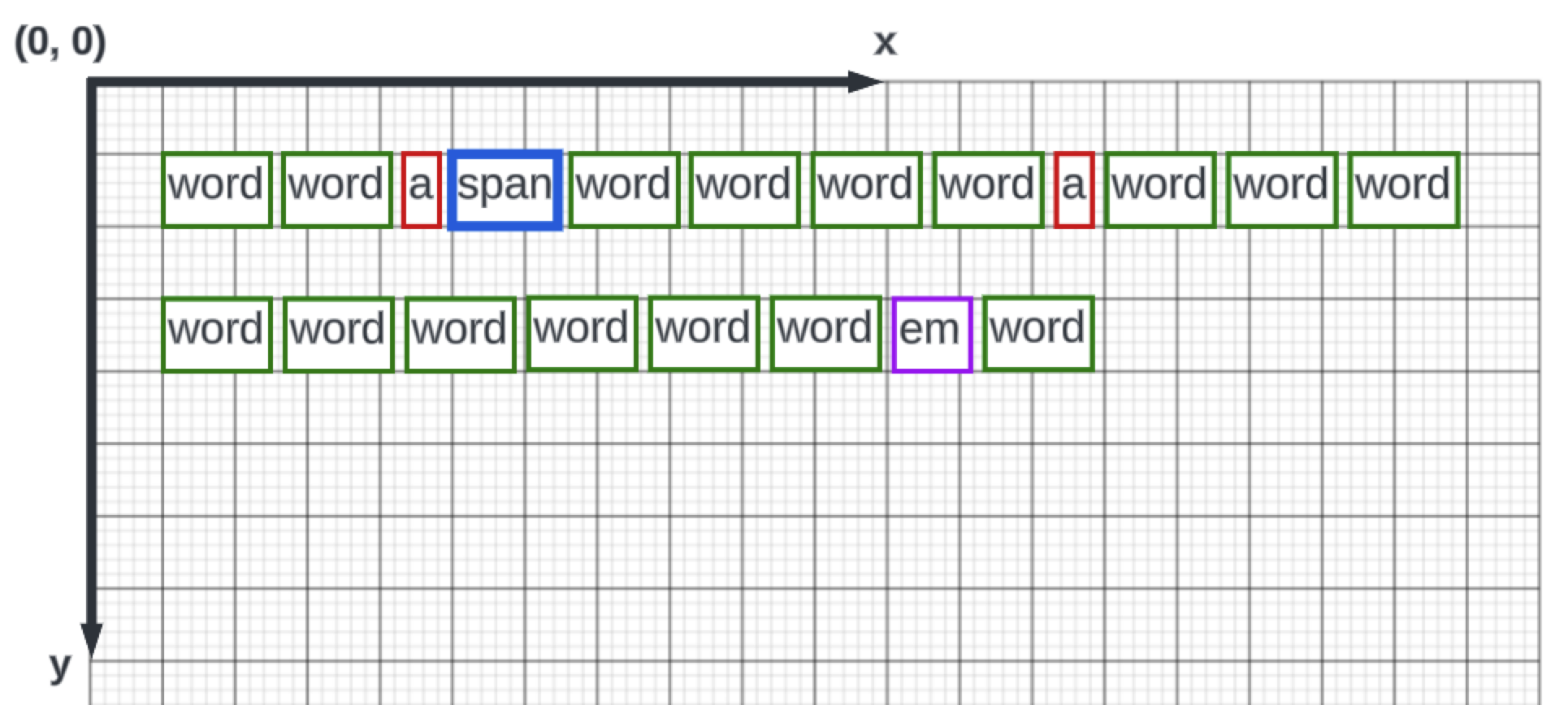
Common inline elements include:
plain text
<a></a>
<strong></strong>
<em></em>
<span></span>
`inline-block` elements
Like the inline elements, elements defined in the inline-block category will only occupy as much space as is required by their content. For example, a button will only take the space needed to display the text of the button. These elements are placed in line with the other elements.
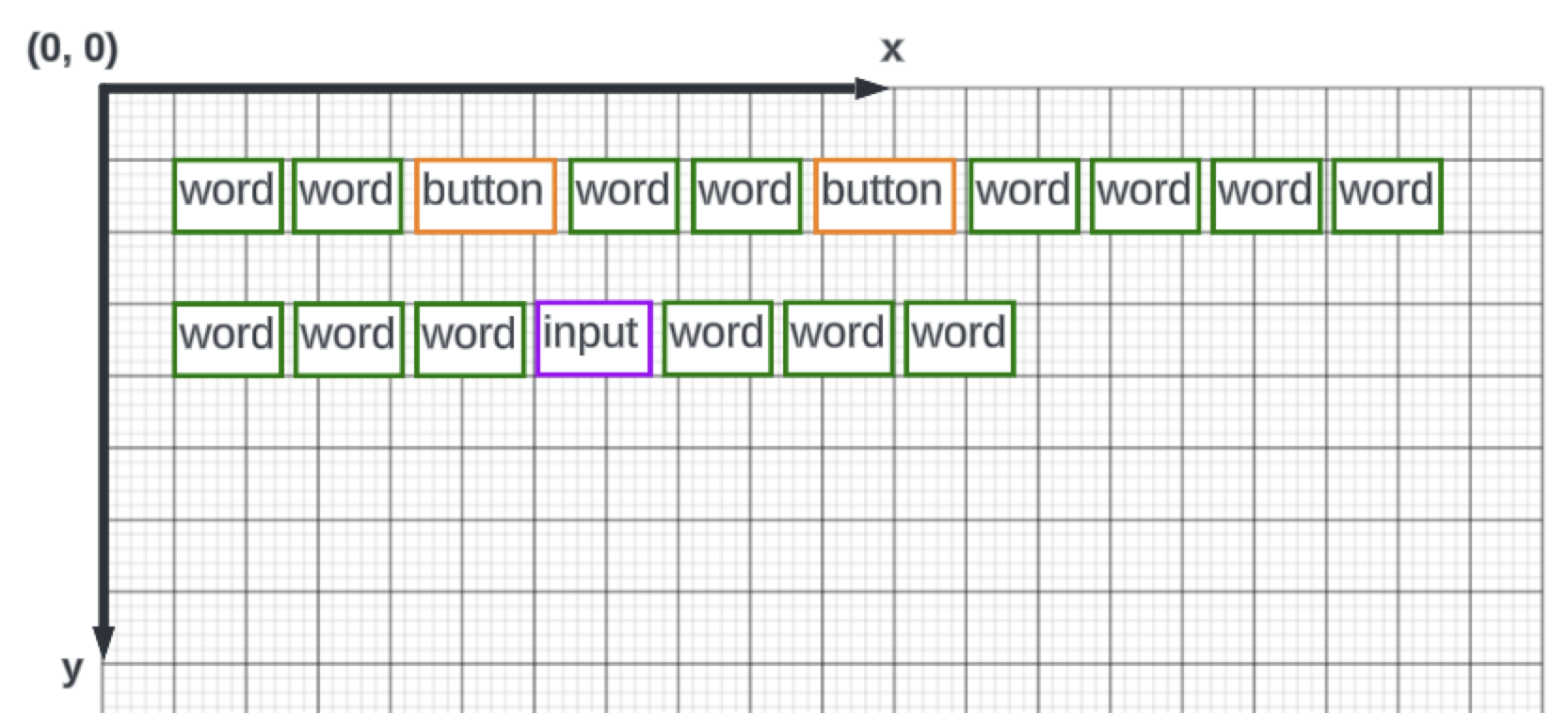
The width and height of these elements, however, can be manipulated. This means that the display of the canvas will be altered. Changing the height of an inline-block element will change the height of the entire row. For instance, in CSS: button { width: 200px; height: 70px; } or input { width: 400px; height: 50px; }.
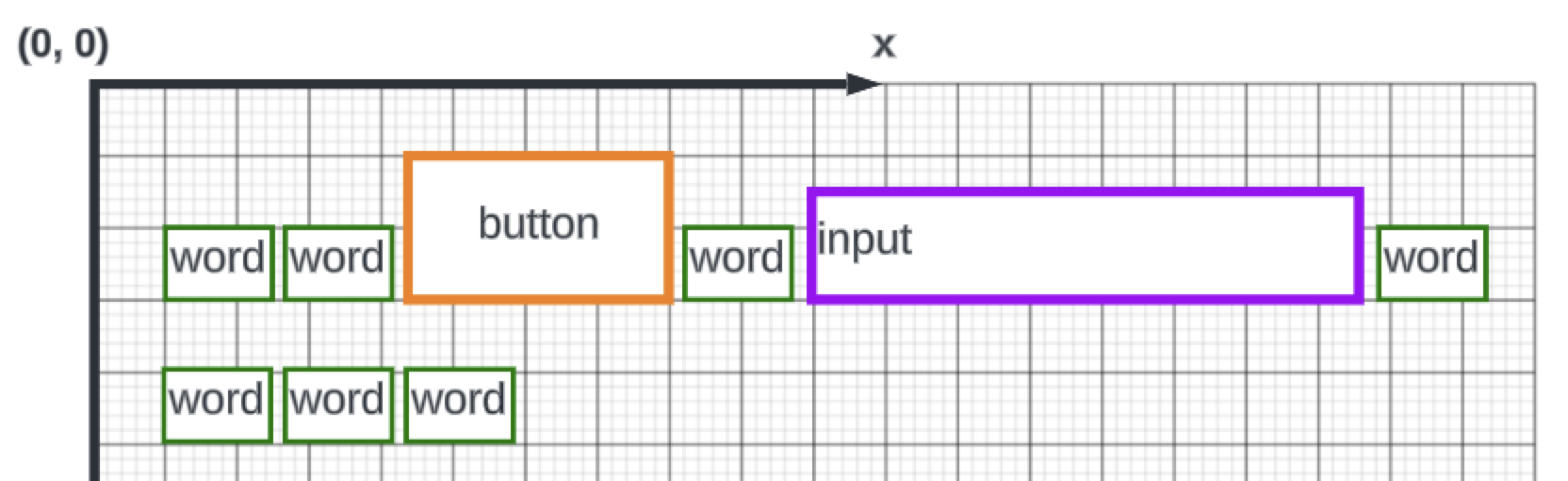
Common inline-block elements include:
<button></button>
<input>
<select></select>
<textarea></textarea>
<img> is inline, but because it shows a picture, it takes a width and height like an inline-block element.
HTML elements you'll use most
These are the elements almost every page needs. Each one has a small example you can paste into a page and try.
The page skeleton
Every page starts the same way:
<!DOCTYPE html>
<html lang="en">
<head>
    <meta charset="utf-8">
    <meta name="viewport" content="width=device-width, initial-scale=1">
    <title>My Favorite Books</title>
    <link rel="stylesheet" href="styles.css">
</head>
<body>
    <!-- everything the reader sees goes here -->
</body>
</html>
<!DOCTYPE html>tells the browser this is a modern HTML page.<head>holds information about the page. The reader doesn't see it on the page itself.<meta charset="utf-8">lets the page show any character, such aséor€.<meta name="viewport" ...>makes the page fit a phone's screen.<title>is the text on the browser tab.<link rel="stylesheet" href="styles.css">loads your CSS file.<body>holds everything the reader sees.
Headings and paragraphs
<h1> is the page's main heading, and <h2> to <h6> are smaller headings under it. <p> is a paragraph of text.
<h1>My Favorite Books</h1>
<h2>Why I Read</h2>
<p>A good book is a whole world you can carry in your bag.</p>
Links
<a> makes a link, and its href says where it goes. A full address goes to another website. A file name goes to another page of your own site, in the same folder.
<a href="https://www.gutenberg.org">Free books online</a>
<a href="authors.html">My favorite authors</a>
Pictures
<img> shows a picture. src is the picture's file, and alt describes the picture for anyone who can't see it, such as a person using a screen reader. <img> has no closing tag.
<img src="images/bookshelf.jpg" alt="A tall bookshelf full of paperbacks">
Lists
<ul> is a list with bullets, and <ol> is a numbered list. Each item in either one is an <li>.
<ul>
    <li>Mystery</li>
    <li>Science fiction</li>
</ul>

<ol>
    <li>Pick a book</li>
    <li>Find a quiet spot</li>
</ol>
Tables
<table> shows rows and columns. <thead> holds the header row and <tbody> holds the data rows. Each row is a <tr>, a header cell is a <th>, and a data cell is a <td>.
<table>
    <thead>
        <tr>
            <th>Book</th>
            <th>Author</th>
        </tr>
    </thead>
    <tbody>
        <tr>
            <td>Frankenstein</td>
            <td>Mary Shelley</td>
        </tr>
        <tr>
            <td>Dracula</td>
            <td>Bram Stoker</td>
        </tr>
    </tbody>
</table>
Quotes
<blockquote> marks a quote from somewhere else. Browsers indent it, and you can style it with CSS.
<blockquote>
    It was the best of times, it was the worst of times.
</blockquote>
Check yourself
2 questions to try on the lesson page.
So what
You now know enough HTML to build a small website of your own, one page and one element at a time.