# Adding Pictures
The img element puts a picture on your page, with src saying which picture file to show and alt saying in words what the picture tells the reader.
Novice · HTML · Updated October 31, 2026
## After this lesson you can
- Add a picture to a page with \`img\`, a \`src\` path and \`alt\` text
- Choose alt text that says what a picture tells the reader
- Choose pictures you are allowed to use on a website
## Key takeaways
- The `img` element puts a picture on a page. It holds no content, so it has no closing tag.
- `src` is the path to the picture file, written the same way as a link to one of your own pages, such as `images/pier-park.jpg`.
- `alt` is the picture in words: what it tells the reader, for anyone who can't see it.
- Keep your pictures in an `images` folder inside your site's folder, with lowercase file names and no spaces.
- Use your own photos, or pictures whose license lets you use them. A picture you find online belongs to whoever made it.
A trip guide with no pictures is a list of names. Put a photo of the Lighthouse Diner's blueberry pancakes next to its name, and people start planning their Saturday. Every online store, recipe blog, news story and club website you've ever scrolled through puts its pictures on the page with the same short element you'll learn here. You'll use it on every page you build from now on: a product photo, a team picture, a screenshot in a class report.
In this chapter you build a weekend guide to Lake Harbor, a made-up lakeside town with a diner, a park on the pier and a Saturday farmers market.
## A picture is a note that says "show this file here"
A web page is text. A photo isn't, so the page can't hold the photo itself. Instead, the page holds a note: *show the picture from this file, right here.* Think of a scrapbook page with a sticky note that says "beach photo goes here": the browser reads the note, fetches the photo and puts it in place.
That note is the **image element**, written `![]() ` and read "image" (`img` is short for *image*):
```html
 ```
- **`img`** is the element: "put a picture here."
- **`src`**, read "source", says which file to show.
- **`alt`**, short for *alternative*, says in words what the picture shows, for anyone who can't see it.
`
![]() ` is a **void element**, like the ones you met in *Elements and Tags*: nothing goes between an opening and a closing tag, so it has no closing tag. Writing `` is a mistake the validator reports.
## Where the picture file goes
Keep your pictures together in a folder named `images`, inside your site's folder, next to your pages:
```text
lake-harbor/
├── index.html
├── eat.html
├── see.html
└── images/
├── lighthouse-diner.jpg
├── pier-park.jpg
└── farmers-market.jpg
```
The `src` is a **relative path**: directions from the page to the file, written exactly like a link to one of your own pages (*Links Between Your Own Pages*). From `index.html`, `images/pier-park.jpg` means "go into the `images` folder and take `pier-park.jpg`". A page inside a subfolder would step up first, with `../images/pier-park.jpg`.
A few habits save you hours:
- **Lowercase file names with hyphens, no spaces:** `pier-park.jpg`, not `Pier Park.JPG`.
- **The name in `src` matches the file exactly**, including `.jpg` or `.jpeg`. Your own computer may forgive `Pier-Park.jpg` for `pier-park.jpg`; the computer that hosts your site online won't.
- **Never a path from your own computer**, such as `C:\Users\jordan\Pictures\pier.jpg`. It works on your computer only, and nowhere else.
For photos, use `.jpg`. Screenshots and drawings with sharp edges look best as `.png`. Module 4 covers the other formats and when each one wins.
**Try it.** In your site's folder, make a folder named `images` and put one of your own photos in it, renamed to lowercase with hyphens. Add an `
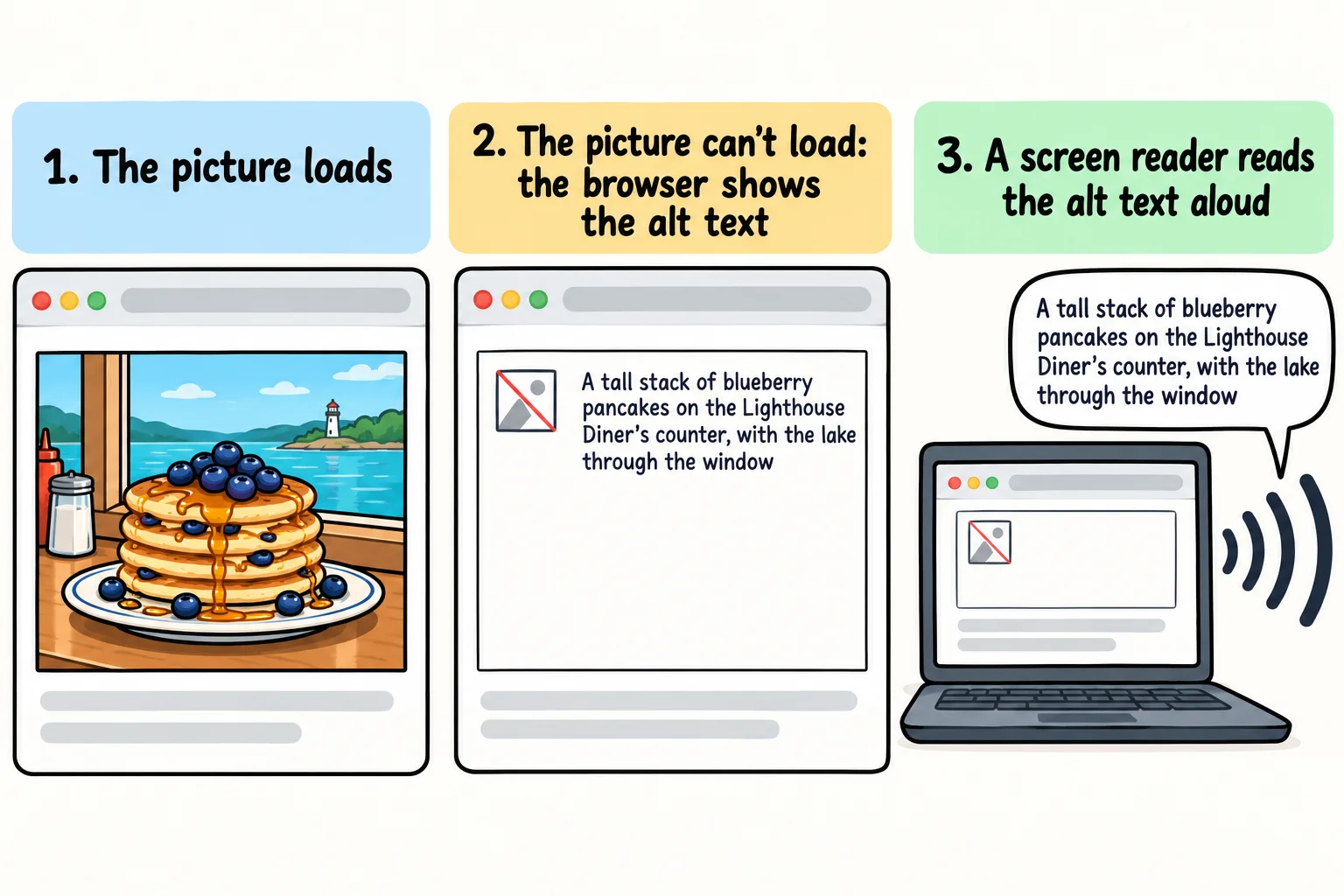
![]() ` for it to your `index.html` and open the page with Live Server. Then misspell the file name in `src` on purpose and save: the browser shows a small broken-picture icon and your alt text instead. That is alt text doing its job.
## Alt text: the picture in words
Imagine describing a photo to a friend over the phone. You wouldn't say "it's a JPG". You'd say what matters: "the diner's huge stack of blueberry pancakes, with the lake out the window."
That description is the **alternative text**, the `alt` attribute. A **screen reader**, a program that reads a page aloud for people who are blind or have low vision, reads it out in place of the picture. The browser shows it when a picture fails to load on a slow connection, and search engines read it to learn what the picture is.
```html
 ```
- **Say what the picture tells the reader on this page.** On a "where to eat" page, the pancakes matter. On a "what to see" page, the same photo might be about the view through the window.
- **Skip "image of" or "picture of".** The screen reader already says it's a picture.
- **A sentence or so is plenty.**
A picture that is only decoration, such as a wavy line between sections, gets an empty `alt=""`, so a screen reader skips it. Module 4's *Alt Text That Helps* covers that and the harder cases, such as charts and pictures of text.
## Width and height, in one line
You can tell the browser a picture's size in **pixels**, the tiny dots a screen is made of:
```html
 ```
With `width` and `height`, the browser saves the right amount of space before the picture arrives, so the words don't jump down the page as it loads. Module 4 goes further. For now, know this: a photo straight from a phone is often 4,000 pixels wide, wider than any screen, so it shows up huge. The stylesheet in the next lesson, *A First Look at CSS*, shrinks big pictures to fit.
## Pictures you're allowed to use
A photo belongs to the person who took it, the way a song belongs to the person who wrote it. That ownership is called **copyright**, and it starts the moment the photo is taken. Finding a picture in a search doesn't make it free to use. What lets you use someone else's picture is a **license**: the owner's permission, with the rules that come with it.
Where your pictures can come from:
- **Your own photos.** The best choice. If people are in the shot, ask them before you put it online.
- **Free photo sites.** Unsplash, Pexels and Pixabay let you use their photos on a website for free. Wikimedia Commons has millions of pictures, and many of their licenses ask you to credit the photographer. Read the license on each picture's page.
- **Pictures that come with a starter.** The sample photos in this course's exercise code are yours to use in your practice pages.
Never copy a picture from an image search, a news site or a business's website, and never point `src` at a picture on someone else's site. When a license asks for credit, a line under the picture does it:
```html
Photo by Sam Rivera on Unsplash
```
## Check yourself
2 questions to try on the lesson page.
## So what
One line, `![]() ` with a `src` and an `alt`, puts a picture on a page that everyone can understand, whether they see it or hear it. Every picture on the web, from a shop's product photos to a museum's online collection, starts the same way.
## Key terms
- [Image element](https://www.ask-codey.com/glossary/image-element)
- [src](https://www.ask-codey.com/glossary/src)
- [Alternative text](https://www.ask-codey.com/glossary/alternative-text)
## Cheat sheets
- [Adding Pictures](https://www.ask-codey.com/cheat-sheets/html-adding-pictures-cheat-sheet)
## Related
- [Links Between Your Own Pages](https://www.ask-codey.com/lessons/html-links-between-your-own-pages)
- [Elements and Tags](https://www.ask-codey.com/lessons/html-elements-and-tags)
Source: https://www.ask-codey.com/lessons/html-adding-pictures