# Header, Nav, Main and Footer

Mark up the four big parts of almost every web page (its top, its menu, its main content and its bottom) with header, nav, main and footer, so screen readers and search engines can find their way around it.

Apprentice · HTML · Updated October 31, 2026

## After this lesson you can

- Mark up a page's top, menu, main content and bottom with header, nav, main and footer
- Place the landmarks correctly, with one main per page and the page's header and footer outside it
- Explain what a landmark is and how a screen reader uses landmarks to move around a page

## Key takeaways

- Almost every page has four big parts. The header is its top, the nav its menu, the main its main content and the footer its bottom.
- These four elements are landmarks. A screen reader lists them, so its user can jump straight to the menu or the main content.
- A page has exactly one main, and the page's own header and footer go outside it.
- A header or footer inside a story belongs to that story. Only the one at the page level is the page's header or footer.

Open almost any website, a pizza place, your college's homepage, a news site, and you'll find the same four parts: a name or logo at the top, a menu, the content you came for, and some small print at the bottom. When a class assignment asks for "semantic HTML", or an accessibility report says *the page has no main landmark*, these four parts are what it's talking about. This lesson gives each one its element.

## A newspaper's front page

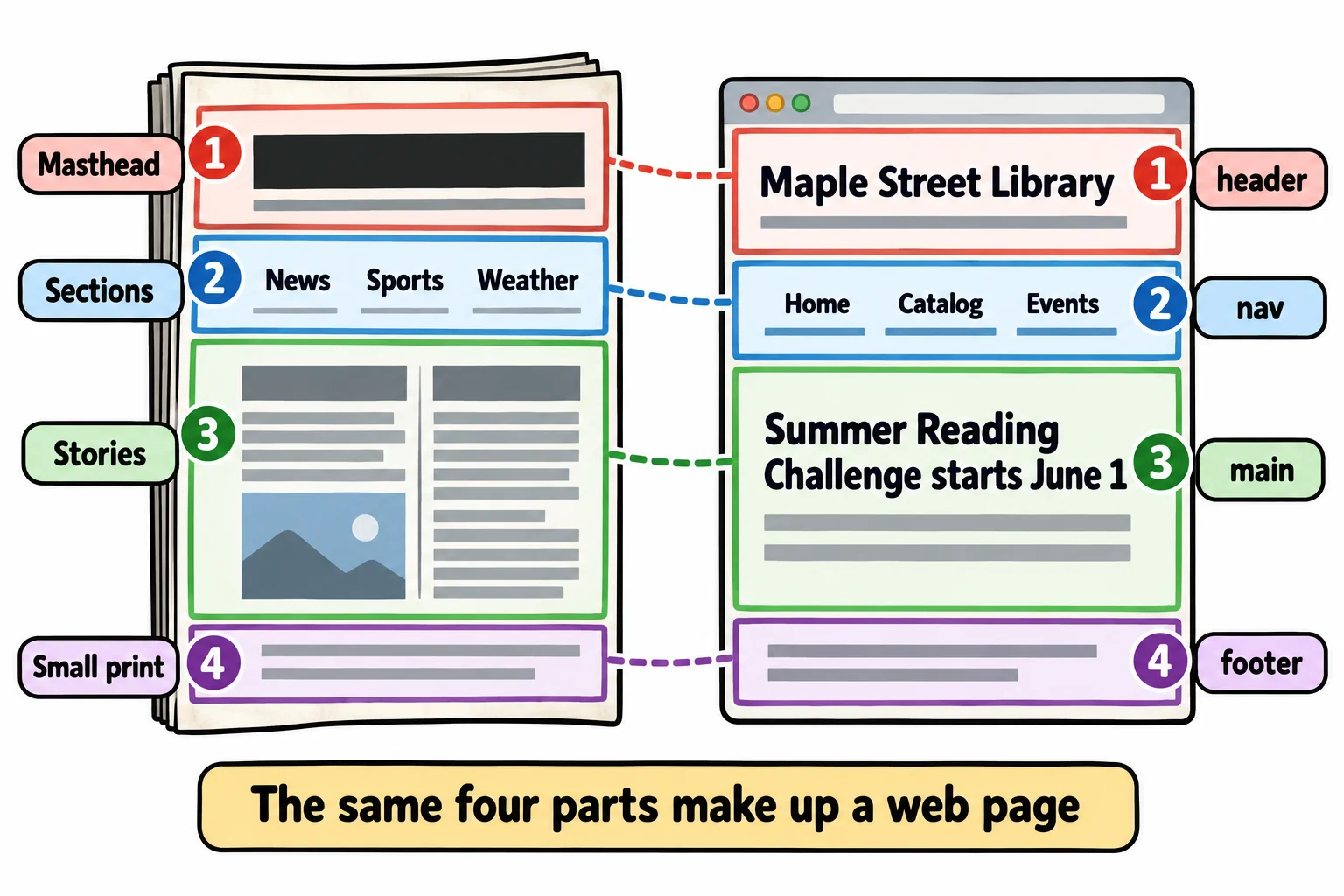
Think of a printed newspaper. Across the top is the **masthead**: the paper's name, the date, maybe a slogan. Under it is a strip that lists the **sections**: News, Sports, Weather. Then come the **stories**, the reason you picked it up. And at the very bottom, in tiny type, is the **small print**: the address, the phone number, the copyright.

You don't read every word to find your way. You know where the sports section is listed and where the stories start, because every paper puts these parts in the same places.
![A newspaper front page with four parts labeled: the masthead at the top, the list of sections under it, the stories in the middle and the small print at the bottom. The same four parts make up a web page: header, nav, main and footer.](https://fsdtrainingmedia.blob.core.windows.net/public/images/2026/10/22e6113959cf4d72b09c4a8470cd621c.webp)

A web page has the same four parts, and HTML has an element for each one.

## The four elements

Here is the shape of almost every page's `<body>`:

```html
<body>
  <header>The site's name or logo</header>
  <nav>The menu: links to the site's main pages</nav>
  <main>The content this page is about</main>
  <footer>The small print: contact details, copyright</footer>
</body>
```

- **`<header>`** (read "header") is the top of the page: the masthead.
- **`<nav>`** (read "nav", short for navigation) holds the menu: the main links around the site.
- **`<main>`** (read "main") holds the content this page is about: the stories.
- **`<footer>`** (read "footer") is the bottom of the page: the small print.

Each one has an opening tag and a closing tag, like the elements you already know. `</nav>` is read "close nav".

## The library's page

The Maple Street Library has a news page. Here is its `<body>` with the four parts marked up. It's a partial snippet: the `<head>` is left out.

```html
<body>
  <header>
    <h1>Maple Street Library</h1>
    <p>Books, classes and a makerspace, free with your library card.</p>
  </header>
  <nav>
    <a href="index.html">Home</a>
    <a href="catalog.html">Catalog</a>
    <a href="events.html">Events</a>
  </nav>
  <main>
    <h2>Summer Reading Challenge starts June 1</h2>
    <p>Read five books by August 15 and earn a free tote bag.</p>
  </main>
  <footer>
    <p>Maple Street Library, 214 Maple Street. Phone: 555-0142.</p>
  </footer>
</body>
```

On the screen, it looks like an ordinary page: these elements don't change how text looks on their own. What they change is what the page *says about itself*. A stylesheet can now find "the menu" by asking for `nav`, a search engine can tell the news from the menu, and, most of all, a screen reader can tell its user where each part is.

**Try it.** Open any website you use, right-click its menu and choose **Inspect**. Look up the tree of elements in the developer tools: is the menu inside a `<nav>`? Is there a `<main>`? Many big sites use all four. Some don't, and you'll learn what that costs them in the lesson *Div and Span: Boxes with No Meaning*.

## Landmarks: how a screen reader finds its way

A **screen reader** is a program that reads the screen aloud, for people who can't see it well or at all. Windows has Narrator built in, Macs and iPhones have VoiceOver, and NVDA is a free one for Windows.

Reading a whole page aloud from the top takes a long time, so a screen reader can jump. Each of these four elements is a **landmark**: a big region of the page that a screen reader can list and jump to, the way you'd flip straight to the sports section. In NVDA, the D key jumps to the next landmark. On a Mac, VoiceOver's rotor (opened with VO + U) shows them as a list.

As it lands on each one, a screen reader announces its kind, using names that come from the accessibility standards:

| Element | What a screen reader announces |
|---|---|
| `<header>` at the page level | "banner" |
| `<nav>` | "navigation" |
| `<main>` | "main" |
| `<footer>` at the page level | "content info" |

So on the library's page, a screen reader user hears something like *"main landmark. Summer Reading Challenge starts June 1, heading level 2"* the moment they jump to the main content, without sitting through the menu first. Build the same page from plain boxes, and there are no landmarks to jump to. You'll test pages with a real screen reader in Module 5.

## The rules that keep landmarks working

A few rules make sure the landmarks mean what they say:

- **One `<main>` per page.** It's *the* main content. Two would leave a screen reader with two answers to "where is the main content?"
- **The page's `<header>` and `<footer>` go outside `<main>`.** The masthead and the small print aren't part of the stories.
- **A `<header>` inside a story is the story's header, not the page's.** A news story often has a top of its own: its headline and the date it was posted. That's a `<header>` too, but it belongs to the story, so a screen reader doesn't announce it as the page's banner. The same goes for a `<footer>` inside a story.

Here's a news story with its own header and footer, inside `<main>`. The story is wrapped in an `<article>`, the element for a piece that makes sense on its own; the next lesson, *Article, Section and Aside*, covers it.

```html
<main>
  <article>
    <header>
      <h2>New 3D printer in the makerspace</h2>
      <p>Posted May 20</p>
    </header>
    <p>Bring a design, or choose one of ours, such as a phone stand.</p>
    <footer>
      <p>Questions? Ask at the makerspace desk.</p>
    </footer>
  </article>
</main>
```

The page's own `<header>`, the one with the library's name, still sits outside `<main>`, at the top of the `<body>`.

**Try it.** In VS Code, make a file named `library.html` and type `!` then press Enter to get the page skeleton. In its `<body>`, mark up a page for a library, a gym or a bike shop you know, with a `<header>`, a `<nav>` with three links, a `<main>` with a heading and a paragraph, and a `<footer>`. Open it with Live Server. It looks plain for now; the structure is what you're building.

## Check yourself

2 questions to try on the lesson page.

## So what

Four elements give every page a map: the top, the menu, the content and the small print. Screen readers, search engines and the next developer all read that map, so a page with landmarks is one people can find their way around.

## Key terms

- [Landmark](https://www.ask-codey.com/glossary/landmark)
- [&lt;header>](https://www.ask-codey.com/glossary/header)
- [&lt;nav>](https://www.ask-codey.com/glossary/nav)
- [&lt;main>](https://www.ask-codey.com/glossary/main)
- [&lt;footer>](https://www.ask-codey.com/glossary/footer)

## Cheat sheets

- [Header, Nav, Main and Footer](https://www.ask-codey.com/cheat-sheets/html-header-nav-main-and-footer-cheat-sheet)

## Related

- [What Semantic HTML Means](https://www.ask-codey.com/lessons/html-what-semantic-html-means)
- [Article, Section and Aside](https://www.ask-codey.com/lessons/html-article-section-and-aside)

Source: https://www.ask-codey.com/lessons/html-header-nav-main-and-footer
