Headings and the Page Outline
Headings from h1 to h6 give a page an outline, like a book's title, chapters and sections, so readers and screen readers can find their way around it.
Novice · HTML · Updated
After this lesson you can
- Choose heading levels from h1 to h6 that match a page's outline, with one h1 and no skipped levels
- Explain why a heading's level is chosen for the outline and not for its size
Key takeaways
- A page's headings are its outline. The h1 is its title, each h2 a main section, each h3 a part of a section, and so on down to h6.
- Give a page one h1, and never skip a level on the way down, such as going from an h2 straight to an h4.
- Pick a heading's level by its place in the outline, never by its size. How big it looks is CSS's job.
- Screen reader users jump from heading to heading to find what they want, so the outline is how they skim a page.
Think of the last long page you read online: a recipe, a class syllabus, a band's website. Before you read a word of it, your eyes jumped down the big bold lines to find the part you wanted. Those lines are headings, and every page you build needs them. A class assignment is often marked on its structure, a help page at work is only useful if people can find the answer on it, and a screen reader user can't use your page at all without them. This lesson shows how headings work, using the website of The Neon Lanterns, a made-up indie band.
Headings are a page's outline
A book has a title on its cover, chapters inside it, and sections inside each chapter. Its table of contents shows that shape at a glance. A web page works the same way.
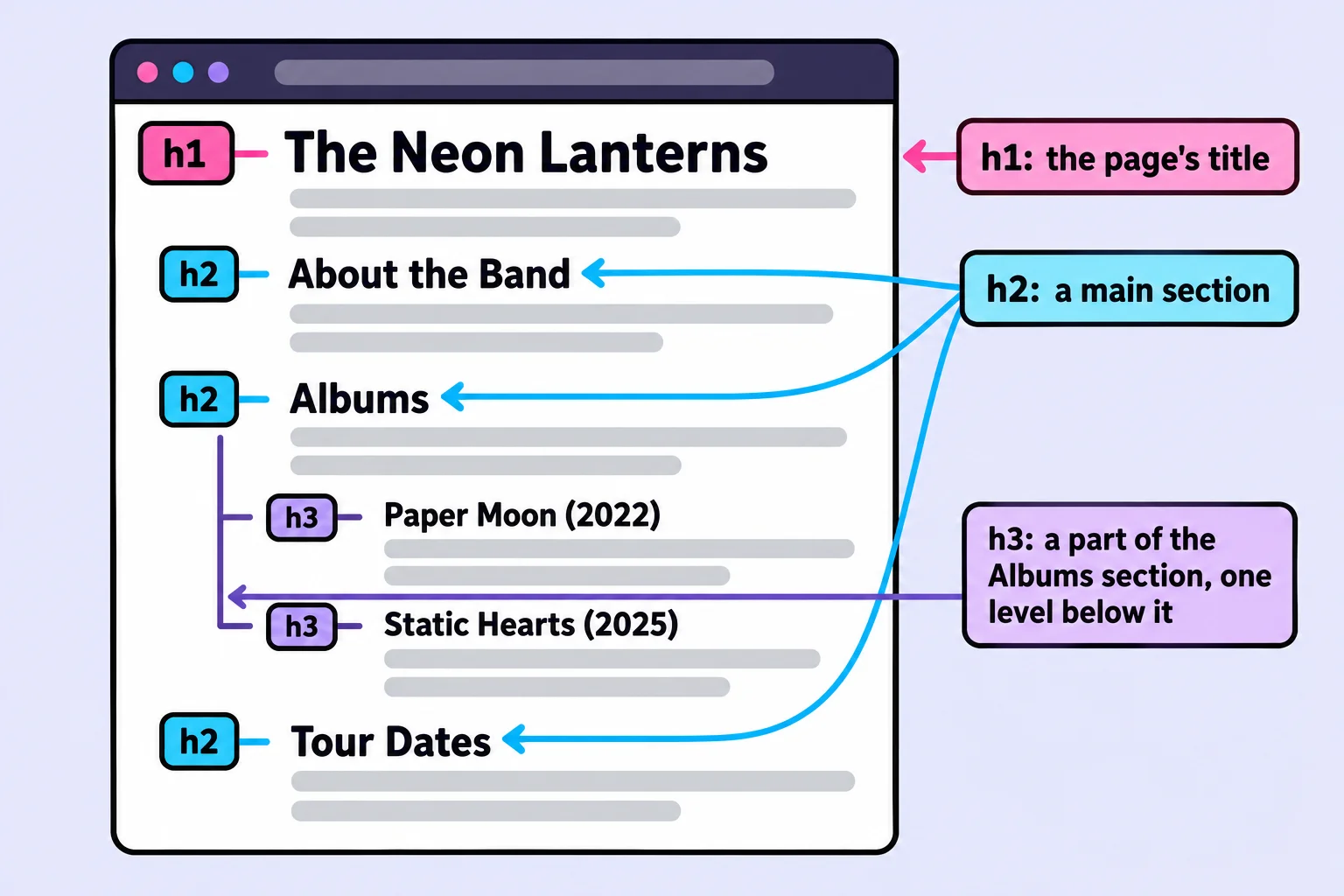
HTML has six heading elements, from <h1> to <h6>, read "h-one" to "h-six" (the h is for heading). The number is the heading's level: <h1> is the page's title, <h2> a main section, <h3> a part of an <h2> section, and so on down to <h6>. Here are the headings of the band's home page, with the paragraphs left out:
<h1>The Neon Lanterns</h1>
<h2>About the Band</h2>
<h2>Albums</h2>
<h3>Paper Moon (2022)</h3>
<h3>Static Hearts (2025)</h3>
<h2>Tour Dates</h2>
Read only the headings, indented by level, and you get the page's table of contents:
The Neon Lanterns
    About the Band
    Albums
        Paper Moon (2022)
        Static Hearts (2025)
    Tour Dates
That shape is the page's document outline, and the levels inside levels are its heading hierarchy. In a textbook you may see them called heading levels or the page's structure.
One h1, then down one step at a time
Two rules keep an outline sound:
- One
<h1>per page. It's the page's title, the way a book has one title. (HTML allows more than one, but one is the usual rule, and it's the one this course's exercise checks use.) - Go down one level at a time. After an
<h2>, the next level down is<h3>. Jumping from<h2>straight to<h4>leaves a gap, like a book with a section 3.1.2 but no 3.1.
Going back up is fine, by any number of levels: after the last <h3> about an album, the next <h2> starts a new main section.
<h1>The Neon Lanterns</h1>
<h2>Tour Dates</h2>
<!-- A skipped level: there's no h3 between this h4 and the h2 above it -->
<h4>Fall 2026</h4>
The fix is to make Fall 2026 an <h3>: it's a part of the Tour Dates section, one level below it. The W3C's HTML checker, which you'll use in the Try it below, reports a skipped level like this one as an error.
Size is CSS's job
Browsers show <h1> biggest and <h6> smallest. That makes a mistake tempting: picking <h5> because <h3> looks too big. Do that and the outline says the album is five levels deep, inside sections that don't exist.
<!-- Wrong: an h5 chosen because it looks small enough -->
<h2>Albums</h2>
<h5>Paper Moon (2022)</h5>

<!-- Right: the level that fits the outline -->
<h2>Albums</h2>
<h3>Paper Moon (2022)</h3>
CSS is the language that decides how a page looks: colors, fonts and sizes. It can make any heading any size, so choose the level for the outline and let CSS handle the size. (This course shows what CSS does in A First Look at CSS; the CSS in Depth course teaches you to write it, if you want to go further.)
The same goes the other way: don't make a sentence an <h2> because you want it big and loud, such as Tickets go on sale Friday! It would land in the outline as a section that has nothing in it. The next lessons show the elements for words that matter.
How screen readers use headings
A screen reader is software that reads the screen aloud, used by people who are blind or can't see the screen well. Listening to a whole page from the top is slow, so screen reader users skim by headings instead. In NVDA, a free screen reader for Windows, pressing H jumps to the next heading and 2 to the next <h2>. VoiceOver on a Mac can list every heading on the page, like a table of contents. WebAIM's surveys of screen reader users find that most of them look for information on a long page by jumping through its headings first.
So the outline isn't decoration. For many visitors it's the only map of the page they get.
Try it. In VS Code, make a folder named neon-lanterns with a file named index.html in it. Type ! and press Tab for the page skeleton (see The Page Skeleton), then put the six headings above inside <body>, with a sentence under each one in a <p>. Open it with Live Server. Then go to validator.w3.org/nu, the W3C's free HTML checker. Next to Check by, choose text input, paste in your page, tick outline next to Show, and click Check. Under Outline, the checker lists your headings by level. Now change Static Hearts (2025) to an <h5> and check again: the checker reports an error, because the heading skips a level.
Check yourself
2 questions to try on the lesson page.
So what
Headings are the first thing people and screen readers use to find their way around a page. Choose each level for its place in the outline, and readers can skim every page you build.