How a Browser Shows a Page
When you type a web address, your browser sends a request to a web server, the server sends back the page's HTML in a response, and the browser draws it; View Source shows you that HTML.
Novice · HTML · Web Development · Updated
After this lesson you can
- Explain what happens between typing a web address and seeing the page, using the words request, response, browser and server
- Name the parts of a URL (protocol, domain and path) and say what each one tells the browser
- Open a page's HTML with View Source in a browser
Key takeaways
- A web browser asks for a page with a request; a web server answers with a response that holds the page's HTML.
- A URL has parts: the protocol (https), the domain (www.example.com) and the path (/menu/drinks.html).
- The browser reads the HTML and draws the page, asking the server again for each picture and stylesheet the HTML names.
- View Source (Ctrl+U on Windows, Cmd+Option+U on macOS) shows the HTML the server sent.
When a page won't load, a link goes nowhere, or a picture shows up as a broken icon, the fix starts with knowing what the browser was trying to do. Every web page you've ever seen arrived the same way, in a few steps that take less than a second. Once you can name those steps, "the page is broken" turns into a question you can answer: did the browser ask for the right thing, and what did it get back?
Ordering at a coffee counter
Picture the counter at the Daily Grind coffee shop. You walk up and ask for a medium latte. The barista makes it and hands it back across the counter. If they're out of oat milk, they tell you that instead. Either way, you asked, and the counter answered.
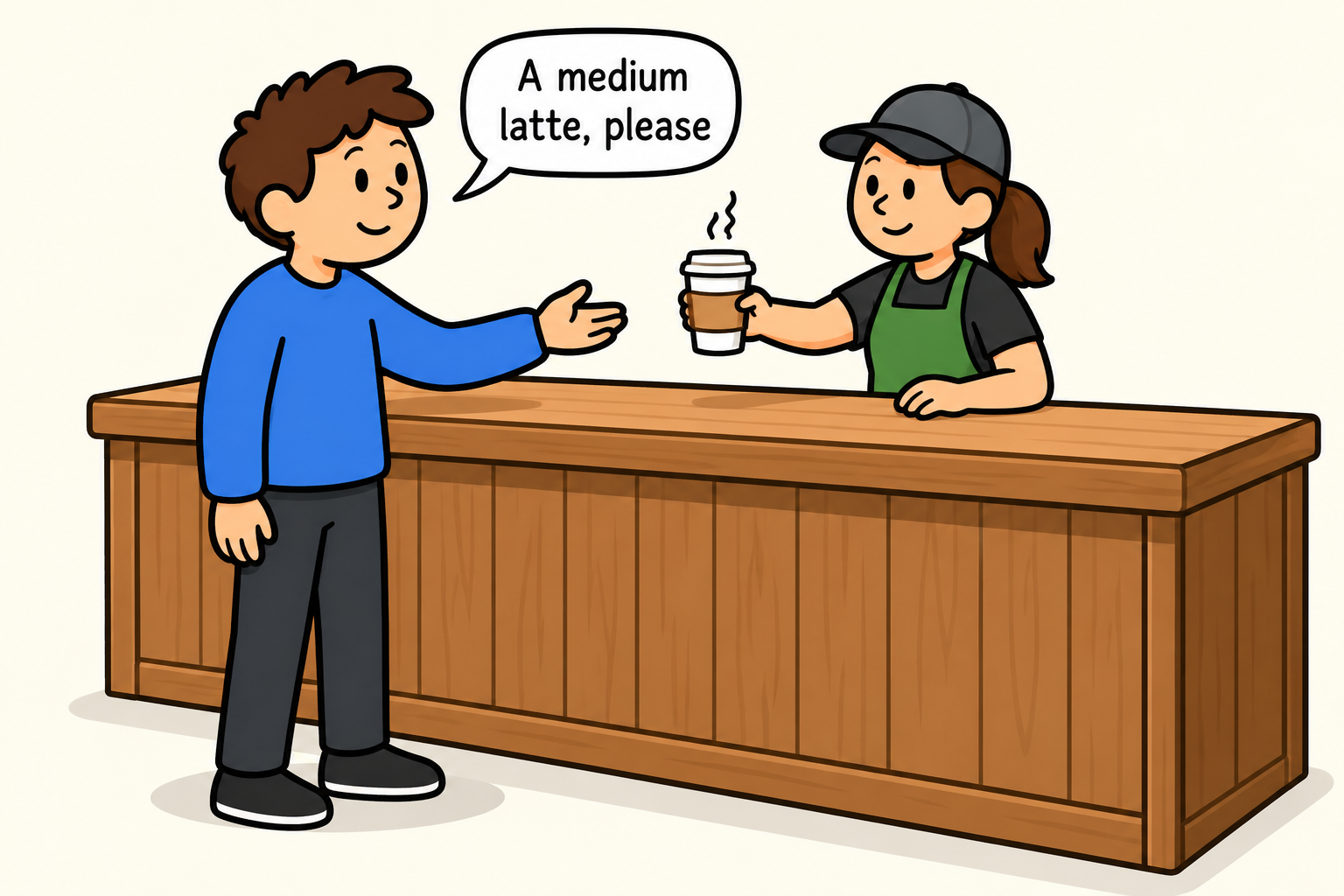
A web page arrives in the same way:
| At the coffee counter | On the web |
|---|---|
| You, the customer | Your web browser (Chrome, Edge, Firefox or Safari) |
| The barista behind the counter | A web server: a computer that stores a site's files and hands them out |
| "A medium latte, please" | A request: "please send me the page at this address" |
| The latte, or "sorry, we're out" | A response: the page's HTML, or a message saying why not |
The browser is the client: the side that asks. The web server is the server: the side that answers. You'll hear "client and server" all through web development, and it always means this split.
Request and response
Here is what happens when you type an address and press Enter:
- The browser sends a request across the internet to the web server for that address.
- The server finds the page and sends a response. Its main part is the page's HTML: plain text with tags in it.
- The browser reads the HTML from top to bottom and draws the page.
- While it reads, the HTML names other files the page needs, such as pictures and stylesheets. The browser sends a new request for each one.
A response also carries a status code, a three-digit number that says how it went. 200 means "here you are". 404 means "there's no page at that address", the web's version of "sorry, we're out of that".
Browser:  GET /menu/drinks.html            (the request: please send this page)
Server:   200 OK, and the page's HTML      (the response: here you are)
Browser:  GET /images/latte.jpg            (a new request, for a picture the HTML named)
Server:   200 OK, and the picture
GET is the word a browser's request uses to say "send me this". It's part of HTTP, the set of rules browsers and servers follow to talk to each other.
The parts of a URL
The address you type is a URL (Uniform Resource Locator, read "U-R-L"). Like a mailing address, it is read in parts, and each part tells the browser something:
https://www.example.com/menu/drinks.html
httpsis the protocol: the rules for the conversation. HTTPS is HTTP with the conversation encrypted, so nobody in between can read it. Then comes://, read "colon slash slash", which separates the protocol from the rest.www.example.comis the domain name: which web server to ask. A domain is a name people can remember, standing in for the server's number on the internet. (example.comis a real domain, set aside for examples like this one.)/menu/drinks.htmlis the path: which file on that server. Each/(read "slash") is a step into a folder, so this is the filedrinks.htmlin themenufolder.
When a URL has no file at the end, such as https://www.example.com/, the server sends the folder's front page, usually a file named index.html. You'll meet that file again in Files and Folders for a Website.
Try it. Click in your browser's address bar on any site and read its URL in three parts: protocol, domain, path. Then add a made-up word to the end of the path and press Enter. Most sites answer with their "page not found" page: that's a 404 response.
View Source: the HTML the server sent
Every browser can show you the HTML behind a page. Open a page, then:
| Browser | Windows 11 | macOS |
|---|---|---|
| Chrome or Edge | Ctrl+U | Cmd+Option+U |
| Firefox | Ctrl+U | Cmd+U |
| Safari | — | Cmd+Option+U, after you turn on Settings > Advanced > Show features for web developers |
You can also right-click an empty part of the page and choose View Page Source (Show Page Source in Safari), or type view-source: in front of a URL in Chrome, Edge or Firefox:
view-source:https://www.example.com/
Ctrl+U or View Page Source opens a new tab with the page's HTML; typing view-source: shows it in the tab you're in. Either way, color is added to make the tags easier to spot. That text is exactly what the server sent in its response. If the Daily Grind's drinks page were a small one, its source might look like this:
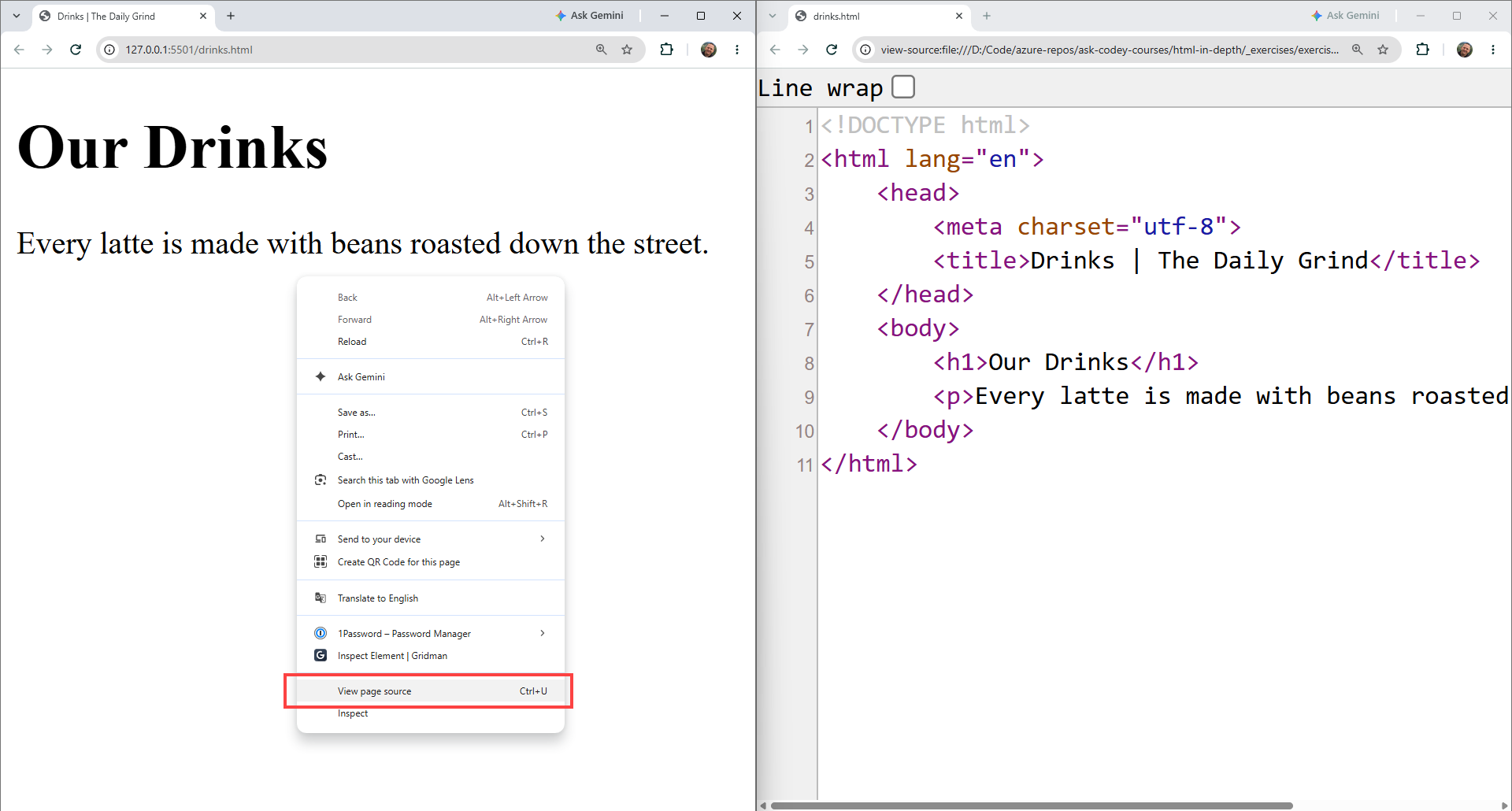
Real sites send much more than this, and some squeeze all of it onto one long line to save space. The words you see on the page are still in there, between the tags.
Try it. Open View Source on a site you use often. Press Ctrl+F (Cmd+F on macOS) and search for a word you can see on the page, such as its main heading. It's in the HTML, between tags. Then search for <title>: the words after it are the ones on the browser tab.
Check yourself
2 questions to try on the lesson page.
So what
Every page is a request and a response: the browser asks a server for a URL and draws the HTML it gets back. When something goes wrong, you now know where to look first: the address it asked for, and the HTML View Source shows.
Key terms
- Web browser
- Web server
- Request
- Response
- URL
- Domain Name