Table Headers, Sections and Spanning Cells
Bigger tables group their rows into a head, a body and a foot, tell each header cell what it labels with scope, and merge cells across columns or rows with colspan and rowspan.
Journeyman · HTML · Updated
After this lesson you can
- Group a table's rows into thead, tbody and tfoot
- Label header cells with the scope attribute so each data cell is read with its headers
- Merge cells with colspan and rowspan, keeping every row the same width
Key takeaways
<thead>holds the header rows,<tbody>the data rows and<tfoot>the totals. They're written in that order, after the<caption>.- Give every header cell a scope,
scope="col"for a column's label orscope="row"for a row's, so a screen reader reads each cell with the right labels. colspanmakes a cell wider androwspanmakes it taller. Every row must still add up to the same number of columns.- If a table needs spans everywhere to make sense, split it into simpler tables.
A bank statement with a total at the bottom. A school timetable where the science lab takes two periods. A sports table where "Home" and "Away" each sit over two columns of numbers. Once a table grows past a few rows, it needs more structure: a clear head, a body and a foot, labels that say what they label, and now and then a cell that stretches over several others. This is the HTML behind every serious report, schedule and statement you'll build at work.
A head, a body and a foot
Think of a store receipt. At the top are the labels (Item, Qty, Price), in the middle the things you bought, and at the bottom the total. A table has the same three parts:
<thead>, the table head: the header rows, with the column labels.<tbody>, the table body: the data rows.<tfoot>, the table foot: summary rows, such as totals.
They're written in that order, after the <caption>. Here are the Galaxy Blasters level scores for this week's top three, with the totals at the bottom:
<table>
    <caption>Level scores for the top three</caption>
    <thead>
        <tr> <th>Player</th> <th>Level 1</th> <th>Level 2</th> </tr>
    </thead>
    <tbody>
        <tr> <th>PIXELPAM</th> <td>31,200</td> <td>33,750</td> </tr>
        <tr> <th>STARFOX99</th> <td>30,400</td> <td>29,900</td> </tr>
        <tr> <th>NOVAKID</th> <td>28,150</td> <td>30,275</td> </tr>
    </tbody>
    <tfoot>
        <tr> <th>All three</th> <td>89,750</td> <td>93,925</td> </tr>
    </tfoot>
</table>
Each row is on one line here, so you can see the table's shape at a glance. The spaces between the cells don't show on the page.
The parts tell the browser which rows are labels, which are data and which are a summary. When a long table is printed on several pages, browsers can repeat its head at the top of each page. And when you style the table with CSS later, you can give the head and the foot their own look, such as a line above the totals.
Try it. In your practice folder, make level-scores.html from the page skeleton and add the table above. Add a Level 3 column: 33,500 for PIXELPAM, 30,900 for STARFOX99, 29,500 for NOVAKID, and 93,900 for all three.
Saying what each header labels: scope
In a spreadsheet, you find a cell's meaning by looking up to its column's label and across to its row's. The scope attribute tells the browser which way a header cell points:
scope="col": "I label the cells below me, in my column." Use it for the labels in the head.scope="row": "I label the cells beside me, in my row." Use it for the name at the start of each row.
<thead>
    <tr> <th scope="col">Player</th> <th scope="col">Level 1</th> <th scope="col">Level 2</th> </tr>
</thead>
<tbody>
    <tr> <th scope="row">STARFOX99</th> <td>30,400</td> <td>29,900</td> </tr>
</tbody>
Now when a screen reader user moves to 29,900, the screen reader reads it with both of its labels, something like "STARFOX99, Level 2, 29,900". Without the labels, they'd hear a list of numbers and have to remember which column they're in. Browsers can often guess a header's direction in a simple table, but scope makes it certain, so give it to every <th>.
Cells that span: colspan and rowspan
On a calendar, a three-day festival is one long bar across three days. A table cell can stretch the same way:
colspan, short for column span, makes a cell wider:colspan="2"covers two columns.rowspan, short for row span, makes a cell taller:rowspan="2"covers two rows.
Here, "Level 1" and "Level 2" each sit over two columns, Score and Time, and "Player" is two rows tall so it sits beside both header rows:
<table>
    <caption>PIXELPAM's best runs</caption>
    <thead>
        <tr>
            <th rowspan="2" scope="col">Player</th>
            <th colspan="2" scope="col">Level 1</th>
            <th colspan="2" scope="col">Level 2</th>
        </tr>
        <tr>
            <th scope="col">Score</th> <th scope="col">Time</th>
            <th scope="col">Score</th> <th scope="col">Time</th>
        </tr>
    </thead>
    <tbody>
        <tr> <th scope="row">PIXELPAM</th> <td>31,200</td> <td>2:41</td> <td>33,750</td> <td>3:05</td> </tr>
    </tbody>
</table>
A header with scope="col" that spans two columns labels both of them, so 2:41 is read with "Level 1" and "Time".
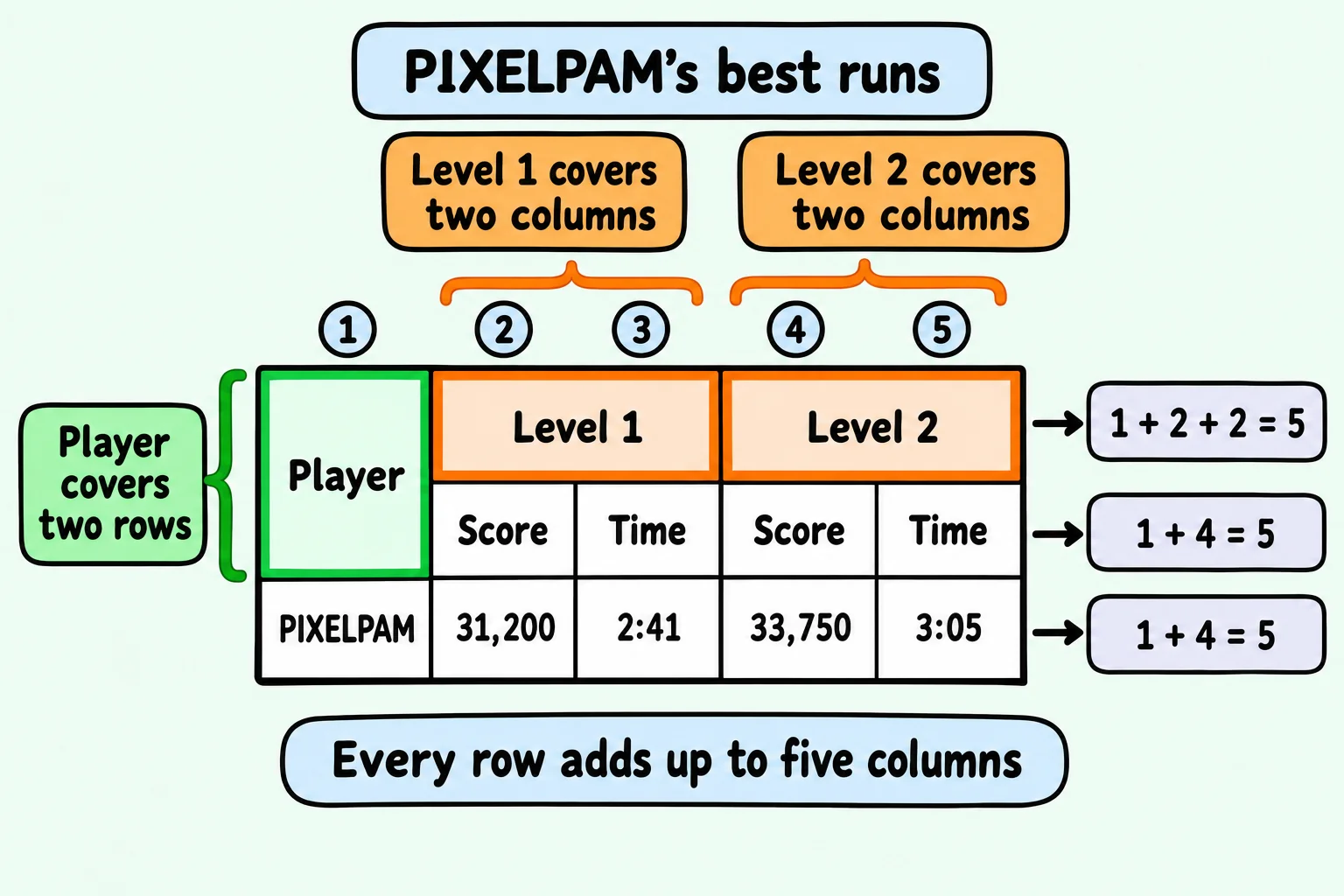
Every row adds up to the same width
When you span cells, count. Every row must fill the same number of column slots, and a cell that spans takes up more than one:
- The first header row: Player (1) + Level 1 (2) + Level 2 (2) = 5.
- The second header row has only four cells, Score, Time, Score, Time, but Player's
rowspan="2"reaches down into it and takes its first slot: 1 + 4 = 5. - The data row: 1 header + 4 data cells = 5.
A row with too many or too few cells is the most common table mistake. The browser doesn't refuse it: it pushes cells out past the edge of the table or leaves gaps, and the columns no longer line up with their labels. The validator, an online checker for HTML mistakes, reports it as a row that's wider or narrower than the others.
Try it. In level-scores.html, build the best-runs table. Then delete one <td> from the data row and watch the last column's label sit over nothing. Put the cell back.
Keep complex tables simple
Spans are useful, and a little goes a long way. Every span makes a table harder to read for everyone, and hardest for a screen reader user, who meets it one cell at a time. Before you add a span, ask whether a simpler shape would do:
- Split it. A table of scores and times might read better as two tables, one for each.
- Repeat a label. Two columns named "Level 1 score" and "Level 1 time" need no span at all.
- Read it aloud. Pick a few cells and say each one with its labels. If you can't tell which labels a cell has, neither can a screen reader.
Check yourself
3 questions to try on the lesson page.
So what
Reports, statements and schedules all have heads, bodies, totals and the odd stretched cell. Mark them up with <thead>, <tbody>, <tfoot>, scope and careful spans, and the same table works on a screen, on paper and read aloud.