The Page Skeleton
Every HTML page starts from the same skeleton, the doctype, an html element with a head and a body, and knowing what each line does saves you from strange bugs.
Novice · HTML · Updated
After this lesson you can
- Write a page skeleton with the doctype, html with lang, head and body, and leave notes in HTML comments
- Put each part of a page in the head or the body, including the charset, viewport and title
Key takeaways
- Every page starts with
<!DOCTYPE html>, then one<html lang="en">element that holds a<head>and a<body>. - The head holds what the browser needs, such as the character set, the viewport and the title. The body holds what people see.
- The charset line makes every letter and emoji show correctly, and
<title>names the browser tab. - A comment,
<!-- like this -->, is a note for people. The page doesn't show it, but anyone can read it in the page's source. - In VS Code, type
!and press Tab to get the whole skeleton, then change its title.
Every page you build, a class assignment, a portfolio, a shop's home page, starts with the same dozen lines. VS Code can type them for you in two keystrokes, but you need to know what each one does, because a missing line causes bugs that are hard to explain: a browser tab that says index.html, a menu where café turns into café, a page that looks tiny on a phone.
The frame of a house
Before a house gets furniture, it gets a frame: walls, a roof, a front door. Every house has one, and it's always built the same way. A web page has a frame too, called its skeleton. Here is The Daily Grind's home page with its skeleton around the content:
<!DOCTYPE html>
<html lang="en">
  <head>
    <meta charset="utf-8">
    <meta name="viewport" content="width=device-width, initial-scale=1">
    <title>The Daily Grind</title>
  </head>
  <body>
    <h1>The Daily Grind</h1>
    <p>Your neighborhood coffee shop on Maple Street.</p>
  </body>
</html>
The rest of this lesson takes it one line at a time.
The doctype and the html element
The first line, <!DOCTYPE html>, is read "angle bracket, exclamation mark, doctype html". It's the document type declaration, or doctype: it tells the browser "this is a modern HTML page, use today's rules". It isn't an element and has no end tag. Without it, the browser switches to quirks mode, where it copies the habits of browsers from the 1990s, and parts of a page can come out the wrong size for no reason you can see.
Everything else sits inside one <html> element, the outermost box of the page. Its lang attribute says what language the page is in:
<html lang="en">
</html>
A screen reader uses lang to read the page aloud in the right accent, and a browser uses it to offer a translation.
The head and the body
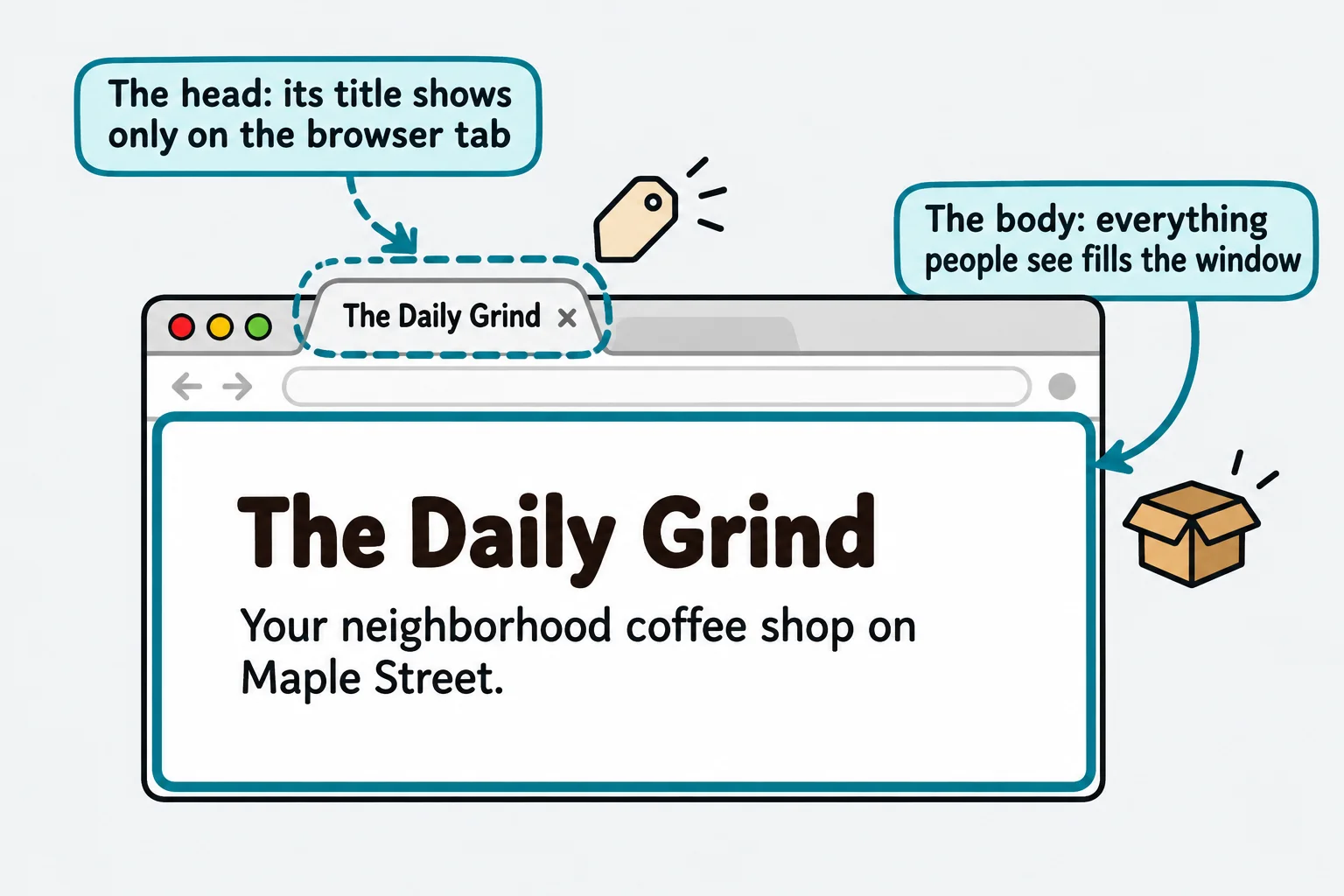
Inside <html> are exactly two boxes. Think of a package in the mail: the shipping label is for the people who deliver it, and the box's contents are for you.
<head>is the shipping label: information for the browser and for search engines, never shown on the page itself.<body>is the contents: every heading, paragraph, picture and link that people see.
<head>
  <title>The Daily Grind</title>
</head>
<body>
  <h1>The Daily Grind</h1>
</body>
The head always comes first, and the body second.
What goes in the head
Three lines go in the head of every page:
<meta charset="utf-8">
<meta name="viewport" content="width=device-width, initial-scale=1">
<title>The Daily Grind</title>
<meta charset="utf-8">is the character encoding declaration. A computer stores every letter as a number, and the charset says which table of numbers to use. UTF-8 is the table that has every language's letters and every emoji in it. Without this line, café can come out as café. Put it first in the head.- The viewport line makes a phone show the page at the phone's own width, instead of shrinking a desktop-sized page down to fit.
<title>is the page's name. It shows on the browser tab, in bookmarks and as the blue link in search results.
<meta> is a void element, so neither line has an end tag. <title> holds text, so it does.
Try it. Make a new file named skeleton.html, type the skeleton from the first section, and open it with Live Server. Change the words in <title>, save, and look at the browser tab. Then add a paragraph with café in it, and see it shown correctly.
Comments: notes for people
Sometimes you want to leave a note in your HTML: why a line is there, or what to change next month. That's a comment:
<!-- Prices go up on January 1. Check the menu then. -->
<p>Latte: $4.50</p>
A comment starts with <!--, read "angle bracket, exclamation mark, dash dash", and ends with -->, read "dash dash, angle bracket". The browser doesn't show it on the page. But it's still in the file, and anyone can read it with the browser's View Source, so a comment is no place for a password or anything private.
VS Code's shortcut
In a new, empty .html file in VS Code, type ! (an exclamation mark) and press Tab. VS Code writes the whole skeleton for you:
<!DOCTYPE html>
<html lang="en">
<head>
    <meta charset="UTF-8">
    <meta name="viewport" content="width=device-width, initial-scale=1.0">
    <title>Document</title>
</head>
<body>

</body>
</html>
This shortcut comes from Emmet, a tool built into VS Code that turns short abbreviations into HTML. Its skeleton has the same lines as The Daily Grind's (UTF-8 and utf-8 mean the same thing). Change Document to the page's real name every time: a tab that says Document is a sign someone forgot.
Check yourself
2 questions to try on the lesson page.
So what
Every HTML page you'll ever write starts from this skeleton. Know what each line is for, and you'll recognize the bugs a missing one causes: the wrong tab name, scrambled letters, a page that's tiny on a phone.