What You Can Build with HTML
HTML is underneath every website, many email newsletters and e-books, and even apps on your TV and computer; this course takes you from your first page to a website for a local business.
Novice · HTML · Web Development · Updated
After this lesson you can
- Name things people build with HTML and say what HTML's job is in each
- Tell whether a job on a web page belongs to HTML, CSS or JavaScript
- Describe how this course's lessons, checks, practice exercises, assessments and mini-capstones fit together
Key takeaways
- HTML is underneath every web page, and also many email newsletters, e-books, smart-TV apps and desktop apps such as VS Code.
- HTML's job is the content and its structure. CSS decides how it looks, and JavaScript makes it respond to what you do.
- In this course you build five projects you can share, then a website for a local business as the final capstone.
- Each lesson ends with Check yourself questions; each chapter ends with an exercise whose checks tell you when it's done.
You have used HTML thousands of times without seeing it. The page where you checked your class schedule, the receipt your phone showed after you ordered a pizza, the newsletter from your favorite band: all of it started as plain text in a file, marked up so a computer knew which part was a heading, which part a paragraph and which part a link. That text is HTML. By the end of this course you will write it yourself, and you'll be able to read it on any site and say why it was built that way.
HTML is already all around you
HTML stands for HyperText Markup Language. A markup language adds labels to text so software knows what each piece is. "Hypertext" is text with links in it, which you can follow from one page to another. Here is a little HTML, the top of a page for a neighborhood game night:
<h1>Maple Street Game Night</h1>
<p>Board games, card games and snacks, on the first Friday of every month.</p>
The labels in angle brackets are tags. <h1> says "this is the main heading", and <p> says "this is a paragraph". The browser reads the tags and shows the words as a big heading and a paragraph. You'll learn to write these in the next chapter; for now, look at where HTML turns up:
| Where | What HTML does there |
|---|---|
| Every website | Every page you visit, from a bank to a recipe blog, is HTML that your browser received and drew on the screen. |
| Email newsletters | A newsletter with pictures, headings and buttons is usually an HTML email. |
| E-books | An EPUB e-book is a bundle of HTML files: each chapter is a page. |
| TV and kiosk apps | Many smart TVs (Samsung's and LG's among them) run apps built with HTML, CSS and JavaScript, and many store and museum kiosks show a web page full screen. |
| Desktop apps | VS Code, the code editor you'll install in this chapter, is built with HTML, CSS and JavaScript. So are the desktop apps of Slack and Discord. |
Try it. Open any website, right-click an empty part of the page and choose View Page Source (in Safari, see the lesson How a Browser Shows a Page first). The text that opens is the HTML your browser received. You won't understand all of it yet. Look for words you can see on the page: they are in there, between the tags.
Three languages, three jobs
A web page is usually made with three languages, each with its own job. Think of a food truck:
- HTML is the truck and the menu board: what's there, and what each thing is. A heading, a list of tacos, a price, a link to the order page.
- CSS (Cascading Style Sheets) is the paint job and the lettering: colors, fonts, sizes, where things sit on the screen.
- JavaScript is the person at the window who reacts when you order: it makes the page respond, like a menu that filters to vegetarian tacos when you tap a button.
The three work together, but HTML comes first. A page with only HTML still works: you can read it, follow its links and fill in its forms. A page with no HTML has nothing for CSS to color and nothing for JavaScript to change.
<h2>Today's Tacos</h2>
<ul>
  <li>Carnitas, $3.50</li>
  <li>Grilled veggie, $3.25</li>
</ul>
Everything in that snippet is HTML's job: there is a heading, and there's a list with two tacos and their prices. Whether the heading is red, or whether tapping a taco adds it to an order, is someone else's job: CSS's and JavaScript's.
What you'll build in this course
This course is five modules, and each one ends with a project of your own, made with everything the module taught. They are real pages you can open on your phone and send to a friend.
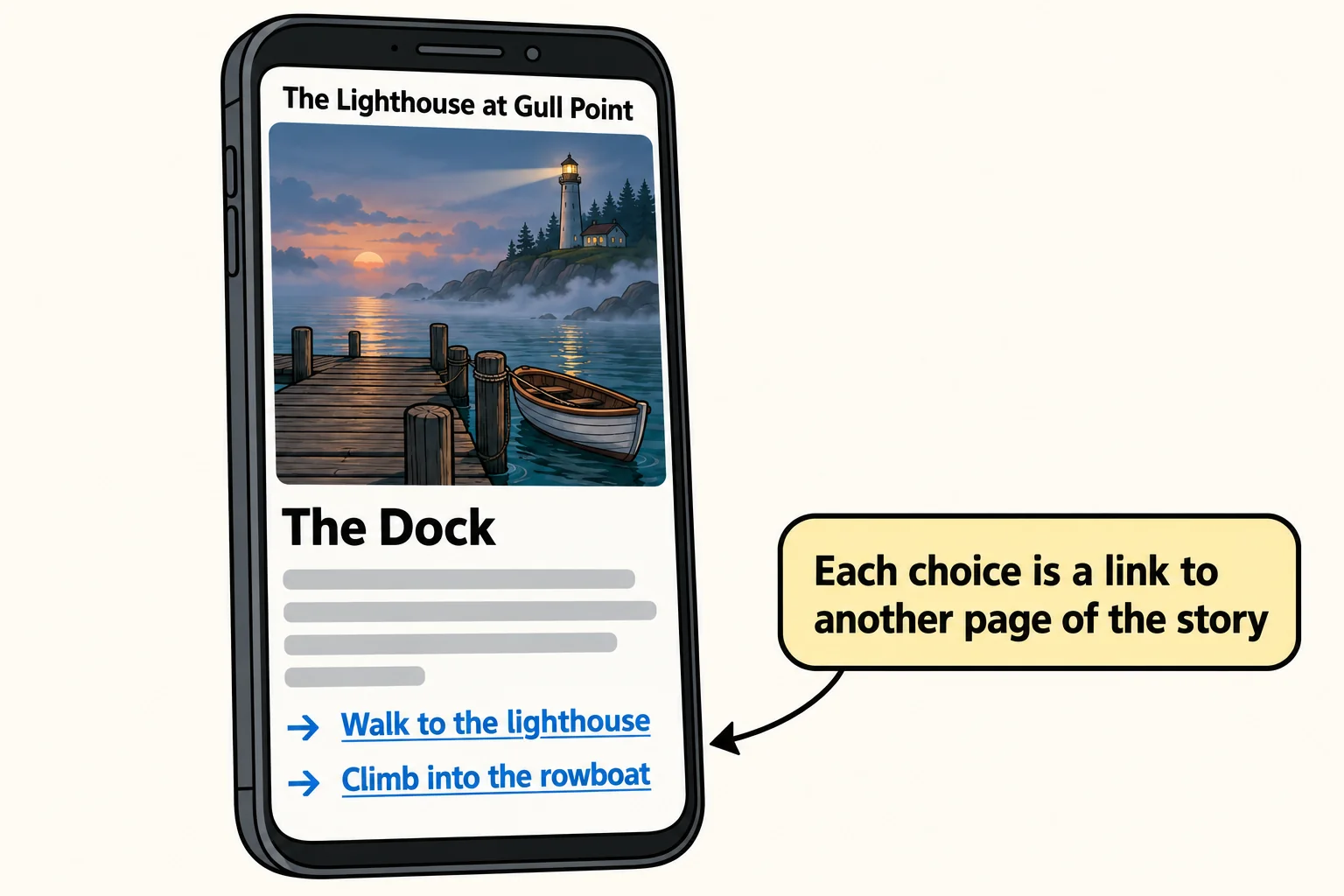
- A choose-your-own-adventure story (Module 1: Your First Web Pages). A story game made only of linked pages: every page ends with choices, each choice is a link, and some paths lead to an ending. You put it online for free, so your friends can play it from a link.
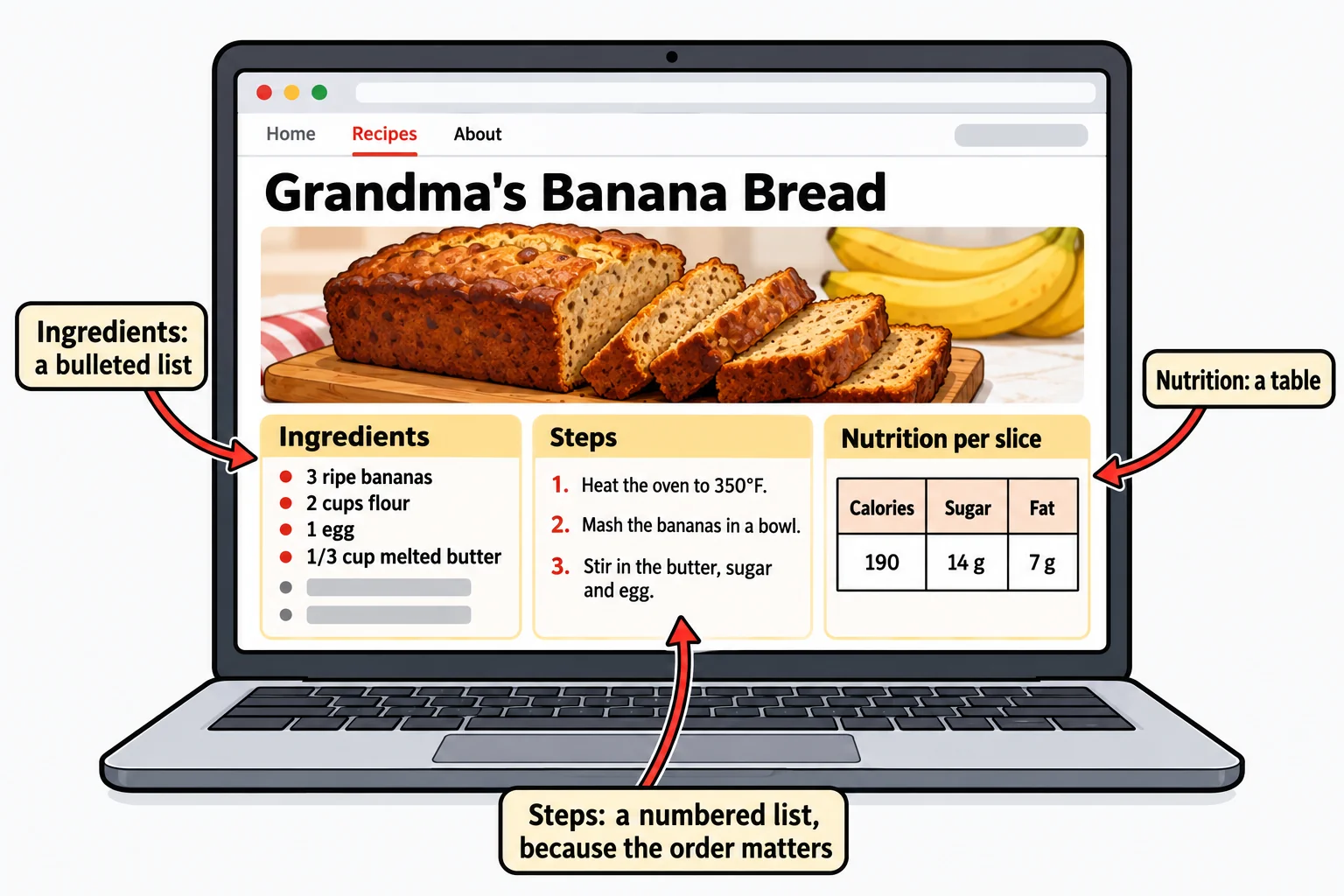
- A recipe site (Module 2: Structure and Meaning). A home page and three recipes, with ingredient lists, numbered steps, a nutrition table and cook's tips that open and close.
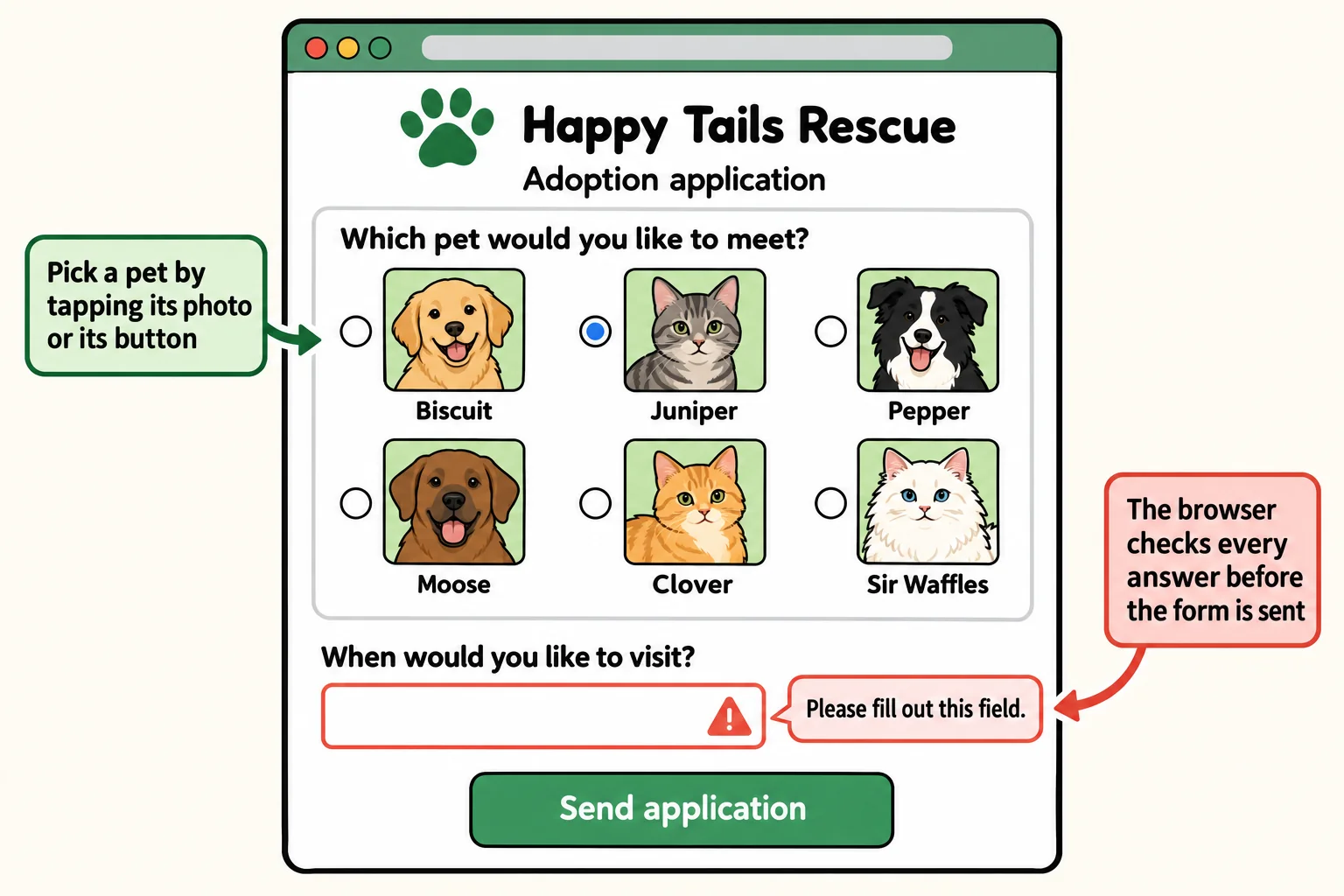
- A pet adoption application (Module 3: Forms). An application for Happy Tails Rescue, a made-up shelter: contact details, the pet you'd like, your home, a visiting time. The browser checks every answer, and it works with the keyboard alone.
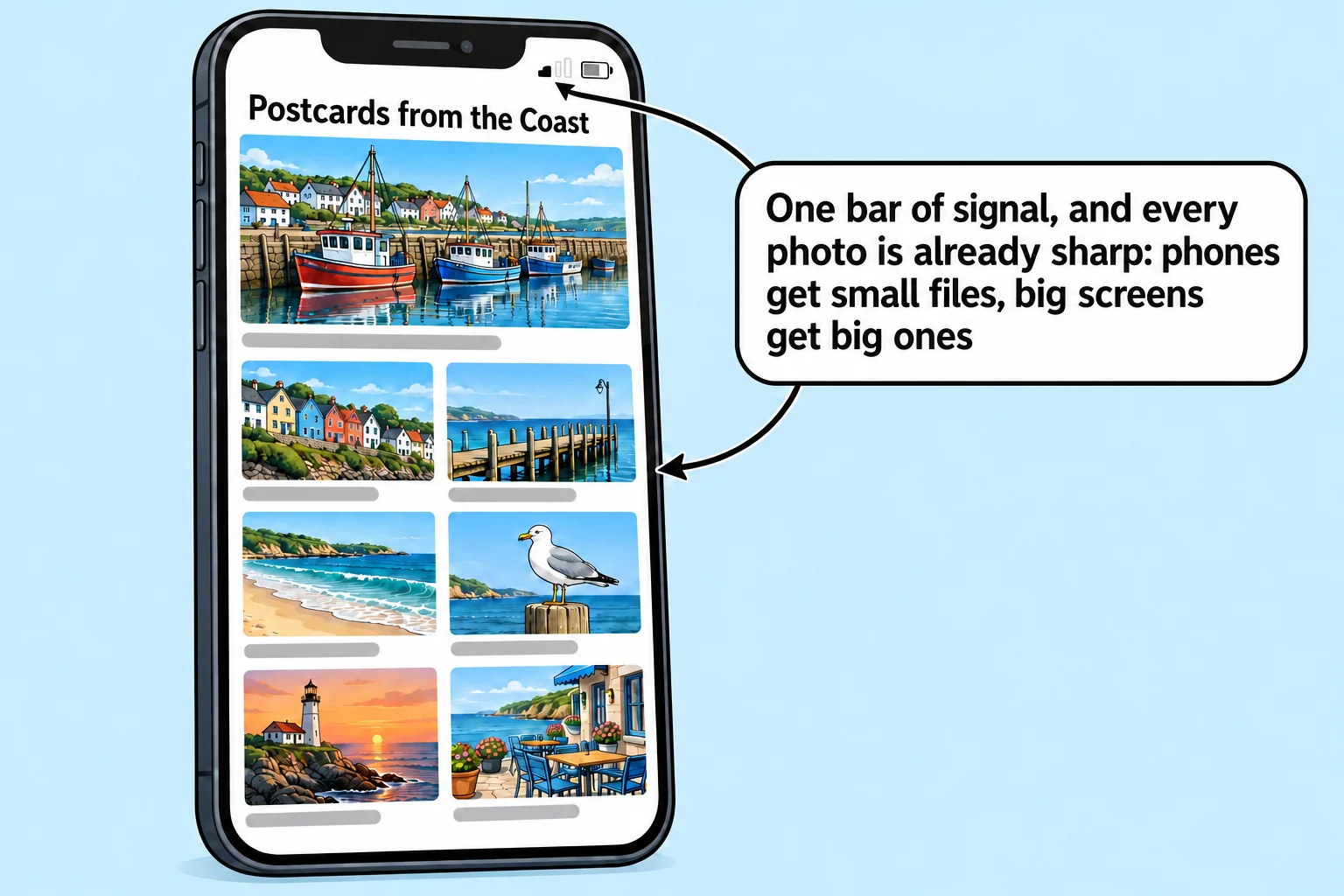
- A photo gallery that loads fast on a phone (Module 4: Media and Performance). Twelve or more photos of something you love, each served at the right size for the screen, so the page stays quick on a phone.
- A portfolio page (Module 5: Accessibility, Search and the Advanced End). One page about you and your projects that a screen reader can read, and that shows a title, a description and a picture when you paste its link into a chat.
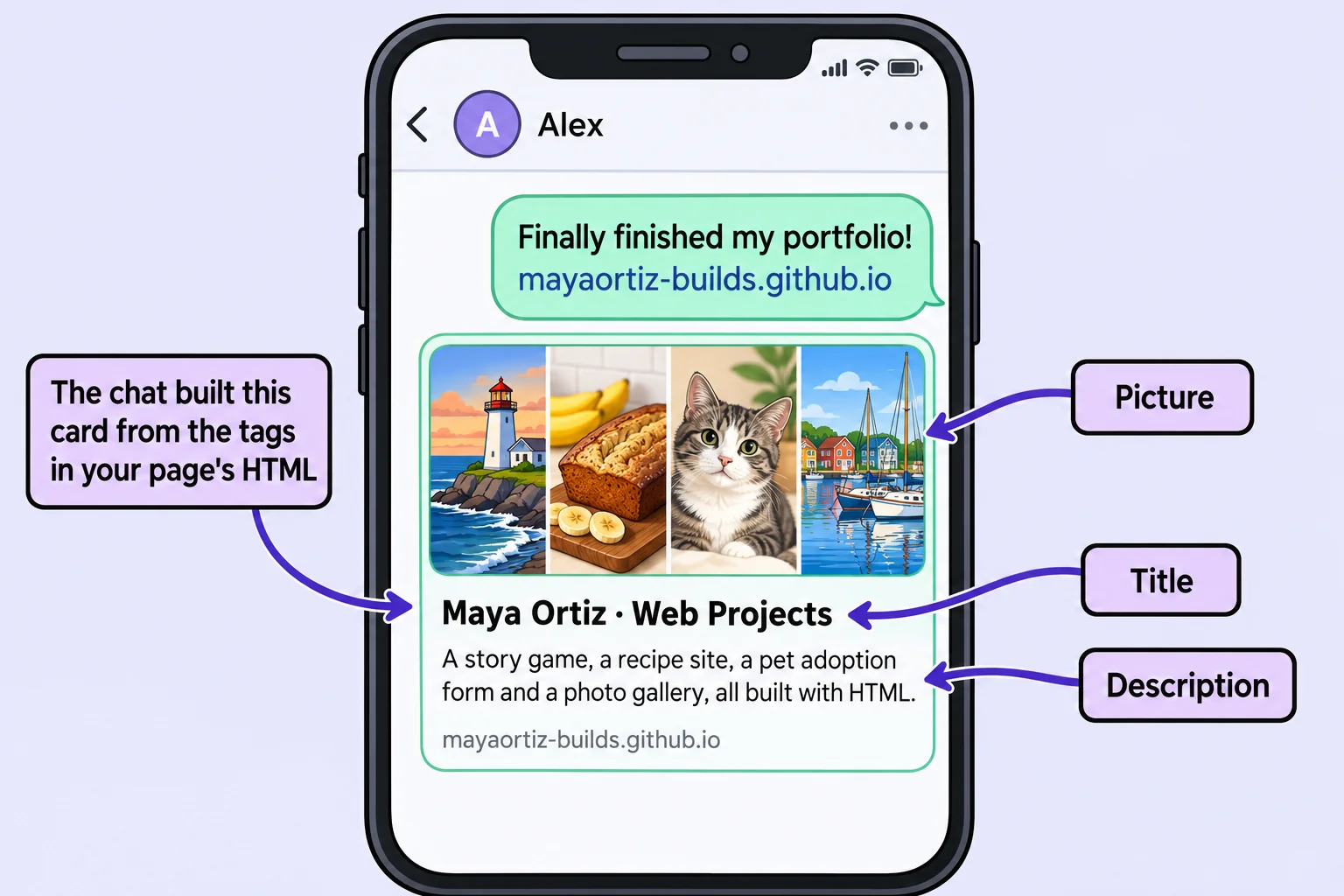
The course ends with a final capstone: a website of four or more pages for a local business, such as a bakery, a bike shop or a dog-walking service. It has a menu or price list, a gallery, a contact form and everything search engines and screen readers need, and it's online with a link you can share.
How this course works
Each module is split into chapters, and each chapter into short lessons. Each lesson teaches one idea with small examples you can try on your own computer. Here is what else you'll meet along the way:
- Check yourself: one to three questions at the end of a lesson, answered right there, with the explanation straight after. A wrong answer is useful news: read why, look back at the lesson, and carry on.
- Exercises: every chapter ends with a lesson whose title starts Exercise:. You download a starter folder, build or fix a page, and run its checks: a small program that reads your page and says what's done and what's not done yet.
- Chapter checks: a short quiz on the chapter's skills, which you can take as often as you like. It shows you what to review.
- Module assessments: 40 questions at the end of each module. 80% passes, and you get three tries a day.
- Mini-capstones: the five projects above, one at the end of each module, then the final capstone.
Every lesson starts with a list of skills: what you can do after it. The questions test those skills, and your progress counts them. A skill is mastered when you've answered three different questions about it right the first time and without a hint, and those questions come at it from at least two different angles. For a skill such as link one of your pages to another, one question might ask which link opens the right page, and another might show you a link that's broken and ask why. Answering from two angles shows you understand the skill, not that you remember one answer. Your latest answer about it has to be right too. A later miss puts it back to practiced until your next clean answer.
Check yourself
2 questions to try on the lesson page.
So what
HTML is the one language every website, and a surprising number of apps, depend on. Learn it well, and every page you look at becomes something you can read, fix and build yourself.