# Why Code Can't Stop and Wait
JavaScript runs one line at a time on one thread, so code that stands and waits freezes the whole page; asynchronous code starts a wait, carries on, and finishes the job later.
Apprentice · JavaScript · Updated November 1, 2026
## After this lesson you can
- Explain the difference between synchronous and asynchronous code
- Explain why long-running code freezes a page
## Key takeaways
- Synchronous code runs one line at a time, in order, and each line finishes before the next one starts.
- JavaScript has one thread, like a kitchen with one cook, so while one piece of code runs, nothing else can.
- Code that keeps the thread busy for a long time blocks it, and a page can't react to clicks, typing or scrolling until it's done.
- Asynchronous code starts something that takes time, hands the waiting to the browser or Node, and runs a callback when the wait is over.
Open a weather app and for a moment it says *Loading...*, but you can still scroll, tap a button or start typing a city. Behind that *Loading...*, JavaScript is waiting for an answer from a server on the other side of the world. Every app you'll build waits for something: data from the internet, a countdown, a person's next click. And while it waits, the page has to keep working.
That's harder than it sounds, because JavaScript can only do one thing at a time. This lesson shows what happens when code stands and waits (the page freezes), and the trick JavaScript uses instead. It's the first step toward loading live data from the internet, which is where this module ends: a trivia game with real questions.
## A kitchen with one cook
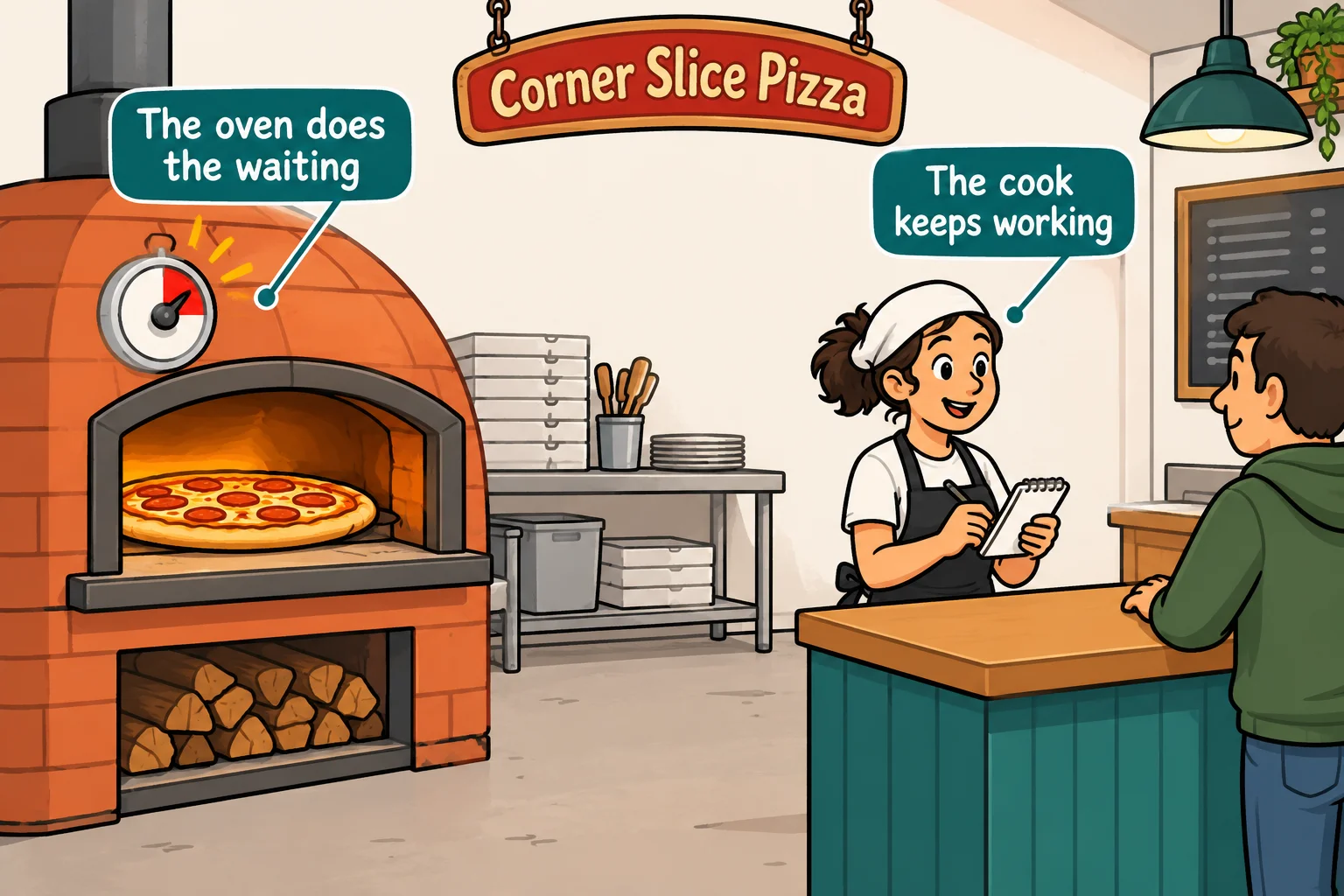
Corner Slice Pizza has one cook, Nina. A large pepperoni takes 10 minutes in the oven. Nina could slide it in and stand at the oven door for 10 minutes, watching. Meanwhile the phone rings, three people line up at the counter, and nobody gets served.
That's not what Nina does. She slides the pizza in, sets the oven's timer, and starts the next order. When the timer beeps, she takes the pizza out. The oven does the waiting; Nina keeps working.
JavaScript is a kitchen with one cook. Everything in this lesson comes back to that picture.
## Synchronous code: one line, then the next
Most of the code you've written so far runs in order: the first line finishes, then the second line runs, then the third. Code that runs like that, each step waiting for the one before, is called **synchronous** code (read "SIN-kruh-nus"; it comes from Greek words for "at the same time", meaning the steps keep in step with each other).
```javascript
console.log('Take the order: one large pepperoni');
console.log('Stretch the dough');
console.log('Add sauce and cheese');
console.log('Ring it up: $18.50');
```
```text
Take the order: one large pepperoni
Stretch the dough
Add sauce and cheese
Ring it up: $18.50
```
Synchronous code runs the way it reads: top to bottom, one line after another. For quick steps like these, it's exactly what you want.
## One thread: only one line at a time
The worker who runs your code is called a **thread**: one line of work, carried out step by step. Some languages can run several threads at once, like a kitchen with many cooks. JavaScript runs your code on **one thread**. In your textbook this is called being *single-threaded*.
So while one piece of your code is running, no other piece of your code can run, and on a web page that includes the code that answers clicks. Here's Nina standing at the oven, written in JavaScript. The `while` loop checks the clock over and over, doing nothing else, until three seconds have passed:
```javascript
function standAtTheOven(seconds) {
const end = Date.now() + seconds * 1000;
while (Date.now() < end) {
// waiting, and doing nothing else
}
}
console.log('Pizza goes in the oven');
standAtTheOven(3);
console.log('Pizza comes out');
console.log('Next order, please');
```
```text
Pizza goes in the oven
Pizza comes out
Next order, please
```
`Date.now()` gives the current time in **milliseconds** (thousandths of a second), so `seconds * 1000` turns 3 seconds into 3000 milliseconds. Run it with `node oven.js` and watch: the first line appears, then nothing at all happens for three seconds.
## Blocking: the page that freezes
Code that keeps the thread busy, so nothing else can run until it's done, is called **blocking** code: it blocks everything behind it, like a cook who won't leave the oven. In a terminal that's a pause. On a web page it's worse, because the code that answers clicks and typing has to wait too.
Here's a small page to see it for yourself. You don't need to know HTML to use it: it has a count of orders, a button that adds one, and a button that bakes the wrong way. Save it as `index.html`:
```html
The Frozen Kitchen
Corner Slice Pizza
Orders taken: 0
```
And save this beside it as `freeze.js`:
```javascript
const ordersShown = document.querySelector('#orders');
let orders = 0;
document.querySelector('#take-order').addEventListener('click', () => {
orders += 1;
ordersShown.textContent = orders;
});
document.querySelector('#bake').addEventListener('click', () => {
const end = Date.now() + 5000;
while (Date.now() < end) {
// the cook stares at the oven
}
});
```
**Try it.** Open `index.html` with Live Preview in your browser. Click **Take an order** a few times: the count goes up right away. Now click **Bake by standing at the oven**, and straight after it, click **Take an order** three times and try to select some text. For five seconds nothing responds. Then the count jumps by three all at once: your clicks were waiting in line the whole time. Keep a page busy long enough and the browser offers to close it with a *Page Unresponsive* message.
## Asynchronous code: start now, finish later
The fix is to do what Nina does: start the wait, carry on, and come back when it's over. Code that starts something now and finishes it later, while other code keeps running, is called **asynchronous** code (read "ay-SIN-kruh-nus": *not* in step).
JavaScript's oven timer is called `setTimeout`. You hand it a function and a number of milliseconds, and it runs the function once the time is up. The next lesson, *Timers: setTimeout and setInterval*, takes it apart; for now, watch the order of the lines:
```javascript
console.log('Pizza goes in the oven');
setTimeout(() => {
console.log('Ding! The pizza is ready');
}, 3000);
console.log('Start the next order');
console.log('Answer the phone');
```
```text
Pizza goes in the oven
Start the next order
Answer the phone
Ding! The pizza is ready
```
The two lines after the timer print right away. Three seconds later, the "Ding!" line prints. The arrow function you handed to `setTimeout` is a **callback**, the same idea as in *Functions as Values: Callbacks*: a function you give to other code, for it to call when the time comes.
## Who does the waiting?
If JavaScript has one thread, who watches the clock for those three seconds? Not your code. JavaScript always runs inside a host program, the browser or Node, and that host is called the **JavaScript runtime**. The runtime has its own helpers, like the oven's timer, that wait without using your thread. When the wait is over, the runtime hands your callback back to JavaScript to run.
You've already met one asynchronous thing: a click. `addEventListener` hands the browser a function, and the browser calls it when someone clicks, maybe never. Here are the waits you'll see most:
| The wait | Who keeps track of it | What runs when it's over |
|---|---|---|
| A timer, such as "ready in 10 minutes" | The runtime's timers | The callback you gave `setTimeout` |
| A click or a key press | The browser | The callback you gave `addEventListener` |
| Data from a server | The browser's network code | Your code that shows the data (in the chapter *Calling Web APIs with fetch*) |
**Try it.** Change the `3000` in the `setTimeout` example to `0`, run it again, and look at the order of the lines. Does the "Ding!" line still come last? *The Event Loop, in Pictures*, two lessons on, explains why.
## Check yourself
2 questions to try on the lesson page.
## So what
JavaScript never stands at the oven: it starts a wait, keeps the page working, and runs your callback when the wait is over. Every timer, click and download in the rest of this course works that way, and knowing it is how you'll keep a page from ever freezing on the people who use it.
## Key terms
- Synchronous Code
- Asynchronous Code
- Blocking Code
- [JavaScript Runtime](https://www.ask-codey.com/glossary/javascript-runtime)
## Cheat sheets
- [Why Code Can't Stop and Wait](https://www.ask-codey.com/cheat-sheets/javascript-async-basics-why-code-waits-cheat-sheet)
## Related
- [Functions as Values: Callbacks](https://www.ask-codey.com/lessons/javascript-callbacks-functions-as-values)
- [Timers: setTimeout and setInterval](https://www.ask-codey.com/lessons/javascript-async-basics-timers)
Source: https://www.ask-codey.com/lessons/javascript-async-basics-why-code-waits