The Event Object
Every listener is handed an event object that says what just happened, so one function can tell which button was clicked, which element it landed on, and which key was pressed.
Apprentice · JavaScript · Web Development · Updated
After this lesson you can
- Read an event's type, target and currentTarget, and tell target and currentTarget apart
- Read event.key in a keydown listener to tell which key was pressed
Key takeaways
- The browser hands every listener an event object, a note about what just happened. Give your function a parameter, named event, to receive it.
- event.type is the event's name, such as 'click' or 'keydown'.
- event.target is the element the event happened on, the exact thing clicked. event.currentTarget is the element whose listener is running.
- In a keydown listener, event.key is the key that was pressed, such as 'Enter', 'Escape', 'ArrowRight' or a letter. The names are case-sensitive.
Weeknight Recipes has three filter buttons: Breakfast, Lunch and Dinner. You could write three listeners that are almost the same, or write one and have it ask "which button was it?". And when someone is cooking with flour on their hands, the arrow keys should move to the next step, which means the code has to know which key was pressed. Questions like these come up on every page with more than one control, and the browser answers them in the event object.
A note with every event
When a parcel arrives, it comes with a delivery slip: what it is, who it's for, where it was left. The browser does the same with every event. Each time it runs your listener, it hands it an object that describes what just happened: the event object.
To receive it, give your listener a parameter. The usual name is event (older code often shortens it to e or evt):
const saveButton = document.querySelector('#save-recipe');

saveButton.addEventListener('click', (event) => {
  console.log(event.type);
});
Click the button, and the Console shows:
click
event.type is the event's name, the same string you gave addEventListener. You never create the event object yourself: the browser makes a new one for every click or key press and passes it in, the way a function's argument is passed to its parameter.
event.target: what it happened to
One function can serve all three filter buttons, because event.target is the element the event happened on. Here's the HTML that matters:
<button class="meal-filter">Breakfast</button>
<button class="meal-filter">Lunch</button>
<button class="meal-filter">Dinner</button>
<p id="showing">Showing: all recipes</p>
The code gives every button the same listener, and the listener reads the clicked button's text:
const showing = document.querySelector('#showing');

function chooseMeal(event) {
  showing.textContent = `Showing: ${event.target.textContent} recipes`;
}

for (const button of document.querySelectorAll('.meal-filter')) {
  button.addEventListener('click', chooseMeal);
}
Click Lunch, and the paragraph says Showing: Lunch recipes. The function is handed over with no parentheses, as in Responding to Clicks with addEventListener, and the browser calls it with the event object each time.
target and currentTarget
Now the whole recipe card listens for clicks, so a click anywhere on the card opens it:
<article class="recipe-card" id="fajitas">
  <h3>Sheet-Pan Fajitas</h3>
  <p>30 minutes, dinner</p>
</article>
When you tap the card, your finger lands on something: maybe the heading, maybe the empty space around it. The event object has a name for each part:
event.targetis what your finger actually landed on: the exact element clicked.event.currentTargetis the element whose listener is running: the one you calledaddEventListeneron.
const card = document.querySelector('#fajitas');

card.addEventListener('click', (event) => {
  console.log('target:', event.target.tagName);
  console.log('currentTarget:', event.currentTarget.tagName);
});
tagName is an element's tag, in capital letters. Click the heading, then the space beside it, and the Console shows:
target: H3
currentTarget: ARTICLE
target: ARTICLE
currentTarget: ARTICLE
currentTarget is always the card, because that's where the listener is. target changes with where you click, and it can be anything inside the card. On a plain button with only text in it, the two are the same element. Why a click on the heading reaches the card's listener at all is the subject of the next lesson, Bubbling and Event Delegation.
Try it. Add the three filter buttons and the paragraph to your weeknight page, and the chooseMeal code to app.js. Click each button. Then change event.target to event.currentTarget: on these buttons, nothing changes. Why not?
event.key: which key was pressed
A keydown event happens every time a key goes down. Key presses go to whatever part of the page is active, so a listener on document, the whole page, hears all of them:
document.addEventListener('keydown', (event) => {
  console.log(event.key);
});
event.key is the key, as a string. Some values to know:
| You press | event.key is |
|---|---|
| The letter f | 'f' (with Shift held: 'F') |
| Enter | 'Enter' |
| Esc | 'Escape' |
| The arrow keys | 'ArrowLeft', 'ArrowRight', 'ArrowUp', 'ArrowDown' |
| The space bar | ' ', a string with one space in it |
The names are case-sensitive: 'escape' and 'arrowright' never match. In older code you'll see event.keyCode, a number such as 27 for Escape. It's out of date, and event.key is the one to use.
Cook mode: the arrow keys move through the steps
With the key known, an if decides what to do. In cook mode, the right arrow moves to the next step and the left arrow goes back:
const steps = ['Slice the peppers and onions.', 'Toss them with oil and spices.', 'Roast for 20 minutes.', 'Fill the tortillas.'];
const stepText = document.querySelector('#step');
let current = 0;

document.addEventListener('keydown', (event) => {
  if (event.key === 'ArrowRight' && current < steps.length - 1) {
    current += 1;
  } else if (event.key === 'ArrowLeft' && current > 0) {
    current -= 1;
  }
  stepText.textContent = `Step ${current + 1}: ${steps[current]}`;
});
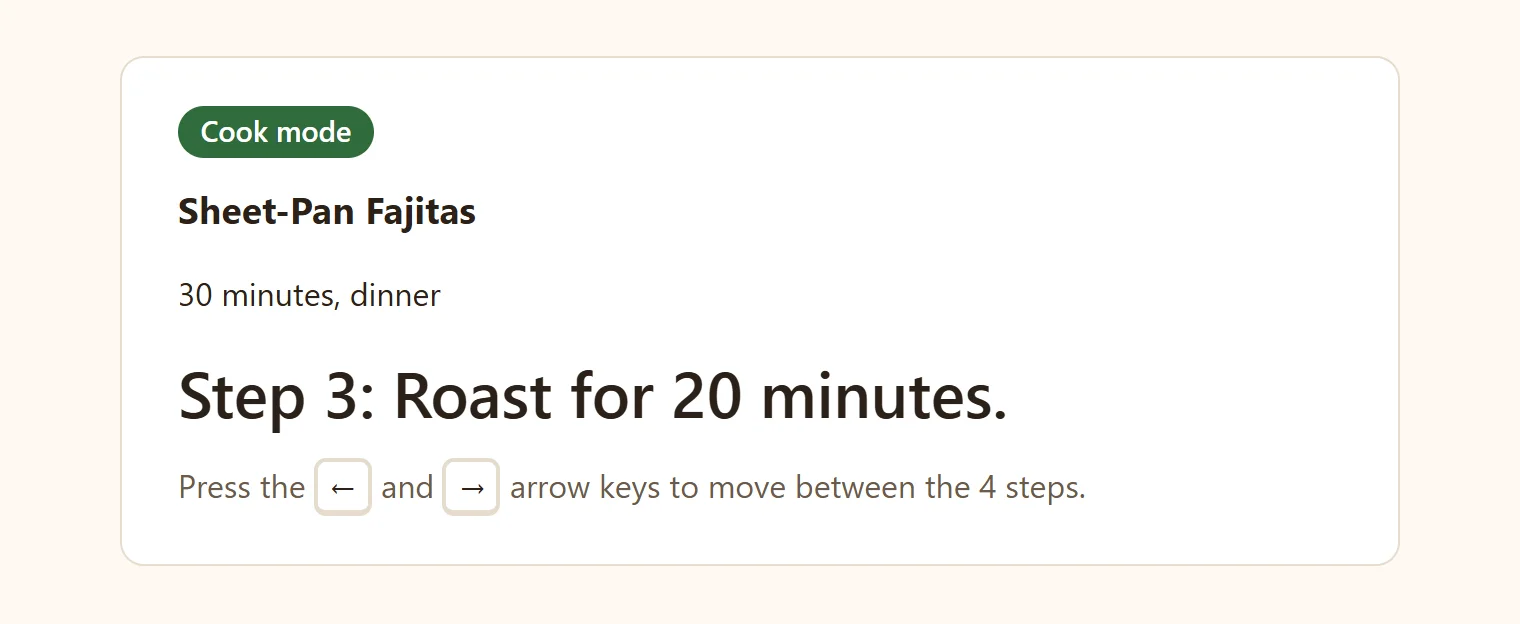
=== is read "strictly equal", from Equality and Truthy Values. Press the right arrow twice and the page shows Step 3: Roast for 20 minutes. The checks on current stop it at the last step and the first, so pressing the left arrow at step 1 stays at step 1. Any other key changes nothing.
Check yourself
2 questions to try on the lesson page.
So what
The event object turns "something happened" into "this happened, here, with this key", so one listener can serve a whole row of buttons, and a page can answer the keyboard as well as the mouse.
Key terms
- Event Object
- Event Target
- keydown Event