Getting Data with fetch
fetch sends a request to a web API and gives back a promise of the response; await it, then await response.json() to turn the JSON answer into a JavaScript value your page can use.
Apprentice · JavaScript · REST API · Web Development · Updated
After this lesson you can
- Load JSON from a web API with await fetch(url) and await response.json()
- Write an async function that builds an API address from a value and returns the data the page needs
Key takeaways
- fetch(url) sends a GET request and gives back a promise. await fetch(url) waits for the response to arrive.
- A response has a status, an ok flag and headers straight away. Its body comes separately, and await response.json() reads it and turns the JSON into a JavaScript value.
- The body can be read only once, so read it into a variable and use the variable.
- Put a request in an async function that builds the URL with a template literal and returns only the data the page needs.
A movie site that shows tonight's showtimes, a music app that loads your playlists, a "random cat fact" button, a class project that has to show live data: each one is a page that asks an API for data and puts the answer on the screen. In JavaScript, the asking is one function, fetch, and it works the same in every browser and in Node.
In What a Web API Is you opened the Dog CEO API in your browser and read its JSON. This lesson gets the same data with code, so Riverbend Animal Shelter's breed explorer can show a dog photo the moment someone picks a breed.
fetch: place the order, get a buzzer
At a busy restaurant, you place your order and they hand you a buzzer. The buzzer isn't your food; it's a promise that food is coming. When it buzzes, you collect the bag, and then you open it.
fetch (read "fetch", as in "go and get") works the same way. You give it a URL, it sends a GET request, and it hands you a promise right away: a value that stands for an answer that hasn't arrived yet (Promises: then, catch and finally explains promises in full). await (read "wait for this") pauses your code until the promise has an answer. Getting JSON takes two waits:
const response = await fetch(url);
const data = await response.json();
await fetch(url)waits until the server starts answering. That's the bag handed through the window: you get a response object, with the status code and the headers, but not yet the food inside.await response.json()waits for the rest of the answer, the body, to arrive, then reads its JSON and turns it into a JavaScript value. That's opening the bag.
await works inside an async function (async and await), and also at the top of a module file, outside any function. The examples here use the top of a module.
Your first request
Here's a random beagle, fetched with code:
const response = await fetch('https://dog.ceo/api/breed/beagle/images/random');
console.log(response.status);

const data = await response.json();
console.log(data);
200
{
  message: 'https://images.dog.ceo/breeds/beagle/n02088364_852.jpg',
  status: 'success'
}
The status is 200: it worked. data is now an ordinary JavaScript object, the same one you saw as JSON in the browser, so data.message is the photo's address. Run it again and you'll get a different beagle, because the API picks a photo at random.
Try it. In your course folder, make a folder named dog-explorer, with a package.json that holds { "type": "module" }, as in Modules: import and export. Save the code above as beagle.js and run node beagle.js a few times. Copy one of the photo addresses into your browser to meet the dog. Then change beagle to pug.
What's in a response
The response object arrives before its body, and it already tells you how the request went:
const response = await fetch('https://dog.ceo/api/breed/beagle/images/random');

console.log(response.status);
console.log(response.statusText);
console.log(response.ok);
console.log(response.headers.get('content-type'));
200
OK
true
application/json
statusis the status code, andstatusTextits name.okistruewhen the status is in the 200s: it worked. When fetch Fails puts it to work.headersare labels on the answer.content-typesays what kind of body it is: here,application/json, which is JSON.
The body can be read only once, the way you can only unpack a bag once. Call response.json() a second time and it fails with TypeError: Body is unusable: Body has already been read (Chrome says body stream already read). Read it once, into a variable, and use the variable.
A function that builds the address
Real code doesn't fetch the same beagle every time. It puts the request in an async function, builds the URL from a value with a template literal (backticks with ${}, read "dollar sign, curly braces"), and returns only what the page needs:
async function randomPhotoOf(breed) {
  const response = await fetch(`https://dog.ceo/api/breed/${breed}/images/random`);
  const data = await response.json();
  return data.message;
}

const photo = await randomPhotoOf('husky');
console.log(photo);
https://images.dog.ceo/breeds/husky/n02110185_1178.jpg
The rest of your program doesn't need to know about responses or JSON: it asks randomPhotoOf('husky') for a photo address and gets one. An async function always gives back a promise, so whoever calls it uses await too.
Bigger answers: the breed list
Some answers are bigger than one address. The breed list's message is an object with a key per breed, and you dig into it the way you'd dig into any object:
const response = await fetch('https://dog.ceo/api/breeds/list/all');
const data = await response.json();
const breeds = data.message;

console.log(Object.keys(breeds).length);
console.log(breeds.retriever);
console.log(`A ${breeds.retriever[3]} retriever`);
108
[ 'chesapeake', 'curly', 'flatcoated', 'golden' ]
A golden retriever
Object.keys gives an array of an object's keys, so its length is the number of breeds the API knew on the day this lesson was written. An API's data changes over time, so your number may be different.
On a page
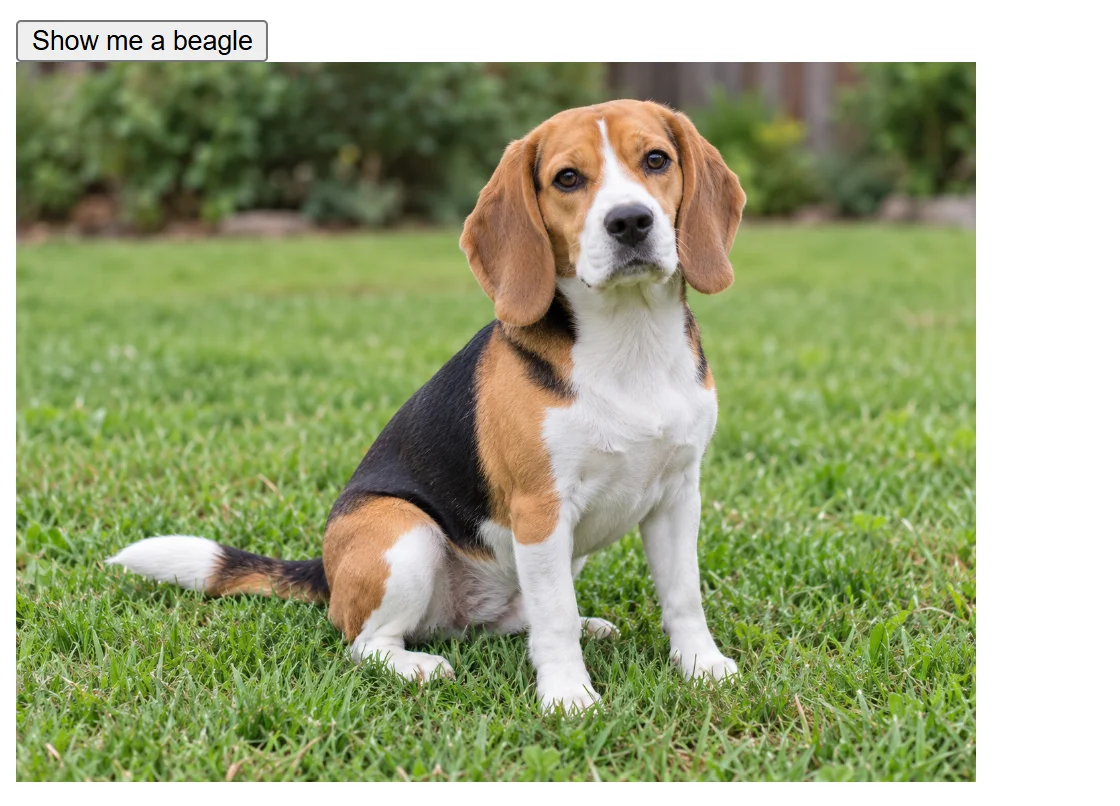
In the browser, fetch is the same function. Here the shelter's page fetches a photo when someone clicks a button, and puts it in an <img>. The part of the page that matters:
<button id="show-beagle">Show me a beagle</button>
<img id="dog-photo" alt="">
And app.js, loaded with <script type="module" src="app.js">:
const button = document.querySelector('#show-beagle');
const photo = document.querySelector('#dog-photo');

button.addEventListener('click', async () => {
  const response = await fetch('https://dog.ceo/api/breed/beagle/images/random');
  const data = await response.json();
  photo.src = data.message;
  photo.alt = 'A random photo of a beagle';
});
The listener is an async arrow function, so it can await. Each click fetches a new beagle, and the page keeps working while the request is on its way: you can scroll and click the whole time.
Try it. Put the two blocks in index.html and app.js in your dog-explorer folder, with the page shape from The HTML You Need for JavaScript, and open it with Live Preview. A page opened straight from its file (an address starting file://) can't load modules, so always use Live Preview.
Check yourself
2 questions to try on the lesson page.
So what
Two awaits, fetch and response.json(), are how a page gets live data from anywhere on the internet: dog photos today, weather, scores or your own app's server tomorrow.