Loading, Empty and Error States
A page that loads data has four states, loading, success, empty and error, and it should say which one it's in, so people never stare at a blank screen or a page that quietly broke.
Journeyman · JavaScript · REST API · Web Development · Updated
After this lesson you can
- Show a loading state while a request runs, then replace it with the data, an empty message or an error message
- Add a Try again button that stays hidden until a request fails and runs the same request again
Key takeaways
- A page that loads data is always in one of four states, loading, success, empty or error, and it should show which one.
- Show the loading state before the request starts, and disable the button so a second click can't send a second request.
- An empty answer isn't an error. Say there's nothing to show and what the person can try instead.
- An error message says what happened in plain words and what to do next, and a Try again button runs the same request again.
- Put the clean-up that must always happen, such as enabling the button again, in finally.
Search a store's site for something it doesn't sell and you get No results for "purple waffle iron". Check the spelling or try a shorter search. Open a food delivery app on a slow train and you see gray boxes where the restaurants will be. Lose your signal and a message says You're offline with a Retry button. None of those screens show data, and every one of them was designed on purpose. You'll write them whenever a page loads data, and they're what a person notices first when something is slow or wrong.
When fetch Fails taught your code to catch every way a request goes wrong. This lesson is about what the page shows while it waits, and after.
Four things the page can be doing
When you order food in an app, it always tells you where your order is: Order received, Being prepared, On its way, or Sorry, the restaurant is closed. You're never left guessing.
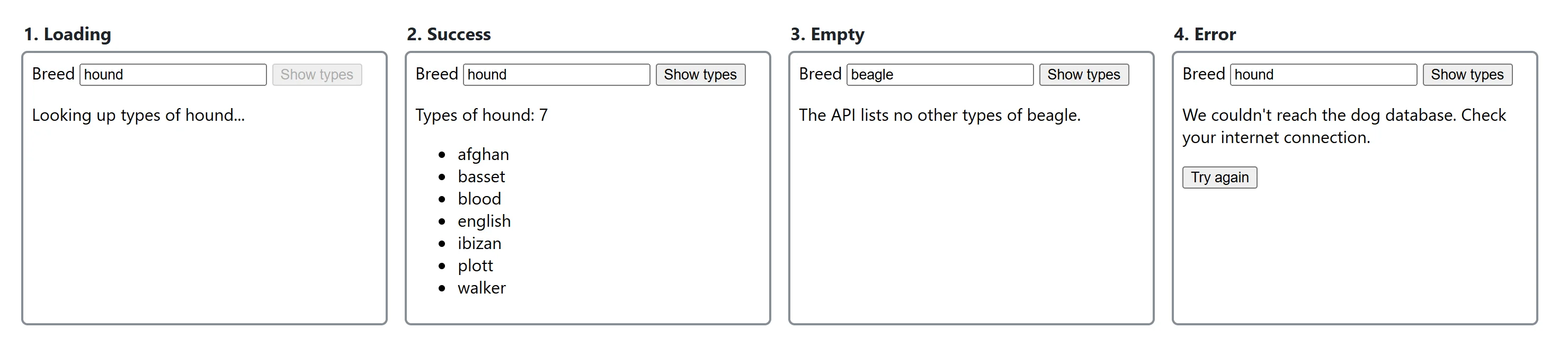
A page that loads data has four states like that, and it should always show which one it's in:
| State | What happened | What the shelter's page shows |
|---|---|---|
| Loading | The request is on its way. | Looking up types of hound... |
| Success | The data came back. | The list: afghan, basset, blood... |
| Empty | The data came back, with nothing in it. | The API lists no other types of beagle. |
| Error | The request failed. | We couldn't reach the dog database. Check your internet connection. and a Try again button |
The shelter's next feature uses one more Dog CEO endpoint, https://dog.ceo/api/breed/<breed>/list, which gives back the types (sub-breeds) of a breed as an array. A hound has seven types; a beagle has none, so its array is empty. That one endpoint can show all four states.
The page's parts
Each state needs a place on the page. This is the part of the shelter's page that matters:
<label for="breed-name">Breed</label>
<input id="breed-name" value="hound">
<button id="show-types" type="button">Show types</button>
<p id="types-status" role="status"></p>
<ul id="types-list"></ul>
<button id="try-again" type="button" hidden>Try again</button>
role="status"tells screen readers to read the paragraph aloud whenever its text changes, so someone who can't see the screen hears Looking up types of hound... too.hiddenhides an element. In JavaScript,tryAgain.hidden = truehides the button, andfalseshows it.disabled, set from JavaScript withbutton.disabled = true, grays a button out so it can't be clicked.
Loading: say so straight away
The loading message goes up before the request starts, in the same click. If it waits until after await fetch(...), the page shows nothing for exactly the time it should be saying "wait":
statusLine.textContent = `Looking up types of ${breed}...`;
list.replaceChildren();
showButton.disabled = true;

const response = await fetch(`https://dog.ceo/api/breed/${breed}/list`);
Clearing the old list with replaceChildren() (called with nothing in the parentheses, it removes every child) keeps the last breed's types from sitting under the new message. Disabling the button stops a quick double click from sending two requests, which could finish in either order. The button has to be enabled again however the request ends, which is the job of finally (below).
Try it. In DevTools' Network tab, change No throttling to Slow 4G and click the button: the loading message stays up long enough to read. Without throttling, it may flash by too fast to see, and that's fine.
Empty: an answer with nothing in it
An empty answer isn't an error: the request worked, and there's nothing to show. A blank list looks broken, so say so, and where you can, say what the person might try. A small function that picks the words can be checked in Node:
function typesText(breed, types) {
  if (types.length === 0) {
    return `The API lists no other types of ${breed}.`;
  }
  return `Types of ${breed}: ${types.length}`;
}

console.log(typesText('hound', ['afghan', 'basset', 'blood']));
console.log(typesText('beagle', []));
Types of hound: 3
The API lists no other types of beagle.
The same goes for a search box: No breeds match "zebra". Try fewer letters. is an empty state, and it's far kinder than an empty box.
Error: what happened, and what to do next
A good error message has two parts, in plain words: what went wrong, and what the person can do about it. Something went wrong has neither. We couldn't find a breed called "unicorn". Check the spelling. has both.
Show the friendly words on the page, and keep the real error for yourself in the Console:
} catch (error) {
  console.error(error);
  statusLine.textContent = friendlyMessage(error, breed);
  tryAgain.hidden = false;
}
friendlyMessage is the kind of function you wrote in When fetch Fails: it reads error.name and picks the words. A failed request is often fixed by asking again a few seconds later (the Wi-Fi came back, the server restarted), so the error state shows the Try again button.
The whole thing, with Try again
Here's the shelter's types panel from top to bottom: loading, then success, empty or error, and finally to put the button back:
const input = document.querySelector('#breed-name');
const showButton = document.querySelector('#show-types');
const tryAgain = document.querySelector('#try-again');
const statusLine = document.querySelector('#types-status');
const list = document.querySelector('#types-list');

async function showTypes() {
  const breed = input.value.trim().toLowerCase();
  statusLine.textContent = `Looking up types of ${breed}...`;
  list.replaceChildren();
  showButton.disabled = true;
  tryAgain.hidden = true;

  try {
    const response = await fetch(`https://dog.ceo/api/breed/${breed}/list`, {
      signal: AbortSignal.timeout(8000),
    });
    if (!response.ok) {
      throw new Error(`Status ${response.status}`);
    }
    const data = await response.json();
    for (const type of data.message) {
      const item = document.createElement('li');
      item.textContent = type;
      list.appendChild(item);
    }
    statusLine.textContent = typesText(breed, data.message);
  } catch (error) {
    console.error(error);
    statusLine.textContent = friendlyMessage(error, breed);
    tryAgain.hidden = false;
  } finally {
    showButton.disabled = false;
  }
}

showButton.addEventListener('click', showTypes);
tryAgain.addEventListener('click', showTypes);
Both buttons run the same function, so Try again really does try the same thing again, and every run starts by hiding the Try again button. The list is built with createElement and textContent, never by gluing the API's text into HTML: text from someone else's server is shown as text, so it can never turn into code on your page.
friendlyMessage(error, breed) isn't shown here. Write your own, with a message for a 404 (We couldn't find a breed called "unicorn". Check the spelling.), a timeout and a network error.
Try it. Build the panel in your dog-explorer folder: the HTML above in index.html, and this code with typesText and your own friendlyMessage in app.js. Then visit every state on purpose: hound (success), beagle (empty), unicorn (error), and Offline in the Network tab (error, then set it back and click Try again).
Check yourself
2 questions to try on the lesson page.
So what
A page that says loading, nothing here, or that didn't work, try again feels trustworthy even when the network isn't, and those three messages are what people remember about an app on a bad day.