Put Your App Online with GitHub Pages
Build your Vite app into a dist folder, upload what's inside it to a GitHub repository through the website, switch on GitHub Pages, and check the live link, so anyone can use your app from an address you can share.
Journeyman · JavaScript · Web Development · Updated
After this lesson you can
- Build a Vite app with the right base and npm run build, and say what the dist folder holds
- Publish a built app on GitHub Pages and check that the live link works
Key takeaways
- npm run build turns your project into a dist folder of plain HTML, CSS and JavaScript files that any web host can send out.
- A GitHub Pages project site lives at your-name.github.io/repository-name/, so set base to './' in vite.config.js, or the live page loads blank.
- Upload what's inside dist, not the dist folder itself, so index.html sits at the top of the repository.
- Switch Pages on in the repository's Settings, under Pages: Deploy from a branch, main, / (root), then Save. It can take up to 10 minutes.
- Check the live link in a private window and on your phone, with the Console open, before you share it.
An app that only runs on your laptop is hard to show anyone. A link travels anywhere: you can text it to a friend, put it on a résumé or a portfolio, or paste it into a class assignment that says "submit the URL of your project". This lesson takes the bookstore search from your computer to a real address on the internet, for free, with GitHub Pages. You don't need to know Git: everything happens in your browser, by uploading files. It takes about 15 minutes the first time, and a couple of minutes every time after that.
What putting it online means
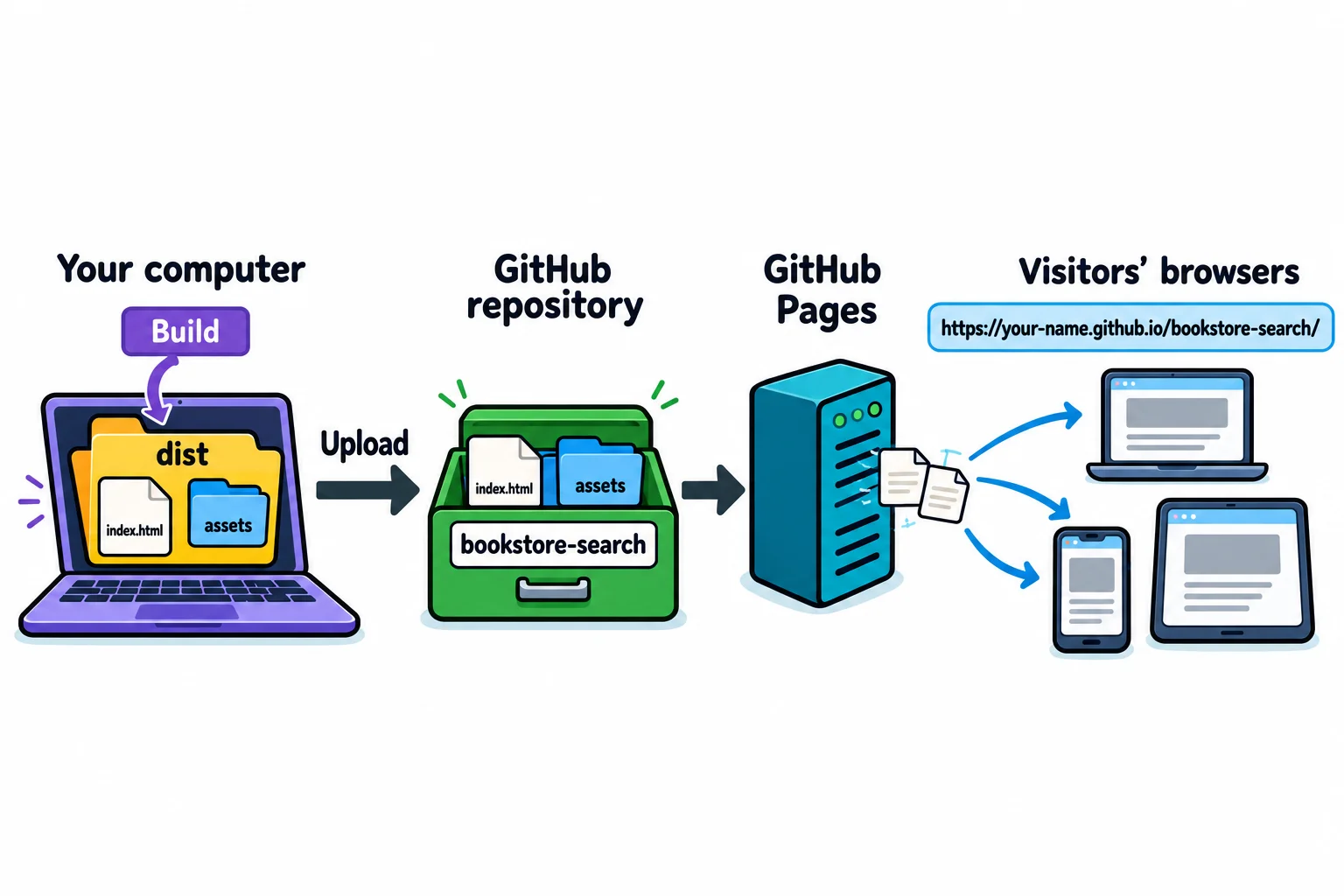
When you visit a website, your browser asks another computer for the site's files, and that computer sends them. A computer that's always on and sends files to anyone who asks is called a host. Putting your app online means copying its files to a host.
The bookstore search is HTML, CSS and JavaScript files that run in the visitor's browser. Nothing has to run on the host; it only sends the files as they are. A site like that is called a static website ("static" because the host never changes the files), and static sites are the cheapest and simplest kind to host. GitHub Pages is a free host for static websites, run by GitHub. It takes the files from a GitHub repository (a project folder kept on GitHub, which you'll make in Step 2) and gives them an address.
Step 1: build the app for its new address
A browser can't use your project folder as it is. npm run dev (from A Dev Server and Build with Vite) works on your computer because Vite runs a dev server that prepares each file as the browser asks for it. A host has no Vite. npm run build does that preparing once, ahead of time, and writes the finished files to a folder named dist (short for "distribution"). Vite is a module bundler here: it follows every import, from main.js to books.json, and packs them into as few files as possible.
npm run build
> build
> vite build

vite v8.3.5 building client environment for production...
transforming...
✓ 9 modules transformed.
rendering chunks...
computing gzip size...
dist/index.html                  0.89 kB │ gzip:  0.49 kB
dist/assets/index-jGhfuzTb.css   0.88 kB │ gzip:  0.49 kB
dist/assets/index-BKhKHYXJ.js   58.57 kB │ gzip: 10.20 kB

✓ built in 62ms
Vite read every module the page imports (the ✓ line counts them) and wrote three files: the page, one stylesheet and one JavaScript file, with the whole 500-book catalog packed inside it. The letters in a name such as index-BKhKHYXJ.js change whenever the code changes, so a visitor's browser never uses an old copy by mistake. Your letters will be different.
There's one setting to get right first. A GitHub Pages site for a project lives in a folder of your address, such as https://your-name.github.io/bookstore-search/. By default, Vite writes addresses that start at the top of the site (/assets/index-BKhKHYXJ.js), which on GitHub Pages means https://your-name.github.io/assets/..., a folder that doesn't exist. The page loads, finds none of its files, and stays blank. The setting that fixes it is base, in vite.config.js:
import { defineConfig } from 'vite';

export default defineConfig({
  base: './',
});
'./' (read "dot slash": "start from the folder this page is in") makes every address in the built page relative, so the files are found wherever the page is put. The bookstore's starter already has this file. Build again after you change it.
Try it. After npm run build, run npm run preview. It serves the dist folder the way a host would, at http://localhost:4173. Search for harbor: if it works here, it'll work online. Press Ctrl+C to stop it.
Step 2: a GitHub account and a repository
GitHub is a website that keeps code projects online, a little like a cloud drive made for code. Each project lives in its own repository (people say "repo"): a folder of files with a history of every change.
- Go to
github.comand click Sign up. It's free. Your username becomes part of your site's address (your-name.github.io), so pick one you'd be happy to show an employer. - When you're signed in, click the + in the top-right corner, then New repository.
- Name it
bookstore-search. The name becomes the last part of your address. - Choose Public. On a free account, GitHub Pages only publishes public repositories, and that means anyone can see every file you upload. That's one more reason a secret never goes in front-end code (Keeping Pages Safe: XSS and innerHTML).
- Turn Add README on, so the repository starts with one file, then click Create repository.
Step 3: upload the built files
- On your repository's page, click Add file, then Upload files.
- On your computer, open the
distfolder. Select everything inside it (index.htmland theassetsfolder) and drag it onto the upload area. Don't drag thedistfolder itself: GitHub Pages looks forindex.htmlat the top of the repository, not inside a folder nameddist. - Under the files, type a short message that says what you did, such as
Publish the bookstore search. Every upload is saved as a commit: a snapshot of the files with that message, so you can always see what changed and when. - Leave Commit directly to the main branch chosen, and click Commit changes.
Your repository now shows README.md, index.html and the assets folder, side by side. Upload only what's in dist: your source code and node_modules aren't needed by the host.
Step 4: switch on GitHub Pages
- In your repository, click Settings (the gear, under the repository's name).
- In the list on the left, under Code, planning, and automation, click Pages.
- Under Build and deployment, set Source to Deploy from a branch.
- Under Branch, choose main, leave the folder as / (root), and click Save.
GitHub now publishes your files. It usually takes a minute or two, and up to 10 minutes. Refresh the Pages screen until it says your site is live, with a Visit site button and your address: https://your-name.github.io/bookstore-search/.
Step 5: check the live link
Open your address. Then check it the way a stranger would see it, before you share it:
- In a private window (Ctrl+Shift+N in Chrome and Edge, Cmd+Shift+N on a Mac), so nothing from your own visits helps it along.
- On your phone, over mobile data rather than your Wi-Fi.
- With the Console open (F12): a red error there tells you which file wasn't found.
| What you see | What's wrong | The fix |
|---|---|---|
A blank page, and errors about /assets/... in the Console |
Vite's base is still the default |
Set base: './' in vite.config.js, build again, upload again |
| Your README instead of your app | index.html isn't at the top of the repository |
Upload what's inside dist, not the dist folder |
| GitHub's "404 There isn't a GitHub Pages site here" | Pages isn't switched on yet, or it's still publishing | Check Step 4, wait a few minutes and refresh |
| Your old version | The new files are still publishing, or the browser kept the old page | Wait a few minutes, then reload with Ctrl+F5 |
To update the site later: change your code, run npm run build, and upload what's inside dist again, with a message that says what changed. The new index.html replaces the old one, and GitHub Pages publishes it within a few minutes. The old index-....js files stay in assets unused; you can delete them from the repository whenever you like.
If you already know Git, you can skip the uploading: Vite's guide, Deploying a Static Site, has a GitHub Actions workflow that builds your app and publishes it every time you push. Then Source, in Step 4, is GitHub Actions instead.
Check yourself
2 questions to try on the lesson page.
So what
A link is how your work gets seen: by a friend, a teacher grading an assignment, or an employer reading your résumé. You can now turn any Vite app into one, and the next time takes two minutes: build, upload, check.
Key terms
- GitHub Pages
- GitHub
- Repository
- Static Website
- Module Bundler