Testing a Page with jsdom
jsdom is a browser without a screen that runs inside your tests, so Vitest can build a little page, click its buttons with dispatchEvent and check what the page says, in a moment and without opening a browser.
Freelancer · JavaScript · Unit Testing · Updated
After this lesson you can
- Run a test in the jsdom environment and build the page it needs
- Simulate a click or other event with dispatchEvent and check the page's textContent
Key takeaways
- jsdom gives a test a document, elements and events, with no window on the screen. Put // @vitest-environment jsdom on a test file's first line to use it.
- Build the page each test needs in beforeEach, with document.body.innerHTML, so every test starts from a fresh page.
- Click with element.dispatchEvent(new MouseEvent('click', { bubbles: true })) or element.click(). For typing, set value, then dispatch an input event.
- Check what the person would see with textContent, and check properties such as disabled. jsdom has no innerText.
- jsdom checks text, structure and behavior, not looks: it lays nothing out, so sizes are 0. Check the looks in a real browser.
Every time you change a page's code, something on the page could stop working: the Buy button no longer counts down, or the "Sold out" sign never shows. Checking by hand means opening the browser, clicking through, and doing it again after the next change, and the one after that. A test can do the clicking for you, a hundred times a day, without opening a browser at all. That's how professional teams keep a page working while they change it, and it's the last piece of testing in this chapter.
The example is the seat counter on the Starlight Cinema's booth page: it shows how many seats are left, and a Buy a ticket button counts them down to Sold out.
A browser without a screen
Pilots train in a flight simulator: the controls, the gauges and the radio all work, but the plane never leaves the ground. Tests that use a page need the same thing: a document, elements, clicks and events, without a browser window on the screen.
That's jsdom (read "J S dom"): a browser's page machinery, the DOM (the Document Object Model, the tree of elements your code reads and changes), written in JavaScript so it runs inside Node. Vitest runs tests in Node, which has no document, so a page test without jsdom stops at its first line:
ReferenceError: document is not defined
 ❯ seat-counter.test.js:6:5
To add jsdom, put it next to Vitest in package.json's devDependencies, pinned like Vitest, and run npm install:
"devDependencies": {
  "jsdom": "30.1.3",
  "vitest": "5.0.5"
}
Then tell Vitest which test files need it. The setting is called the test environment. Write this comment on the very first line of a test file, and every test in that file gets a document:
// @vitest-environment jsdom
Files without the comment keep running in plain Node, which is faster, so tests that don't touch a page stay quick. When every test file needs jsdom, set it once for the whole project in vitest.config.js instead, with test: { environment: 'jsdom' }.
Building the page in the test
Here's the seat counter, in seat-counter.js. page is the page's document: the test hands in jsdom's, and the real page hands in the browser's:
// The seat counter on the booth's page: how many seats are left, and a Buy button.
export function setUpSeatCounter(page, seatsLeft) {
  const seatsText = page.querySelector('#seats-left');
  const buyButton = page.querySelector('#buy');

  function show() {
    seatsText.textContent = seatsLeft === 0 ? 'Sold out' : `Seats left: ${seatsLeft}`;
    buyButton.disabled = seatsLeft === 0;
  }

  buyButton.addEventListener('click', () => {
    seatsLeft -= 1;
    show();
  });
  show();
}
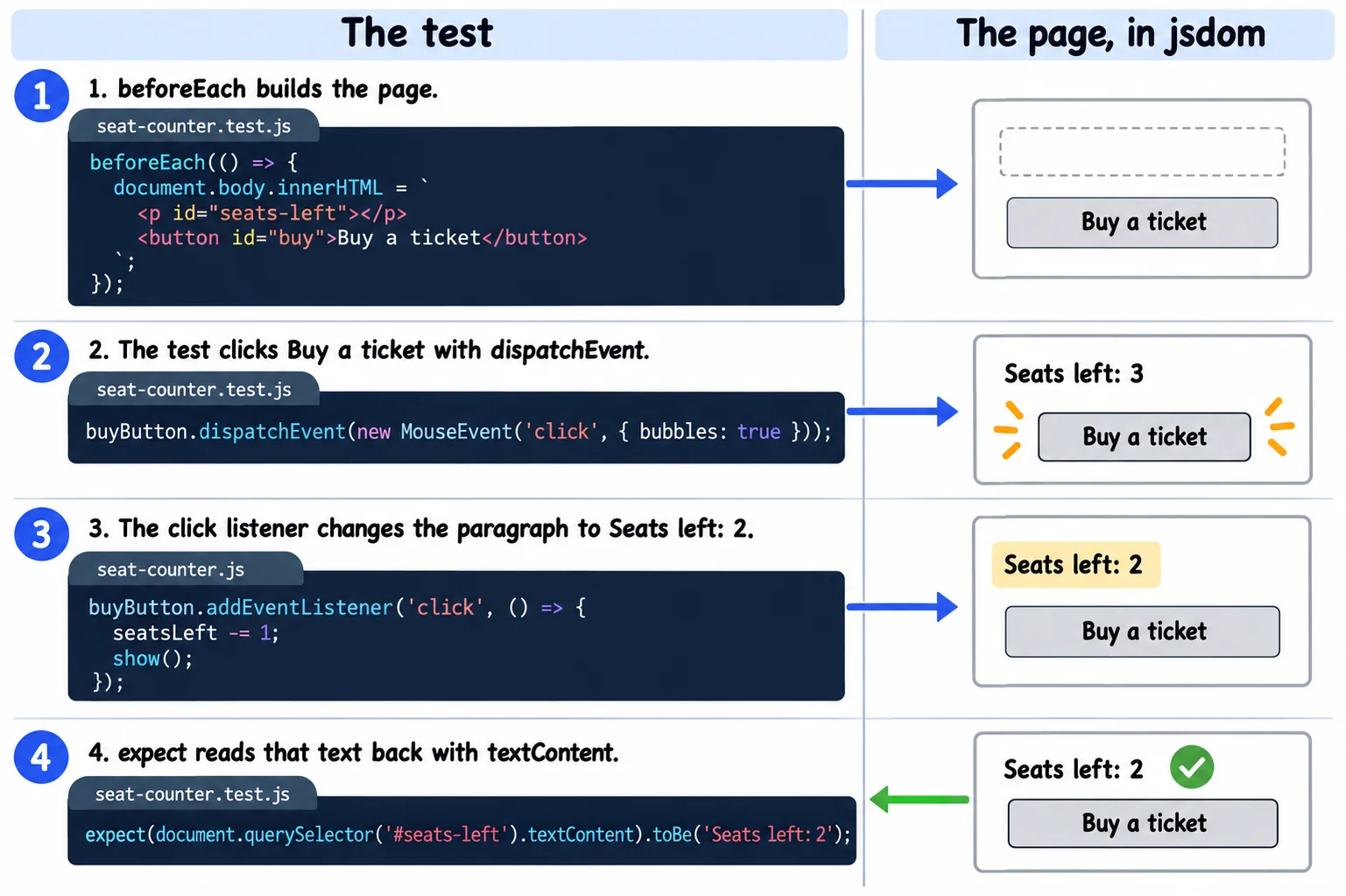
It needs two elements to work with, a paragraph and a button, so the test builds them. beforeEach runs a function before every test in its describe group; code like this, which gets each test ready, is called setup. Here it gives every test a fresh copy of the page, so a click in one test never leaks into the next:
// @vitest-environment jsdom
import { describe, it, expect, beforeEach } from 'vitest';
import { setUpSeatCounter } from './seat-counter.js';

describe('the seat counter', () => {
  beforeEach(() => {
    document.body.innerHTML = `
      <p id="seats-left"></p>
      <button id="buy">Buy a ticket</button>
    `;
  });

  it('shows the seats left', () => {
    setUpSeatCounter(document, 3);

    const seatsText = document.querySelector('#seats-left');
    expect(seatsText.textContent).toBe('Seats left: 3');
  });
});
Setting document.body.innerHTML replaces everything in the page's body with that HTML. It's the right tool here, because the HTML is fixed text you wrote yourself. Never do the same with text a person typed or a server sent: the lesson Keeping Pages Safe: XSS and innerHTML shows what can go wrong and how textContent keeps a page safe.
Clicking with dispatchEvent
When you click a real button, the browser creates a click event and sends it to the button, and every listener added with addEventListener('click', ...) runs. A test can send the same event itself with dispatchEvent: dispatch means "send off".
it('counts down when someone buys a ticket', () => {
  setUpSeatCounter(document, 3);

  const buyButton = document.querySelector('#buy');
  buyButton.dispatchEvent(new MouseEvent('click', { bubbles: true }));

  expect(document.querySelector('#seats-left').textContent).toBe('Seats left: 2');
});
new MouseEvent('click', ...)makes the event: a mouse event namedclick.{ bubbles: true }lets it rise from the button up through its parents, the way a real click does, so a listener on a parent element hears it too.buyButton.click()is a shortcut for the same click.dispatchEventworks for every other event as well.
Typing works the same way. Setting a box's value fires no event, so a listener for input never hears about it. Set the value, then send the event a real keystroke would:
const search = document.querySelector('#search');
search.value = 'pirates';
search.dispatchEvent(new Event('input', { bubbles: true }));
Checking the page
After the click, the test checks what a person would see. textContent is an element's text, all of it, as plain text, and it's what most page tests read. Properties work too: buyButton.disabled is true when the button is turned off. Here's the last seat being sold:
it('says Sold out and turns the button off after the last seat', () => {
  setUpSeatCounter(document, 1);

  const buyButton = document.querySelector('#buy');
  buyButton.click();

  expect(document.querySelector('#seats-left').textContent).toBe('Sold out');
  expect(buyButton.disabled).toBe(true);
});
With all three tests in the file, npm test prints:
 ✓ seat-counter.test.js (3 tests) 15ms
   ✓ the seat counter (3)
     ✓ shows the seats left 11ms
     ✓ counts down when someone buys a ticket 2ms
     ✓ says Sold out and turns the button off after the last seat 2ms
Three clicks' worth of checking, in 15 milliseconds. One trap: jsdom has no innerText, the browser's other way to read an element's text. In a test, element.innerText is undefined, so expect(seatsText.innerText).toBe('Seats left: 3') fails with expected undefined to be 'Seats left: 3'. Read textContent instead.
What jsdom can't check
A flight simulator can't tell you how the view from the cockpit looks on a sunny day. jsdom builds the page's tree, runs its events and keeps its text, but it never draws anything: it doesn't lay out the page or apply the look of your CSS. Every element's width and height is 0, nothing is ever off the screen, and a button hidden behind another one can still be clicked.
So jsdom tests answer does the page do the right thing?: the right text, the right elements, the right response to a click. Does it look right? is still a job for a real browser, with your own eyes or with a tool that drives a real browser.
Try it. In your starlight-cinema project, run npm install jsdom@30.1.3 --save-exact --save-dev (it adds jsdom at that exact version to devDependencies), and add seat-counter.js and seat-counter.test.js. Run npm test. Then delete the first line of the test file, save, and read the error. Put it back, and add a test of your own: with 3 seats, three clicks give Sold out.
Check yourself
2 questions to try on the lesson page.
So what
A page test clicks every button the way a person would, reads what they'd see, and does it again every time you save. With jsdom, the page itself gets a smoke alarm, not only the functions behind it.