Changing Documents with updateOne and $set
updateOne and updateMany change documents where they are, with a filter that picks the documents and an update operator that says what changes; $set writes fields, $unset removes them, and matchedCount and modifiedCount report what happened.
Apprentice · MongoDB · Updated
After this lesson you can
- Change fields in one document or many with updateOne, updateMany and $set, and remove a field with $unset
- Read matchedCount and modifiedCount to tell what an update found and what it changed
Key takeaways
- An update has two parts, a filter that picks the documents and an update that says what changes.
- $set writes only the fields it names and leaves every other field as it was. $unset removes a field.
- updateOne changes the first document the filter matches; updateMany changes every one.
- matchedCount says how many documents the filter found, and modifiedCount how many of them actually changed.
- An update needs an operator such as $set. Without one, mongosh refuses it with an error.
A cook fixes a typo in a recipe. A store marks an order as shipped. Someone changes the email address on their account. Most of what an app writes to its database isn't new documents: it's changes to documents already there. You'll write an update every time a screen in your app has an Edit or a Save button.
The examples use Sunday Kitchen's 40 recipes from Adding Many Documents with insertMany. Start mongosh in your mongodb-course folder, type use sunday_kitchen, and load the recipes again, so your results match this page:
load("sunday-kitchen-recipes.js")
true
A card with a mistake
In Missing Fields, null and $exists, the Sunday Roast card arrived with its minutes typed in quotes, as text, so the search for recipes that take an hour or more missed it. Here it is again:
db.recipes.insertOne({ _id: 41, name: "Sunday Roast", cuisine: "British", meal: "dinner", minutes: "90", servings: 6, vegetarian: false, tags: ["make-ahead"] })
{ acknowledged: true, insertedId: 41 }
One field is wrong. You could delete the card and type it all in again, but that's a lot of retyping for one value, and every field you retype is a new chance for a typo. So try handing the database the corrected value:
db.recipes.updateOne({ _id: 41 }, { minutes: 90 })
Uncaught MongoInvalidArgumentError: Update document requires atomic operators
mongosh refuses, and it's protecting you. { minutes: 90 } doesn't say what to do with the minutes, and it could mean "make the whole document this", which would throw away the name and every other field. An update needs an update operator: a word that starts with $ and says what to do. The error calls them "atomic operators".
$set: change only the fields you name
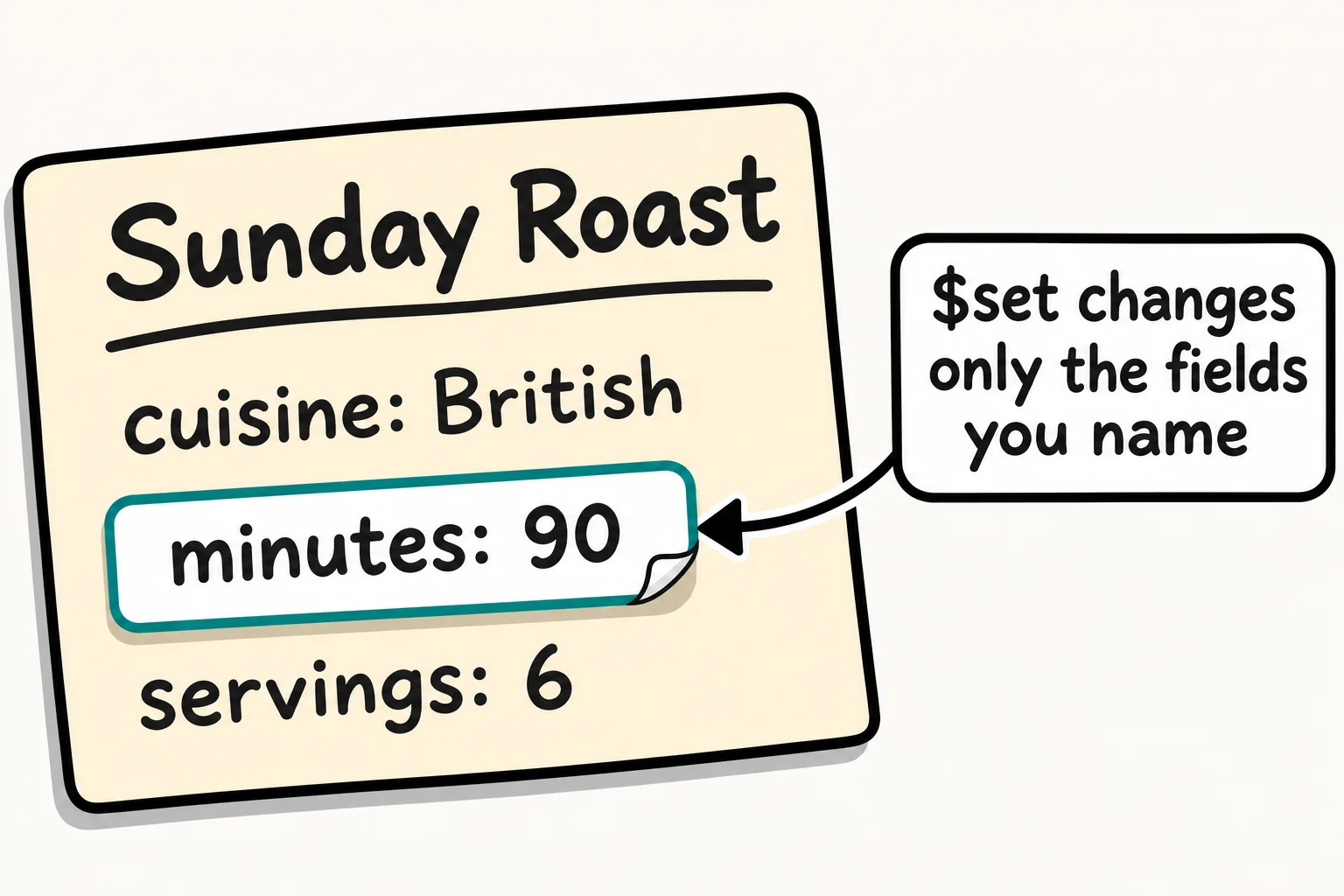
Think of a correction sticker on a printed recipe card: it covers the one wrong line, and the rest of the card stays as it was. $set (read "set") is that sticker. An update takes two arguments: a filter that picks the document, written exactly as in find, then the update, here $set with the fields to write:
db.recipes.updateOne({ _id: 41 }, { $set: { minutes: 90 } })
{
  acknowledged: true,
  insertedId: null,
  matchedCount: 1,
  modifiedCount: 1,
  upsertedCount: 0
}
Read the change back:
db.recipes.findOne({ _id: 41 }, { name: 1, minutes: 1, servings: 1 })
{ _id: 41, name: 'Sunday Roast', minutes: 90, servings: 6 }
The minutes are the number 90 now, and the name, the servings and every other field are untouched. $set can write several fields at once, such as { $set: { minutes: 90, servings: 8 } }, and a field the document doesn't have yet is added.
updateMany: every match at once
This month's theme at Sunday Kitchen is Mexican food, and the home page shows the recipes marked featured. updateOne changes only the first document its filter matches. To change every match, use updateMany:
db.recipes.updateMany({ cuisine: "Mexican" }, { $set: { featured: true } })
{
  acknowledged: true,
  insertedId: null,
  matchedCount: 5,
  modifiedCount: 5,
  upsertedCount: 0
}
The same two arguments, a filter and an update. All five Mexican recipes now have featured: true.
Reading matchedCount and modifiedCount
Every update answers with two counts. matchedCount is how many documents the filter found, and modifiedCount is how many of them actually changed. Run the same update a second time:
db.recipes.updateMany({ cuisine: "Mexican" }, { $set: { featured: true } })
{
  acknowledged: true,
  insertedId: null,
  matchedCount: 5,
  modifiedCount: 0,
  upsertedCount: 0
}
The filter found the same five recipes, but they already had featured: true, so nothing changed. Now a filter with a mistake in it, the roast's _id typed in quotes:
db.recipes.updateOne({ _id: "41" }, { $set: { servings: 8 } })
{
  acknowledged: true,
  insertedId: null,
  matchedCount: 0,
  modifiedCount: 0,
  upsertedCount: 0
}
No error, and no change. "41" is text, and the roast's _id is the number 41, so the filter found nothing. MongoDB doesn't treat an update that matches nothing as a mistake, so reading the counts is how you find out:
| matchedCount | modifiedCount | What it means |
|---|---|---|
| 0 | 0 | The filter found nothing: check its field names, its values and their types |
| 5 | 5 | Five documents found, and all five changed |
| 5 | 0 | Five found, but they already held these values |
$unset: remove a field
The month is over. $unset (read "unset") takes a field out of the document altogether. The value after the field name isn't used, so the custom is an empty string, "":
db.recipes.updateMany({ featured: true }, { $unset: { featured: "" } })
{
  acknowledged: true,
  insertedId: null,
  matchedCount: 5,
  modifiedCount: 5,
  upsertedCount: 0
}
db.recipes.countDocuments({ featured: { $exists: true } })
0
No recipe has a featured field anymore. That's different from $set: { featured: false }, which keeps the field and changes its value.
Check yourself
2 questions to try on the lesson page.
So what
You can now fix a value, add or remove a field, and change one document or a hundred, without retyping anything, and the two counts tell you whether your filter found what you meant.