Paths and Folders
A relative path starts from the terminal's folder, not the script's, so a Node program finds its own files with path.join and import.meta.dirname, and lists and makes folders with readdir and mkdir.
Apprentice · Node.js · JavaScript · Updated
After this lesson you can
- Build file paths that work on Windows and macOS with path.join, and find a file beside the script with import.meta.dirname
- List a folder with readdir, and make folders with mkdir and its recursive option
Key takeaways
- A relative path such as data/runs.csv starts from the current folder, the one the terminal is in, which isn't always the folder your script is in.
- import.meta.dirname is the folder that holds the running file, so path.join(import.meta.dirname, "data", "runs.csv") finds the file from any folder.
- path.join builds a path with the right separator for the computer, a backslash on Windows and a slash on macOS, so never glue paths together by hand.
- path.resolve turns a path into an absolute one, starting from the current folder, which makes an error message say exactly where you looked.
- readdir lists the names in a folder, and mkdir with recursive set to true makes a folder and any missing folders above it, and is safe to run twice.
A tool that works only when you start it from one particular folder is a tool that breaks for the next person. npm scripts, scheduled tasks and the build servers you'll meet later all start your program from folders you didn't pick, so a Node program has to find its own files wherever it's started.
Dana has moved the running club's log into a data folder, so the club's project now looks like this:
nodejs-course/
└── running-club/
    ├── package.json
    ├── report.js
    └── data/
        └── runs.csv
report.js counts the log's lines, minus its header row (From Text to Data: Lines, CSV and JSON Files takes the text apart properly):
import { readFile } from "node:fs/promises";

const text = await readFile("data/runs.csv", "utf8");
console.log(`The log has ${text.trim().split("\n").length - 1} runs.`);
The log has 4 runs.
That's from inside running-club. Now run it from the folder above, with node running-club/report.js, and it stops with ENOENT:
Error: ENOENT: no such file or directory, open 'C:\Users\Sam\nodejs-course\data\runs.csv'
Look at the path: Node looked in nodejs-course\data, not in running-club\data.
Two folders: where the terminal is, and where the script is
A path that doesn't start at the top of a drive, such as data/runs.csv, is a relative path: directions that start from wherever you're standing. Node starts them from the current folder (also called the current working directory): the folder the terminal is in, which isn't always the folder your script is in.
Two values tell them apart. process.cwd() (read "current working directory") is the terminal's folder. import.meta.dirname is the folder that holds the running file itself:
console.log("The terminal is in:", process.cwd());
console.log("This script is in: ", import.meta.dirname);
Run it from nodejs-course with node running-club/where.js:
The terminal is in: C:\Users\Sam\nodejs-course
This script is in:  C:\Users\Sam\nodejs-course\running-club
On a Mac, the same lines show /Users/sam/nodejs-course and /Users/sam/nodejs-course/running-club.
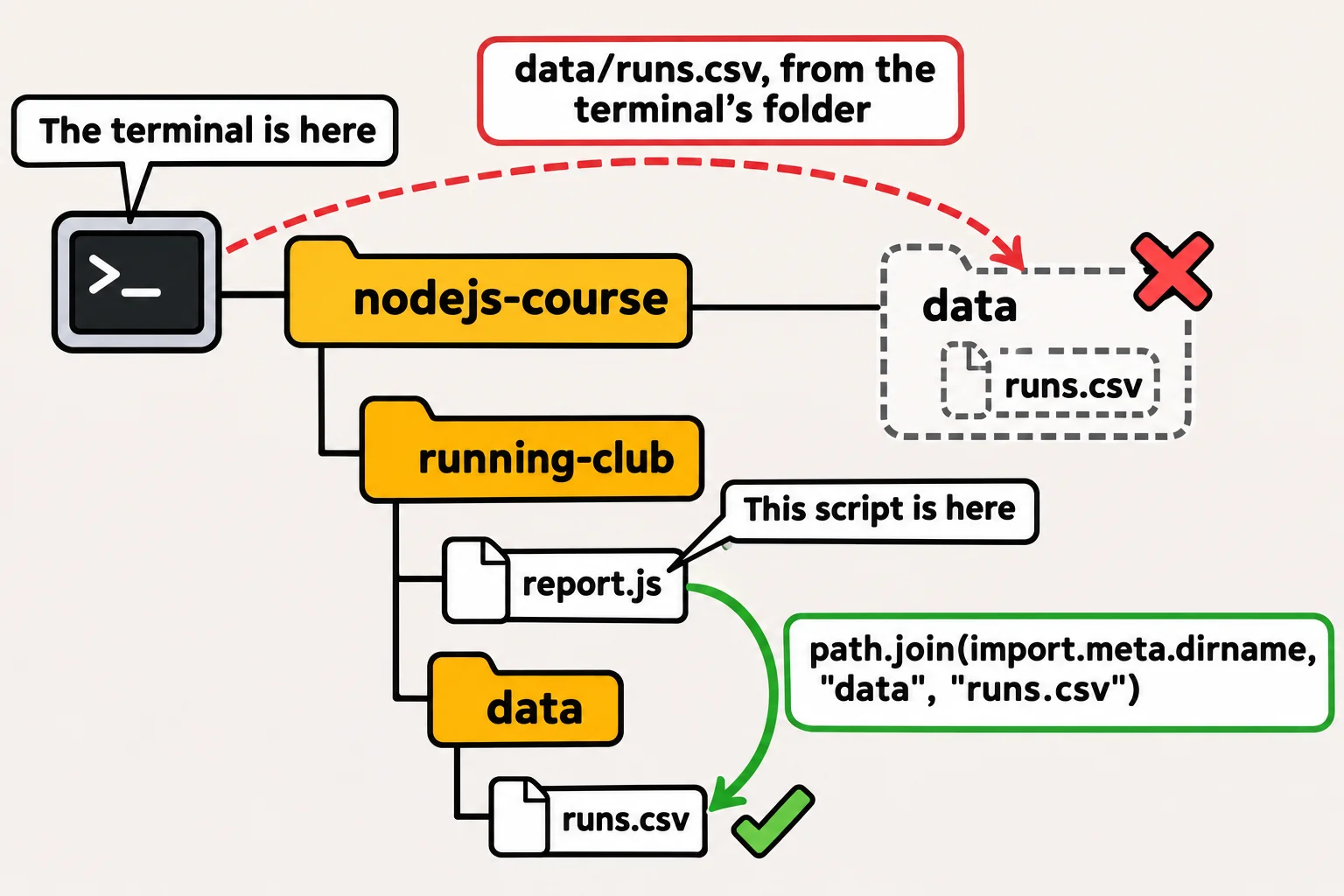
Building a path with path.join
node:path builds paths for you. path.join puts the parts together, so the club's report finds its log from any folder:
import { readFile } from "node:fs/promises";
import path from "node:path";

const logFile = path.join(import.meta.dirname, "data", "runs.csv");
const text = await readFile(logFile, "utf8");
console.log(`The log has ${text.trim().split("\n").length - 1} runs.`);
The log has 4 runs.
Why not glue the parts together yourself, with a /? Windows writes paths with a backslash, \, and macOS with a slash, /. path.join uses the right one for the computer it runs on, and tidies up doubled slashes and .. (read "dot dot", the folder above):
import path from "node:path";

console.log(path.join("data", "2026", "runs.csv"));
console.log(path.join("data/", "/runs.csv"));
console.log(path.join("data", "..", "notes.txt"));
data\2026\runs.csv
data\runs.csv
notes.txt
That's Windows; on a Mac, the first two lines are data/2026/runs.csv and data/runs.csv.
path.resolve goes one step further: it turns a path into an absolute path, one that starts at the top of the drive, counting from the current folder. Run from running-club, path.resolve("data", "runs.csv") gives C:\Users\Sam\nodejs-course\running-club\data\runs.csv. Put an absolute path in an error message, and the person sees exactly where your program looked.
Which one starts where? A path the person types on the command line means "from where I am", so resolve it from the current folder. A file that belongs to your program, such as its data or settings, is found from import.meta.dirname.
Listing and making folders: readdir and mkdir
Dana wants a folder for each month's reports. mkdir makes a folder, and readdir lists the names inside one:
import { mkdir, writeFile, readdir } from "node:fs/promises";
import path from "node:path";

await mkdir(path.join("weeks", "2026-11"), { recursive: true });
await writeFile(path.join("weeks", "2026-11", "maya.txt"), "14.5 miles\n");
await writeFile(path.join("weeks", "2026-11", "leo.txt"), "8.1 miles\n");

const names = await readdir(path.join("weeks", "2026-11"));
console.log(names);
[ 'leo.txt', 'maya.txt' ]
{ recursive: true } does two jobs. It makes every missing folder on the way, here weeks and then 2026-11, and it does nothing when the folder is already there, so the program is safe to run twice. Without it, mkdir throws ENOENT when a folder above is missing, and EEXIST (read "E-EXIST", it already exists) when the folder is there.
readdir gives names only, not paths. To open one of the files, join its name to the folder: path.join("weeks", "2026-11", names[0]).
Check yourself
2 questions to try on the lesson page.
So what
Build every path with path.join, and start your program's own files from import.meta.dirname: then your tool works on Windows and macOS, from any folder, for anyone who runs it.