Setup: Git and GitHub
Install Git and Git Credential Manager on Windows or macOS, make a free GitHub account, and tell Git your name, your email and main as the default branch with git config --global.
Novice · Node.js · Git · Updated
After this lesson you can
- Explain what Git and GitHub each do, and how they work together to keep and share your code
- Set your name, email and default branch with git config --global, and check them with git config --global --list
Key takeaways
- Git keeps your project's history on your computer as saved snapshots called commits. GitHub is a website that keeps a copy online, where other people and computers can get it.
- Every exercise starts as a repository on GitHub that you copy with Git, and ends with your work pushed to a repository of your own.
- git config --global sets your name and email, which Git writes on every commit, and main as the name of a new repository's first branch.
- Git Credential Manager signs you in to GitHub through your browser the first time you push, then remembers you.
Every exercise in this course starts as code on GitHub and ends as your code on GitHub. You copy the starter to your computer, do the work, and send it back to a page of your own that the site can check. Two tools make that trip, Git and GitHub, and this lesson sets both up, once.
Git and GitHub, in plain words
A video game saves your progress at points you can go back to. Git does that for a project: each time you save with Git, it keeps a snapshot of your files, called a commit, with a short note about what changed. The snapshots, one after another, are the project's history. The project's folder and its history together are a repository (a "repo").
GitHub is a website that keeps a copy of a repository online. Once it's there, it's backed up, other people can see it, and another computer can copy it.
- Git is a program on your computer: it saves the snapshots.
- GitHub is a website: it stores repositories so they can be shared.
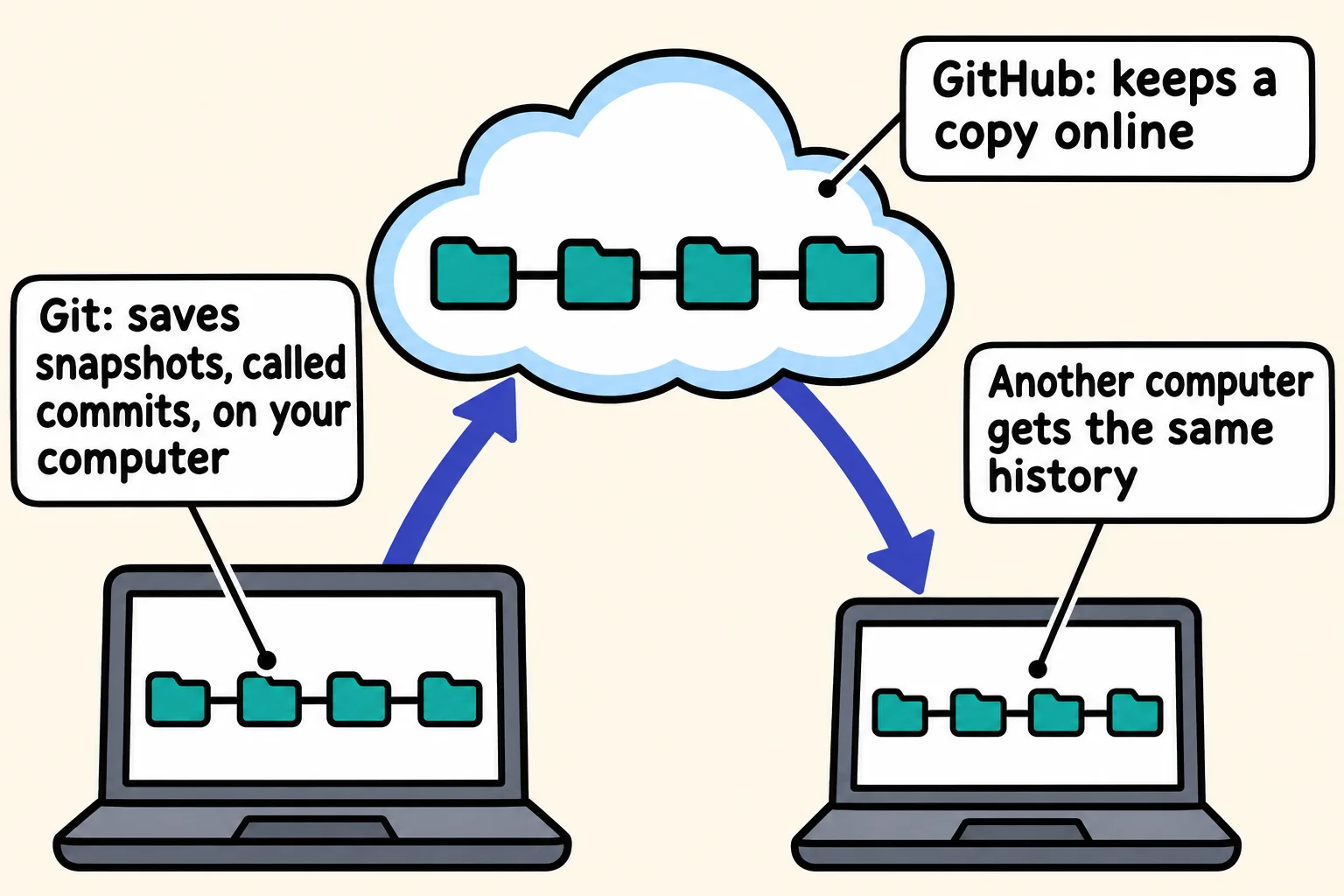
In this course, Git copies each exercise's repository from GitHub to your computer, and later sends your finished work to a repository of your own on GitHub. That's how you hand an exercise in.
Install Git
| Windows | macOS | |
|---|---|---|
| Git | winget install -e --id Git.Git |
brew install git |
| Git Credential Manager | Comes with Git | brew install --cask git-credential-manager |
Type the Windows commands in the Terminal app, as in Setup: VS Code and Node.js, and the macOS ones in the Terminal app if you use Homebrew. Without Homebrew, on Windows use the installer from git-scm.com, accepting its suggested settings; on a Mac, type git --version in Terminal, and when macOS offers to install the command line developer tools, click Install: they include Git. Then install Git Credential Manager from its download page, github.com/git-ecosystem/git-credential-manager, under Releases (the .pkg file for macOS).
Git Credential Manager signs you in to GitHub the first time you send work there, through your web browser, and then remembers you, so you never type a password into the terminal.
Close VS Code and open it again, so its terminal can find Git. Then, in VS Code's terminal:
git --version
Git answers with its version, starting git version 2. (the course was checked with Git 2.56; on Windows the number ends with .windows. and one more number). Any recent version works.
Make your free GitHub account
Go to github.com/signup and make a free account. If you already have one, sign in and skip ahead.
- Your username is part of every repository's address, such as
github.com/your-name/exercise-node-bakery-price-board. Pick one you'd be happy to show someone you'd like to work for: your GitHub page becomes part of your portfolio. - Your email should be one you'll keep. GitHub sends it a code to confirm it.
GitHub may also ask you to set up two-factor authentication, a second check such as a code from an app on your phone. Follow its steps when it asks.
Tell Git who you are
Git writes a name and an email on every commit you make. Use your own name and the same email as your GitHub account, so GitHub links your commits to you. In VS Code's terminal, with your own name and email in place of the examples:
git config --global user.name "Sam Lee"
git config --global user.email "sam.lee@example.com"
git config --global init.defaultBranch main
git config --global core.editor "code --wait"
--global means the setting is for every repository on this computer, so you set it once. The third line names the first branch of every new repository main, the name GitHub uses; a branch is a line of commits, and main is the one every repository starts with. The fourth tells Git to open VS Code, and wait, whenever it needs you to type a message. None of the four prints anything. Check them:
git config --global --list
user.name=Sam Lee
user.email=sam.lee@example.com
init.defaultbranch=main
core.editor=code --wait
On a Mac you'll also see a few credential lines that Git Credential Manager added. To fix a typo, run the same command again with the right value: it replaces the old one.
If something goes wrong
| What you see | What to do |
|---|---|
The term 'git' is not recognized (Windows) or zsh: command not found: git (Mac) |
Git isn't installed yet, or VS Code was open while it installed. Close VS Code completely, open it again and retry. |
git config --global --list shows your name with a typo |
Run that git config --global line again, spelled right. |
git config --global --list shows nothing |
The four git config lines didn't run. Type them again, one at a time, each followed by Enter. |
Check yourself
2 questions to try on the lesson page.
So what
Git and your GitHub account are how every exercise in this course reaches you and how your work gets back: you set them up once, and from here on, getting code and handing it in is a few commands.