Counting and Grouping: Measure-Object and Group-Object
Measure-Object counts the objects a pipeline hands it and adds up, averages or finds the largest of one property, such as the total size of every file, and Group-Object sorts objects into piles by a property, such as one pile per file type, each with a count.
Apprentice · PowerShell · Operating System · Updated
After this lesson you can
- Count objects, and add up, average or find the largest of a property, with Measure-Object
- Group objects by a property with Group-Object, and read its Count, Name and Group
Key takeaways
Measure-Objectcounts whatever arrives. With a property and-Sum,-Average,-Maximumor-Minimum, it works those out too.(… | Measure-Object Length -Sum).Sum / 1MBgives a total in megabytes instead of bytes.Group-Object Extensionputs the files into one pile per extension. Each pile has a Count, a Name and a Group that holds the files themselves.- Sorting the piles by Count, biggest first, shows what there's most of.
Windows says "Low disk space", and you want to know what's filling it before you delete anything. Two questions answer that: how much is there in total, and what kind of file takes up the most? Settings shows a few big categories; the files themselves can tell you exactly. The same two questions come up everywhere: a club treasurer adding up the dues, a shop counting orders by product, an IT tech counting the computers on each floor.
This lesson uses the drive folder from The Pipeline: |. Run that lesson's practice-drive lines first if you need to, then Set-Location ~\terminal-practice\drive.
How many, and how much: Measure-Object
Measure-Object counts whatever arrives through the pipe:
Get-ChildItem -Recurse -File | Measure-Object
Count             : 18
Average           :
Sum               :
Maximum           :
Minimum           :
StandardDeviation :
Property          :
Eighteen files. Give it a property and say what to work out, and it fills in the rest:
Get-ChildItem -Recurse -File | Measure-Object Length -Sum -Average -Maximum -Minimum
Count             : 18
Average           : 968478.388888889
Sum               : 17432611
Maximum           : 2867200
Minimum           : 35
StandardDeviation :
Property          : Length
Sum is every file's Length added up: 17,432,611 bytes. Nobody reads bytes, so divide by 1MB. Put the pipeline in parentheses and take its Sum, with the dot from Properties and Methods:
(Get-ChildItem -Recurse -File | Measure-Object Length -Sum).Sum / 1MB
16.6250333786011
About 16.6 MB. (/ is read "divided by".) Columns You Make Yourself: Calculated Properties, later in this chapter, rounds numbers like that.
Measure one kind of file
Narrow the pipeline first, then measure what's left. Every video:
Get-ChildItem -Recurse -File -Filter *.mp4 | Measure-Object Length -Sum
Count             : 3
Average           :
Sum               : 5120000
Maximum           :
Minimum           :
StandardDeviation :
Property          : Length
Three videos, 5,120,000 bytes: almost a third of the drive. Where-Object, from Filtering: Where-Object and Comparisons, narrows it in the same place, by anything a file knows.
Running programs can be counted the same way. Windows runs many copies of a program called svchost, each looking after a few Windows services:
Get-Process -Name svchost | Measure-Object
Count             : 99
Average           :
Sum               :
Maximum           :
Minimum           :
StandardDeviation :
Property          :
Your count will be different: it depends on your computer and what it's doing.
Piles by kind: Group-Object
Measuring one extension at a time gets slow when there are eleven. Picture tipping a bag of laundry onto the bed and sorting it into piles: shirts, socks, towels. Group-Object makes those piles, one for each value of the property you name. -NoElement keeps only each pile's count and name, so the table fits on the screen:
Get-ChildItem -Recurse -File | Group-Object Extension -NoElement | Sort-Object Count -Descending
Count Name
----- ----
    3 .mp3
    3 .mp4
    2 .jpg
    2 .pdf
    2 .png
    1 .docx
    1 .exe
    1 .tmp
    1 .txt
    1 .xlsx
    1 .zip
Count is how many files are in the pile, and Name is the value they share. Sorting the piles by Count, biggest first, puts what there's most of at the top.
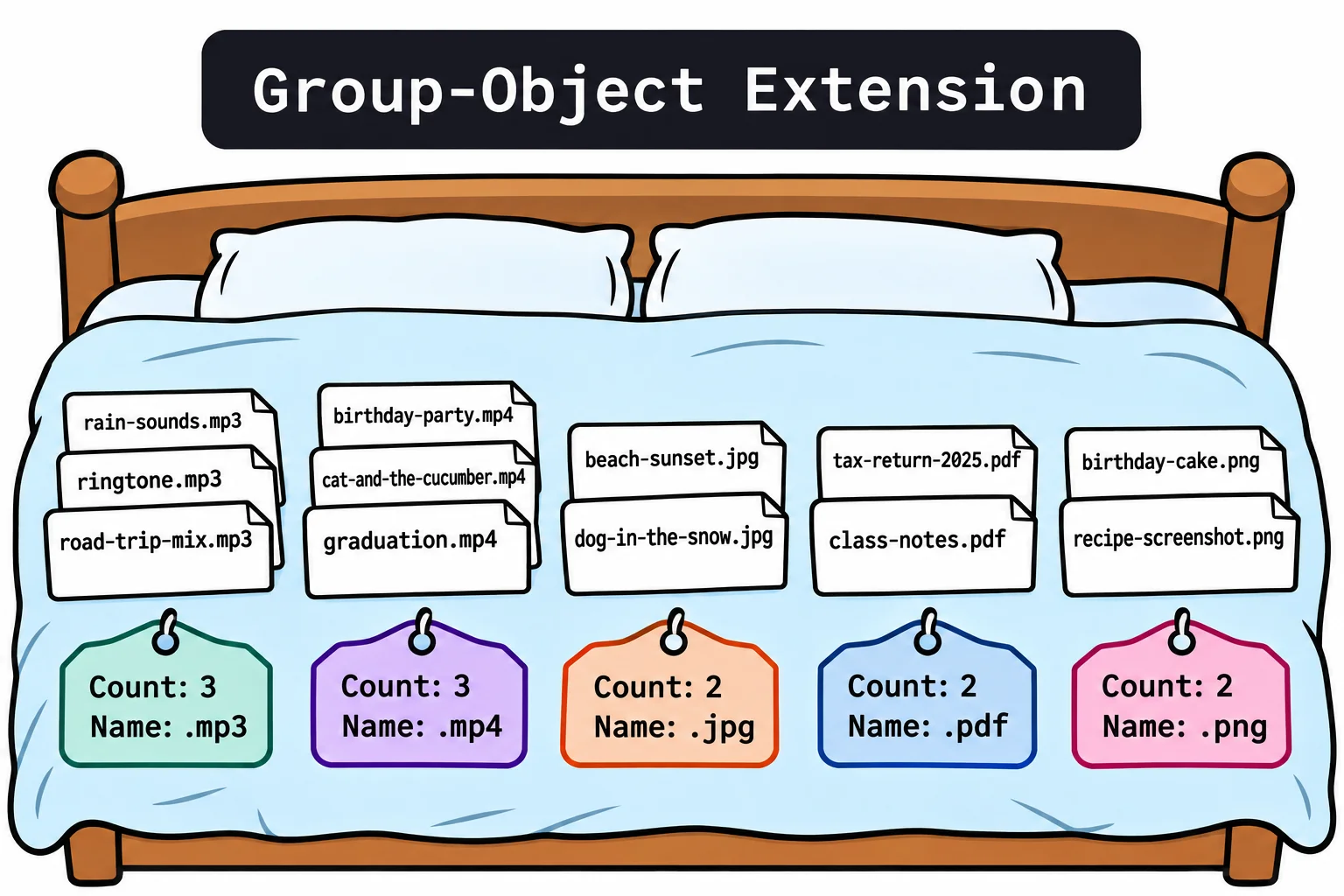
What's in a pile: Group
Without -NoElement, each pile has a third property, Group, which holds the files themselves, whole. Pick one pile with Where-Object and take its Group:
Get-ChildItem -Recurse -File | Group-Object Extension | Where-Object Name -eq '.mp4' | Select-Object -ExpandProperty Group
    Directory: C:\Users\Sam\terminal-practice\drive\videos

Mode                 LastWriteTime         Length Name
----                 -------------         ------ ----
-a---           9/14/2026  6:30 PM        1536000 birthday-party.mp4
-a---           9/14/2026  6:30 PM         716800 cat-and-the-cucumber.mp4
-a---           9/14/2026  6:30 PM        2867200 graduation.mp4
Because a pile still holds its files, it can be measured too: that's how Columns You Make Yourself: Calculated Properties puts the space each kind of file takes beside its count, in one table.
The short names are measure and group. Windows PowerShell 5.1 counts and groups the same way.
Try it. How much space do the photos take: every .jpg and .png? Then count how many files on the drive are over 1 MB, with Where-Object and Measure-Object.
Check yourself
2 questions to try on the lesson page.
So what
Before you clean anything up, measure it. Measure-Object tells you how much, and Group-Object tells you how much of each kind.