Moving Around: Set-Location, .. and Tab
Set-Location moves PowerShell into another folder, by a relative path from where you are or an absolute one from the drive, and .., ~ and Tab completion make every move shorter.
Novice · PowerShell · Operating System · Updated
After this lesson you can
- Move between folders with Set-Location, using relative and absolute paths
- Use .., ~ and Tab completion to move with fewer keystrokes
Key takeaways
Set-Locationmoves you into another folder, and the prompt changes to show where you are.- A relative path starts from the folder you're in. An absolute path starts from the drive and works from anywhere.
..means the folder you're inside of...\..goes up two folders, and a path can go up and then down again.Set-Location ~takes you home, andSet-Location -takes you back to the folder you were in before.- Type the start of a name and press Tab, and PowerShell finishes it, with quotes when the name has a space.
Almost every tutorial for a programming tool starts the same way: "go into your project folder, then run…". IT instructions do too: "go to the Logs folder and look at today's file". In File Explorer that's a string of double-clicks. In PowerShell it's one command, and once you know a few shortcuts it's faster than the clicks, even for a folder five levels down.
This lesson uses the trip folder from Where Am I? Get-Location and Paths.
Going into a folder: Set-Location
Set-Location (read "set location") moves PowerShell into another folder: it changes the current folder. Give it the folder's path. Here, ~ means your home folder, so this works for every user name:
Set-Location ~\terminal-practice\trip
Get-Location
Path
----
C:\Users\Sam\terminal-practice\trip
The prompt changes too, to PS C:\Users\Sam\terminal-practice\trip>, so you can see where you are before you type the next command. From here, a folder inside trip needs only its name:
Set-Location day-1-beach
Get-Location
Path
----
C:\Users\Sam\terminal-practice\trip\day-1-beach
day-1-beach is a relative path: it starts from the folder you're in, the way "the second door on the left" only makes sense from where you're standing. The path that starts with C: is an absolute path: it works from anywhere. The short name for Set-Location is cd, from change directory.
Up a level: ..
Two dots, .. (read "dot dot"), mean "the folder I'm inside of", the parent folder. One step up:
Set-Location ..
Get-Location
Path
----
C:\Users\Sam\terminal-practice\trip
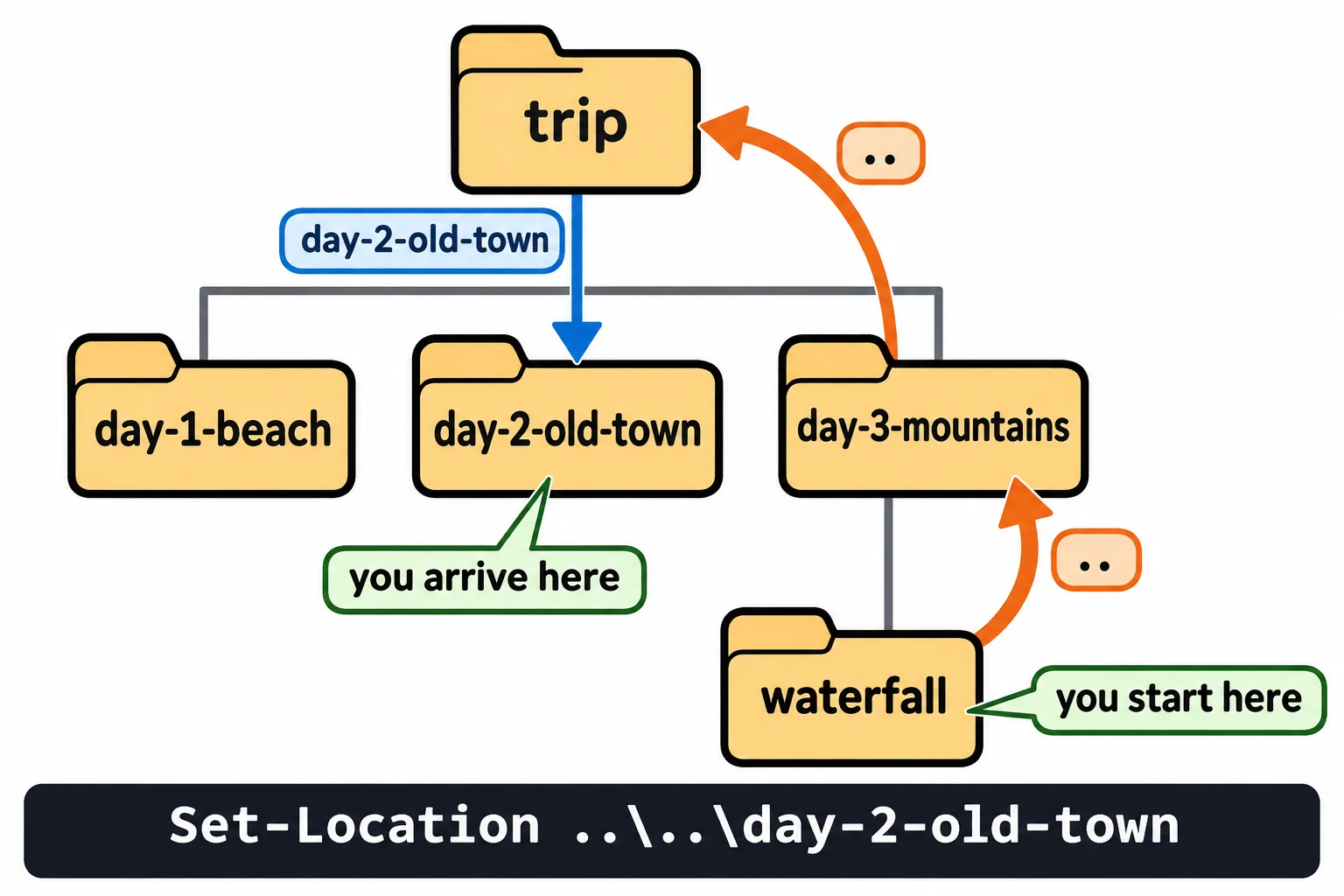
Steps join with \, so one path can go up and then down again. From deep in the mountains, this goes up two folders to trip, then down into the old town:
Set-Location day-3-mountains\waterfall
Set-Location ..\..\day-2-old-town
Get-Location
Path
----
C:\Users\Sam\terminal-practice\trip\day-2-old-town
Home, and back again
Set-Location ~ takes you home from anywhere. Set-Location - (a dash) takes you back to the folder you were in before, like a browser's Back button:
Set-Location ~
Set-Location -
Get-Location
Path
----
C:\Users\Sam\terminal-practice\trip\day-2-old-town
Windows PowerShell 5.1 doesn't have Set-Location -; everything else in this lesson works there too. On a Mac or Linux, write the paths with / (../../day-2-old-town), and type names with their exact capital letters.
Let PowerShell type for you: Tab
Long names are slow to type, and every letter is a chance for a typo. Type the first few letters and press Tab: PowerShell fills in the rest of a name that's there. From trip, typing Set-Location day-3 and pressing Tab gives:
Set-Location .\day-3-mountains
.\ (read "dot backslash") means "in the folder I'm in". When several names fit, such as day for all three day folders, press Tab again to go through them one at a time, and Shift+Tab to go back. If nothing appears, no name starts with what you typed: that's a typo caught before you press Enter.
A name with a space needs quotes, or PowerShell reads it as two words:
Set-Location C:\Program Files
Set-Location: A positional parameter cannot be found that accepts argument 'Files'.
With quotes, it works. Tab adds them for you: type Set-Location C:\Program and press Tab, and you get 'C:\Program Files'.
Set-Location 'C:\Program Files'
Get-Location
Path
----
C:\Program Files
Try it. Starting from your home folder, go to the waterfall folder in as few keystrokes as you can: a few letters of each name, then Tab. Count the keys you pressed, then count the letters in the full path you'd otherwise have typed.
Try it in the terminal
Terminal Quest: The Lighthouse, goals 4 to 9: played right on the lesson page.
Get into the cottage, find Mara's diary and the brass compass, fetch the matches, search the shore and climb the tower. The game shows you how to read each note with Get-Content; the next lesson, Reading Files: Get-Content, explains it in full.
Check yourself
2 questions to try on the lesson page.
So what
Moving around is most of what you do in a terminal. With relative paths, .., ~ and Tab, any folder on the computer is a few keystrokes away.