PowerShell Remoting: Invoke-Command and Enter-PSSession
Invoke-Command carries a script block to one computer or many at once and brings each answer back with a PSComputerName, Enter-PSSession moves your prompt onto another computer until Exit-PSSession, and both travel over WinRM between Windows PCs at work, or over SSH with -HostName at home and on a Mac or Linux.
Freelancer · PowerShell · Operating System · Updated
After this lesson you can
- Run a script block on one computer or many with Invoke-Command, and tell the answers apart by PSComputerName
- Work at another computer's prompt with Enter-PSSession, and come back with Exit-PSSession
- Check whether remoting is on with Get-Service WinRM and Test-WSMan, and choose WinRM (-ComputerName) or SSH (-HostName)
Key takeaways
- Invoke-Command -ComputerName runs a script block on one or many computers at once. Each answer comes back with a PSComputerName that says where it came from.
- Without -ComputerName, Invoke-Command runs the script block right here, on your own PC, with nothing to turn on.
- Enter-PSSession moves your prompt onto another computer, its name in brackets at the front, until Exit-PSSession brings you back.
- Between Windows PCs, remoting travels over WinRM, which an administrator turns on with Enable-PSRemoting. Get-Service WinRM and Test-WSMan show whether it's on.
- Over SSH, at home or with a Mac or Linux, you write -HostName and -UserName instead of -ComputerName.
You're the person in a small office who "knows computers". There are three PCs: front-desk, back-office and meeting-room. On Monday the printer stops printing from one of them, and the owner asks whether the print service is running on all three. You could walk to each desk, wait for someone to finish an email, open Services and scroll to Print Spooler, three times over. An IT help-desk tech gets the same question about 300 laptops. PowerShell remoting asks every computer at once, from your own chair.
In this chapter your own PC plays all three office PCs, so nothing costs money and you don't need a second computer. The first section below runs on any Windows PC as it is. The rest needs remoting turned on at the other end, which is usual at work and rare at home, so read it now and use it where remoting is on.
A command in an envelope: Invoke-Command
Think of slipping a note into an envelope for each desk: "check the print service and write back". Invoke-Command is the envelope. The note inside is a script block, code in braces { } that PowerShell can carry somewhere else and run, the same kind you wrote for Where-Object.
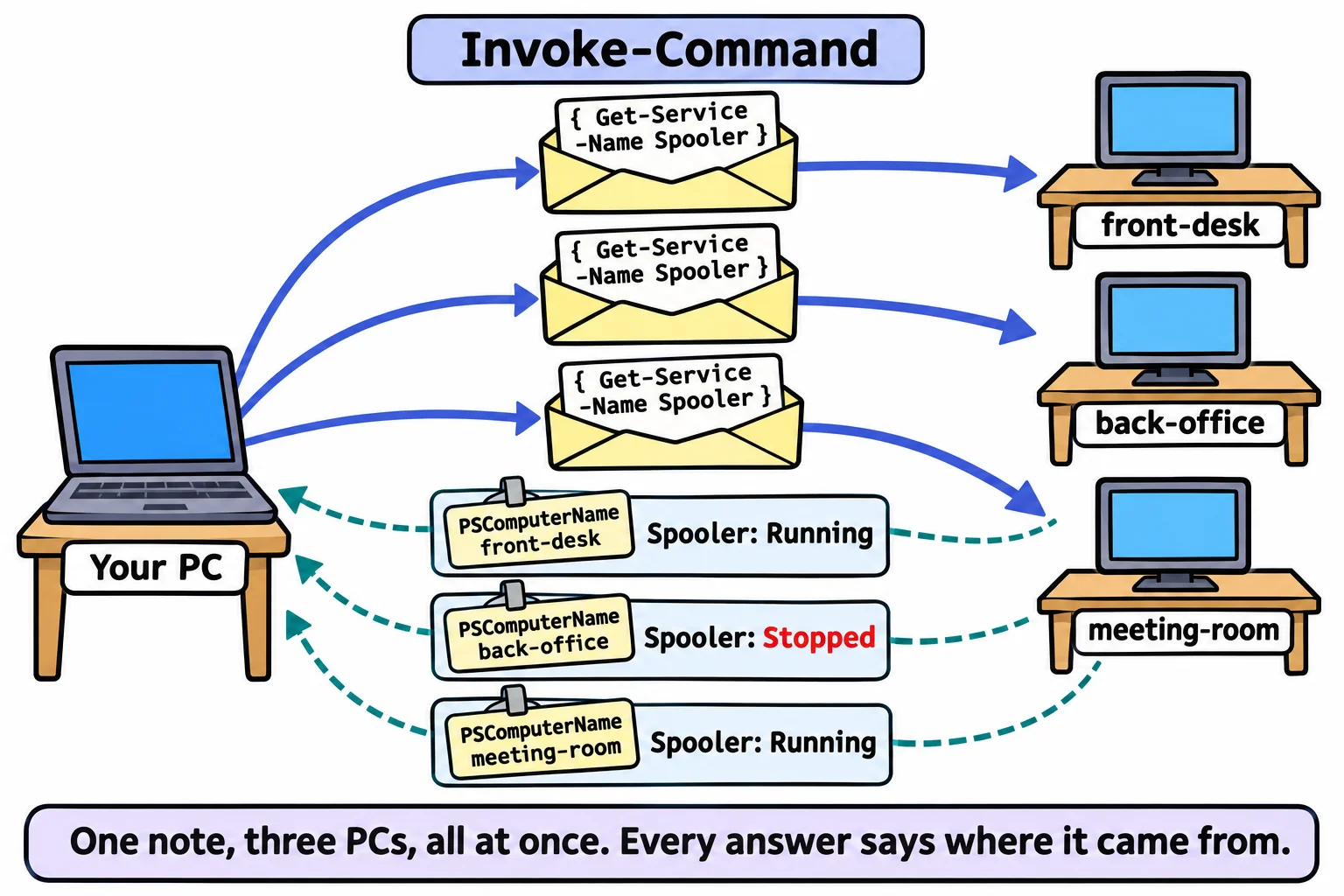
Without -ComputerName, the envelope never leaves your desk: the block runs right here, with nothing to turn on. Try it:
Invoke-Command -ScriptBlock { Get-Service -Name Spooler }
Status   Name               DisplayName
------   ----               -----------
Running  Spooler            Print Spooler
Spooler is the print service, a program with no window that hands documents to the printer. To ask the three office PCs, add their names. (This one needs remoting turned on at the other end, as the third section explains.)
Invoke-Command -ComputerName front-desk, back-office, meeting-room -ScriptBlock {
    Get-Service -Name Spooler
}
PowerShell sends the block to all three at the same time, not one after another, and the answers come back as objects with one extra property, PSComputerName: the computer each one came from.
Add | Where-Object Status -ne 'Running' and only the PC with the stuck printer is left. The answers are copies: they keep their facts, such as Status, but not their methods. To restart the service over there, put Restart-Service inside the block.
Sitting down at the other desk: Enter-PSSession
Sometimes you want to look around for a while, the way you'd sit down at the other PC. Enter-PSSession moves your prompt there:
Enter-PSSession -ComputerName front-desk
Your prompt now starts with the computer's name in brackets, [front-desk]: PS C:\Users\Sam\Documents>, and every command you type runs on front-desk: Get-ChildItem lists its folders, Get-Process its programs. Exit-PSSession brings you back to your own prompt.
There's no screen for you on the other side, so programs that open a window, such as notepad, don't belong in a remote session: stick to commands. Use Enter-PSSession to work on one computer by hand, and Invoke-Command for one job on many computers, or inside a script.
At work: WinRM
Between Windows PCs, remoting travels over WinRM (Windows Remote Management): a service on the other PC that listens for PowerShell's envelopes at port 5985, a numbered door into the computer (Is It the Network? Test-Connection and Friends explains ports). Windows Server has it on from the start, and a company's IT team usually turns it on for its PCs. On a home PC it's off. Look for yourself; this only reads:
Get-Service -Name WinRM | Select-Object Name, Status, StartType
Name   Status StartType
----   ------ ---------
WinRM Stopped    Manual
Test-WSMan -ComputerName localhost asks WinRM on localhost, the name every computer has for itself, to answer. With remoting on, it replies with a few lines about WinRM. With it off, it gives a red error that starts The client cannot connect to the destination specified in the request, and Invoke-Command -ComputerName localhost fails the same way.
An administrator turns remoting on with one command, run on the computer that receives the envelopes, in a window opened with Run as administrator. It changes the machine: it starts WinRM, sets it to start with Windows, opens a listener for envelopes and adds a firewall rule. This chapter doesn't need it, so don't run it on your own PC out of habit; it's here so you recognize it at work:
Enable-PSRemoting
Three more things you'll meet at work. Your account must be an administrator (or in Remote Management Users) on the other PC. Trying it on your own PC with localhost needs a window run as administrator. And PowerShell 7's envelopes arrive in Windows PowerShell 5.1 on the other PC unless you add -ConfigurationName PowerShell.7, the name Enable-PSRemoting gives the PowerShell 7 endpoint.
At home, and on a Mac or Linux: SSH
SSH (read "S S H", for Secure Shell) is the other road: the way people log in to Linux servers, built into Windows 11, macOS and Linux. PowerShell 7 can send its envelopes over SSH too. Swap -ComputerName for -HostName, and add -UserName:
Invoke-Command -HostName front-desk -UserName sam -ScriptBlock { Get-Service -Name Spooler }
Enter-PSSession -HostName front-desk -UserName sam
SSH asks for sam's password on front-desk, or uses a key. The other computer needs an SSH server with one line in its settings that lets PowerShell in; Microsoft's page PowerShell remoting over SSH has the steps, which need administrator rights there. On a Mac or Linux, SSH is the only road, because WinRM remoting is for Windows. Windows PowerShell 5.1 has no -HostName: SSH remoting needs PowerShell 7.
Check yourself
2 questions to try on the lesson page.
So what
The question "is it running on all of them?" no longer means a walk around the building: one Invoke-Command asks every PC at once, and each answer says which PC it came from.