What an Object Is: Get-Member
Everything PowerShell shows you is an object, a thing that carries named facts called properties, the way a library book's card carries its title, author and due date, and Get-Member lists every fact an object knows.
Apprentice · PowerShell · Updated
After this lesson you can
- Explain that each row a command shows is an object, and each column one of its properties
- List an object's properties with Get-Member, and read its TypeName line
Key takeaways
- An object is one thing, such as a file, with named facts about it. Each fact is a property, such as Name, Length or LastWriteTime.
- Each row Get-ChildItem shows is an object, and each column is one of its properties. The table shows only a few of them.
Get-Memberlists what an object knows. Its TypeName line says what kind of object it is, such as System.IO.FileInfo for a file.- Dates and running programs are objects too, each kind with its own properties.
Take a book out of the library, and the library keeps a card for it: the title, the author, the day it's due back. Nobody reads the whole book to find its due date; they look at the card. Your computer keeps a card like that for every file: its name, its size, when it last changed. In File Explorer you see one file's card at a time, with a right-click and Properties. In PowerShell you get the card itself, for every file at once, and you can ask it questions. Which vacation photo is the biggest? Which file hasn't changed since the summer? A help-desk tech checking when a settings file changed, or a developer looking for the files edited today, starts with the same card.
A practice folder of vacation photos
This chapter uses the photos from a summer trip, gathered into one folder. These lines make it and leave you inside it. The pretend photos are text files filled with the letter x, so each one has a size, and the sizes differ. Running the lines again is safe: they write the same files again.
New-Item -ItemType Directory -Force -Path "$HOME\terminal-practice\vacation-photos" | Out-Null
Set-Location "$HOME\terminal-practice\vacation-photos"
Set-Content -Path sunset.jpg -Value ('x' * 3150) -NoNewline
Set-Content -Path sandcastle.jpg -Value ('x' * 2875) -NoNewline
Set-Content -Path clock-tower.jpg -Value ('x' * 4210) -NoNewline
Set-Content -Path summit.jpg -Value ('x' * 3620) -NoNewline
Set-Content -Path falls.jpg -Value ('x' * 5180) -NoNewline
Set-Content -Path captions.txt -Value 'sunset.jpg: the pier on day 1', 'clock-tower.jpg: noon in the old town', 'summit.jpg: 3 miles up'
They print nothing when they work. ('x' * 3150) means "the letter x, 3,150 times".
A file is a thing with facts
Now look at the folder:
Get-ChildItem
    Directory: C:\Users\Sam\terminal-practice\vacation-photos

Mode                 LastWriteTime         Length Name
----                 -------------         ------ ----
-a---           7/18/2026  9:40 PM             94 captions.txt
-a---           7/18/2026  9:40 PM           4210 clock-tower.jpg
-a---           7/18/2026  9:40 PM           5180 falls.jpg
-a---           7/18/2026  9:40 PM           2875 sandcastle.jpg
-a---           7/18/2026  9:40 PM           3620 summit.jpg
-a---           7/18/2026  9:40 PM           3150 sunset.jpg
Your dates and times will be the moment you made the files. It looks like lines of text, but it isn't. Each row is a card PowerShell holds for one file, and each column is one fact on that card.
That card has a name: an object, one thing with named facts about it. Each fact is a property: Name is a property, Length (the size in bytes) is another, and LastWriteTime a third. Because they're properties, not text, PowerShell can sort and filter by them without guessing where a column starts. The next chapter does exactly that.
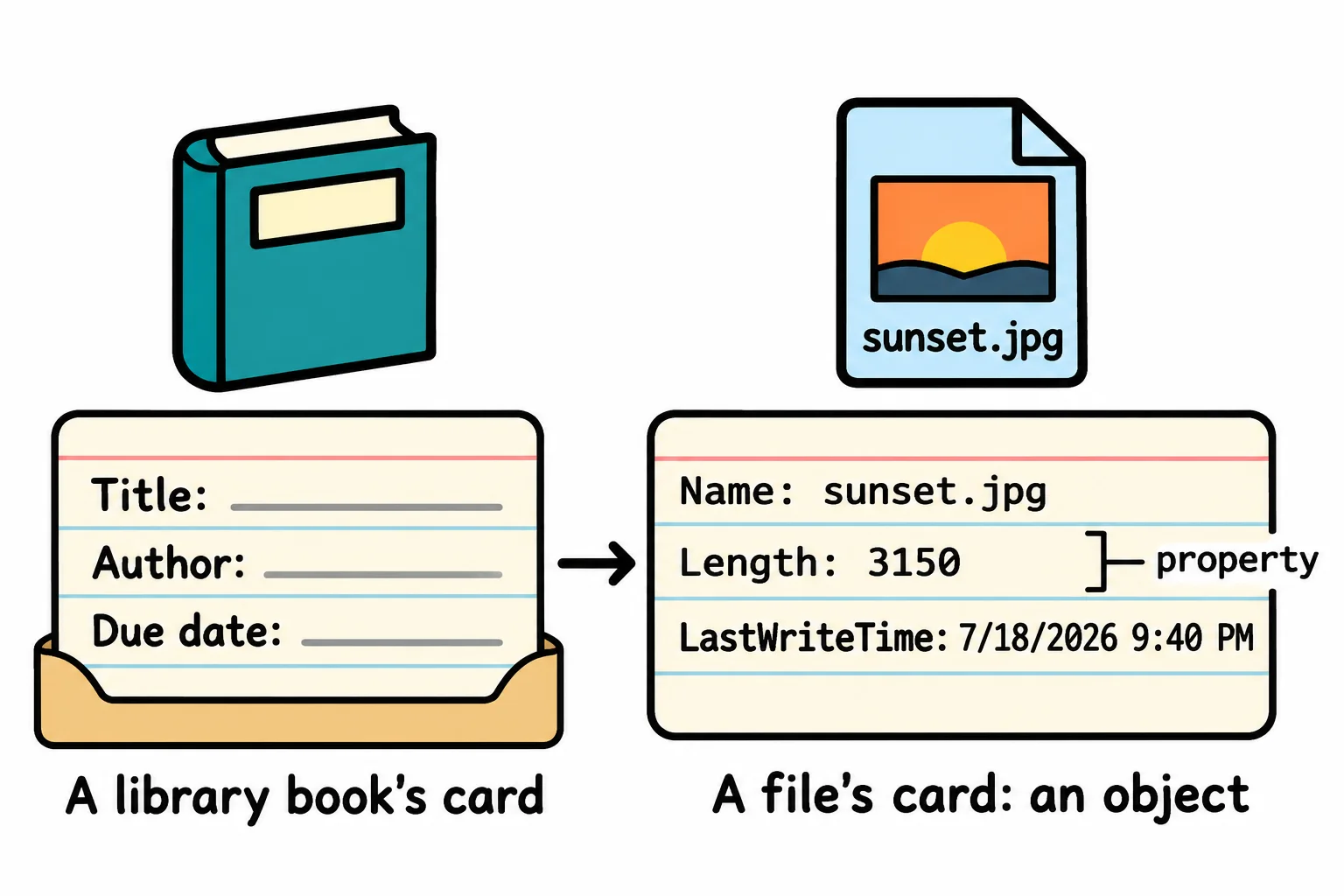
The table shows four properties. A file knows far more than four things.
What does it know? Get-Member
Get-Item gets one item by its name, where Get-ChildItem gets everything inside a folder. To see the whole card, hand that item to Get-Member with |, read "pipe". The pipe passes whatever is on its left to the command on its right; The Pipeline: |, in the next chapter, shows all it can do.
Get-Item sunset.jpg | Get-Member -MemberType Property
   TypeName: System.IO.FileInfo

Name              MemberType Definition
----              ---------- ----------
Attributes        Property   System.IO.FileAttributes Attributes {get;set;}
CreationTime      Property   datetime CreationTime {get;set;}
CreationTimeUtc   Property   datetime CreationTimeUtc {get;set;}
Directory         Property   System.IO.DirectoryInfo Directory {get;}
DirectoryName     Property   string DirectoryName {get;}
Exists            Property   bool Exists {get;}
Extension         Property   string Extension {get;}
FullName          Property   string FullName {get;}
IsReadOnly        Property   bool IsReadOnly {get;set;}
LastAccessTime    Property   datetime LastAccessTime {get;set;}
LastAccessTimeUtc Property   datetime LastAccessTimeUtc {get;set;}
LastWriteTime     Property   datetime LastWriteTime {get;set;}
LastWriteTimeUtc  Property   datetime LastWriteTimeUtc {get;set;}
Length            Property   long Length {get;}
LinkTarget        Property   string LinkTarget {get;}
Name              Property   string Name {get;}
UnixFileMode      Property   System.IO.UnixFileMode UnixFileMode {get;set;}
Read it from the top:
- TypeName is the kind of object.
System.IO.FileInfo(read "file info") is the kind every file is, so every file's card has these same properties, with its own values. - Name is each property's name:
Extension,FullName(the whole path),CreationTime. - Definition starts with what kind of value the property holds:
datetimeis a date and time,stringis text,longa whole number,boola True or False.{get;}means you can read it;{get;set;}means you can change it too.
-MemberType Property keeps the list to properties. Without it, Get-Member lists 53 rows, among them a few properties PowerShell adds itself, such as Mode and BaseName (the name without its extension), and methods, the things a file can do, which Properties and Methods explains. Get-ChildItem | Get-Member lists the same card once, not six times: Get-Member describes each kind of object, not each file.
Everything is an object
Files aren't special. Today's date is an object too, with properties for its year, its month and more. -Name picks properties by name, and it takes a wildcard, so Day* means "every name that starts with Day":
Get-Date | Get-Member -Name Day*
   TypeName: System.DateTime

Name      MemberType Definition
----      ---------- ----------
Day       Property   int Day {get;}
DayOfWeek Property   System.DayOfWeek DayOfWeek {get;}
DayOfYear Property   int DayOfYear {get;}
A date knows its own DayOfWeek: no calendar needed. A running program is an object too. $PID (read "dollar P I D") holds the Id of the PowerShell window you're typing in, so Get-Process -Id $PID gets that one program. A program has more than 50 properties, so this asks only for the ones whose names end in Time:
Get-Process -Id $PID | Get-Member -Name *Time
   TypeName: System.Diagnostics.Process

Name                    MemberType Definition
----                    ---------- ----------
ExitTime                Property   datetime ExitTime {get;}
PrivilegedProcessorTime Property   timespan PrivilegedProcessorTime {get;}
StartTime               Property   datetime StartTime {get;}
TotalProcessorTime      Property   timespan TotalProcessorTime {get;}
UserProcessorTime       Property   timespan UserProcessorTime {get;}
Every program knows when it started. Whatever a command gives you, Get-Member tells you what it knows.
In Windows PowerShell 5.1 the file's list is two rows shorter (no LinkTarget or UnixFileMode). On a Mac or Linux, Get-ChildItem shows other columns, but the objects and Get-Member work the same way.
Try it. Run Get-Item captions.txt | Get-Member -MemberType Property. Is the TypeName the same as the photo's? Then try Get-Item . | Get-Member -MemberType Property: . is the folder you're in. What kind of object is a folder?
Check yourself
2 questions to try on the lesson page.
So what
A file isn't a line of text on the screen; it's a card full of facts. Whenever you wonder what a command can tell you, pipe it to Get-Member and read the card.