What You Can Build with PowerShell
PowerShell does in seconds the computer jobs that take an afternoon of clicking, and this course takes you from your first command to scripts that are small applications of your own.
Novice · PowerShell · Operating System · Updated
After this lesson you can
- Recognize everyday jobs PowerShell does in seconds, and who uses it at work
- Explain why a script file is a small application, and why PowerShell's output is objects, not text
Key takeaways
- PowerShell is a way to give your computer instructions by typing them, so a job you'd click through a hundred times takes one line.
- In PowerShell, a file isn't a line of text. It's an object with a name, a size and a date you can sort and filter by.
- A script file is a small application you write yourself. You type its name, and it does the whole job every time.
- IT help desks, Windows and cloud administrators and .NET developers use PowerShell every day, and so does anyone whose job says "automate this".
You come home from a trip with 200 photos named IMG_4471.jpg, IMG_4472.jpg and so on, and you want them named beach-001.jpg, beach-002.jpg. In File Explorer that's 200 right-clicks, 200 renames and an afternoon gone. In PowerShell it's one line, and it takes about a second. This course teaches you to write lines like that, and then whole tools of your own.
Jobs that take seconds
PowerShell is a program that lets you give your computer instructions by typing them. You type a command, press Enter, and PowerShell does the job and shows you the result. Here are jobs it does in seconds:
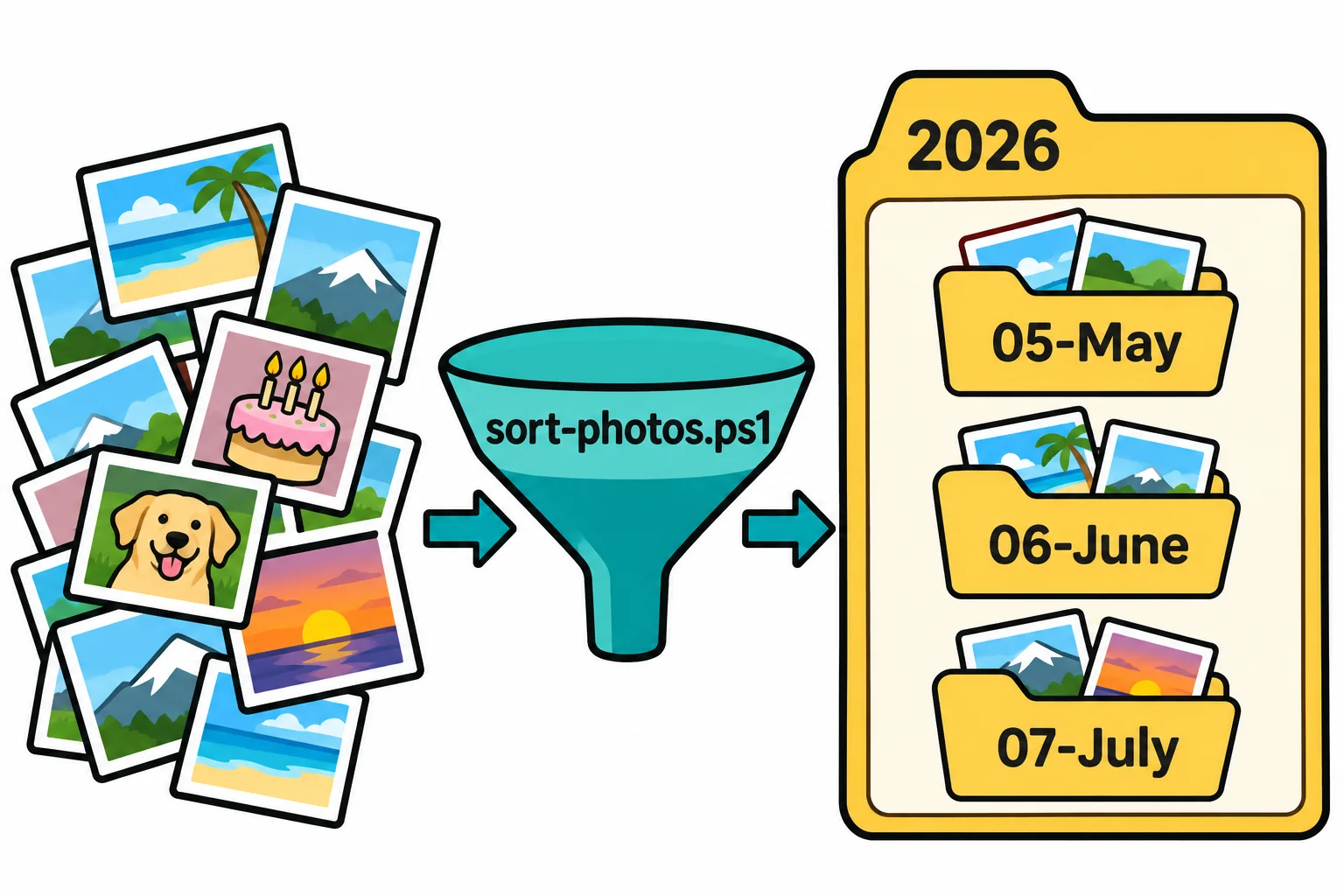
- rename 200 photos at once, with the date each one was taken in its name;
- find the ten biggest files on a drive, when it says it's full;
- turn this month's sales export from Excel into a report with totals;
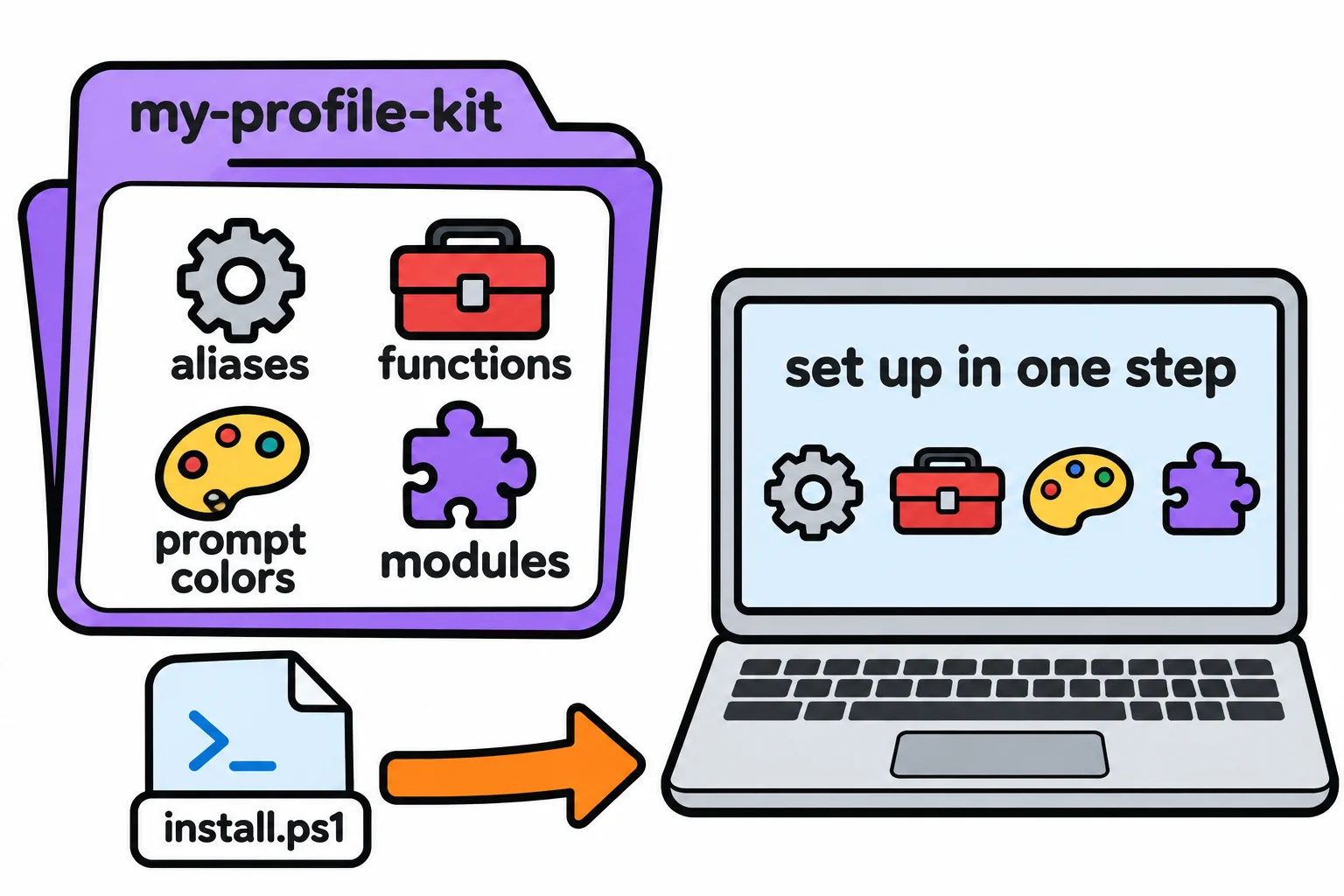
- set up a new PC, with every app you use, from one file.
Here's a small taste. This command lists the three biggest files in Sam's Downloads folder:
Get-ChildItem -Path "$HOME\Downloads" -File | Sort-Object -Property Length -Descending | Select-Object -First 3 -Property Name, Length
Name                 Length
----                 ------
game-installer.exe 48213504
beach-video.mp4    31522816
concert-photos.zip 12884901
It reads almost like English: get the files in Downloads, sort them by size from the biggest down, and keep the first three. Right now this may look like a lot of symbols, and that's fine. Module 3 teaches every piece of it.
Objects, not text
Look at the columns in that answer. Length is each file's size in bytes (the small units file sizes are counted in), and PowerShell could sort by it because it knows the size is a number. That's PowerShell's big idea: a file isn't a line of text on the screen, it's an object, a thing with facts about it: a name, a size, the date it last changed. You can sort, filter or add up by any of those facts.
Many other command-line tools pass plain text from one command to the next, so a size has to be cut out of a line before anything can use it. PowerShell hands over the whole object, facts and all. It's why one PowerShell line can do so much.
A script is a small application
The command above is gone once you close the window. Put commands in a file instead, and you have a script: a file of PowerShell commands, with a name that ends in .ps1. Sam saved these lines as downloads-report.ps1:
# downloads-report.ps1: a quick report on the Downloads folder
$files = Get-ChildItem -Path "$HOME\Downloads" -File
$size = ($files | Measure-Object -Property Length -Sum).Sum / 1MB
$biggest = $files | Sort-Object -Property Length -Descending | Select-Object -First 1
"Files in Downloads: $($files.Count)"
"Space they take: $([math]::Round($size, 1)) MB"
"Biggest file: $($biggest.Name)"
Now, any day, Sam types the script's name and gets a fresh report:
.\downloads-report.ps1
Files in Downloads: 8
Space they take: 91.8 MB
Biggest file: game-installer.exe
That's the idea this whole course builds on: a script file is a small application you write yourself, and it runs the moment you type its name. Nothing to install and nothing to set up: you write it, save it, and run it. Module 6 starts writing scripts, and by Module 7 you build tools that work like the commands Microsoft ships, with their own help pages.
Who uses it at work? IT help-desk techs fixing a PC, Windows and cloud administrators looking after hundreds of computers, .NET developers building and testing their apps, and anyone whose job description says "automate this".
What you'll be able to build
Each module's skills are enough to build something real:
| Module | What you'll be able to build |
|---|---|
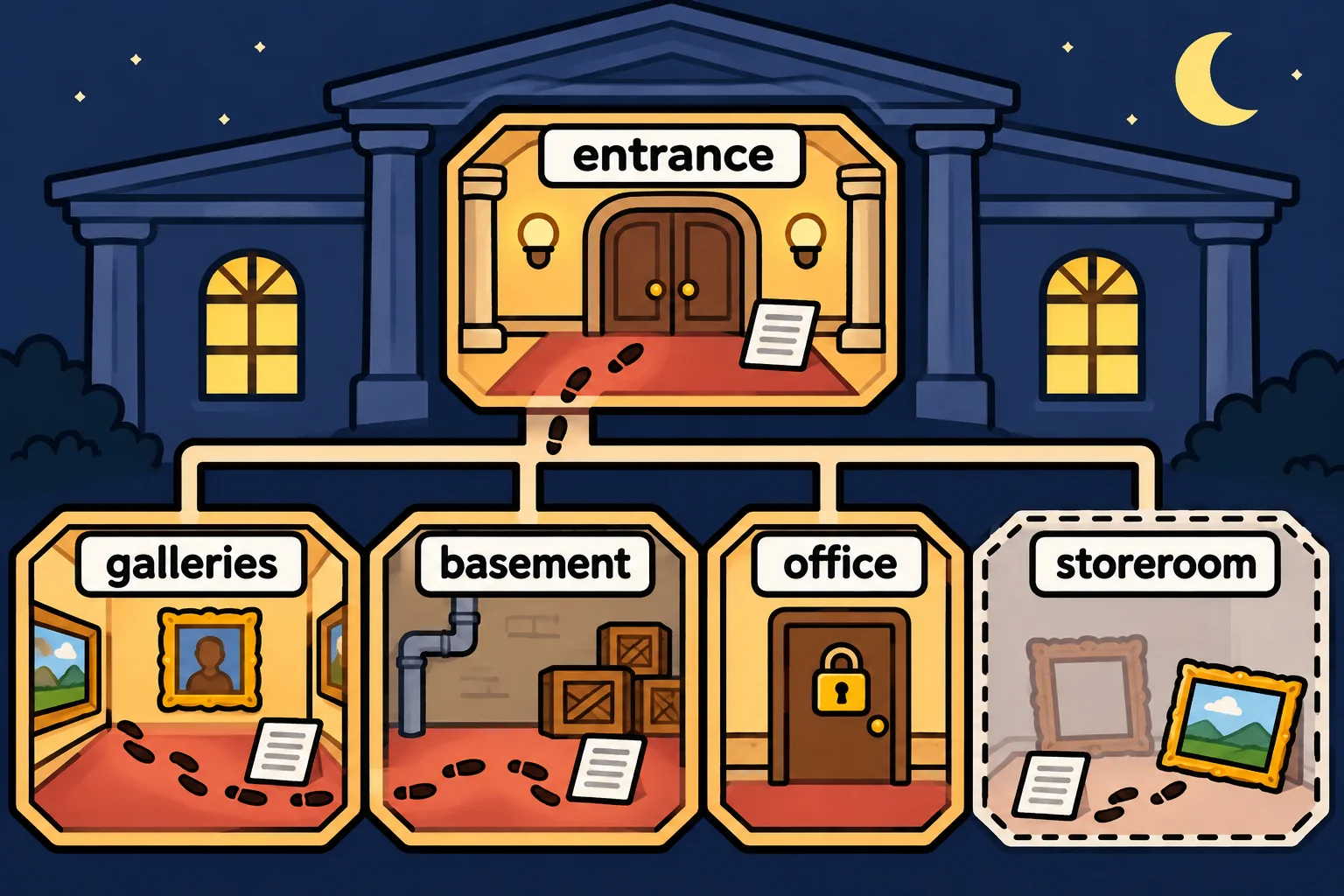
| 1. Meet PowerShell | Solve a scavenger hunt through a museum of folders, with hidden files and a long visitor log |
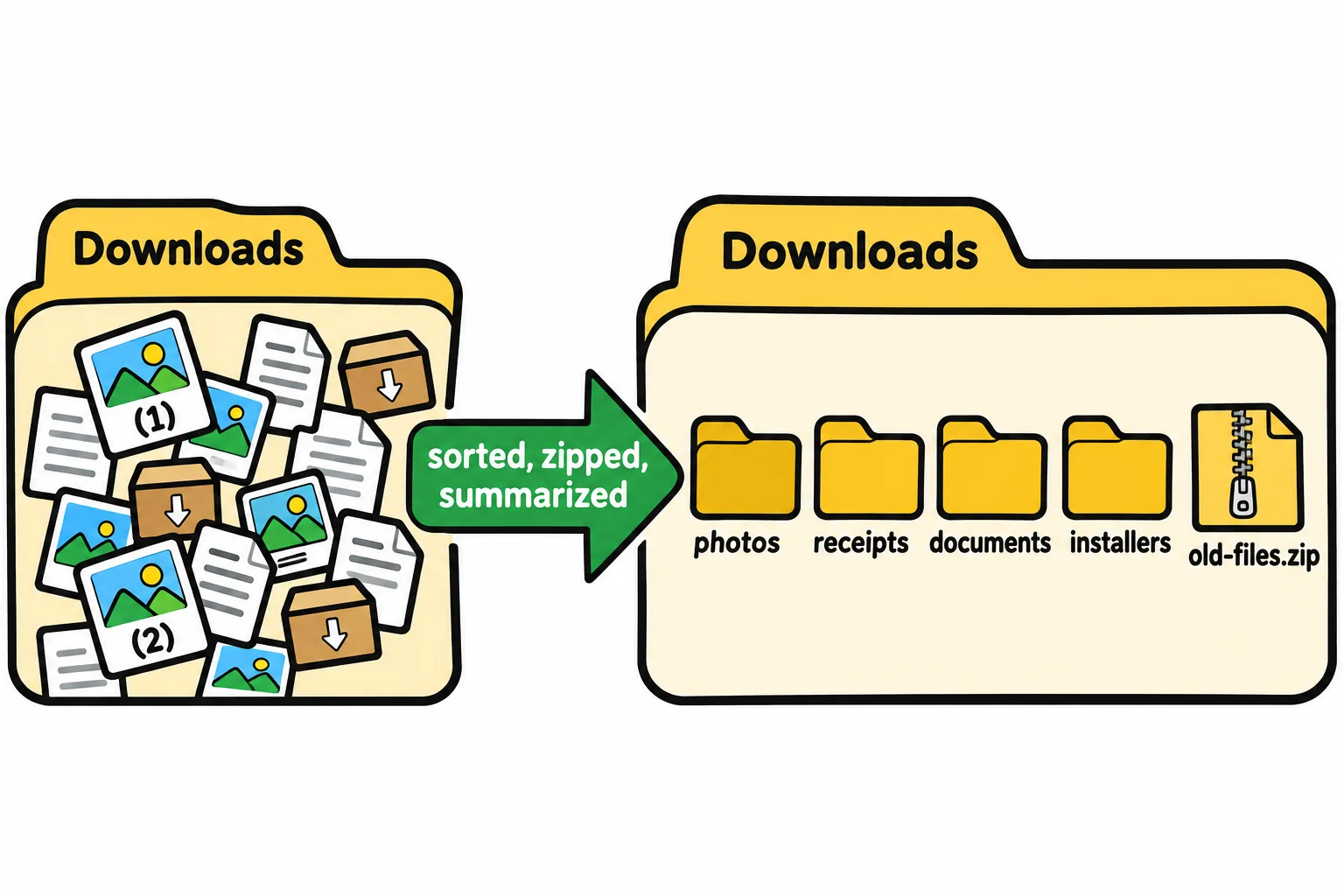
| 2. Working with Files | Rescue a messy Downloads folder: sorted, zipped and summarized, every delete rehearsed first |
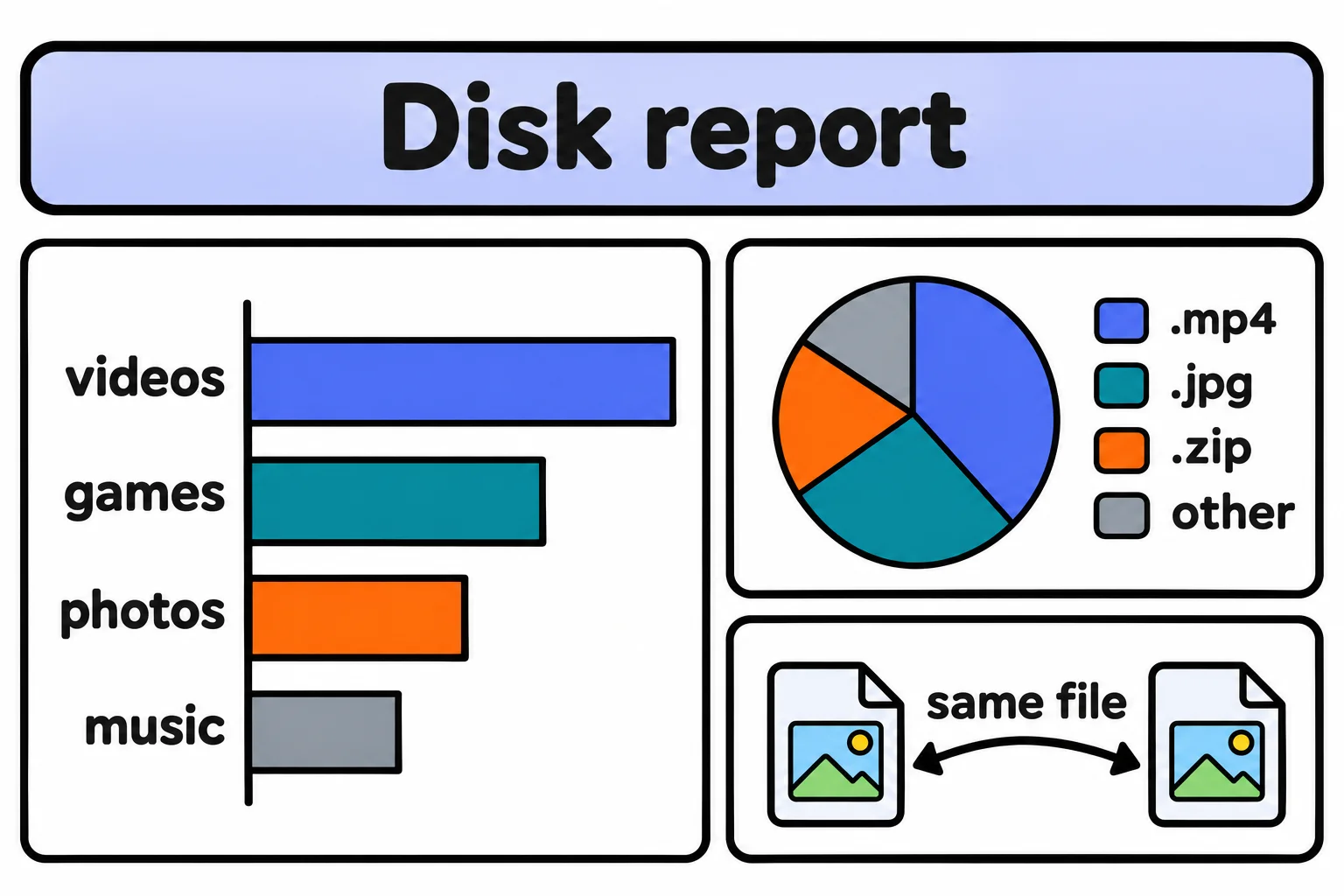
| 3. Objects and the Pipeline | A disk report: the biggest folders, space by file type, and duplicate files |
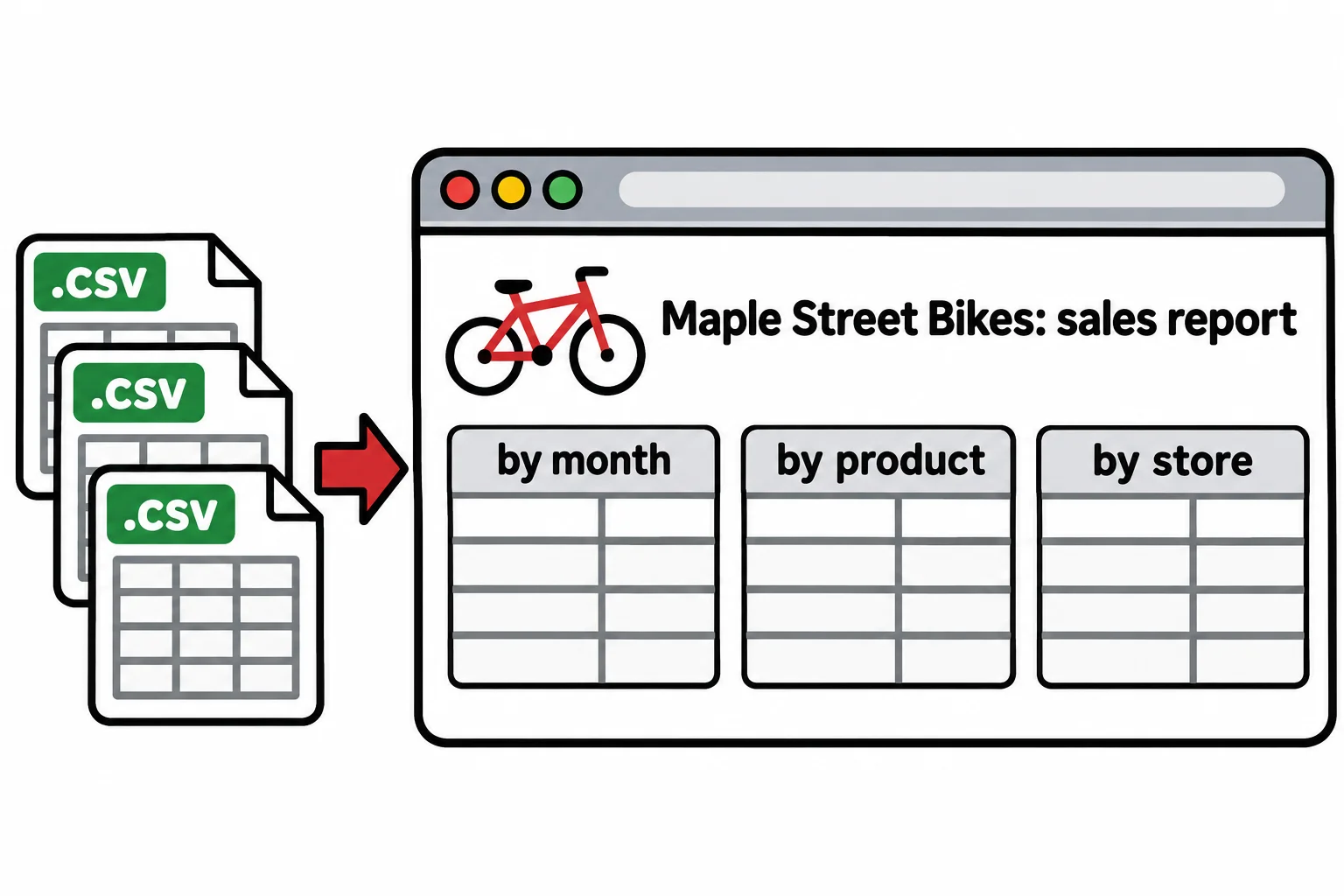
| 4. Working with Data | A bike shop's year of sales, from spreadsheet exports to a web page of totals |
| 5. PowerShell, Your Way | Your own setup in one folder, with an installer you can run on any new PC |
| 6. Scripts Are Applications | A photo sorter that files every picture into a folder for its year and month |
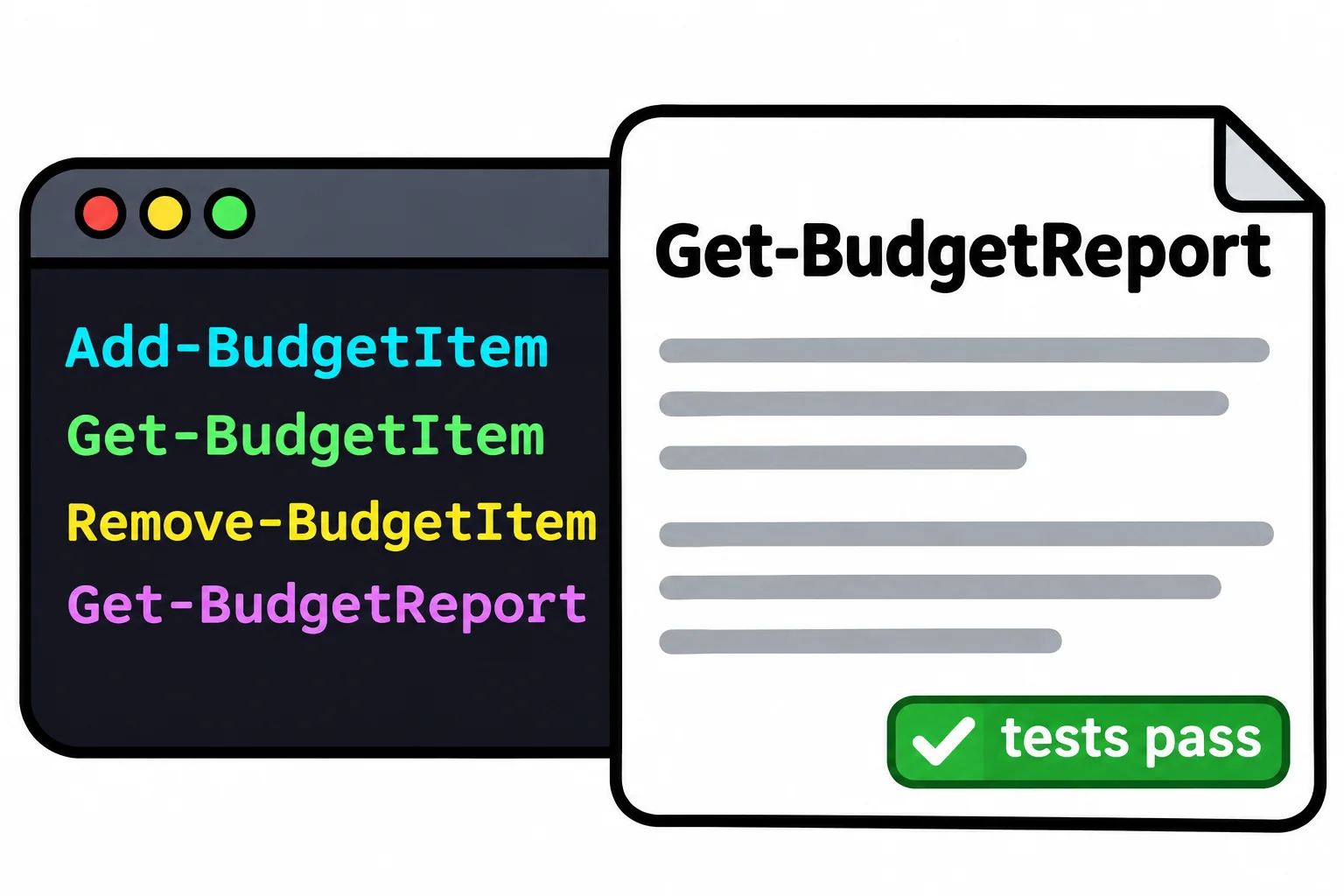
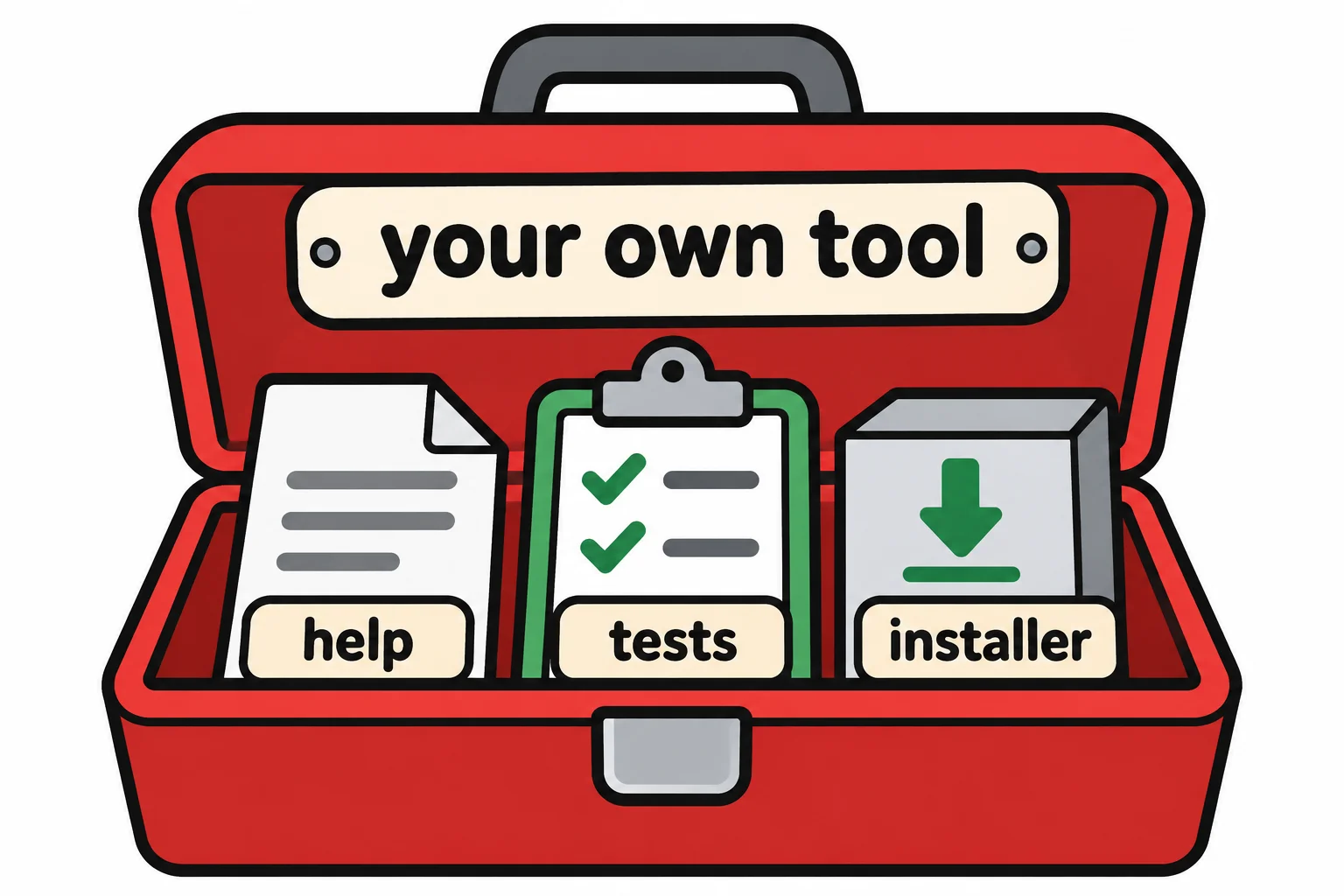
| 7. Building Real Tools | Budget, a set of commands of your own, with help, tab completion and tests |
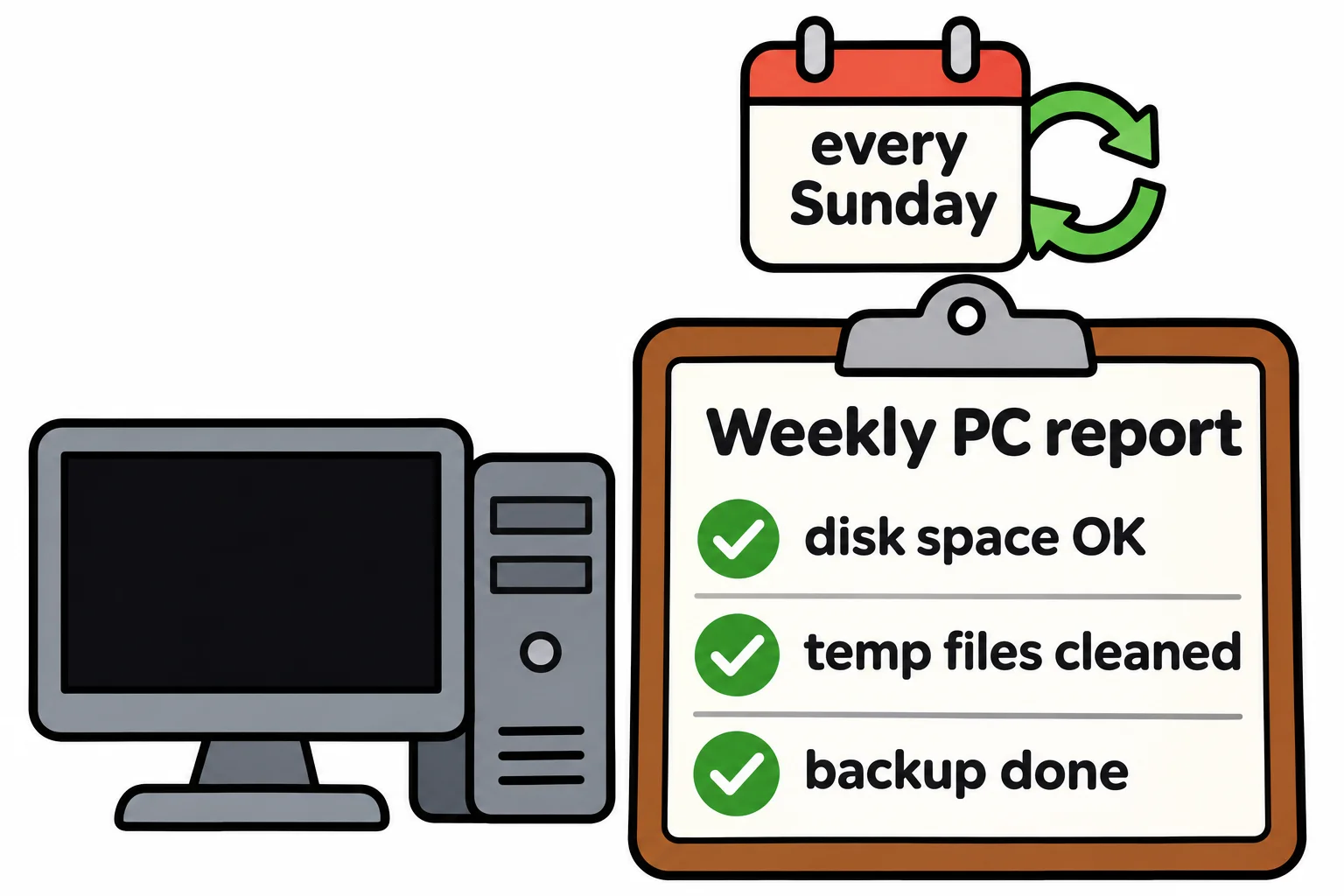
| 8. Administering Windows | A PC caretaker that checks a computer's health every week and writes a report |
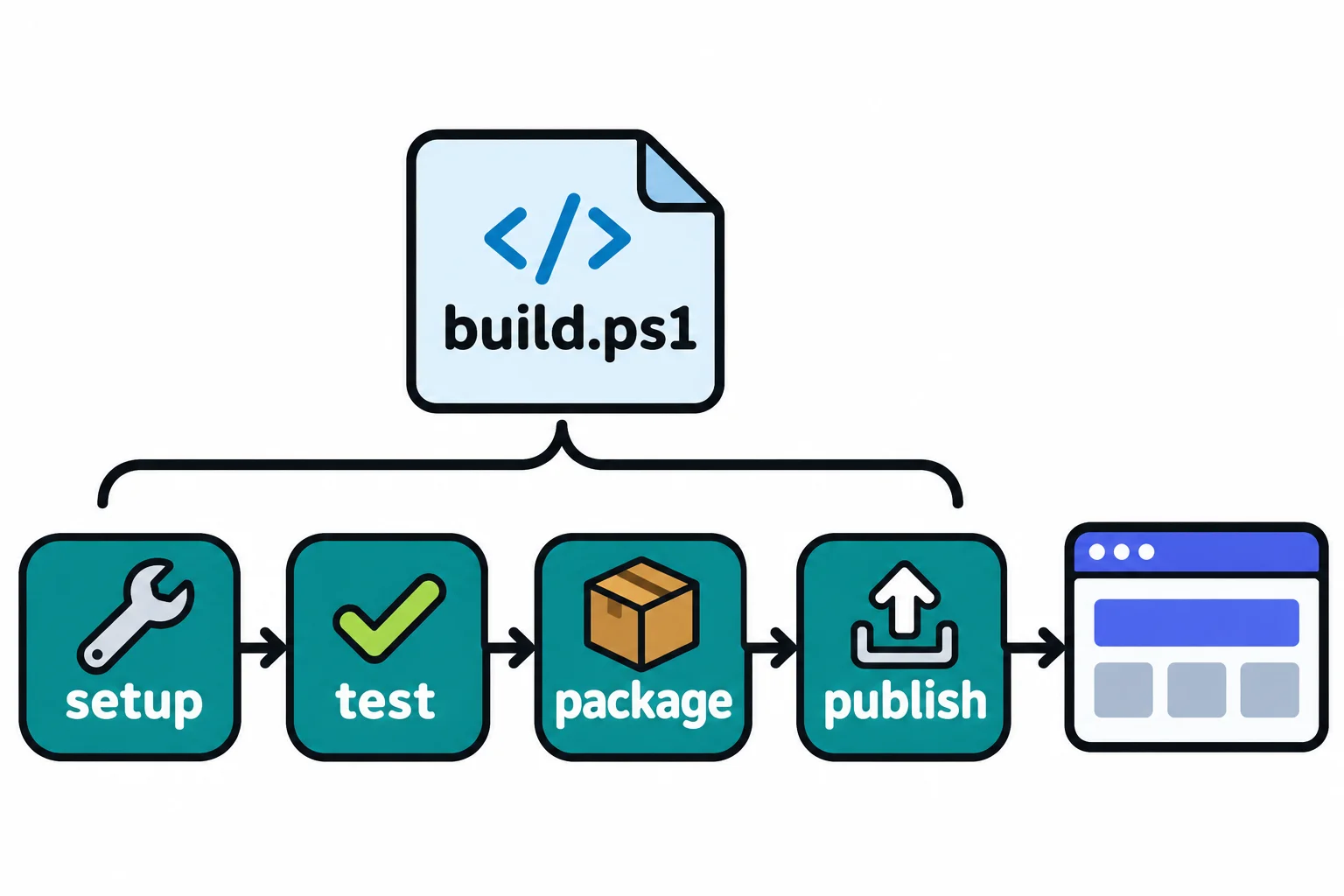
| 9. The Developer's PowerShell | A build script that sets up, tests and packages a small website |
| The end of the course | A tool you design for a problem in your own life or job |
Check yourself
2 questions to try on the lesson page.
So what
Clicking is great for one file. For a thousand, PowerShell does the job in one line, and a script remembers how, so the next time costs you one word.