Paths and Folders with pathlib
A Path from Python's pathlib module holds a file's or folder's address in parts, so a script can join paths with /, read a file's name and extension, list and find the files in a folder, and make folders, the same way on Windows and on a Mac.
Apprentice · Python · Updated
After this lesson you can
- Build a path with pathlib's Path and the / operator, and read its name, stem, suffix and parent
- Check, list and find files in a folder with exists, iterdir, glob and rglob, and make folders with mkdir
Key takeaways
- A Path from pathlib holds a file's or folder's address, and / (read "slash") joins its parts with the right separator for Windows or a Mac.
- A path's parts come ready to read. .name is the whole file name, .stem the name without its extension, .suffix the extension and .parent the folder it's in.
- iterdir() lists everything in a folder and glob("*.jpg") finds the names that match a pattern, in no promised order, so sort them before you use them.
- mkdir(parents=True, exist_ok=True) makes a folder and any missing folders above it, and does nothing if the folder is already there.
Sooner or later every computer has a folder that's out of hand: three hundred vacation photos named IMG_0412.jpg, receipts saved as PDFs, installers you ran once. Sorting it by hand takes an afternoon. A Python script can do it in a second, and every script like that starts with the same questions: what's in this folder, which of these files are photos, and where should each one go? Python's pathlib module answers them, and you'll use it in any program that reads or saves files.
The example is a Downloads folder that needs tidying. Every example works on a practice folder, practice-downloads, that the code makes for itself, never on your real Downloads folder.
A path written as text
A path is a file's address: the folders you go through to reach it, then its name. You could keep one in a string and pick it apart with string methods:
path = "practice-downloads/trips/beach-day.final.jpg"
print(path.split(".")[1])
print(path.split("/")[0])
final
practice-downloads
Both answers are wrong. The file's type is .jpg, but the name has two dots, so splitting on the first one finds final. The folder the file is in is practice-downloads/trips, but splitting on / keeps only the first folder. And Windows writes its paths with \ (a backslash) between folders, while a Mac writes /, so text that's right on one computer is wrong on the other.
Path: an address that knows its parts
An envelope's address isn't one long string to the mail carrier: it's a name, a street, a city and a zip code, and each part has a job. A Path, from Python's pathlib module, treats a file's address the same way:
from pathlib import Path

photo = Path("practice-downloads") / "trips" / "beach-day.final.jpg"
print(photo)
print(photo.name)
print(photo.stem)
print(photo.suffix)
print(photo.parent)
practice-downloads\trips\beach-day.final.jpg
beach-day.final.jpg
beach-day.final
.jpg
practice-downloads\trips
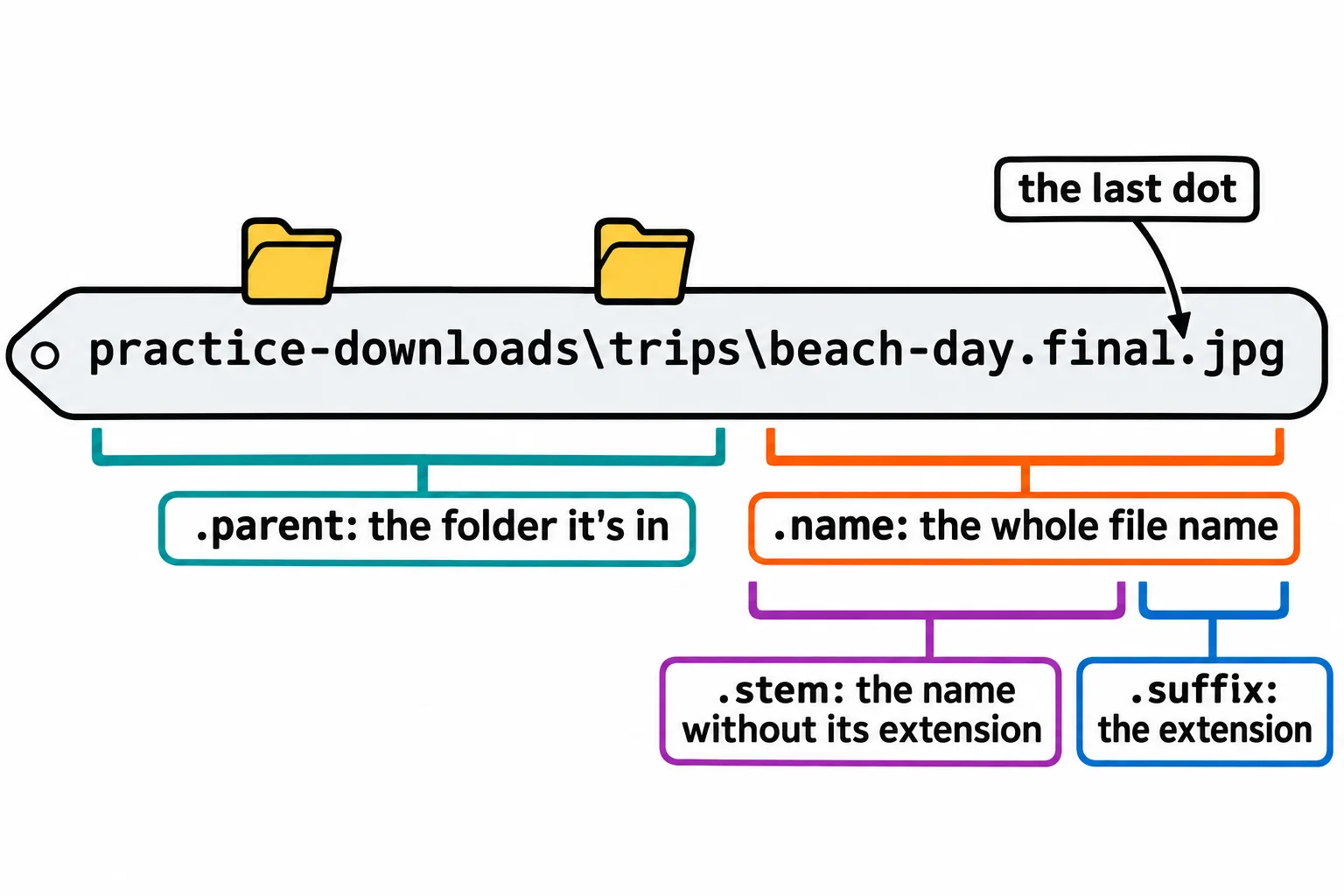
Between two paths, / (read "slash") doesn't divide: it joins them, and the Path writes the separator the computer uses. That output is from Windows; on a Mac, the first and last lines show / instead. Each part is ready to read:
.nameis the whole file name, the part after the last separator..stemis the name without its extension..suffixis the file extension, the part from the last dot on, which says what type of file it is..parentis the folder the file is in, as anotherPath.
What's in a folder: iterdir and glob
To see what a folder holds, iterdir() (read "iterate the directory": go through the folder) gives a Path for each thing inside it. To pick out some of them, glob() takes a pattern: * (read "star") stands for any run of letters, so "*.jpg" matches every name that ends in .jpg. A pattern of file names like this is called a glob.
from pathlib import Path

downloads = Path("practice-downloads")
downloads.mkdir(exist_ok=True)
for name in ["sunset.jpg", "grocery-receipt.pdf", "beach-day.jpg", "notes.txt"]:
    (downloads / name).touch()

for item in sorted(downloads.iterdir()):
    print(item.name)

print("Photos:")
for photo in sorted(downloads.glob("*.jpg")):
    print(photo.name)
beach-day.jpg
grocery-receipt.pdf
notes.txt
sunset.jpg
Photos:
beach-day.jpg
sunset.jpg
touch() makes an empty file, or leaves an existing one as it is, which is how the code builds its practice folder. Neither iterdir() nor glob() promises an order: the computer hands the names back however it stores them. sorted() puts them in alphabetical order, so a list is the same on every run and every computer.
glob() looks only in the folder itself. rglob("*.jpg") (the r is for recursive) also looks in every folder inside it, and inside those, all the way down: downloads.rglob("*.jpg") would find practice-downloads/trips/canyon.jpg too.
One difference between computers: Windows ignores capital letters when it matches a pattern, and a Mac doesn't, so "*.jpg" misses BEACH.JPG on a Mac. Comparing photo.suffix.lower() with ".jpg" works on both.
Making folders, and where a path starts
exists() answers whether there's anything at a path, and is_dir() and is_file() whether it's a folder or a file. mkdir() makes a folder:
from pathlib import Path

photos = Path("practice-downloads") / "Photos" / "2026"
print(photos.exists())
photos.mkdir(parents=True, exist_ok=True)
print(photos.exists(), photos.is_dir())
False
True True
parents=True makes any missing folders above it too, here practice-downloads and Photos. exist_ok=True means a folder that's already there is fine: without it, the second run of the program would stop with a FileExistsError.
Path("practice-downloads") is a relative path: it starts from the folder the terminal is in when you run the program, the current directory. Run the same program from another folder and it looks there instead. An absolute path starts from the top of the drive, and Path.home() gives you one: your own user folder, such as C:\Users\Sam on Windows or /Users/sam on a Mac. Path.home() / "Downloads" is your real Downloads folder, which is why every example here sticks to a practice folder until a script has proved it's safe.
Do it: list the photos in a folder
A tidy-up script needs a list of the photos in a downloads folder before it can move any of them. The rest of the script uses the names, in alphabetical order.
folder: the folder to look in, as aPath.
Your job: write the function photo_names(folder) so it returns a list of the names of the photos in folder, sorted alphabetically.
- A photo is a file whose suffix is
.jpgor.png. - Return each file's name, such as
"sunset.png", not its whole path. - Look only in
folderitself: photos inside a folder within it are left out. - When
folderhas no photos, return an empty list,[].
Worked through: practice-downloads holds beach-day.jpg, grocery-receipt.pdf, sunset.png and notes.txt. The photos are beach-day.jpg and sunset.png, so photo_names(Path("practice-downloads")) returns ["beach-day.jpg", "sunset.png"].
Practiced live on the lesson page: write the Python right there and check it.
Check yourself
2 questions to try on the lesson page.
So what
Once a script can read a path's parts and find the files it wants, sorting, renaming and backing up a folder are a few lines away, on whichever computer it runs.