Running a Script on a Schedule
Windows Task Scheduler and cron on a Mac run a script at set times with no terminal open, so the job names the virtual environment's python and the script by their full paths, the script finds its files from its own folder, and logging records each run in a log file.
Journeyman · Python · Updated
After this lesson you can
- Schedule a script with Windows Task Scheduler or cron on a Mac, running the virtual environment's python by its full path
- Make a scheduled script find its files from its own folder and record each run in a log file with logging
Key takeaways
- A scheduler runs your script with no terminal open, so it needs the full path of the python to use and of the script to run.
- Use the python inside the project's virtual environment, such as .venv\Scripts\python.exe, so the job finds the packages the project installed.
- A scheduled job doesn't start in your project's folder, so build the script's paths from its own folder with Path(file).parent.
- logging writes each run's messages to a log file with the time, so you can see what happened while you were away.
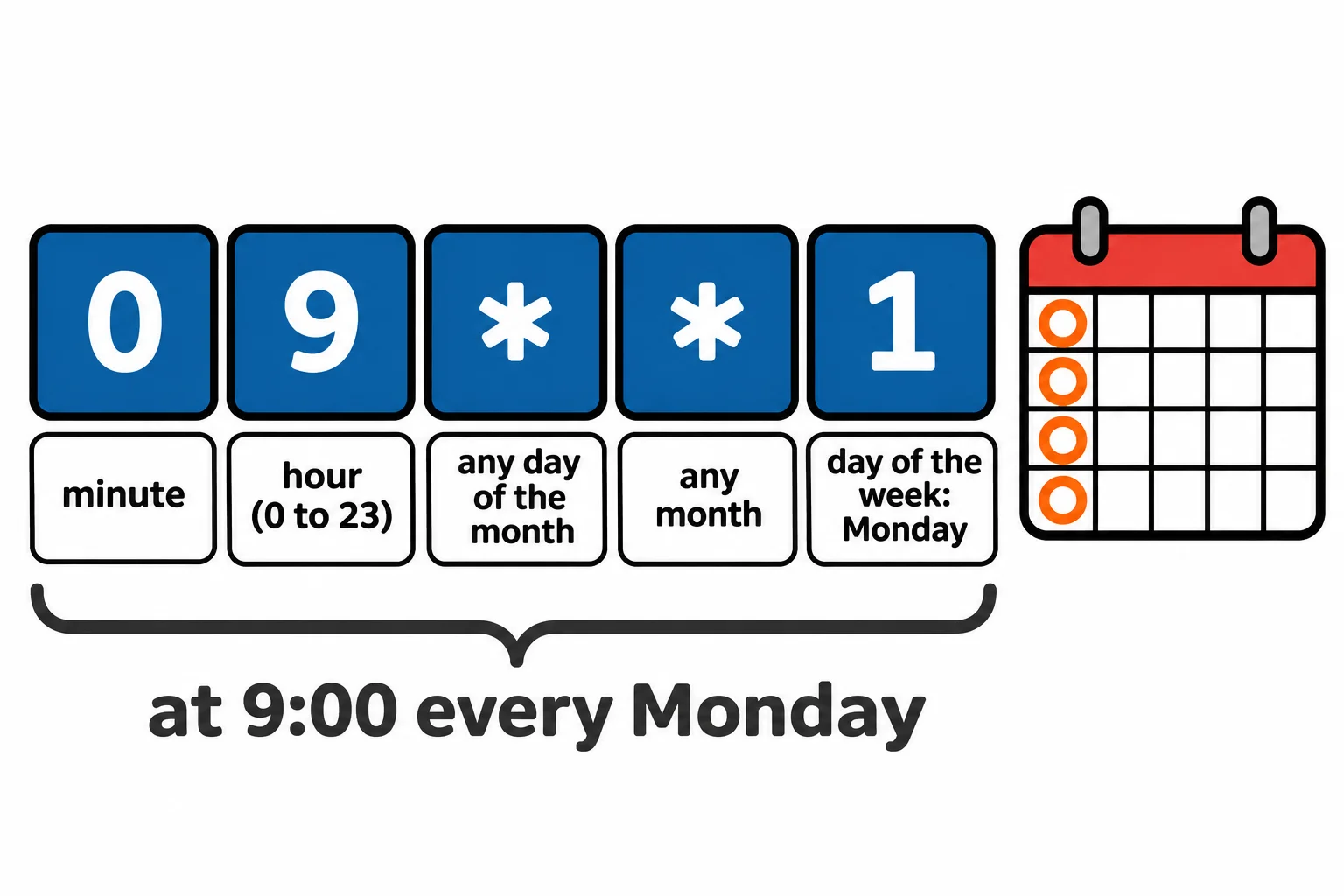
- A cron line's five fields are the minute, hour, day of the month, month and day of the week, so 0 9 * * 1 reads "at 9:00 every Monday".
A script that tidies your Downloads folder only helps if you remember to run it, and the point was to stop remembering. The same goes for a nightly backup or a Monday report. Windows and macOS can both start a program by themselves at set times, as long as the script is ready to run with nobody watching.
The example moves the photos in a practice folder into a Photos folder, every Monday at 9:00 a.m.
What changes when nobody's at the terminal
When you run a script yourself, three things are in place: the project's virtual environment is on, the terminal is in the project's folder, and you can read what the script prints. A scheduled job has none of them:
- No virtual environment is on. Plain
pythonmay be another Python, without the project's packages. The job names the virtual environment's python by its full path:C:\Users\Sam\python-course\photo-sorter\.venv\Scripts\python.exeon Windows,/Users/sam/python-course/photo-sorter/.venv/bin/pythonon a Mac. - It doesn't start in your project's folder. A relative path such as
Path("practice-downloads")starts from wherever the job starts (cron starts in your home folder), so the script looks in the wrong place. - Nobody reads the screen. Whatever the script prints goes nowhere you'll see it.
A script that finds its own folder and keeps a log
Here's the photo sorter, saved as sort_photos.py in a photo-sorter folder with its own virtual environment. It finds its folders from its own location, and writes to a log file instead of printing:
import logging
import shutil
from pathlib import Path

here = Path(__file__).parent
downloads = here / "practice-downloads"
photos = downloads / "Photos"
logging.basicConfig(filename=here / "sorter.log", level=logging.INFO, encoding="utf-8",
                    format="%(asctime)s %(levelname)s %(message)s", datefmt="%Y-%m-%d %H:%M")

photos.mkdir(parents=True, exist_ok=True)
moved = 0
for photo in sorted(downloads.glob("*.jpg")):
    if (photos / photo.name).exists():
        logging.warning(f"Skipped {photo.name}: Photos already has one")
    else:
        shutil.move(photo, photos / photo.name)
        moved += 1
logging.info(f"Photos moved: {moved}")
__file__ (read "dunder file") is the path of the script file itself, so Path(__file__).parent is the folder the script is saved in, wherever the job starts. Every other path is built from here.
A log file is a diary a program keeps: a line each time something happens, with the time. Python's logging module writes one. logging.basicConfig says which file, which messages count (level=logging.INFO and up), and how each line looks: the time, how serious it is, and the message. logging.info() records something normal, and logging.warning() something a person should look at. After two runs (the second started from another folder, after two more photos arrived), sorter.log holds:
2026-11-17 12:22 INFO Photos moved: 2
2026-11-17 12:22 WARNING Skipped sunset.jpg: Photos already has one
2026-11-17 12:22 INFO Photos moved: 1
Each run adds to the end of the file.
On Windows: Task Scheduler
Task Scheduler is the part of Windows that runs programs at set times. To add the job:
Open Start, type
Task Scheduler, and open it.In the Actions pane on the right, click Create Basic Task.... Name it
Sort practice photosand click Next.For the trigger, choose Weekly, then set the time to 9:00 AM and tick Monday.
For the action, choose Start a program. Fill in Program/script (the virtual environment's python), Add arguments (the script, in quotes in case a folder name has a space) and Start in (the project's folder, no quotes):
C:\Users\Sam\python-course\photo-sorter\.venv\Scripts\python.exe
"C:\Users\Sam\python-course\photo-sorter\sort_photos.py"
C:\Users\Sam\python-course\photo-sorter
Tick Open the Properties dialog for this task when I click Finish, and click Finish. On the Settings tab, tick Run task as soon as possible after a scheduled start is missed, so a laptop that was asleep at 9:00 runs it when it wakes, and click OK.
To try it now, click Task Scheduler Library, right-click the task, choose Run, and open sorter.log. To stop the job, right-click it and choose Disable or Delete. Options such as --dry-run go in Add arguments, after the script's path.
On a Mac: cron
cron is the scheduler that comes with macOS and Linux. Your jobs live in your crontab (cron table), one a line. Open it in the terminal (EDITOR=nano picks an editor that shows its keys):
EDITOR=nano crontab -e
Add this line, all on one line, then save with Ctrl+O and Enter, and leave with Ctrl+X:
0 9 * * 1 /Users/sam/python-course/photo-sorter/.venv/bin/python /Users/sam/python-course/photo-sorter/sort_photos.py >> /Users/sam/python-course/photo-sorter/cron-errors.log 2>&1
The five fields at the start say when; then come the python and the script, by their full paths. * (read "any") matches every value:
| Field | Here | Means |
|---|---|---|
| Minute | 0 |
on the hour |
| Hour | 9 |
9 a.m. (cron counts hours 0 to 23) |
| Day of the month | * |
any day |
| Month | * |
any month |
| Day of the week | 1 |
Monday (0 is Sunday) |
Read together, 0 9 * * 1 is "at 9:00 every Monday". The end, >> cron-errors.log 2>&1, adds anything the script prints, a crash's message included, to a second file. crontab -l lists your jobs; delete the line with crontab -e to stop one.
Three honest notes about cron on a Mac:
- A missed run waits a week. If the Mac is asleep or off at 9:00, cron skips that run until the next Monday.
- Apple recommends launchd. macOS's own scheduler, launchd, runs a job missed during sleep when the Mac wakes. Its jobs are settings files (
.plist), longer to write than a cron line; cron is still supported. - Some folders are guarded. A job that reaches into your Desktop, Documents or Downloads folder can be refused with Operation not permitted until you allow it under System Settings > Privacy & Security > Full Disk Access. The practice folder in
python-courseisn't guarded.
Check yourself
2 questions to try on the lesson page.
So what
A script that finds its own files, logs what it did, and runs on a schedule keeps doing its job long after you've stopped thinking about it, and its log tells you exactly what it did.