Working with the Terminal (macOS): an overview
The Terminal shows the same folders as Finder, as text you type, starting from your home folder (~) and the ls command.
Novice · Operating System · Software Development · Updated
After this lesson you can
- List a folder's contents with ls in the Mac Terminal and match them to what Finder shows
Key takeaways
- Finder and the Terminal show the same folders. Finder uses windows and clicks; the Terminal uses commands you type.
- In the Terminal, ~ is your home folder, the one Finder shows under your name in the sidebar.
- ls lists the files and folders in the folder you are in. ls -F adds a / after each folder's name.
- open . opens the folder you are in, in Finder, so you can check what a command did.
You already work with files in Finder: double-click to open a folder, click a name to rename a file. The Terminal does the same jobs by typing. You met it in the last topic, running Git. In this topic you will use it to move around your folders and manage your files, because Git and every build tool in the course run there.
Two views of the same folders
Finder is a GUI (graphical user interface): windows, icons and clicks. The Terminal is a command line: you type a command, press Return, and read the answer as text.
Both show the same folders on the same disk. A folder you make in one appears in the other straight away.
Here is the home folder in Finder:
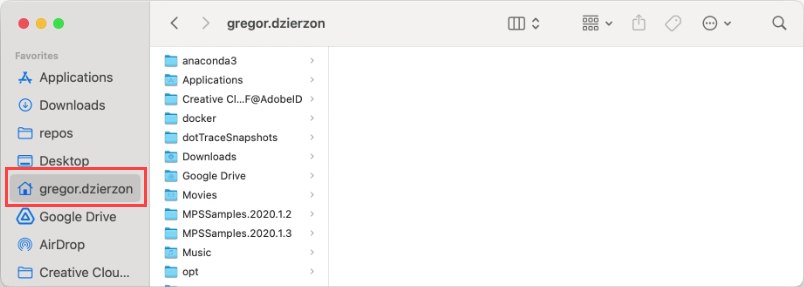
Your home folder: ~
Open the Terminal. It starts in your home folder, and its prompt shows a ~ (a tilde) to say so:
alex@MacBook-Air ~ %
~ is short for your home folder. The long way of writing it is /Users/alex, and Finder shows it in the sidebar with a house icon and your username. All three are the same folder. Your username will be different from alex.
List what is here: ls
Type ls (list) and press Return:
ls
The Terminal lists what is in the folder you are in:
Desktop Documents Downloads Library Movies Music Pictures Public
On a Mac, ls doesn't show which names are folders. Add -F and it puts a / after each folder:
ls -F
Desktop/ Documents/ Downloads/ Library/ Movies/ Music/ Pictures/ Public/
Your list may have more in it, such as the folders of apps you have installed. The folders you know from Finder, such as Desktop, Documents and Downloads, are all there. One is new: Library, where apps keep their settings. Finder hides it, but ls shows it. Leave it alone.
See it both ways
The Terminal can open Finder on the folder you are in:
open .
The . means "the folder I am in now". Use it whenever you want to check what a command did.
Try it. In the Terminal, run ls, then open .. Find three folders that are in both lists.
Check yourself
2 questions to try on the lesson page.
So what
Every command you type runs in some folder. Knowing which folder you are in, and what is in it, is the first thing to check when a command doesn't do what you expected.