Copy, Move and Rename: cp and mv
mv moves a file into another folder or gives it a new name, cp makes a copy and leaves the original where it was, cp -r copies a whole folder, and -i or -n stop either one from replacing a file by surprise.
Novice · Unix · Linux · Updated
After this lesson you can
- Move and rename files with mv, and copy files and folders with cp and cp -r
- Keep cp and mv from replacing a file by surprise with -i or -n
Key takeaways
- mv moves a file, first what to move and then where. Given a new name instead of a folder, it renames the file.
- cp makes a copy and leaves the original where it was. cp -r copies a folder and everything inside it.
- When a file with the same name is already there, cp and mv replace it without asking. -i asks first, and -n never replaces anything.
Your Downloads folder holds a boarding pass, a lease, a resume and a phone's worth of photos with names like IMG_2051.jpg. Sorting it takes three jobs: putting a file in the right folder, giving a photo a name you'll recognize, and keeping a copy of something before you change it. A file manager does each with a drag or a right-click, one file at a time. In the terminal, two short commands cover all three, from any folder to any other.
Set up the practice folder
The examples use the same mess as Making Folders and Files: mkdir and touch, in a folder of its own, so this lesson starts fresh whatever you did last time. Copy these lines into your terminal; they're safe to run again:
mkdir -p ~/terminal-practice/copy-and-move && cd ~/terminal-practice/copy-and-move
mkdir -p photos music documents
touch IMG_2041.jpg IMG_2042.jpg IMG_2043.jpg IMG_2051.jpg beach-day.png
touch boarding-pass.pdf lease.pdf resume.docx road-trip-mix.mp3 rainy-day.mp3
touch receipt-2026-01.pdf receipt-2026-02.pdf receipt-2026-05.pdf receipt-2026-11.pdf
ls
IMG_2041.jpg   boarding-pass.pdf  rainy-day.mp3        resume.docx
IMG_2042.jpg   documents          receipt-2026-01.pdf  road-trip-mix.mp3
IMG_2043.jpg   lease.pdf          receipt-2026-02.pdf
IMG_2051.jpg   music              receipt-2026-05.pdf
beach-day.png  photos             receipt-2026-11.pdf
mv: move it, or rename it
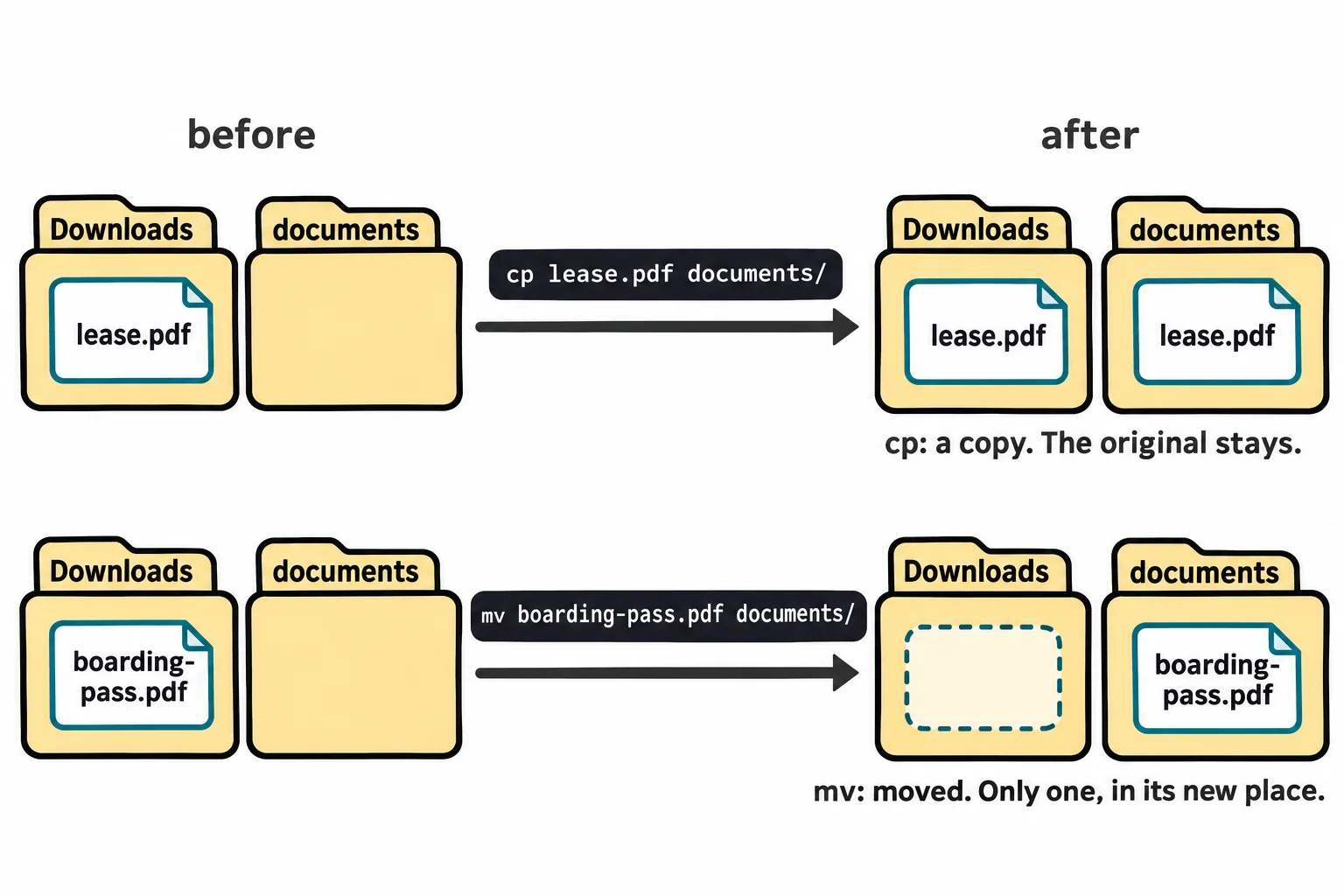
mv (short for move) takes two things: what to move, then where to put it. Move the boarding pass into documents:
mv boarding-pass.pdf documents/
ls documents
boarding-pass.pdf
It has left the Downloads folder and sits in documents now: one file in a new place, like carrying a box to another room. The / at the end of documents/ says "this is a folder". It's optional, and a good habit: if there were no documents folder, mv would stop with an error instead of renaming your file to documents.
Renaming is moving a file to a new name in the same folder, so mv renames too. Give two photos names you'll recognize, the second one moved into photos as well:
mv IMG_2051.jpg birthday-cake.jpg
mv IMG_2043.jpg photos/first-day-of-school.jpg
ls photos
first-day-of-school.jpg
Read photos/first-day-of-school.jpg as the file's new address: the folder, then the new name.
cp: a copy, and the original stays
cp (short for copy) takes the same two things but works like a photocopier: the original stays where it was. Before you edit your resume, keep a copy of the version that works, and put a copy of the lease in documents:
cp resume.docx resume-before-edits.docx
cp lease.pdf documents/
ls
ls documents
IMG_2041.jpg       documents  rainy-day.mp3        receipt-2026-11.pdf
IMG_2042.jpg       lease.pdf  receipt-2026-01.pdf  resume-before-edits.docx
beach-day.png      music      receipt-2026-02.pdf  resume.docx
birthday-cake.jpg  photos     receipt-2026-05.pdf  road-trip-mix.mp3
boarding-pass.pdf  lease.pdf
lease.pdf is in both places now, and both resumes are in the Downloads folder.
A folder needs one more letter. Without it, cp skips the folder:
cp documents documents-backup
cp: -r not specified; omitting directory 'documents'
-r stands for recursive: the folder, everything inside it, and everything inside that, all the way down. mv needs no -r, because it moves a folder the same way as a file.
cp -r documents documents-backup
ls documents-backup
boarding-pass.pdf lease.pdf
No surprises: -i and -n
Your landlord fixes a typo and sends the lease again, and it downloads as lease.pdf, the same name as the copy in documents. Here's the catch: when a file with the same name is already there, cp and mv replace it with no question and no message. The old one is gone, and the terminal has no trash can to get it back from.
Add -i (for interactive), and they ask first. Type y and Enter to replace the file, or n and Enter to leave it alone:
mv -i lease.pdf documents/
mv: overwrite 'documents/lease.pdf'? n
-n (for no-clobber: never knock over what's there) doesn't ask. It never replaces a file, so the file you tried to move or copy stays put. cp -i and cp -n work the same way as mv -i and mv -n:
mv -n lease.pdf documents/
cp -n lease.pdf documents/
ls lease.pdf
cp: warning: behavior of -n is non-portable and may change in future; use --update=none instead
lease.pdf
mv -n said nothing. On newer Linux systems such as this Ubuntu, cp -n prints a warning that -n works differently on some systems, and it still leaves the file alone. (On a Mac, the -i question is worded a little differently.) The new lease is still in the Downloads folder, so give it a name of its own, and both are safe:
mv lease.pdf documents/lease-2027.pdf
ls documents
boarding-pass.pdf lease-2027.pdf lease.pdf
Make -i a habit whenever you copy or move into a folder that already has files in it.
Try it in the terminal
Terminal Quest: Moving Day, goal 5: played right on the lesson page.
Your books and kitchen things are unpacked. Now copy the spare key into the mailbox for your neighbor. Copy, don't move: you need a key too.
Check yourself
2 questions to try on the lesson page.
So what
Sorting files is moving, renaming and copying them, and mv and cp do all three from any folder to any other. With -i, nothing you meant to keep gets replaced along the way.