A Prompt in Your Colors
The prompt is the text in a variable, PS1, so you choose what it shows with codes such as \W for the folder and \A for the time, color it with \[\e[…m\] codes, show the Git branch with __git_ps1, and keep it in ~/.bashrc.
Journeyman · Unix · Linux · Updated
After this lesson you can
- Set PS1 with codes such as \w, \W, \u, \A and \$ to choose what the prompt shows, and keep it in ~/.bashrc
- Color parts of the prompt with \[\e[…m\] codes, and show the Git branch with __git_ps1
Key takeaways
- The prompt is a variable, PS1. Its codes are filled in each time it's drawn, such as \u for the user, \w for the folder's path, \W for its name and $ for the $.
- A color is a code such as \e[1;36m (bold cyan), and \e[0m sets the color back to normal. Wrap each code in [ and ] so bash knows it takes up no room.
- $(__git_ps1 " (%s)") in PS1 shows the Git branch inside a Git project, and nothing anywhere else.
- A new PS1 lasts until the terminal closes. Add it to the end of ~/.bashrc to keep it. A Mac's zsh uses PROMPT, with codes of its own.
You look at the prompt more often than at any other line on your screen. Ubuntu's, something like sam@laptop:~/terminal-practice/shortcuts$, grows with every folder you go into, until your command starts halfway across the window. A web developer wants the prompt to say which Git branch they're on before they save work to the wrong one. An administrator makes the prompt on a server red, so they never mistake it for their own laptop. And it's yours: you choose what it shows and what colors it wears.
Everything in this lesson lasts only until you close the terminal, so experiment freely. A new terminal brings back the prompt you had.
The prompt is a variable: PS1
When bash is ready for a command, it prints the value of a variable named PS1 (read "P S 1", for prompt string 1). Here's Ubuntu's:
echo "$PS1"
\[\e]0;\u@\h: \w\a\]${debian_chroot:+($debian_chroot)}\[\033[01;32m\]\u@\h\[\033[00m\]:\[\033[01;34m\]\w\[\033[00m\]\$
It's a jumble, but you can spot pieces of the prompt you know: \u@\h, a colon, \w, and \$. Each code that starts with a backslash is filled in every time the prompt is drawn. You don't need to understand all of it, because you're about to write your own from scratch.
Choose what it shows
| Code | Shows |
|---|---|
\u |
your user name |
\h |
the computer's name |
\w |
the folder you're in, as a whole path, with ~ for home |
\W |
only the folder's own name |
\A |
the time, as hours and minutes |
\t |
the time, with seconds |
\n |
a new line |
\$ |
a $, or a # when you're the administrator |
Go into the practice folder from Aliases and Small Functions, and set a new PS1. Single quotes keep the backslashes as they are:
cd ~/terminal-practice/shortcuts
PS1='\w \$ '
The new prompt appears as soon as you press Enter. Here's a run of a few more, each typed at the prompt the one before it made:
~/terminal-practice/shortcuts $ PS1='\W \$ '
shortcuts $ PS1='\u in \W \$ '
sam in shortcuts $ PS1='[\A] \W \$ '
[05:24] shortcuts $ PS1='\W\n\$ '
shortcuts
$
The last one puts the folder on a line of its own, so your command always starts at the left edge, however deep the folder.
Colors
A color is a code the terminal reads instead of printing. \e[ (read "escape, bracket") starts it, then come numbers and an m: \e[1;36m means bold cyan, and \e[0m means back to normal. These are ANSI escape codes, and nearly every terminal understands them.
| Number | 31 | 32 | 33 | 34 | 35 | 36 | 37 |
|---|---|---|---|---|---|---|---|
| Color | red | green | yellow | blue | magenta | cyan | white |
Each code goes inside \[ and \]. They tell bash "this part takes up no room on the screen", so it knows how wide the prompt really is. Leave them out, and a long command wraps back over its own start. Here's the folder's name in bold cyan:
PS1='\[\e[1;36m\]\W\[\e[0m\] \$ '
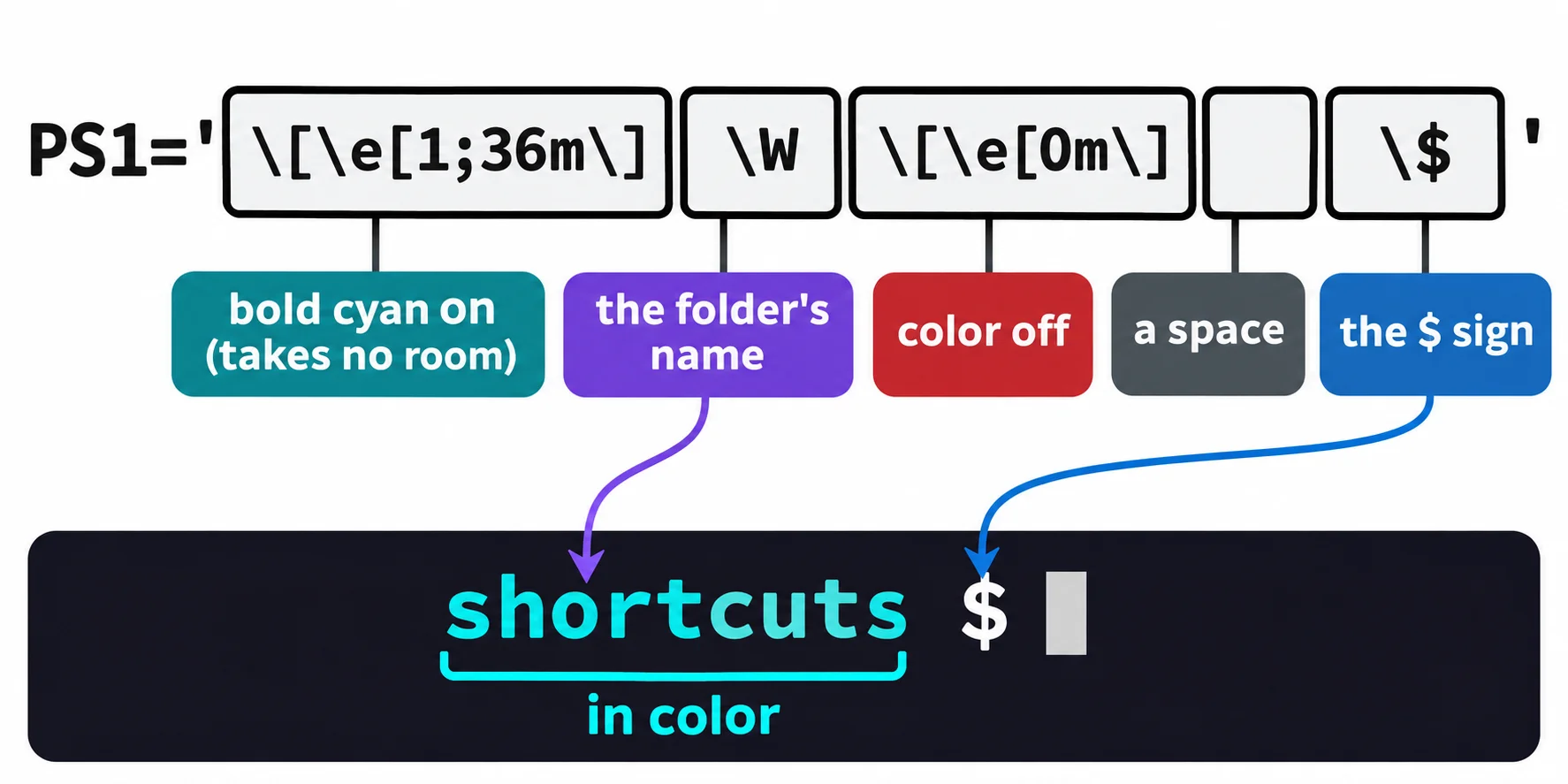
Ubuntu's own prompt is in color too: \033[01;32m is its green and 01;34 its blue. \033 is another way to write \e.
The Git branch
Software projects are often kept in Git, where a branch is one line of work, such as new-menu beside main. Git comes with a function, __git_ps1 (two underscores in front), that prints the branch you're on, and Ubuntu loads it into every terminal. Try it in a practice project. (If git --version says command not found, Installing Tools: Homebrew and apt installs Git; come back after it.)
mkdir -p ~/terminal-practice/my-site && cd ~/terminal-practice/my-site
git init -q -b main
PS1='\W$(__git_ps1 " (%s)") \$ '
git init makes the folder a Git project, with a branch named main. $( ) (read "the output of") runs the command inside it each time the prompt is drawn, and puts what it prints in its place; Module 5 uses it a lot. In " (%s)", %s stands for the branch's name. Now make a branch, and leave the project:
my-site (main) $ git switch -c new-menu
Switched to a new branch 'new-menu'
my-site (new-menu) $ cd ..
terminal-practice $
Outside a Git project, __git_ps1 prints nothing at all. On a system that doesn't load __git_ps1 for you, the prompt complains that it can't find it; put $(git branch --show-current 2>/dev/null) in its place, which asks Git for the branch's name and throws away the error outside a project.
Keep it, and zsh on a Mac
To keep a prompt, add its line to the end of ~/.bashrc, after a backup copy, as in Startup Files: .bashrc, .zshrc and source. Ubuntu sets its own PS1 higher up in the file, so yours, at the end, wins. This line combines the color and the branch:
PS1='\[\e[1;36m\]\W\[\e[0m\]$(__git_ps1 " (%s)") \$ '
On a Mac, zsh's prompt is PROMPT, with % codes: %n the user, %~ the path, %1~ the folder's name, %T the time, %# the % sign, and %F{cyan} to %f for a color. setopt PROMPT_SUBST lets it run $( ). These two lines go in ~/.zshrc:
setopt PROMPT_SUBST
PROMPT='%F{cyan}%1~%f $(git branch --show-current 2>/dev/null) %# '
Check yourself
2 questions to try on the lesson page.
So what
The line you see most is now one you designed: the folder you care about, the branch you're on and colors you like, ready every time you open a terminal.
Key terms
- PS1
- Command Prompt
- ANSI Escape Code
- Current branch