Startup Files: .bashrc, .zshrc and source
Bash reads ~/.bashrc every time a terminal opens, and a Mac's zsh reads ~/.zshrc, so aliases and functions you add there are always ready; keep a backup before you edit it, and use source to load your changes into the shell you're in.
Apprentice · Unix · Linux · Updated
After this lesson you can
- Add aliases and functions to ~/.bashrc, or ~/.zshrc on a Mac, after keeping a backup copy, so every new terminal has them
- Load changes into the shell you're in with source, and explain why bash file.sh doesn't keep them
Key takeaways
- Every new bash reads ~/.bashrc before its first prompt, and a Mac's zsh reads ~/.zshrc. Lines you add at the end run in every new terminal.
- Copy the file before you change it, with cp ~/.bashrc ~/.bashrc.backup, so one wrong line is quick to undo.
- source ~/.bashrc, or . ~/.bashrc, runs the file in the shell you're in, so your changes work without opening a new terminal.
- bash and a file's name runs the file in a separate shell, which forgets everything it set when it ends.
Yesterday you made todo and mkcd. This morning you open a terminal, type todo, and get this:
Command 'todo' not found, but can be installed with:
sudo apt install devtodo
Everything you typed at the prompt went away with yesterday's window. Then a tutorial for a tool you're installing says "add this line to your .bashrc", as if you'd know what that is. This lesson shows you where your shortcuts go so they're there every day, and it changes a real settings file of yours, so it starts with a copy. Web developers and IT administrators edit this file all the time: it's where a computer's terminal becomes theirs.
The file bash reads every time it starts
A pilot runs through the same checklist before every flight. Bash has one too: before it shows its first prompt, it reads a file in your home folder called .bashrc (read "dot bash R C"; the rc stands for run commands) and runs every line in it, top to bottom. It's a configuration file, and the dot at the start makes it hidden, so ls -a shows it:
ls -a ~
. .. .bash_logout .bashrc .profile terminal-practice
That's a new Ubuntu account with only the course's practice folder in it; yours has more names. The aliases from the last lesson's list live in this file. grep -n finds them with their line numbers:
grep -n "alias l" ~/.bashrc
78:    alias ls='ls --color=auto'
91:alias ll='ls -alF'
92:alias la='ls -A'
93:alias l='ls -CF'
Ubuntu's own ll, on line 91. Your line numbers may differ on another version of Ubuntu.
Keep a backup, then add your lines
You're about to change a file that runs every time a terminal opens. One typo, and every new terminal starts with an error message; one > typed where you meant >>, and the whole file is empty. So make a copy first, every time:
cp ~/.bashrc ~/.bashrc.backup
ls -a ~
. .. .bash_logout .bashrc .bashrc.backup .profile terminal-practice
If anything goes wrong, cp ~/.bashrc.backup ~/.bashrc puts the old file back. And keep the terminal you edited in open until a new one works: it's already running, so a broken file can't stop it.
Now open the file in nano (Editing in the Terminal: nano) with nano ~/.bashrc, press Alt+/ to jump to the last line, and add your shortcuts below everything Ubuntu wrote. A comment line, starting with #, tells future you what they are:
# My shortcuts
alias ll='ls -lah'
alias todo='cat ~/terminal-practice/shortcuts/todo.txt'
mkcd() {
  mkdir -p "$1"
  cd "$1"
}
Save with Ctrl+O and Enter, and quit with Ctrl+X. Then look at the end of the file:
tail -n 7 ~/.bashrc
# My shortcuts
alias ll='ls -lah'
alias todo='cat ~/terminal-practice/shortcuts/todo.txt'
mkcd() {
  mkdir -p "$1"
  cd "$1"
}
On a Mac, the file is ~/.zshrc. It may not exist yet; nano ~/.zshrc makes it.
source: load it now
Type todo in the same terminal, and it's still not found. Bash read .bashrc when this terminal opened, before your lines were there. A new terminal reads the new file. Or tell the shell you're in to read it again with source (on a Mac, source ~/.zshrc):
source ~/.bashrc
todo
water the plants
call the dentist
buy coffee beans
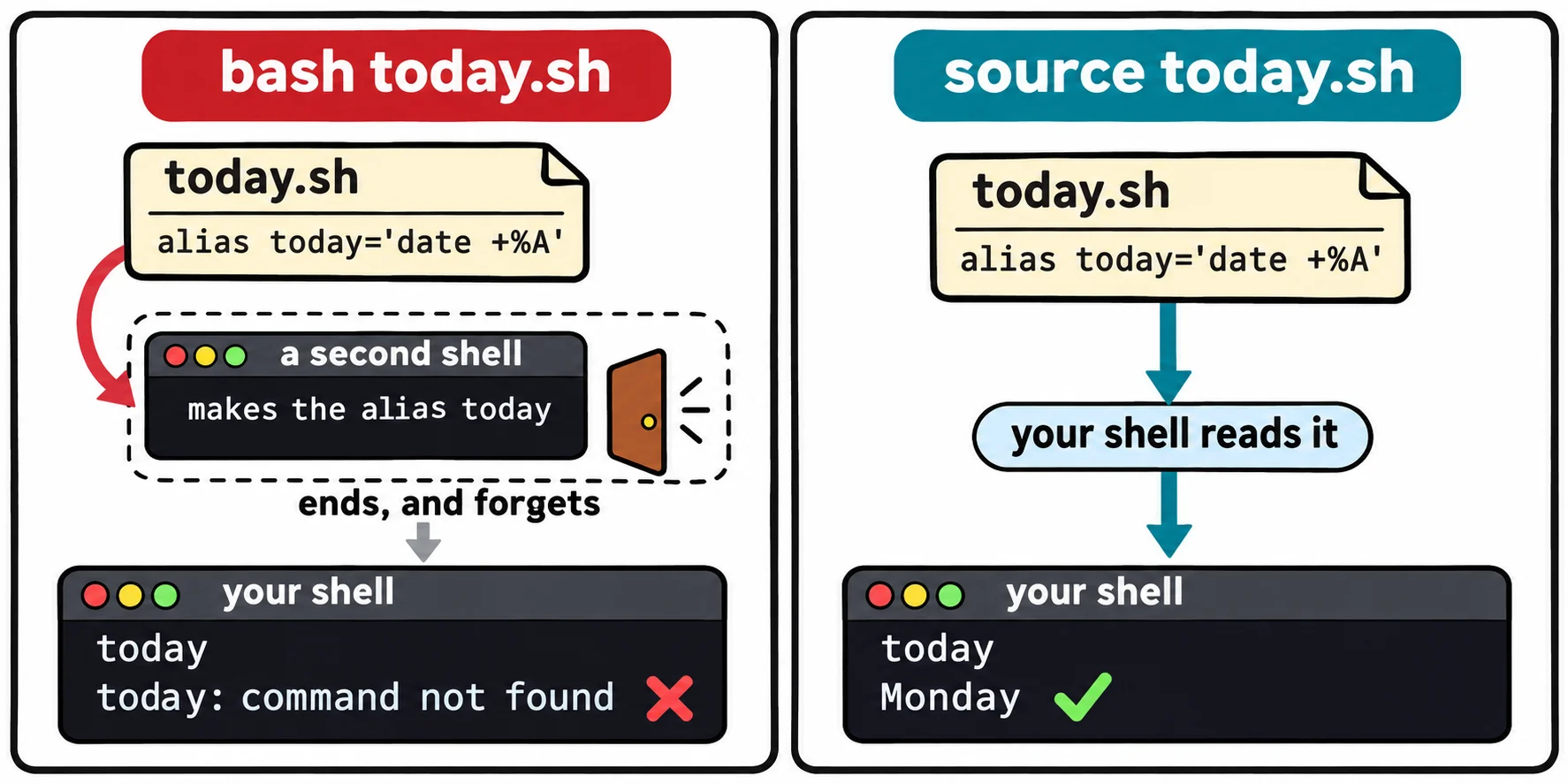
A dot does the same: . ~/.bashrc (read "dot, then the file"). Why not run the file like a program? Try it with a small file of your own:
echo "alias today='date +%A'" > ~/terminal-practice/shortcuts/today.sh
bash ~/terminal-practice/shortcuts/today.sh
today
today: command not found
bash and a file's name starts a second shell. That shell read the file, made the alias, and ended, and the alias ended with it, like a note handed to a friend who then leaves. source reads the file in your own shell, so what it sets stays:
source ~/terminal-practice/shortcuts/today.sh
today
Monday
Yours prints today's day.
Which file, on which computer
| Computer | Shell | Put your lines in | Load them now |
|---|---|---|---|
| Ubuntu, and Ubuntu in WSL on Windows | bash | ~/.bashrc |
source ~/.bashrc |
| A Mac | zsh | ~/.zshrc |
source ~/.zshrc |
When you sign in to a computer over the network, bash starts as a login shell and reads a different file first: ~/.bash_profile, or on Ubuntu ~/.profile. Ubuntu's ~/.profile loads ~/.bashrc for you, so .bashrc is the one place you need. One trap: if a tutorial says to make a ~/.bash_profile on Ubuntu, think twice. Once that file exists, a login shell reads it instead of ~/.profile, and your .bashrc stops loading there.
Try it in the terminal
Terminal Quest: The Clockwork Workshop, goal 6: played right on the lesson page.
The gearbox needs its settings loaded into your shell, not into a separate one. Load the settings file the way that keeps what it sets.
Check yourself
2 questions to try on the lesson page.
So what
~/.bashrc is where your terminal becomes yours: copy it, add your lines at the end, source it, and every terminal you open from now on knows your shortcuts.