Checking Before You Act: File Tests
File tests let a script look before it acts: -e asks whether a path exists, -f and -d whether it's a file or a folder, -s whether a file has anything in it, and -nt whether it's newer than another.
Apprentice · Unix · Linux · Updated
After this lesson you can
- Check whether a path exists, is a file or is a folder with -e, -f and -d, and turn a test around with !
- Check that a file has something in it with -s, and that it's newer than its copy with -nt
Key takeaways
- [[ -e path ]] passes when the path exists, -f when it's an ordinary file, and -d when it's a folder.
- ! turns a test around: [[ ! -e essay.txt ]] passes when there's no essay.txt.
- -s passes only when a file exists and has something in it, so a script can refuse to back up an empty file.
- a -nt b passes when a was changed more recently than b, or when b doesn't exist yet: the test behind a backup that copies only what changed.
- A folder's date changes only when a name is added, removed or renamed in it, so compare files, not folders.
The backup from If This, Then That: if and [[ ]] copies whenever you ask, and that isn't always what you want. Copying 2,000 unchanged photos every night wastes time. Worse, say your editor crashed and saved your essay as an empty file: tonight's backup would copy that empty file over your last good copy. A careful person looks first: is the file there, is it a file at all, is there anything in it, and has it changed since the last copy? Bash asks those questions with file tests. Backup tools, installers and administrators' cleanup scripts all start this way.
The examples use the smart-backup folder and backup.sh from that lesson: cd ~/terminal-practice/smart-backup.
Is it there? -e, -f and -d
A file test goes inside [[ ]]: a dash, a letter, then a path. -e (read "exists") passes when anything is at that path. -f (read "file") passes only for an ordinary file, and -d (read "directory") only for a folder. Like any test, it answers with an exit code, so echo $? shows the answer, 0 for yes and 1 for no:
[[ -e essay.txt ]]; echo $?
[[ -e essay.txs ]]; echo $?
[[ -f photos ]]; echo $?
[[ -d photos ]]; echo $?
[[ ! -e essay.txs ]]; echo $?
0
1
1
0
0
photos exists, but it's a folder, not a file. The last line shows ! (read "not"), which turns a test around: "there's no essay.txs" is true. It's how a script says "if the file isn't there, stop".
Is there anything in it? -s
-s (read "has size") passes only when the file exists and holds at least one character. An empty file fails it:
[[ -s essay.txt ]]; echo $?
[[ -s empty-draft.txt ]]; echo $?
0
1
That's the test that keeps an empty file from replacing a good backup.
Has it changed? -nt
Every file carries the date and time it was last changed, its modification time: the date ls -l shows. a -nt b (read "a is newer than b") passes when a was changed more recently than b. If This, Then That: if and [[ ]] left a copy of essay.txt in backup/, made after the original, so the original isn't newer yet. Add a line to the essay and ask again:
[[ essay.txt -nt backup/essay.txt ]]; echo $?
echo "Libraries lend more than books." >> essay.txt
[[ essay.txt -nt backup/essay.txt ]]; echo $?
[[ notes.txt -nt backup/notes.txt ]]; echo $?
1
0
0
The last line passes even though backup/notes.txt doesn't exist: when the second file is missing, -nt counts the first as newer. That's what a backup wants, since a file with no copy needs one. -ot (read "older than") asks the other way round.
One catch: a folder's own date changes only when a name is added, removed or renamed in it. Edit a file inside, and the folder's date stays the same, so compare files, not folders.
The smart backup
Put the tests together with elif from the last lesson, one question at a time, in the order a careful person would ask them:
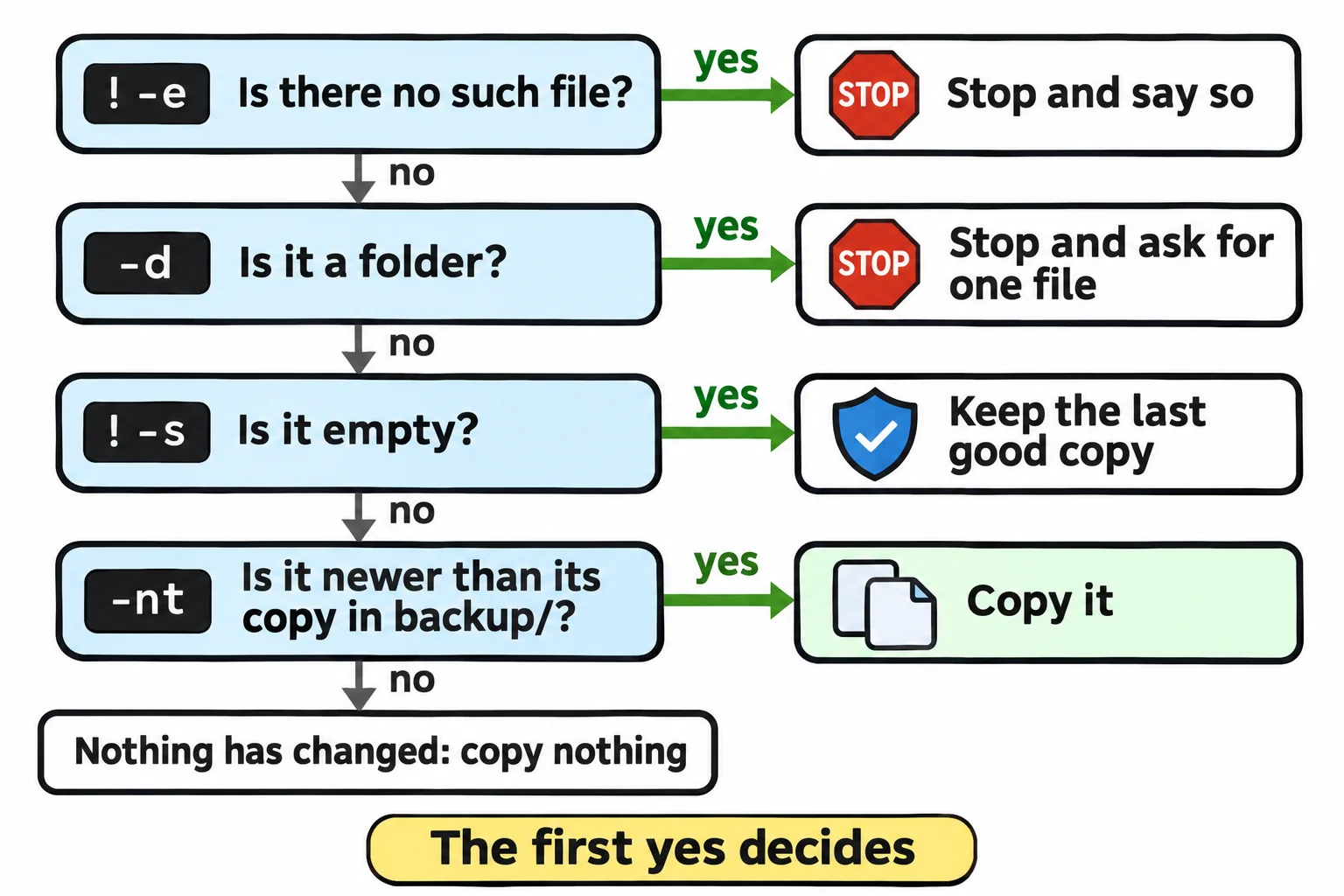
Keep the usage check at the top of backup.sh, and replace everything below it:
file="$1"
if [[ ! -e "$file" ]]; then
  echo "There's no $file here."
  exit 1
elif [[ -d "$file" ]]; then
  echo "$file is a folder. Give me one file."
  exit 1
elif [[ ! -s "$file" ]]; then
  echo "$file is empty. Keeping the last good copy."
elif [[ "$file" -nt "backup/$file" ]]; then
  mkdir -p backup
  cp "$file" backup/
  echo "Copied $file."
else
  echo "$file hasn't changed since the last backup."
fi
Now try every case:
./backup.sh essay.txt
./backup.sh essay.txt
./backup.sh notes.txt
./backup.sh empty-draft.txt
./backup.sh photos
./backup.sh essay.txs
Copied essay.txt.
essay.txt hasn't changed since the last backup.
Copied notes.txt.
empty-draft.txt is empty. Keeping the last good copy.
photos is a folder. Give me one file.
There's no essay.txs here.
The second run copied nothing, because nothing had changed. Change the essay, and the next run copies it again:
echo "Libraries are warm in winter." >> essay.txt
./backup.sh essay.txt
Copied essay.txt.
The file tests work the same way in zsh, so you can try them at a Mac's prompt too.
Check yourself
2 questions to try on the lesson page.
So what
A script that checks before it acts can run every night without you watching: it copies only what changed and never replaces a good backup with an empty file.