Finding Files: find
find searches a folder and every folder inside it for files by name, type, size or age, and with -exec it runs a command on each file it finds, best tried with echo first so you see what would happen.
Apprentice · Unix · Linux · Updated
After this lesson you can
- Find files by name, type, size or age with find and its -name, -type, -size and -mtime tests
- Run a command on each file find finds with -exec, checking first with echo
Key takeaways
- find, a starting folder, then tests, such as find . -name "*.txt", lists every match in that folder and every folder inside it.
- Quote a name pattern, so find gets the * and not the shell. -iname ignores capitals.
- -type f is files and -type d folders; -size +1M is over a megabyte; -mtime -7 changed in the last week and -mtime +30 more than 30 days ago.
- -exec runs a command on every file found, with {} for each file and ; to end the command. Put echo in front first to see what it would do.
You saved the club's old reading list somewhere last year, and now you can't find it: not in Documents, not on the desktop, not where you'd swear you put it. Or the disk is full again and you want every file over 100 MB, wherever it's hiding. grep searches the words inside files. find searches for the files themselves, by their name, their type, their size or how long ago they changed, through every folder below the one you start in. Help-desk techs use it to track down a lost file, and server administrators use it to clear out old logs.
Set up: add to the club folder
These examples use the club folder from Patterns: Regular Expressions for grep; if you don't have it, run that lesson's setup lines first. These lines add photos, an old reading list and two leftover temporary files, and set the older notes back to the days of their meetings. They're safe to run again.
cd ~/terminal-practice/club
mkdir -p photos old/2025/books
head -c 2400000 /dev/urandom > photos/picnic-1.jpg
head -c 1900000 /dev/urandom > photos/picnic-2.jpg
head -c 40000 /dev/urandom > photos/club-logo.png
printf 'The Lost Canal\nNight Skies\nSalt and Sea\n' > old/2025/books/Reading-List.txt
touch notes/draft.tmp photos/upload.tmp
touch -t 202609031900 notes/2026-09-03.txt
touch -t 202609171900 notes/2026-09-17.txt
touch -t 202610011900 notes/2026-10-01.txt
ls
members.txt notes old photos
head -c makes stand-in photos of a real size, as in What's Filling My Disk? du and df. touch -t sets a file's date and time, written as year, month, day, hour and minute: 202609031900 is 7 p.m. on September 3, 2026.
By name: -name
find takes the folder to start in, then one or more tests that each file must pass. -name tests the name, and accepts a wildcard such as * (read "star"), "any run of characters":
find . -name "*.txt"
./members.txt
./old/2025/books/Reading-List.txt
./notes/2026-09-17.txt
./notes/2026-10-01.txt
./notes/2026-11-05.txt
./notes/2026-09-03.txt
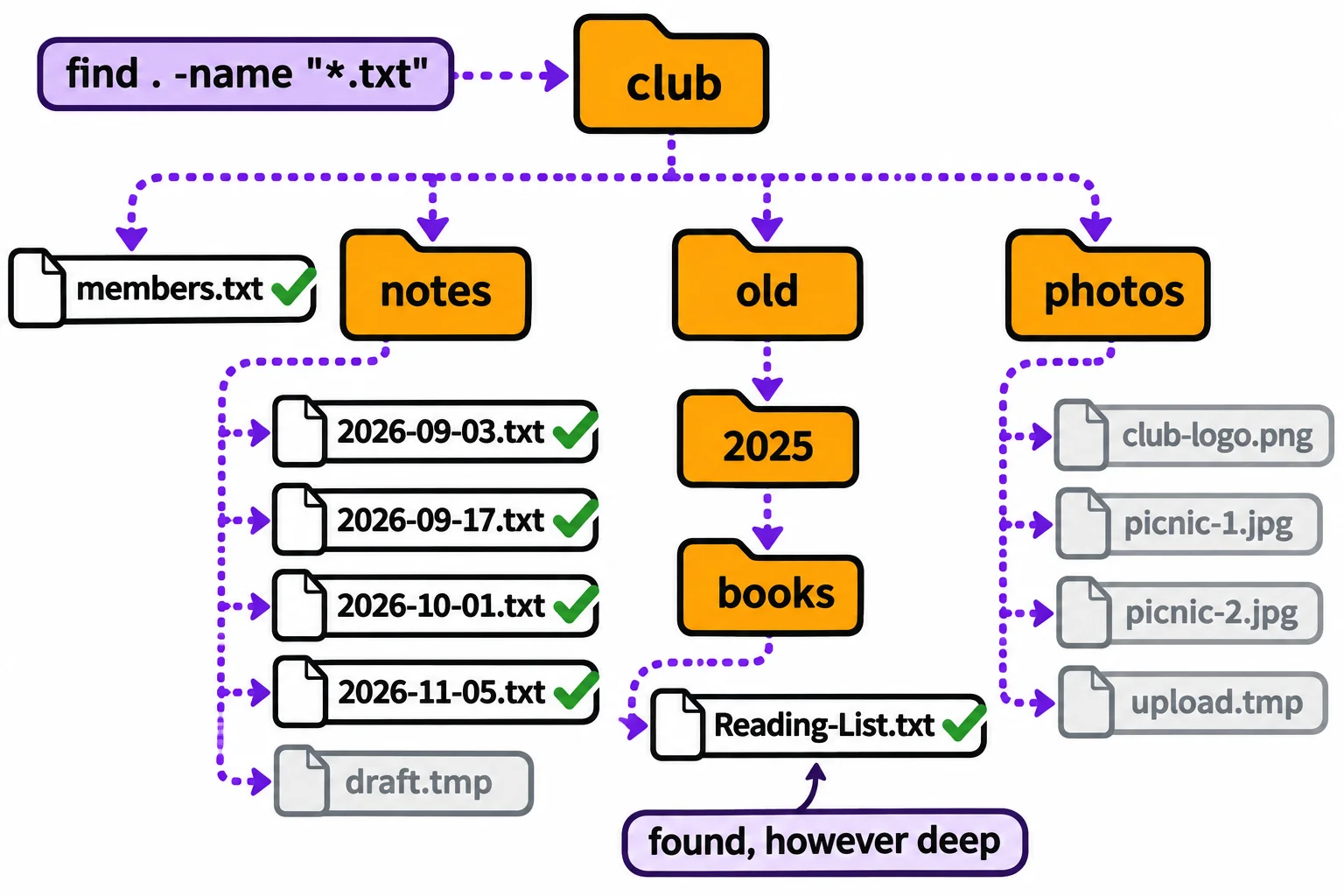
Every .txt file under ., the folder you're in, however deep, as a path from there. Like grep -r, find lists files in the order the disk keeps them, so yours may come in a different order.
Keep the quotes. Without them, the shell expands *.txt to the names in the folder you're in before find runs, so find is asked about members.txt alone:
find . -name *.txt
./members.txt
Names are case-sensitive here too: find . -name "*reading*" finds nothing, because the file is Reading-List.txt. -iname ignores capitals:
find . -iname "*reading*"
./old/2025/books/Reading-List.txt
On a Mac, find always needs the starting folder, so get in the habit of typing it. And though a Mac's disk treats capitals and small letters as the same, -name still doesn't, so use -iname there too.
By type and size: -type and -size
-type f keeps only files, and -type d only folders (d for directory). find . -type d maps out every folder there is:
find . -type d
.
./photos
./old
./old/2025
./old/2025/books
./notes
-size tests the size: + means more than, - means less than, and k, M and G are kilobytes, megabytes and gigabytes:
find . -size +1M
./photos/picnic-1.jpg
./photos/picnic-2.jpg
Several tests on one line must all be true, so find . -type f -size -100k lists the files under 100 kilobytes. On a full disk, find ~ -type f -size +100M lists every file in your home folder over 100 MB.
By age: -mtime
Every file keeps its modification time, the date and time its contents last changed: the date ls -l shows. -mtime (for modified time) tests it in days. -mtime -7 is "changed in the last 7 days", and -mtime +30 is "changed more than 30 days ago":
find notes -mtime +30
notes/2026-09-17.txt
notes/2026-10-01.txt
notes/2026-09-03.txt
find notes -type f -mtime -7
notes/draft.tmp
notes/2026-11-05.txt
The three older notes have the dates touch -t gave them; the other two were made today. -type f leaves out the notes folder itself, which changed today when the new files went in.
Acting on what it finds: -exec
-exec runs a command on every file find finds. It's powerful enough to be dangerous, so first ask find what it would do: put echo in front of the command, and find prints each command instead of running it. {} (read "the file") is replaced by each file's path, and \; (read "backslash semicolon") ends the command:
find . -name "*.tmp" -exec echo rm {} \;
rm ./photos/upload.tmp
rm ./notes/draft.tmp
Exactly the two leftovers, nothing else. The backslash makes the shell hand the ; to find, instead of treating it as the end of the whole line. Now take out echo, and the same line deletes them. rm deletes for good, so run this only after the echo line has shown you the right files:
find . -name "*.tmp" -exec rm {} \;
find . -name "*.tmp"
The first line prints nothing when it works, and the second, searching again, finds nothing left. Any command works after -exec, such as ls -lh {} to see each file's size.
Try it in the terminal
Terminal Quest: The Archive, goals 5 to 6: played right on the lesson page.
The door logs say Otto, the night porter, opened the map room the night the Star Map went missing. Find his locker in the maze of lockers, then look closely at what's inside.
Check yourself
2 questions to try on the lesson page.
So what
Lost files, giant files and old files stop being a hunt through folders: describe what you're looking for, and find brings back every path that fits.