Deleting Safely: rm and rmdir
rm deletes files for good, with no trash can to undo it, so you check the same names with ls first, let rm -i ask about each file, and use rmdir for empty folders and rm -r only after looking inside.
Novice · Unix · Linux · Updated
After this lesson you can
- Delete files with rm, after checking with ls what the same names or pattern match
- Remove a folder with rmdir when it's empty or rm -r when it isn't, and confirm each file with rm -i
Key takeaways
- rm deletes the files you name, and there is no trash can to get them back from. Deleted in the terminal means gone.
- Look before you delete. Run ls with exactly the names or pattern you're about to give rm, and read the list first.
- rm -i asks about each file before it deletes it. Type y to delete it or n to keep it, then press Enter.
- rmdir deletes a folder only when it's empty. rm -r deletes a folder and everything in it, so look inside it first.
Moving into a new place leaves a mess behind: empty boxes, bubble wrap, a vase that didn't survive the stairs. A computer collects the same kind of mess: old downloads, test files, folders from a finished project. In a file manager, deleting moves things to the Trash (the Recycle Bin on Windows), so a mistake can be undone. The terminal has no trash can. rm deletes a file for good the moment you press Enter. That's no reason to fear it. It's a reason to learn two habits that keep you safe: look first, and let it ask. IT techs clearing old logs off a server and developers cleaning up after a build use exactly these habits every day.
Set up the practice folder
This chapter's examples use a made-up apartment the movers have only half unpacked. Copy these lines into your terminal and press Enter. They make the folders and files, then list the hallway. They're safe to run again whenever you want a fresh copy, which is handy in a lesson about deleting.
mkdir -p ~/terminal-practice/apartment && cd ~/terminal-practice/apartment
mkdir -p hallway/box-books hallway/box-kitchen hallway/box-bedroom
touch hallway/bubble-wrap-1.txt hallway/bubble-wrap-2.txt hallway/bubble-wrap-3.txt
printf 'Three pieces of what was once a vase.\n' > hallway/broken-vase.txt
printf 'Birth certificate. Keep this somewhere safe!\n' > hallway/birth-certificate.txt
printf 'A bedside lamp, wrapped in a towel.\n' > hallway/box-bedroom/lamp.txt
ls hallway
birth-certificate.txt  box-books    broken-vase.txt    bubble-wrap-2.txt
box-bedroom            box-kitchen  bubble-wrap-1.txt  bubble-wrap-3.txt
The three box- names are folders; everything else is a file.
rm: delete a file
rm (short for remove) deletes the files you name. Throw out the broken vase, then look again:
rm hallway/broken-vase.txt
ls hallway
birth-certificate.txt  box-books    bubble-wrap-1.txt  bubble-wrap-3.txt
box-bedroom            box-kitchen  bubble-wrap-2.txt
Like cd, rm prints nothing when it works. There's no "are you sure?" and no undo: the vase is gone. Ask for it again and rm says so:
rm hallway/broken-vase.txt
rm: cannot remove 'hallway/broken-vase.txt': No such file or directory
To delete several files, name them all: rm hallway/a.txt hallway/b.txt. (The exact wording of messages like this one differs a little on a Mac and on other Linux systems, but they mean the same thing.)
Look before you delete
Now the bubble wrap. Every name that starts with b and ends in .txt looks like trash, and the pattern b*.txt (read "b star dot t x t") matches them all at once; Wildcards: *, ? and [ ] explains patterns. A pattern can match more than you expect, so before rm gets it, give the same pattern to ls:
ls hallway/b*.txt
hallway/birth-certificate.txt  hallway/bubble-wrap-2.txt
hallway/bubble-wrap-1.txt      hallway/bubble-wrap-3.txt
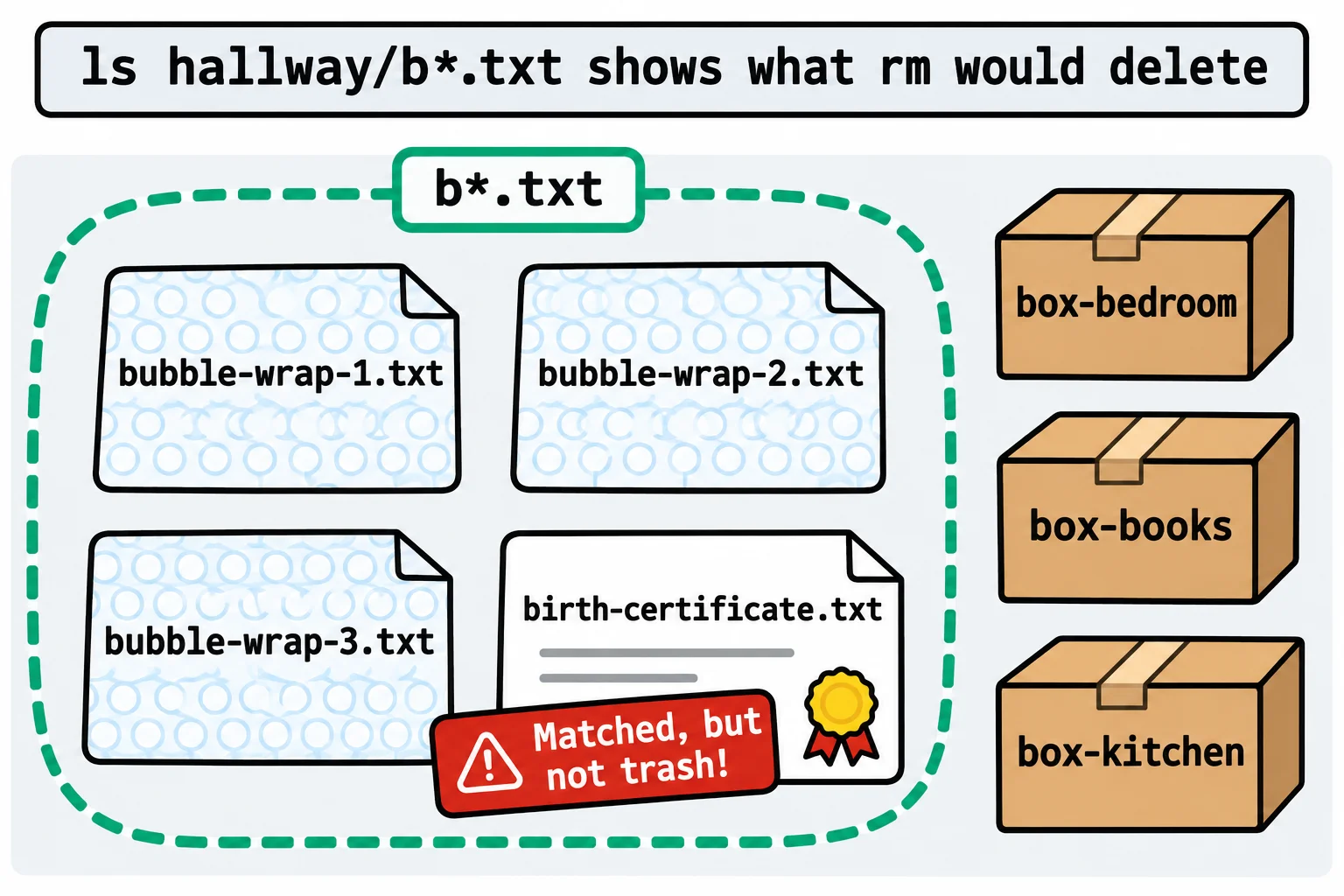
The birth certificate starts with b too. rm hallway/b*.txt would have deleted it along with the bubble wrap. That's the habit: run ls with exactly the names or pattern you're about to delete, read the list, and only then delete. Press the up arrow to bring the ls line back and change ls to rm, so the pattern stays exactly the same. Here the list is wrong, so either narrow the pattern (bubble-wrap* matches only the bubble wrap) or let rm ask.
rm -i: ask about each one
-i (for interactive) makes rm ask before it deletes each file. Type y (yes) or n (no) after each question, and press Enter:
rm -i hallway/b*.txt
rm: remove regular file 'hallway/birth-certificate.txt'? n
rm: remove regular empty file 'hallway/bubble-wrap-1.txt'? y
rm: remove regular empty file 'hallway/bubble-wrap-2.txt'? y
rm: remove regular empty file 'hallway/bubble-wrap-3.txt'? y
A regular file is an ordinary file, and an empty one has nothing in it. On a Mac the question is worded differently, but y and n work the same. The certificate stays:
ls hallway
birth-certificate.txt box-bedroom box-books box-kitchen
Folders: rmdir and rm -r
Plain rm won't delete a folder (rm hallway/box-books says Is a directory). For folders there are two tools. rmdir (remove directory) deletes a folder only when it's empty, a built-in safety catch:
rmdir hallway/box-books hallway/box-kitchen
rmdir hallway/box-bedroom
rmdir: failed to remove 'hallway/box-bedroom': Directory not empty
The book and kitchen boxes were empty, so they're gone. The bedroom box isn't empty, so look inside before deciding:
ls hallway/box-bedroom
lamp.txt
If the box and everything in it can go, rm -r deletes a folder with everything inside it. The -r stands for recursive: it goes into every folder inside, and every folder inside those.
rm -r hallway/box-bedroom
ls hallway
birth-certificate.txt
You'll also see rm -rf. The -f (force) tells rm never to ask and never to complain, so rm -rf deletes a whole folder without a single question. People use it on purpose, and it deserves respect: one wrong folder name, or a stray space that turns one path into two, and it deletes far more than you meant. Before any rm -r, ls the folder first.
Try it in the terminal
Terminal Quest: Moving Day, goals 6 to 7: played right on the lesson page.
Moving Day: the books and the kitchen things are already unpacked. Throw out the broken vase and the bubble wrap, then get rid of the empty boxes.
Check yourself
2 questions to try on the lesson page.
So what
Deleting is part of keeping any computer tidy, from your own Downloads folder to a server's old logs. Look first, let rm -i ask when you're unsure, and the terminal's speed works for you instead of against you.