Getting Help
Every command can explain itself, with --help for a short list of its options and man for its full manual page, type and which tell you what kind of command a name is, and an error message says what went wrong when you read it one part at a time.
Apprentice · Unix · Linux · Updated
After this lesson you can
- Find out what a command and its options do with --help and man
- Tell a shell builtin from a program with type and which
- Read an error message to find the command, the name and the problem it reports
Key takeaways
- A command followed by --help prints a short list of its options. In the usage line, [ ] means optional and ... means you can give more than one.
- man and a command's name opens its manual page, in the same viewer as less. / searches it and q quits.
- type says whether a name is built into the shell, an alias or a program file. which prints a program file's path, and nothing for a builtin.
- An error names who is speaking, what it was working on and what went wrong. The name in it is usually the clue.
A tutorial says "count the lines with wc -l CHANGELOG.md", and you've never seen wc. Or the terminal answers a command with an error that looks like a scolding. You could search the web, but the manual for the exact version you have is already on your computer, and an error usually says what went wrong, once you know how to read it.
The examples use the practice folder from Reading Files: cat and less: cd ~/terminal-practice/recipe-box.
--help: the short version
Most commands print a short guide to themselves when you add --help (read "dash dash help"):
wc --help
Print newline, word, and byte counts for each FILE, and a total line if more
than one FILE is specified.

Usage: wc [OPTION]... [FILE]...

Arguments:
  [files]...

Options:
  -c, --bytes            print the byte counts
  -m, --chars            print the character counts
      --files0-from <F>  read input from the files specified by
                         NUL-terminated names in file F;
                         If F is - then read names from standard input
  -l, --lines            print the newline counts
  -L, --max-line-length  print the length of the longest line
      --total <WHEN>     when to print a line with total counts;
                         WHEN can be: auto, always, only, never
  -w, --words            print the word counts
  -h, --help             Print help
  -V, --version          Print version
wc stands for word count. Read the usage line like a recipe card: wc, then options, then files. Square brackets, [ ], mean "optional", and ... (read "and more") means you can give more than one. Each option below has a short and a long name for the same thing: -l and --lines both count lines. Try the one the tutorial wanted:
wc -l CHANGELOG.md
94 CHANGELOG.md
man: the full manual
--help is the short version. The full one is the command's manual page, opened with man (short for manual):
man wc
WC(1)                       General Commands Manual                       WC(1)

NAME
       wc  -  Print  newline,  word, and byte counts for each FILE, and a total
       line if more than one FILE is specified.

SYNOPSIS
       wc    [-c|--bytes]     [-m|--chars]     [--files0-from]     [-l|--lines]
       [-L|--max-line-length] [--total] [-w|--words] [-h|--help] [-V|--version]
       [files]

DESCRIPTION
       Print  newline, word, and byte counts for each FILE, and a total line if
       more than one FILE is specified.

 Manual page wc(1) line 1 (press h for help or q to quit)
Every manual page has the same parts: NAME says what the command does in one line, SYNOPSIS shows how to type it (|, read "or", separates two ways of writing one option), DESCRIPTION explains, and OPTIONS lists each option. The page opens in the same viewer as less, so the keys are the ones you know: Space, b, the arrows, and q to quit. To find one option, search for it with a comma after it: type /-l, and press Enter. The page jumps to the line -l, --lines, with print the newline counts under it.
Pages are worded differently on a Mac and on some Linux systems, but they all have these parts. On a Mac, many commands don't understand --help, so use man there.
type and which: what kind of command is it?
Try man cd, and Ubuntu answers No manual entry for cd (a Mac opens one page about every builtin). That's because cd isn't a program on your disk: it's part of bash itself, a shell builtin. type tells you what any command name really is:
type cd
type ls
type wc
cd is a shell builtin
ls is aliased to `ls --color=auto'
wc is /usr/bin/wc
Three kinds of answer. cd is built into the shell, and help cd explains it. ls is an alias, a short name for a longer command (here, ls with colors; Module 4 shows how to make your own). wc is a program file, at the path shown. (If you've already run wc in this terminal, it says wc is hashed (/usr/bin/wc): bash remembers where it found it.) which finds only program files:
which wc
which cd
/usr/bin/wc
which cd printed nothing: there's no file to find. In zsh on a Mac, which cd says cd: shell built-in command instead.
Reading an error message calmly
An error isn't the terminal being cross with you. It's a report, and most follow a pattern: who is speaking, what it was working on, and what went wrong, separated by colons:
cat CHANGELOG
cd recipes
cat: CHANGELOG: No such file or directory
bash: cd: recipes: No such file or directory
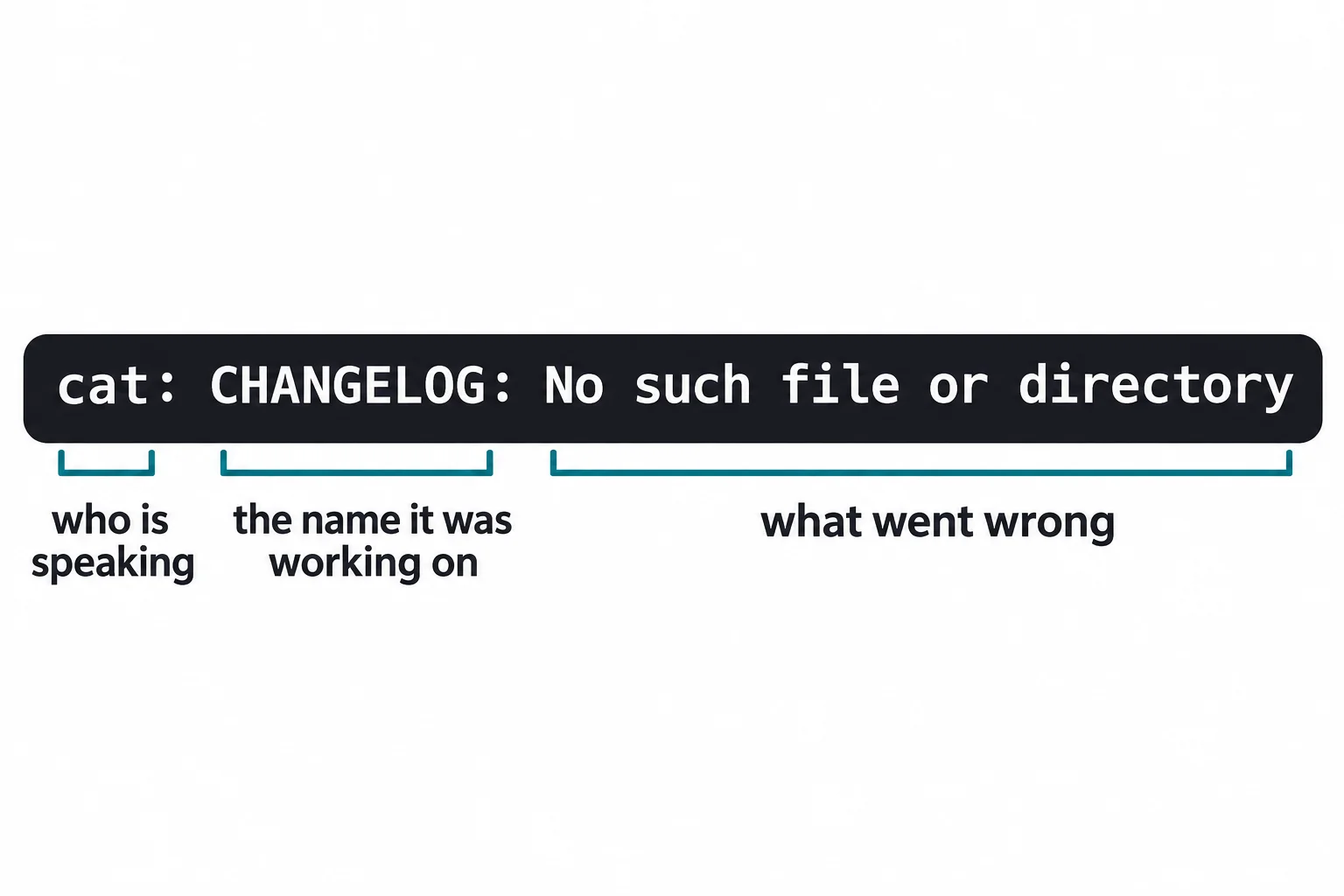
cat couldn't find a file called CHANGELOG: the real name ends in .md. In the second line bash is speaking about its builtin cd, and there's no recipes folder here. The name in the middle is the clue: check its spelling, and check you're in the right folder with pwd and ls.
A misspelled command gets a longer answer on Ubuntu:
claer
Command 'claer' not found, did you mean:
  command 'clear' from deb ncurses-bin (6.6+20251231-1)
Try: sudo apt install <deb name>
The word that matters is 'claer', a typo. The advice to install something is for a program you really don't have; clear is already there, so fix the spelling instead. (In zsh it's zsh: command not found: claer.) An option that doesn't exist gets unexpected argument or invalid option, and the cure is the command's --help.
Check yourself
2 questions to try on the lesson page.
So what
--help, man, type and a calm read of the error answer most "what does this do?" and "why didn't that work?" questions in seconds, right in the terminal, for commands you've never seen before.