Reading Files: cat and less
cat prints a short file on the screen, less shows a long one a screen at a time with keys to move and search, and file tells you what kind of file something is before you open it.
Novice · Unix · Linux · Updated
After this lesson you can
- Read a short file with cat, and check what a file is with file first
- Page through and search a long file in less with Space, b, /, n and q
Key takeaways
- cat and a file's name prints the whole file on the screen. It suits short files, such as a README or a settings file.
- less shows a long file one screen at a time. Space goes forward, b goes back, / searches, n finds the next match and q quits.
- file looks inside a file and says what kind it is, such as text, a picture or a program, whatever its name says.
- Reading never changes a file, so cat, less and file are safe to try on anything.
You download a small app, and its folder holds a README that says "read me first", a settings file, and a long list of what changed in each version. A file manager opens each one in whatever program it picks; on a web server there's no file manager at all, only a terminal. Either way the job is the same: see what's inside a file without changing it.
Set up the practice folder
The examples use a made-up app folder, Recipe Box. Copy these lines into your terminal and press Enter. They make the folder and its three files, then list them. Module 2 teaches printf, and Module 5 the for loops; the lines are safe to run again for a fresh copy.
mkdir -p ~/terminal-practice/recipe-box && cd ~/terminal-practice/recipe-box
printf '# Recipe Box\n\nKeeps your family recipes in one place, with a shopping list.\n\nSettings:      settings.conf\nWhat changed:  CHANGELOG.md\n' > README.md
printf 'port=8080\ntheme=light\nlanguage=en\nshopping_list=on\n' > settings.conf
printf '# Recipe Box: what changed, newest first\n\n' > CHANGELOG.md
for v in $(seq 30 -1 13); do printf '## Version 1.%s\n- Small fixes and speed-ups\n\n' "$v" >> CHANGELOG.md; done
printf '## Version 1.12\n- New: dark mode, for cooking late at night\n\n' >> CHANGELOG.md
for v in $(seq 11 -1 1); do printf '## Version 1.%s\n- Small fixes and speed-ups\n\n' "$v" >> CHANGELOG.md; done
printf '## Version 1.0\n- The first version: add, find and print recipes\n' >> CHANGELOG.md
ls
CHANGELOG.md README.md settings.conf
All three are text files: files of plain letters, numbers and punctuation that any program can read. Most READMEs, settings files and logs are text.
cat: a short file, all at once
cat prints a file's text on the screen. Its name is short for concatenate, "join together", because it can print several files one after another. Give it the file's name:
cat README.md
# Recipe Box

Keeps your family recipes in one place, with a shopping list.

Settings:      settings.conf
What changed:  CHANGELOG.md
The README points to the settings file, so read that next:
cat settings.conf
port=8080
theme=light
language=en
shopping_list=on
That's what cat is for: files short enough to fit on your screen.
less: a long file, one screen at a time
Now try cat CHANGELOG.md. Its 94 lines rush past, and only the last few stay on your screen. For a long file, use less, which shows one screenful and waits for you:
less CHANGELOG.md
# Recipe Box: what changed, newest first

## Version 1.30
- Small fixes and speed-ups

## Version 1.29
- Small fixes and speed-ups

## Version 1.28
- Small fixes and speed-ups

## Version 1.27
- Small fixes and speed-ups

## Version 1.26
CHANGELOG.md
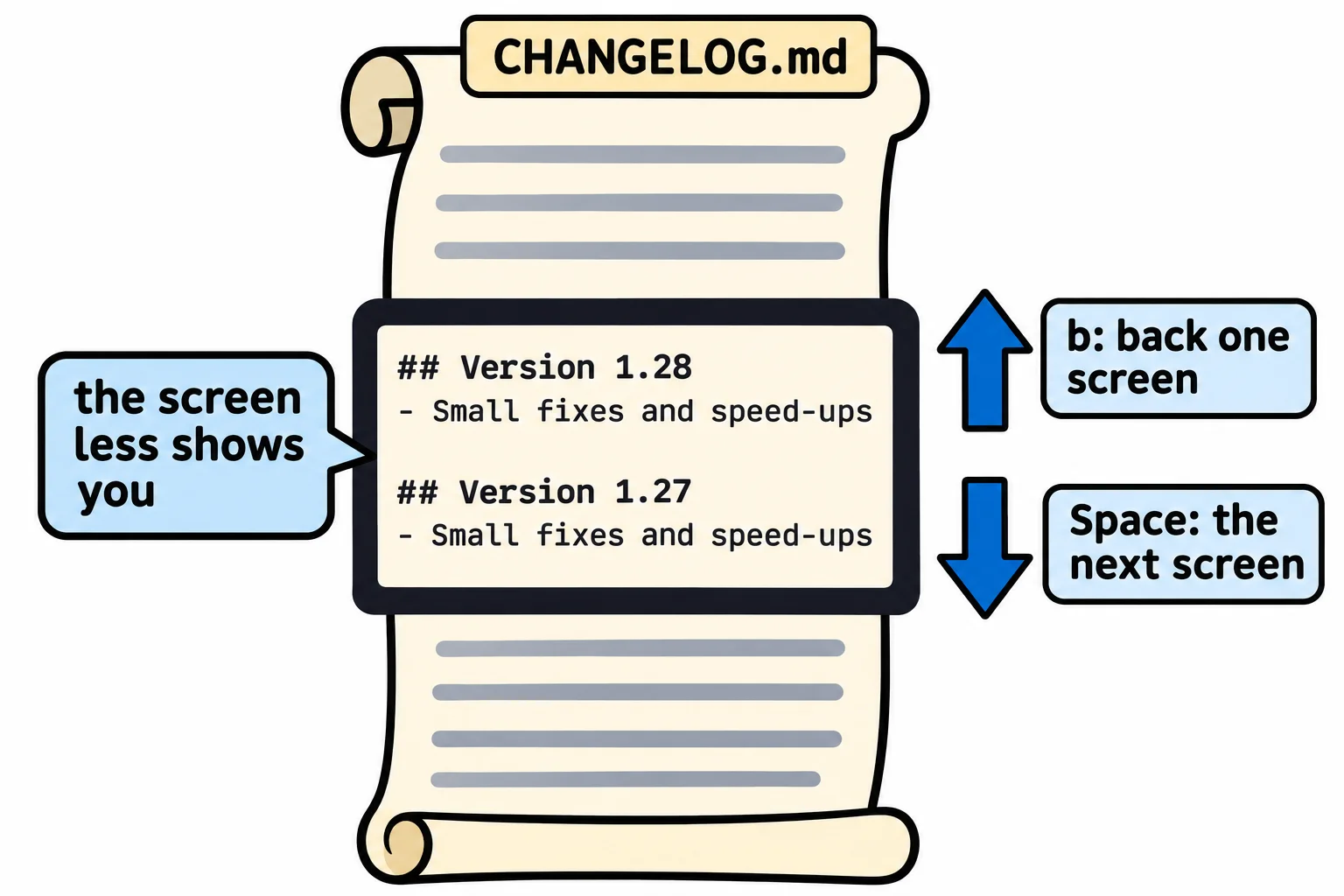
That's a window 16 lines tall; less fills yours. The last line shows the file's name at first, then a : (colon): less is waiting for a key. A program like this, which shows text a page at a time, is called a pager. These keys move you around:
- Space goes forward one screen, and b goes back one.
- The up and down arrows move one line at a time.
- g jumps to the top, and G (Shift+g) to the end, where the last line says
(END). - q quits and gives you your prompt back. Nothing you do in
lesschanges the file.
Search inside less
To find a word in a long file, type / (read "slash"), then the word, and press Enter. As you type, the word shows on the bottom line. Find when dark mode arrived with /dark:
- New: dark mode, for cooking late at night

## Version 1.11
- Small fixes and speed-ups

## Version 1.10
- Small fixes and speed-ups

## Version 1.9
- Small fixes and speed-ups

## Version 1.8
- Small fixes and speed-ups

## Version 1.7
:
The line with the match moves to the top of the screen. Press the up arrow once to see the line above it, ## Version 1.12. When a word appears more than once, n jumps to the next match and N (Shift+n) back to the one before. Searches match capital letters exactly, so /Dark finds nothing here, and the bottom line says Pattern not found (press RETURN).
file: what is it before you open it?
Not every file is text. A photo or a program is made of bytes that aren't letters, and cat on one fills the screen with strange symbols. (If that ever scrambles your terminal, type reset and press Enter.) file looks inside a file and tells you what it is:
file README.md settings.conf CHANGELOG.md
file /usr/bin/bash
README.md:     ASCII text
settings.conf: ASCII text
CHANGELOG.md:  ASCII text
/usr/bin/bash: ELF 64-bit LSB pie executable, x86-64, version 1 (SYSV), dynamically linked, interpreter /lib64/ld-linux-x86-64.so.2, BuildID[sha1]=a292b52b679fb438b940f1c17e2e4951ac52ac89, for GNU/Linux 3.2.0, stripped
ASCII text means plain text: safe for cat and less. The long answer for /usr/bin/bash starts with ELF … executable: it's a program, so don't cat it. (On a Mac, programs show as Mach-O.) file goes by what's inside, not by the name, so a photo renamed notes.txt is still a picture to file.
Try it in the terminal
Terminal Quest: The Lighthouse, goal 3: played right on the lesson page.
You're the new lighthouse keeper, and Mara left you a note. Read the welcome note; type the first letters of its name and let Tab finish it.
Check yourself
2 questions to try on the lesson page.
So what
READMEs, settings, logs and notes are all text files. With cat for short ones, less for long ones and file when you're not sure, you can read any of them, on any computer, without changing a thing.