Moving Around: cd, .. and ~
cd moves the terminal into another folder, by a folder's name, up one level with .., home with ~ or anywhere with a full path, and cd - takes you back to where you just were.
Novice · Unix · Linux · Updated
After this lesson you can
- Move between folders with cd, using a folder's name, .. and ~
- Choose a relative or an absolute path to get to a folder
Key takeaways
- cd and a folder's name moves you into that folder. It prints nothing when it works; pwd shows where you are now.
- .. means the folder you're inside of, so cd .. goes up one level and cd ../.. goes up two.
- A relative path starts from where you are. An absolute path starts with / (or with ~, your home) and works from anywhere.
- cd on its own takes you home, and cd - takes you back to the folder you were just in.
Your school project lives three folders deep inside Documents, and every new terminal starts in your home folder. In a file manager you'd double-click your way down each time. In the terminal you move with one command, and once you know it, getting anywhere takes a second.
The examples start in the practice folder from Where Am I? pwd and Paths: cd ~/terminal-practice/trip.
cd: go into a folder
cd stands for change directory. Give it a folder's name, and the terminal moves into that folder:
cd day-2-city
pwd
/home/sam/terminal-practice/trip/day-2-city
cd prints nothing when it works, so pwd is how you check. Many terminals also show the folder in the prompt, the text before the cursor, so it changes as you move. Go one folder further in the same way:
cd receipts
pwd
/home/sam/terminal-practice/trip/day-2-city/receipts
.. goes up one
To go back out, you need a name for "the folder I'm inside of". It's .. (read "dot dot"), the parent directory, the one ls -a shows in every folder. Going up is like stepping out of a room into the hallway:
cd ..
pwd
/home/sam/terminal-practice/trip/day-2-city
Join steps with /, and one cd can go up and then down again, like walking out to the hallway and into the next room:
cd ../day-3-mountains
pwd
/home/sam/terminal-practice/trip/day-3-mountains
Each .. is one step up, so ../.. goes up two:
cd ../..
pwd
/home/sam/terminal-practice
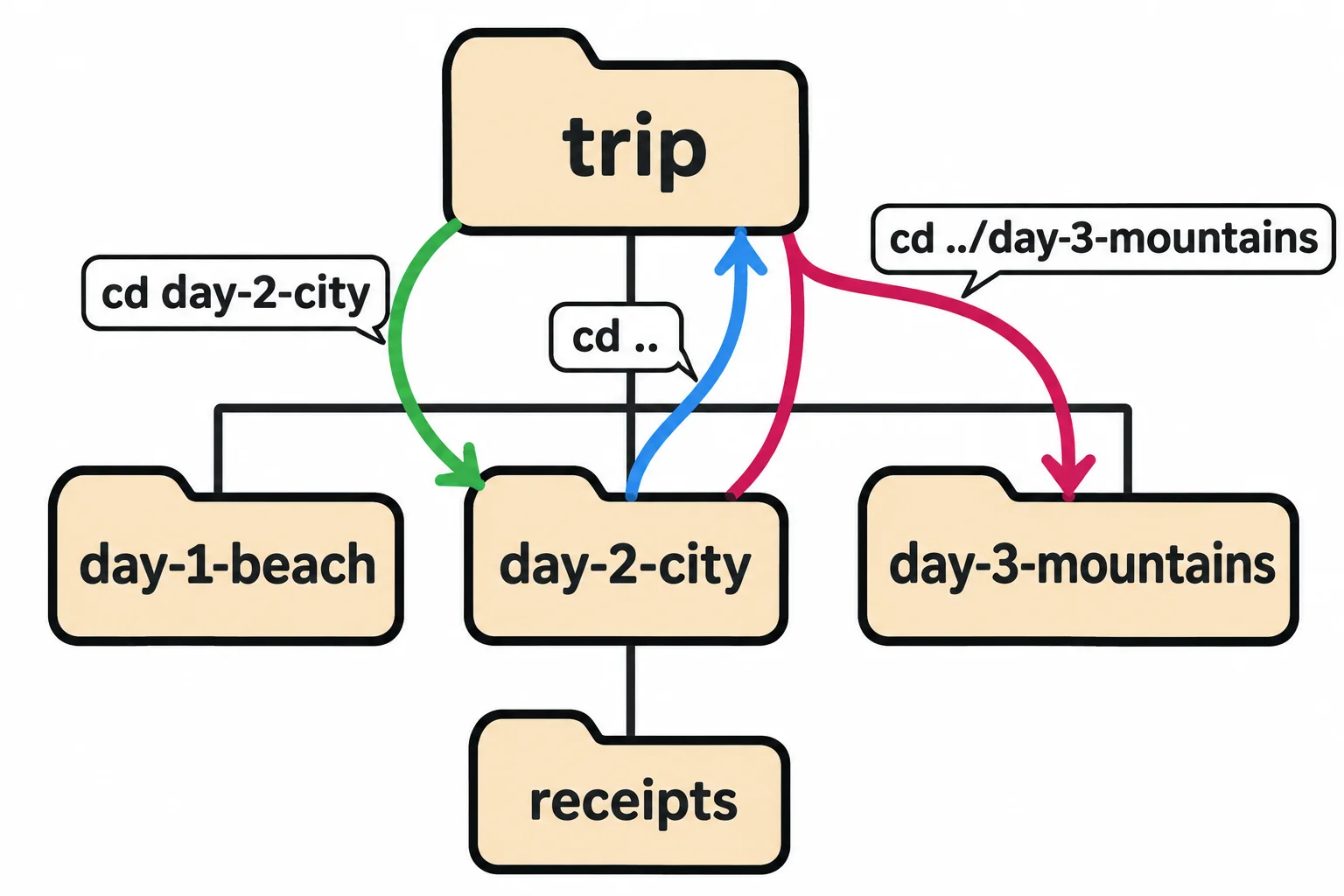
Relative and absolute paths
Directions can be given two ways. "Go out the door and turn left" only works from where you're standing; a full street address works from anywhere. Paths are the same:
- A relative path, such as
day-2-cityor../day-3-mountains, starts from the folder you're in. It means something different in a different folder. - An absolute path starts with
/, the root, so it means the same thing everywhere. A path that starts with~counts too: the shell turns~into your home folder's absolute path.
This is why the same command can work in one folder and fail in the next. From day-1-beach, day-2-city isn't inside the folder you're in:
cd ~/terminal-practice/trip/day-1-beach
cd day-2-city
cd ../day-2-city
pwd
bash: cd: day-2-city: No such file or directory
/home/sam/terminal-practice/trip/day-2-city
The error names the command (cd), the name it couldn't find, and why. ../day-2-city goes up to trip first, where day-2-city is. Use a relative path for a short hop nearby, and an absolute one when the folder is far from where you are.
Two shortcuts: home and back
cd on its own takes you home, the same as cd ~. And cd - (read "cd dash") takes you back to the folder you were in before, printing its path:
cd
pwd
cd -
/home/sam
/home/sam/terminal-practice/trip/day-2-city
cd - is handy when you're switching between two folders, such as a project and its downloads.
Try it in the terminal
Terminal Quest: The Lighthouse, goals 4 to 7: played right on the lesson page.
Your turn: go into Mara's cottage, find her diary in the bedroom, then the compass in a drawer, and the matches in the kitchen cupboard. To read a note on the way, type cat and its name; Reading Files: cat and less covers it fully.
Check yourself
2 questions to try on the lesson page.
So what
cd, .. and ~ get you anywhere on the computer. Every later lesson, from organizing files to writing scripts, starts with being in the right folder.