Where Am I? pwd and Paths
The terminal always works in one folder at a time, and pwd tells you which one as a path, the folder's address read from the top of the computer down to you.
Novice · Unix · Linux · Updated
After this lesson you can
- Print the folder you are in with pwd
- Read a path as the folders from the root down to a file or folder
Key takeaways
- The terminal is always working in one folder, called the working directory. Commands look for files there unless you say otherwise.
- pwd prints the working directory's full path. It only looks, so it's safe to type whenever you lose track.
- A path is an address: / (the root) first, then each folder on the way down, separated by /.
- ~ is short for your home folder, such as /home/sam on Linux or /Users/sam on a Mac.
You saved a photo a friend sent you, or downloaded a form for school, and now you can't find it. It's on your computer somewhere, but where? A file manager answers with a window full of folders. The terminal answers with one short line of text, and that line is worth learning to read, because every command you'll ever type works from it.
The terminal is always somewhere
Think of the files on your computer as a big building full of rooms, with rooms inside rooms. When you open a terminal, you're standing in one of those rooms. Every command you type works in that room unless you say otherwise: ask for a list of files, and you get this room's files; ask to read a file, and the terminal looks for it here.
That room has a name: the working directory. Directory is the terminal's word for a folder, and working means it's the one you're working in right now. A file manager shows it in the window's address bar. The terminal doesn't show it all the time, so you ask.
pwd: ask where you are
pwd stands for print working directory: "show me the folder I'm in". Type it and press Enter:
pwd
/home/sam
That's the answer on Ubuntu, and in Ubuntu on Windows (WSL), for someone whose user name is sam. A new terminal starts in your home folder, the one that holds your own files, so that's where you'll usually begin. On a Mac you'll see /Users/ and your own name instead.
pwd changes nothing. It only looks, so type it whenever you lose track. People who use the terminal every day type it all the time.
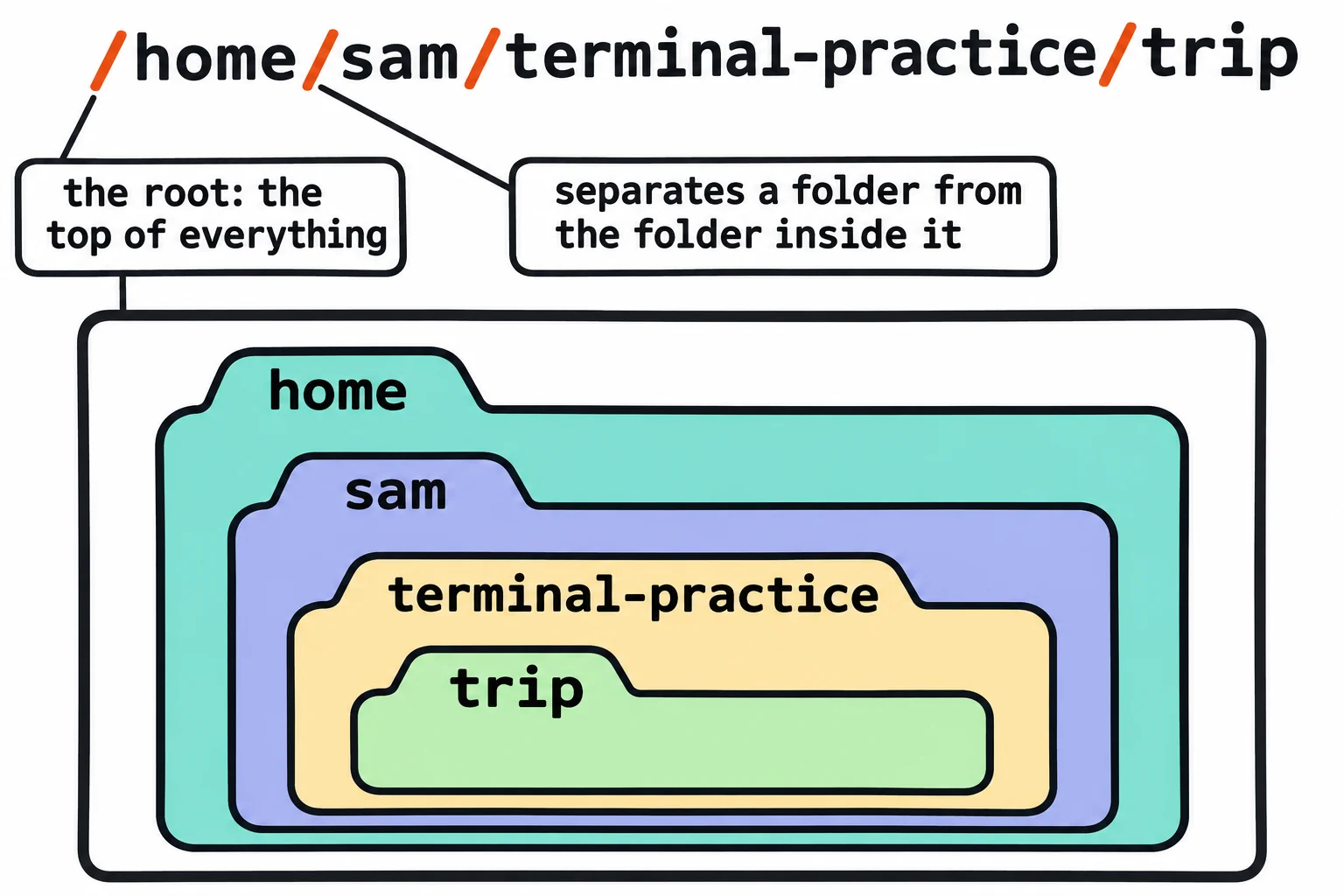
Reading a path like an address
/home/sam is a path: the address of a folder, written as the folders you'd walk through to reach it. Read it like a mailing address, from the biggest place to the smallest:
- The first
/(read "slash", or "root") is the root directory, the top of everything. Every folder on the computer is inside it, the way every street is inside a country. homeis a folder inside the root. It holds every user's own folder.samis a folder insidehome: Sam's home folder.
Each / after the first one separates a folder from the next one inside it. So /home/sam/terminal-practice/trip reads "start at the root, go into home, then sam, then terminal-practice, then trip". A path that starts with / is an absolute path: it works from anywhere, because it always starts at the top.
One more symbol: ~ (read "tilde", or "home") is short for your own home folder. On Sam's computer, ~/terminal-practice and /home/sam/terminal-practice are the same address.
Set up your practice folder
The lessons in this chapter use a small, made-up vacation folder, so nothing you try touches your real files. Copy these lines into your terminal and press Enter. They make the folders and files, then ask where you ended up. You'll learn each of these commands in Module 2, and they're safe to run again whenever you want a fresh copy.
mkdir -p ~/terminal-practice/trip && cd ~/terminal-practice/trip
mkdir -p day-1-beach day-2-city/receipts day-3-mountains "photos to print"
printf 'Day 1: the beach\nDay 2: the city\nDay 3: the mountains\n' > itinerary.txt
printf 'sunscreen\nhiking boots\nphone charger\n' > packing-list.txt
printf 'The spare house key is with the neighbor.\n' > .trip-notes.txt
touch day-1-beach/sunset.jpg day-1-beach/sandcastle.jpg
touch day-2-city/museum.jpg day-2-city/street-food.jpg
printf 'Taco stand: $12.50\n' > day-2-city/receipts/lunch.txt
touch day-3-mountains/lake.jpg day-3-mountains/summit.jpg
pwd
/home/sam/terminal-practice/trip
You're now in the trip folder, inside terminal-practice, inside your home folder. (cd, in the first line, moved you there. Moving Around: cd, .. and ~ teaches it.)
Try it in the terminal
Terminal Quest: The Lighthouse, goal 1: played right on the lesson page.
A storm has put out the lighthouse lamp, and you're the new keeper. Before anything else, find out where you are.
Check yourself
2 questions to try on the lesson page.
So what
Every command works from a folder. Once you can ask the terminal where you are and read its answer, you'll never be lost in it.