Running Work in Parallel: &, wait and xargs -P
Commands that each take a while can run side by side: & starts each one in the background and wait holds the script until all of them have finished, while xargs -P runs a set number at a time, so 12 one-second photo resizes take 3 seconds instead of 12.
Freelancer · Unix · Linux · Updated
After this lesson you can
- Run commands at the same time with & and wait until they've all finished with wait
- Run a command on many files a few at a time with xargs -n 1 -P, and measure the time saved with time
Key takeaways
- A for loop runs its commands one after another. time in front of a command shows how long it took: real is the time on the clock.
- An & after a command in a loop starts every one at once. wait then holds the script until all of them have finished.
- Hundreds of jobs at once can swamp a computer. xargs -n 1 -P 4 runs four at a time, one name each, starting the next as soon as one ends.
- find ... -print0 | xargs -0 keeps names with spaces whole. On Linux, xargs exits with 123 when any of its commands failed.
- Parallel jobs finish in any order, so their lines arrive mixed. Give each job its own output file.
You're home from a trip with 500 photos straight off the camera, and you want small copies to share. Resizing one takes about a second, so a loop that does them one by one (For Every File: for Loops) takes over eight minutes. Meanwhile the computer is mostly idle. Its processor has several cores, each able to work on a job of its own, and a loop keeps only one of them busy, like a bakery with four ovens that bakes one tray at a time. Doing several jobs side by side is called parallel processing. A web developer shrinking a site's images uses it, so does a data analyst converting a thousand files, and so does an administrator compressing a month of logs.
One at a time
Make the practice folder: twelve pretend photos (one with a space in its name), a packing list that ended up among them, and resize.sh. It stands in for a real resizer such as ImageMagick, so you don't need to install anything: like resizing one big photo, it takes about a second, and it puts a copy in small/. (With ImageMagick, the real work is a line such as magick photo.jpg -resize 1200x small/photo.jpg; it isn't part of this lesson.)
mkdir -p ~/terminal-practice/resize/photos
cd ~/terminal-practice/resize
touch photos/photo-{01..11}.jpg "photos/beach day.jpg"
printf '%s\n' 'sunscreen' 'hat' > photos/packing-list.txt
printf '%s\n' '#!/usr/bin/env bash' '# resize.sh PHOTO: a stand-in for a real photo resizer, such as ImageMagick.' '# Like resizing one big photo, it takes about a second. The small copy goes into small/.' '[[ "$1" == *.jpg ]] || { echo "resize.sh: $1 is not a photo" >&2; exit 1; }' 'sleep 1' 'mkdir -p small' 'cp "$1" "small/$(basename "$1")"' 'echo "Resized $(basename "$1")"' > resize.sh
chmod +x resize.sh
time in front of a command runs it, then says how long it took:
time for p in photos/*.jpg; do ./resize.sh "$p"; done
Resized beach day.jpg
Resized photo-01.jpg
Resized photo-02.jpg
Resized photo-03.jpg
Resized photo-04.jpg
Resized photo-05.jpg
Resized photo-06.jpg
Resized photo-07.jpg
Resized photo-08.jpg
Resized photo-09.jpg
Resized photo-10.jpg
Resized photo-11.jpg

real	0m12.149s
user	0m0.050s
sys	0m0.052s
real is the time on the clock: twelve photos, twelve seconds. user and sys count the processor's own work, which is tiny here because the stand-in spends its second waiting.
All at once: & and wait
An & after a command starts it in the background (Background Jobs: &, jobs, fg and bg) and moves straight on. Inside a loop, that starts every resize at once. wait then holds the script until every background job it started has finished. Save this as all-at-once.sh:
#!/usr/bin/env bash
# all-at-once.sh: resizes every photo in photos/ at the same time.
for p in photos/*.jpg; do
  ./resize.sh "$p" &
done
wait
echo "All done."
chmod +x all-at-once.sh
time ./all-at-once.sh
Resized photo-02.jpg
Resized photo-09.jpg
Resized photo-05.jpg
Resized photo-01.jpg
Resized photo-11.jpg
Resized photo-10.jpg
Resized photo-04.jpg
Resized photo-07.jpg
Resized photo-03.jpg
Resized photo-08.jpg
Resized photo-06.jpg
Resized beach day.jpg
All done.

real	0m1.018s
user	0m0.082s
sys	0m0.051s
One second for all twelve. They finished in a jumbled order, because twelve jobs racing side by side end whenever each is done. Leave out wait, and All done. is printed first, before a single photo is resized, and the Resized lines turn up after your prompt has come back. A script that zipped up small/ next would zip an empty folder. (In a script, bash doesn't print the [1] 3124 job lines it shows at the prompt.)
A few at a time: xargs -P
Twelve at once is fine. Five hundred at once is not: each real resize holds a whole photo in memory, and hundreds of them fight over a few cores until everything slows down. A bakery with four ovens bakes four trays at a time, and puts the next tray in as soon as one comes out. xargs from Tee and Xargs: Splitting and Feeding does exactly that with -P (processes at once). First, see how many cores you have:
nproc
24
This computer has 24; many laptops have 4 to 16. (On a Mac, sysctl -n hw.ncpu tells you.) Now four at a time:
time find photos -name '*.jpg' -print0 | xargs -0 -n 1 -P 4 ./resize.sh
Resized photo-01.jpg
Resized photo-04.jpg
Resized photo-08.jpg
Resized photo-03.jpg
Resized photo-07.jpg
Resized photo-06.jpg
Resized photo-05.jpg
Resized photo-11.jpg
Resized beach day.jpg
Resized photo-09.jpg
Resized photo-02.jpg
Resized photo-10.jpg

real	0m3.038s
user	0m0.072s
sys	0m0.048s
Three rounds of four: three seconds.
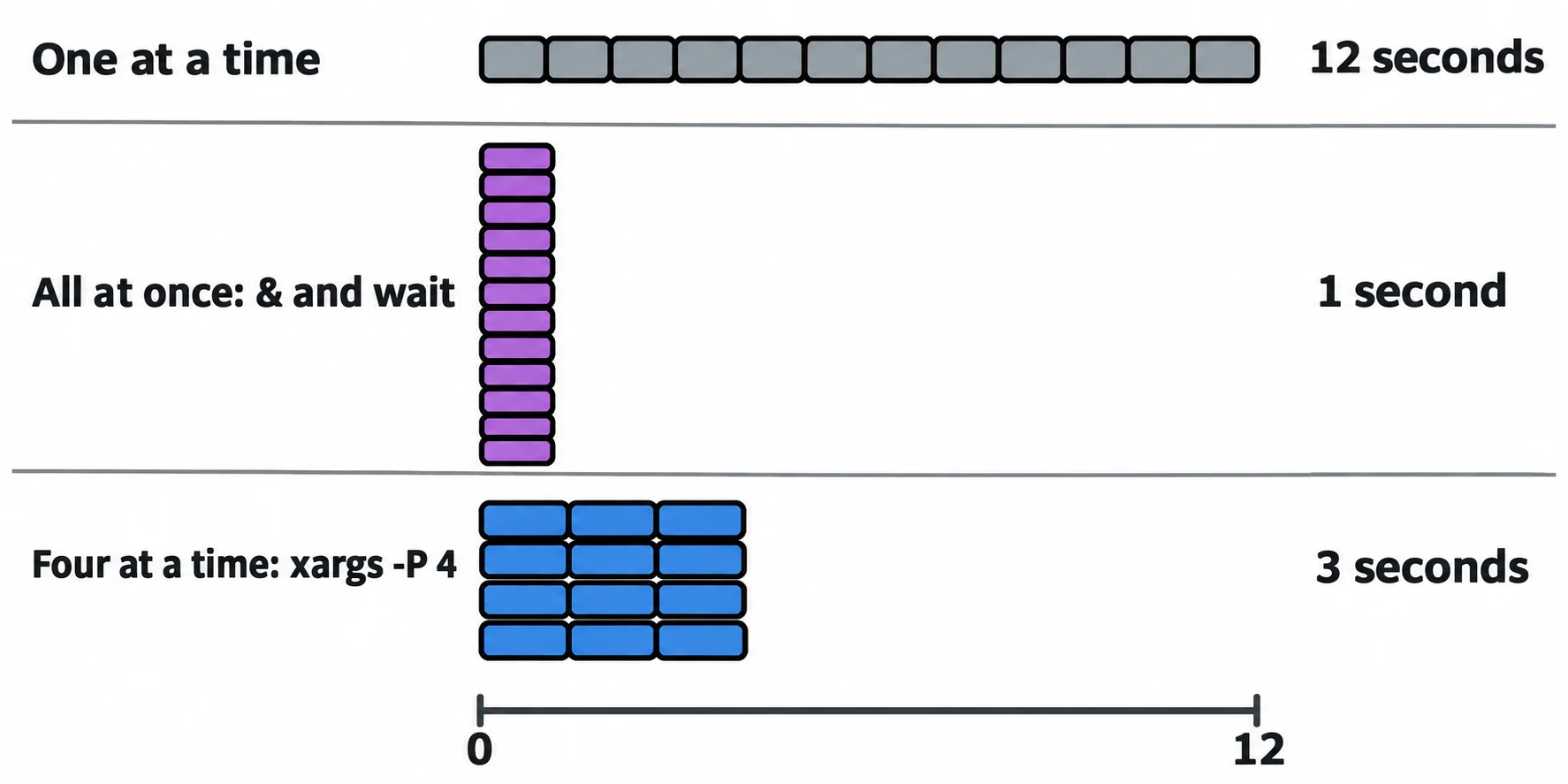
Read it from the left: find lists the photos, ending each name with an invisible marker (-print0), and xargs -0 splits only at that marker, so beach day.jpg stays one name. -n 1 hands each resize.sh one name, and -P 4 keeps four running. A good number to start with is your number of cores, or fewer. xargs finishes only when the last job does, so it needs no wait.
When one fails
Leave out -name '*.jpg', and the packing list goes to resize.sh too:
find photos -type f -print0 | xargs -0 -n 1 -P 4 ./resize.sh
echo $?
Resized photo-04.jpg
Resized photo-01.jpg
Resized photo-03.jpg
Resized photo-08.jpg
Resized photo-07.jpg
Resized photo-06.jpg
Resized photo-11.jpg
Resized photo-05.jpg
Resized beach day.jpg
Resized photo-09.jpg
Resized photo-02.jpg
Resized photo-10.jpg
resize.sh: photos/packing-list.txt is not a photo
123
The photos were all done, the one failure was reported, and xargs carried on. Its exit code, 123 on Linux, means "at least one command failed", so &&, || and if notice (Did It Work? Exit Codes, && and ||). In a long run the error line can hide among hundreds of others, so check the exit code, not the screen. And because the jobs run side by side, give each one its own output file, as resize.sh does: two jobs writing into the same file can mix their lines together.
Check yourself
2 questions to try on the lesson page.
So what
When a job repeats on many files and each one takes a while, running a few at a time with xargs -P, or all together with & and wait, turns minutes into seconds.