SSH Keys and ~/.ssh/config
An SSH key pair logs you in without a password: ssh-keygen makes a private key that stays on your computer and a public key you hand out, ssh-copy-id puts the public key on a server, and a Host block in ~/.ssh/config gives the server a short name.
Journeyman · Unix · Linux · Updated
After this lesson you can
- Make an SSH key pair with ssh-keygen, and put its public key on a server with ssh-copy-id
- Give a server a short name in ~/.ssh/config, with its HostName, User and IdentityFile
Key takeaways
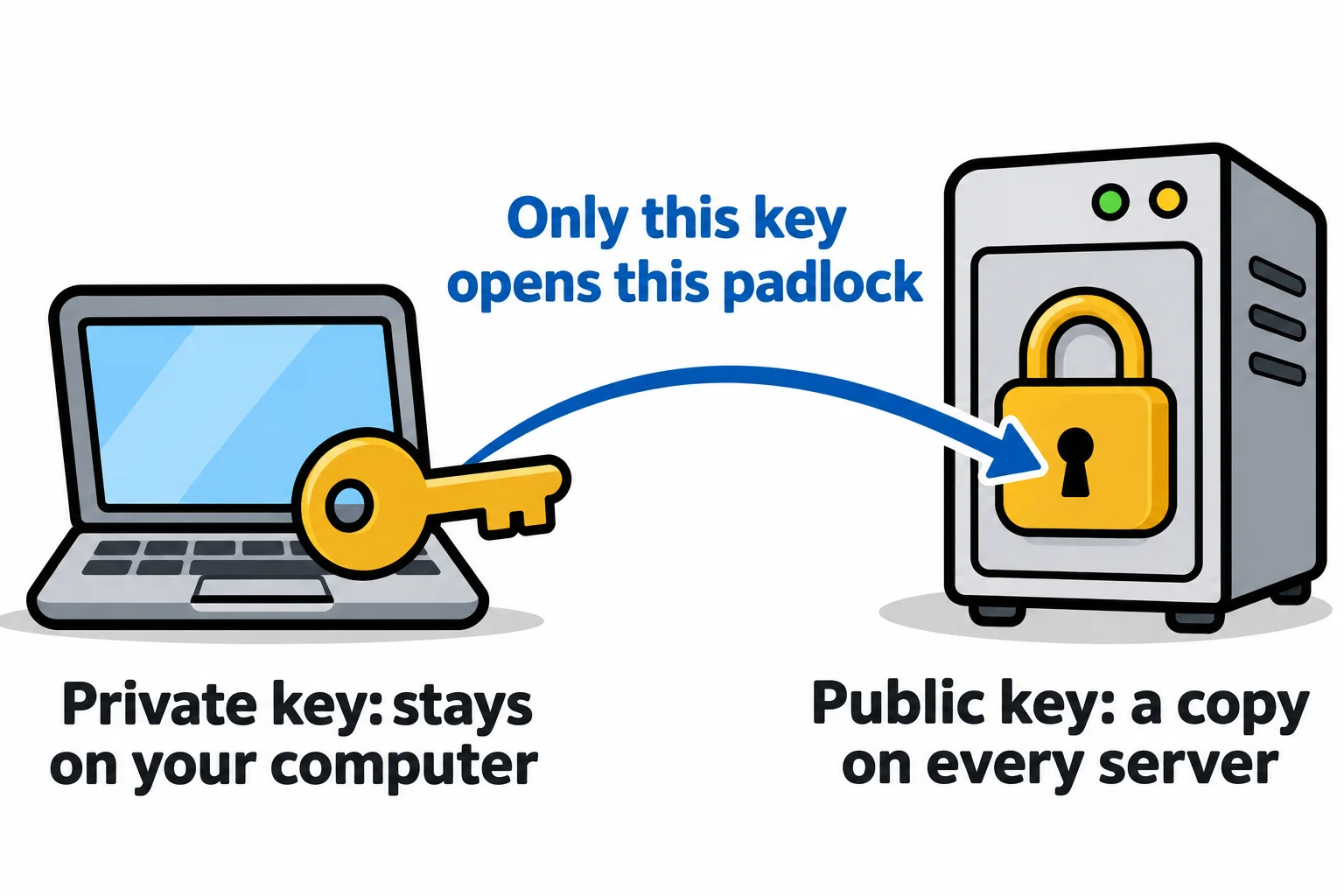
- A key pair is a padlock and its key. The public key (.pub) is the padlock, and any server may have a copy. The private key opens it, and it never leaves your computer.
- ssh-keygen -t ed25519 makes a pair in ~/.ssh. A passphrase locks the private key file, so a stolen copy is no use to anyone.
- ssh-copy-id user@host adds your public key to the server's ~/.ssh/authorized_keys, with your password one last time. After that, ssh logs in with the key.
- A Host block in ~/.ssh/config gives a server a short name, with its HostName, User and IdentityFile, so ssh bookclub is the whole command.
Typing the book club server's password ten times a day gets old fast, and a script can't type it at all: a deploy script that stops to ask for a password can't run while you're away. Passwords can be guessed, too, so many servers turn password logins off and accept only keys. An SSH key logs you in without a password, and a few lines in a settings file turn ssh sam@bookclub.example.com into ssh bookclub. Developers and administrators set this up once on each computer they use, and GitHub takes the same kind of key for Git.
A padlock and its key
An SSH key is a pair of files that belong together, like a padlock and the only key that opens it.
- The public key is the padlock. Hand out as many copies as you like, one on every server you use. On its own, it opens nothing.
- The private key is the key. It stays on your computer, and you never send it to anyone.
When you log in, the server locks a puzzle with your padlock. Only your private key can open it, so solving it proves it's you, and the private key never leaves your computer.
Make a pair: ssh-keygen
First, a practice pair in a practice folder, to see what ssh-keygen (read "S S H key gen", for generate) makes without touching anything real. -t ed25519 picks the kind of key recommended today, -C adds a comment, a label that says whose key it is, and -f names the file:
mkdir -p ~/terminal-practice/keys && cd ~/terminal-practice/keys
ssh-keygen -t ed25519 -C "sam@laptop" -f practice_key
It asks twice for a passphrase: a password for the key file itself, so a copy of the file is no use without it. Nothing shows while you type. Then it says what it made:
Generating public/private ed25519 key pair.
Enter passphrase for "practice_key" (empty for no passphrase):
Enter same passphrase again:
Your identification has been saved in practice_key
Your public key has been saved in practice_key.pub
The key fingerprint is:
SHA256:03obZoJEWkEoXHcZZeGndV6WjPIB53HU2Xh4G7mUch0 sam@laptop
The key's randomart image is:
+--[ED25519 256]--+
| . ..o+ o++o o.EO|
|  o .. o.o  +.BBB|
|   .  o   ..o+==*|
|     +   . +oo.= |
|    . . S o  ..  |
|     . . o       |
|      . o =      |
|         = o     |
|          .      |
+----[SHA256]-----+
Your fingerprint and picture will be different: every key is new. There are two files:
ls -l
cat practice_key.pub
total 8
-rw------- 1 sam sam 444 Nov  9 07:31 practice_key
-rw-r--r-- 1 sam sam  92 Nov  9 07:31 practice_key.pub
ssh-ed25519 AAAAC3NzaC1lZDI1NTE5AAAAIOdmnoxdwr7HyoX4+5PbPQEjSoBLRrrpEqjZSzfCLDvB sam@laptop
Only you may read the private key, -rw------- (Permissions: Read, Write and Run). The public key is one line of text you may show anyone. Delete the practice pair with rm practice_key practice_key.pub.
Your real key is the same command without -f. Press Enter at its first question to keep the usual place, ~/.ssh/id_ed25519:
ssh-keygen -t ed25519 -C "sam@laptop"
If it asks Overwrite (y/n)?, answer n. You already have a key, and replacing it locks you out of every server that knows the old one.
Put the padlock on the server: ssh-copy-id
ssh-copy-id logs in with your password one last time and adds your public key to the end of ~/.ssh/authorized_keys on the server: its list of padlocks it accepts.
ssh-copy-id sam@localhost
It reports Number of key(s) added: 1 and suggests logging in to try it. Try it: this time ssh sam@localhost asks for your key's passphrase instead of the computer's password. If a Mac says command not found, install it with brew install ssh-copy-id.
Short names: ~/.ssh/config
~/.ssh/config is ssh's configuration file. A Host block in it gives a server a short name and the details ssh would otherwise need on every command. Try one in the practice folder first:
printf 'Host bookclub\n    HostName localhost\n    User sam\n    IdentityFile ~/.ssh/id_ed25519\n' > config
cat config
Host bookclub
    HostName localhost
    User sam
    IdentityFile ~/.ssh/id_ed25519
Read it as "when I say bookclub, connect to localhost, as sam, with this key". On a real server, HostName is its name or address, such as bookclub.example.com, and User is your user name there. ssh -G shows the settings ssh would use without connecting, and -F config reads this file instead of your real one:
ssh -F config -G bookclub | grep -E '^(user|hostname|port|identityfile) '
user sam
hostname localhost
port 22
identityfile ~/.ssh/id_ed25519
When it looks right, put the lines in your real file with your own user name, nano ~/.ssh/config (Editing in the Terminal: nano). From then on ssh bookclub is the whole command, and scp, rsync and your scripts understand the name too. A misspelled setting stops ssh and names the line, such as config: line 2: Bad configuration option: hostnam.
Check yourself
2 questions to try on the lesson page.
So what
Make a key once, put its padlock on each server once, and give each server a short name: from then on, logging in, copying and deploying is one short command with no password to type.