What You Can Build with Bash
The terminal turns jobs that take an afternoon of clicking into one line, and a file of those lines is a small application of your own, which this course takes you all the way to writing.
Novice · Unix · Linux · Updated
After this lesson you can
- Recognize jobs the terminal does well, such as the same change to many files, a search inside many files and work on a schedule
- Explain why a bash script is an application, a file of commands that runs when you type its name
Key takeaways
- The terminal shines at jobs that repeat, such as the same change to 200 files, a search through 600 files, or a backup every night.
- bash is the program that runs the commands you type in a Linux terminal, and the language your scripts are written in.
- A script is a file of commands. Type its name and it does its job, like any app on your phone. It's a small application you wrote.
- Every module ends with a tool you build and keep, up to an expense tracker and an app you design yourself.
You come home from a beach trip with 200 photos named IMG_4001.jpg to IMG_4200.jpg, and you'd like them called beach-001.jpg, beach-002.jpg and so on. In a file manager that's right-click, Rename, type, Enter, two hundred times: most of an afternoon. In a terminal it takes one word and less than a second. This course teaches you how, and then takes you further: by the end, you'll write complete programs of your own.
Two hundred photos, one word
Here's that folder, before and after. You don't need to type any of this yet; watch what happens.
ls | head -n 3
IMG_4001.jpg
IMG_4002.jpg
IMG_4003.jpg
./tidy-photos
Renamed 200 photos.
ls | head -n 3
beach-001.jpg
beach-002.jpg
beach-003.jpg
ls | head -n 3 shows the folder's first three names (you'll meet ls in the next chapter). The middle line is the interesting one: tidy-photos isn't a program anyone sold you. Someone wrote it.
A script is an application
tidy-photos is a text file with eight lines in it. cat shows what's inside a file:
cat tidy-photos
#!/usr/bin/env bash
# tidy-photos: gives every IMG_ photo in this folder a name you can read.
count=0
for photo in IMG_*.jpg; do
  count=$((count + 1))
  mv "$photo" "$(printf 'beach-%03d.jpg' "$count")"
done
echo "Renamed $count photos."
A file of commands like this is a script. Today it may look like a wall of symbols, and that's fine: in Module 5 you'll write one like it.
An app on your phone is a set of instructions that runs when you tap it. A script is a set of instructions that runs when you type its name. This one repeats work, keeps count and reports back. That makes it an application: a small one, written by you, ready the moment you call it, with nothing to buy or install. The whole course builds on that idea.
Jobs the terminal does in seconds
The same change to many files: renaming 200 photos, sorting a Downloads folder by type, making twelve month folders in one line.
A search inside many files: which of your 600 saved receipts mentions invoice INV-1863?
grep -r "INV-1863" ../receipt-0423.txt:Invoice INV-1863: paint rollers, $14.51Work on a schedule: a copy of your homework folder every night at 11, made while you sleep.
Computers with no screen: the computers that run websites have no mouse. The Terminal and the Mouse: Two Ways In explains.
What you'll build
Every module ends with a tool you build and keep. Each has its own starter files, and none needs an earlier one.
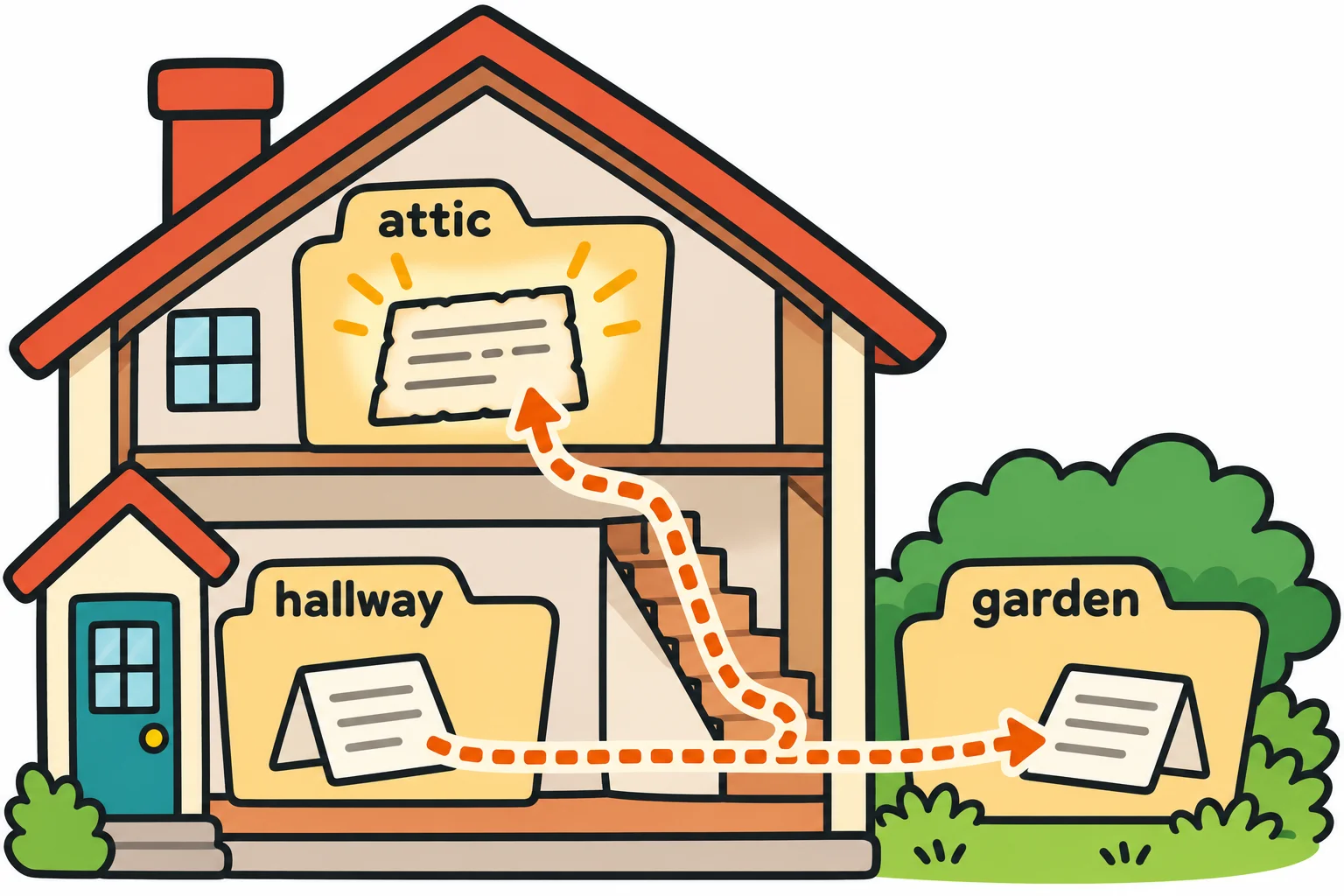
- The Lost Recipe: A Scavenger Hunt (Module 1: Meet the Terminal). A folder world of clues that leads to Grandma's lost recipe.
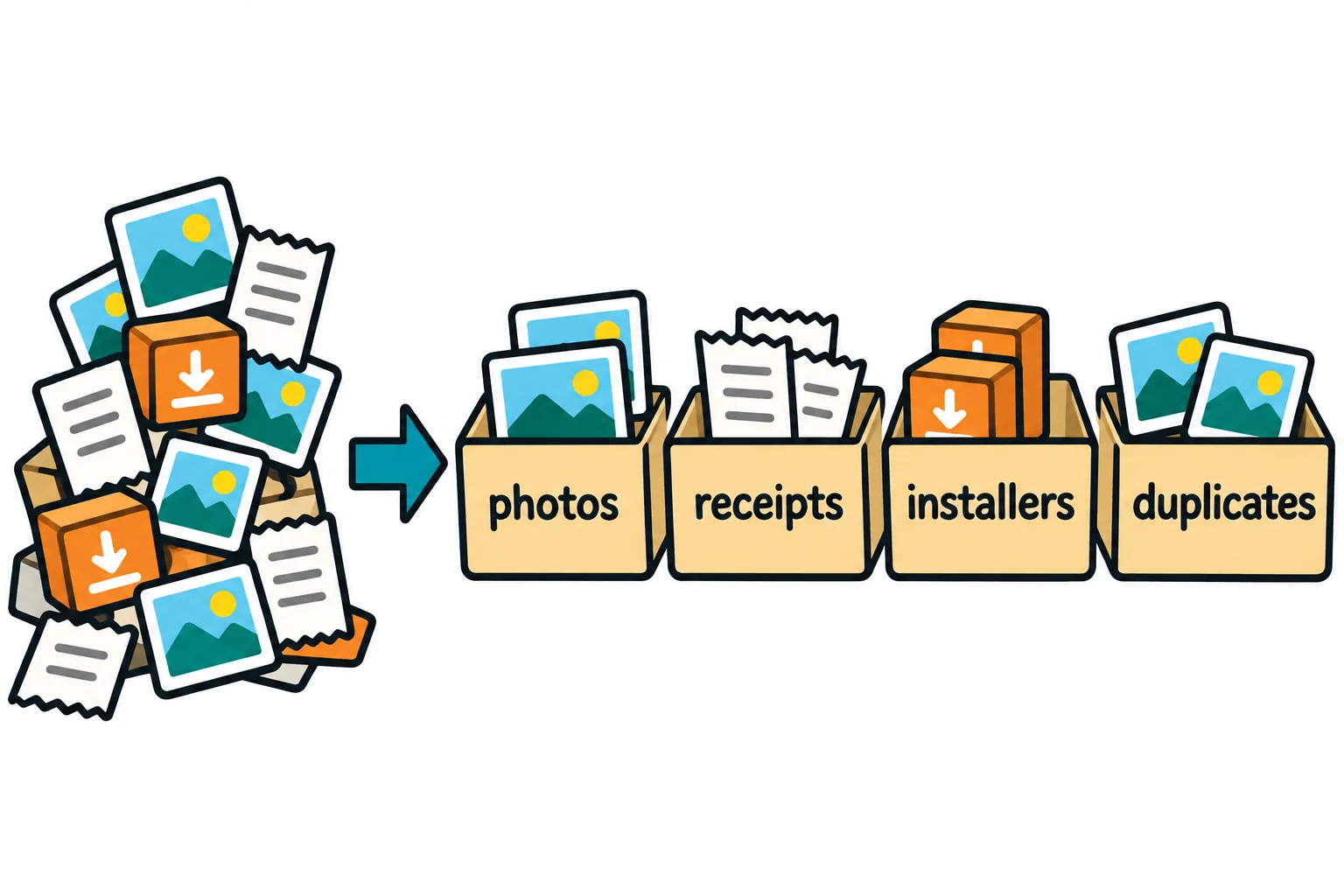
- Rescue a Downloads Folder (Module 2: Working with Files). 400 made-up downloads sorted, archived and summed up.
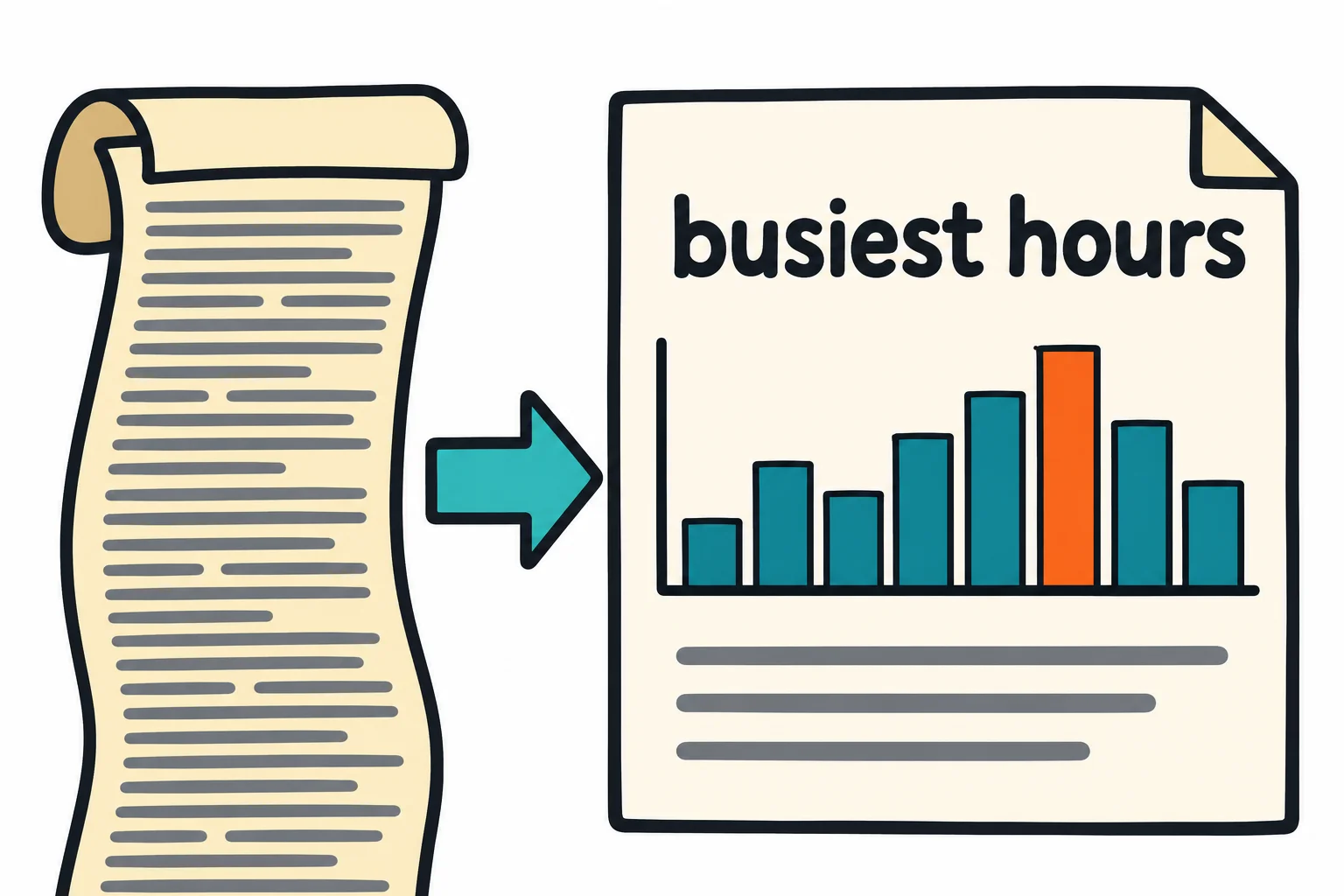
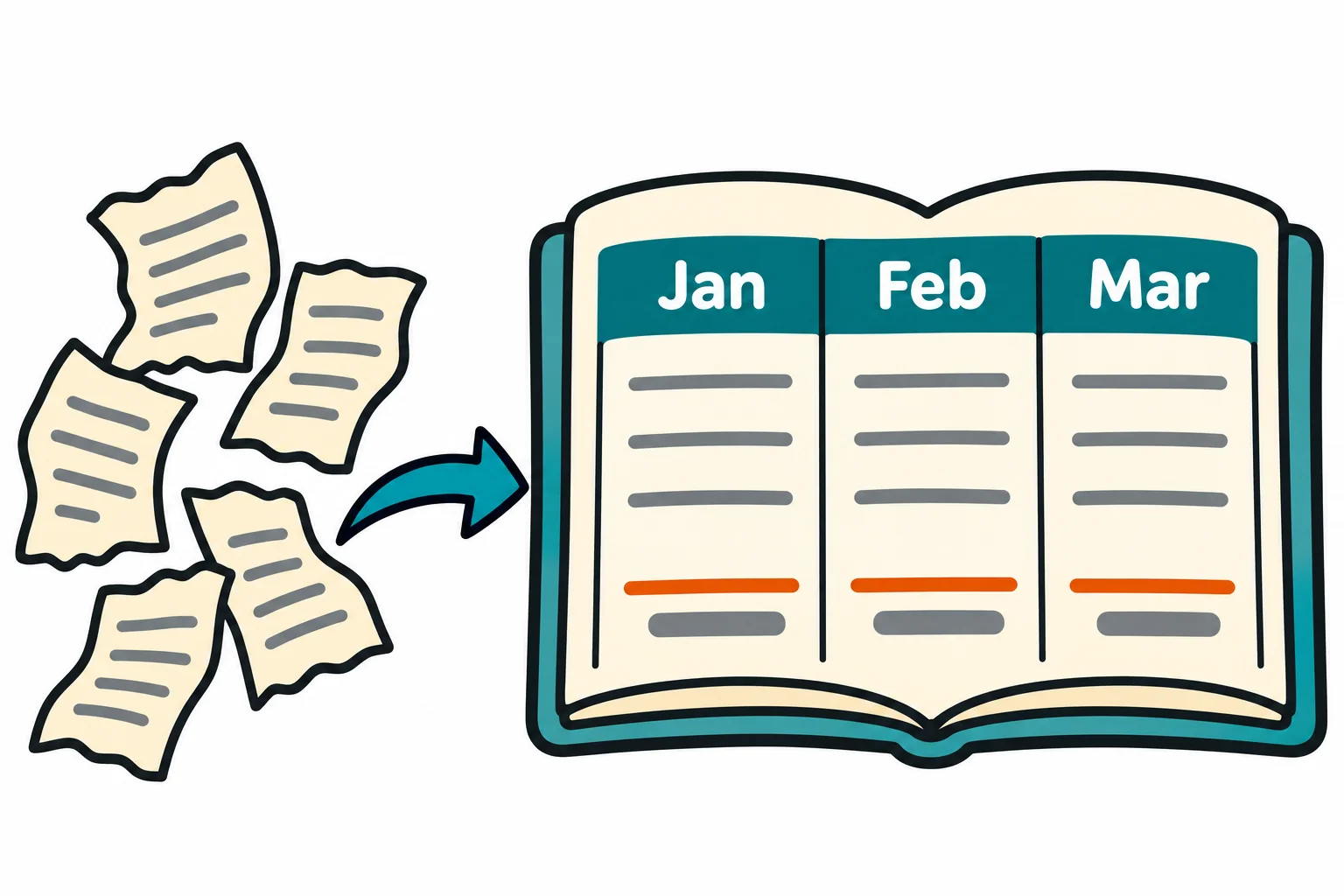
- The Log Detective (Module 3: Search, Pipes and Text). A month of a website's log turned into a report.
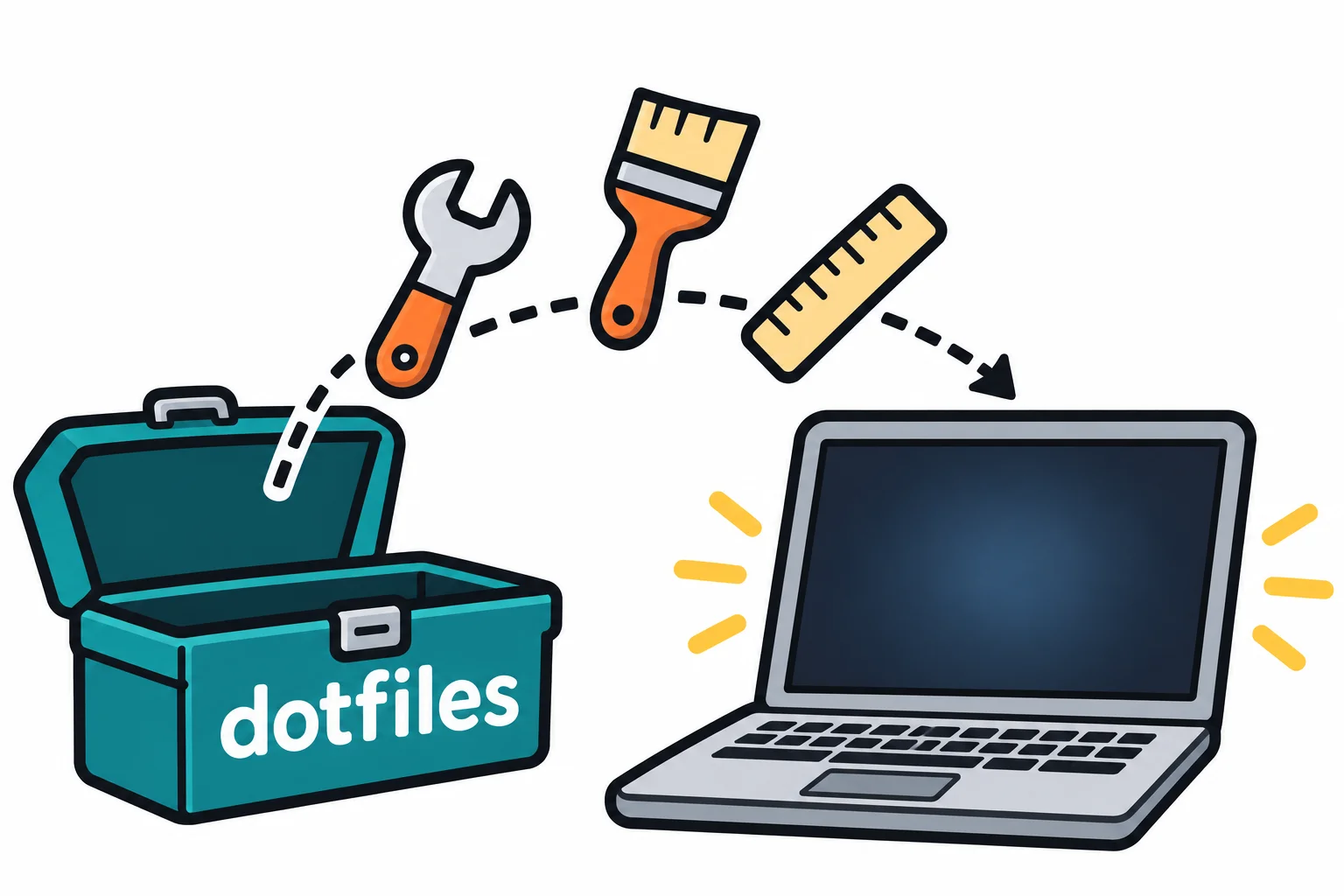
- Your Dotfiles (Module 4: Your Shell, Your Way). Your shell setup in one folder, installed on a new computer in one command.
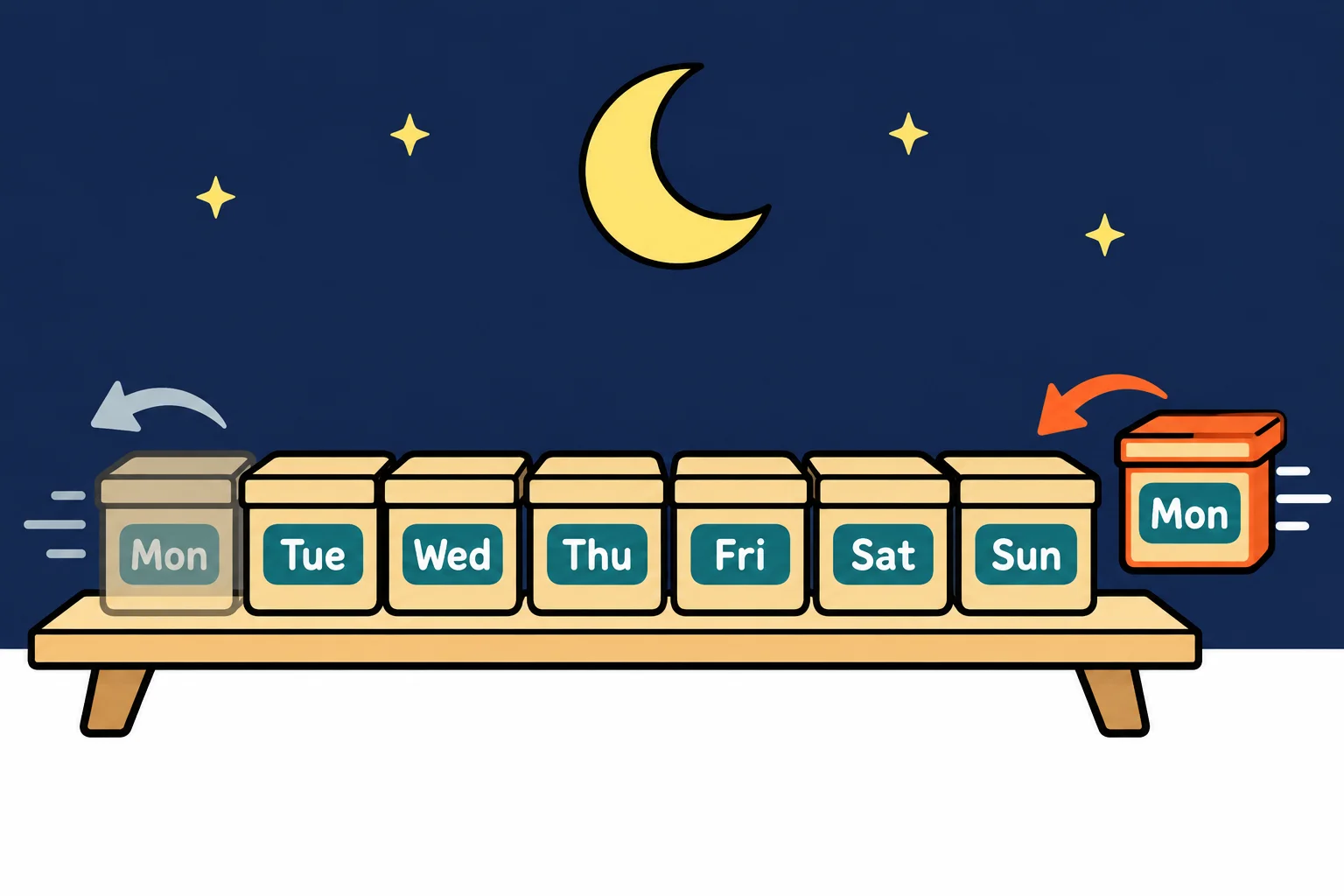
- The Nightly Backup (Module 5: Scripts Are Applications). A script that backs up any folder and keeps the last seven copies.
spend: Your Own Expense Tracker (Module 6: Building Real Tools). A complete app, with commands, a help page, saved data and tests.
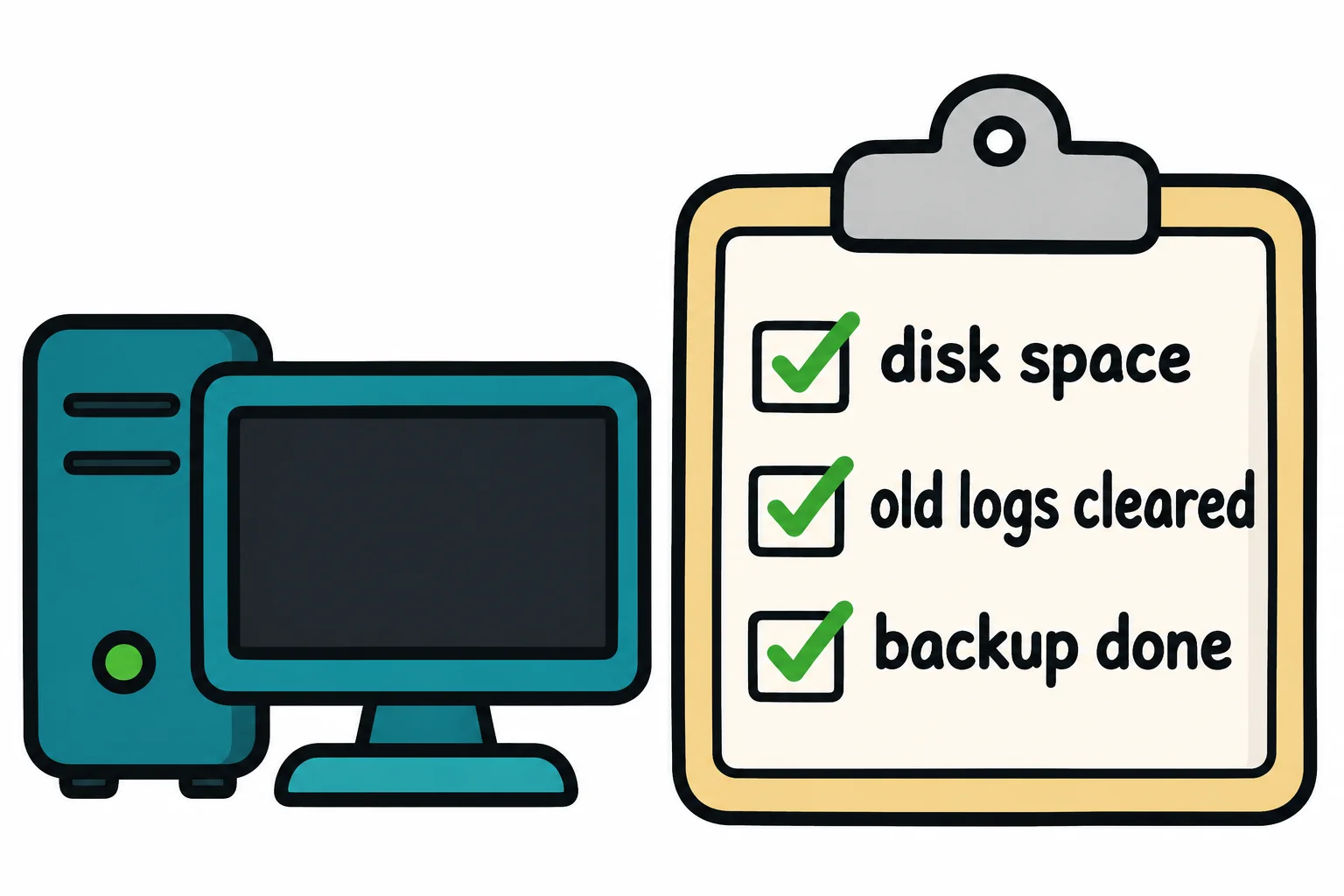
- The Caretaker (Module 7: Running a Computer). Scripts that check a computer's health and back it up on a schedule.
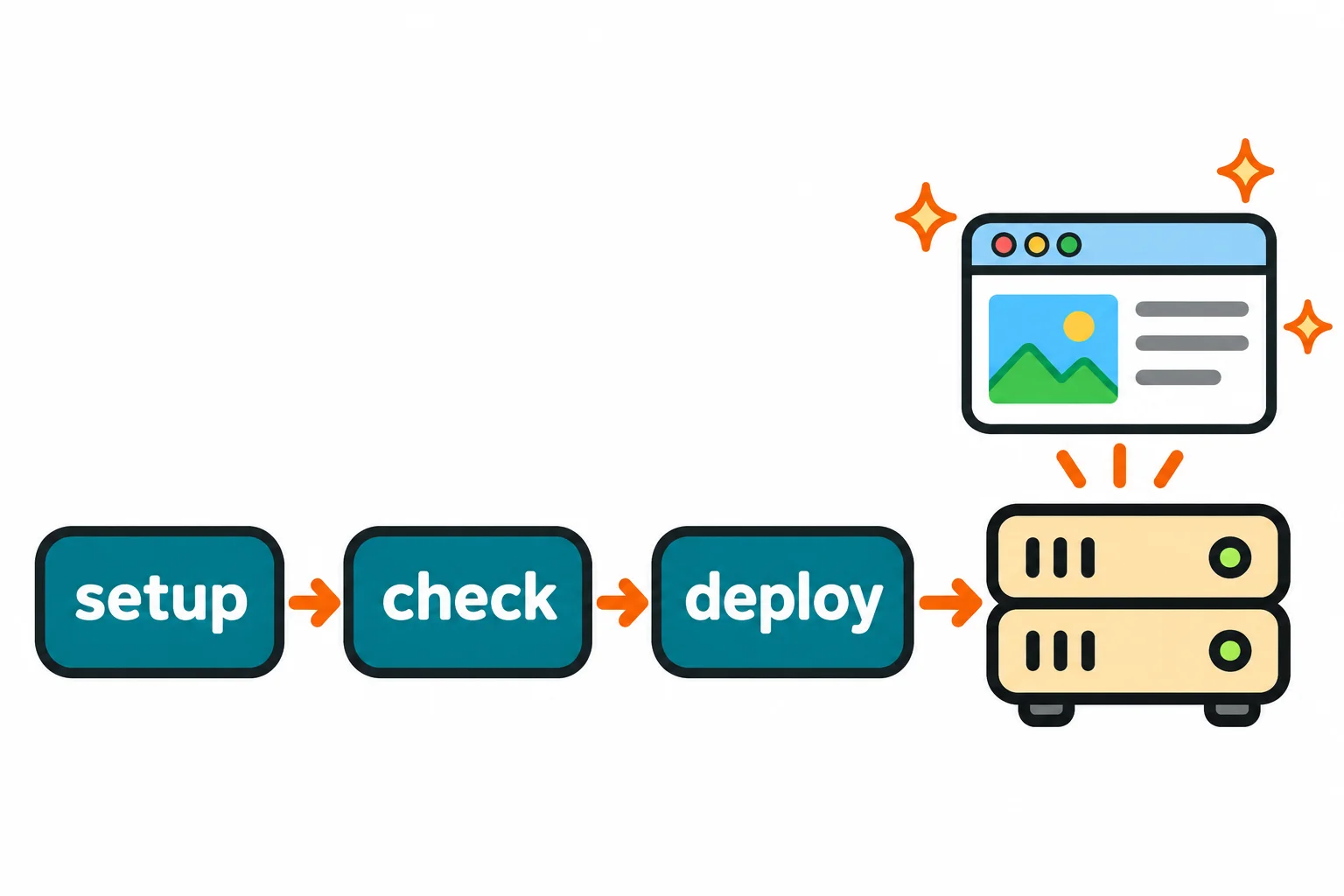
- A Project Kit (Module 8: The Developer's Terminal). Scripts that set up, check and deploy a small website.
The course ends with a final capstone: Your Own Command-Line App. An app you design for a problem in your own life.

Who uses bash, and where it runs
bash is the program that runs the commands you type in a Linux terminal, and the language scripts like tidy-photos are written in. It's on nearly every Linux computer, from cloud servers to a Raspberry Pi. A Mac's Terminal opens zsh, a close cousin, and runs your scripts in bash. On Windows, you'll use bash in Ubuntu, a Linux that runs inside Windows. This chapter's setup lessons cover all three.
At work, web developers use it to build and deploy sites, IT and cloud administrators to look after hundreds of computers at once, data analysts to clean up data files, and scientists to run one analysis on a thousand files.
Check yourself
2 questions to try on the lesson page.
So what
A terminal does the repeating, searching and remembering for you, and a script turns those jobs into your own small applications. That's what you'll build, one module at a time.