The Terminal and the Mouse: Two Ways In
A file manager and a terminal are two doors into the same files on the same computer; each is better at different jobs, and this course gives you both so you can choose.
Novice · Unix · Linux · Updated
After this lesson you can
- Choose the terminal or the mouse for a job, and say why
- Explain why servers and cloud computers are run from a terminal
Key takeaways
- A file manager and a terminal work on the same files. A folder you make in one shows up in the other.
- The mouse is better for browsing, looking at pictures and one-off jobs. The terminal is better for repeats, searches and steps you can save.
- Servers and cloud computers have no screen or mouse, so people run them from a terminal over the network.
- This course never asks you to give up the mouse. It gives you a second way in, and you choose.
Most of us met computers through a mouse or a fingertip: folders drawn as little pictures, files dragged from one place to another, a trash can for what you don't want. That way of working has a name, a graphical user interface, or GUI (read "gooey"): windows, icons, menus and buttons. The terminal is a second way into the same computer, where you type what you want instead of pointing at it. People sometimes talk about the two like rival teams. They aren't, and this course won't treat them that way.
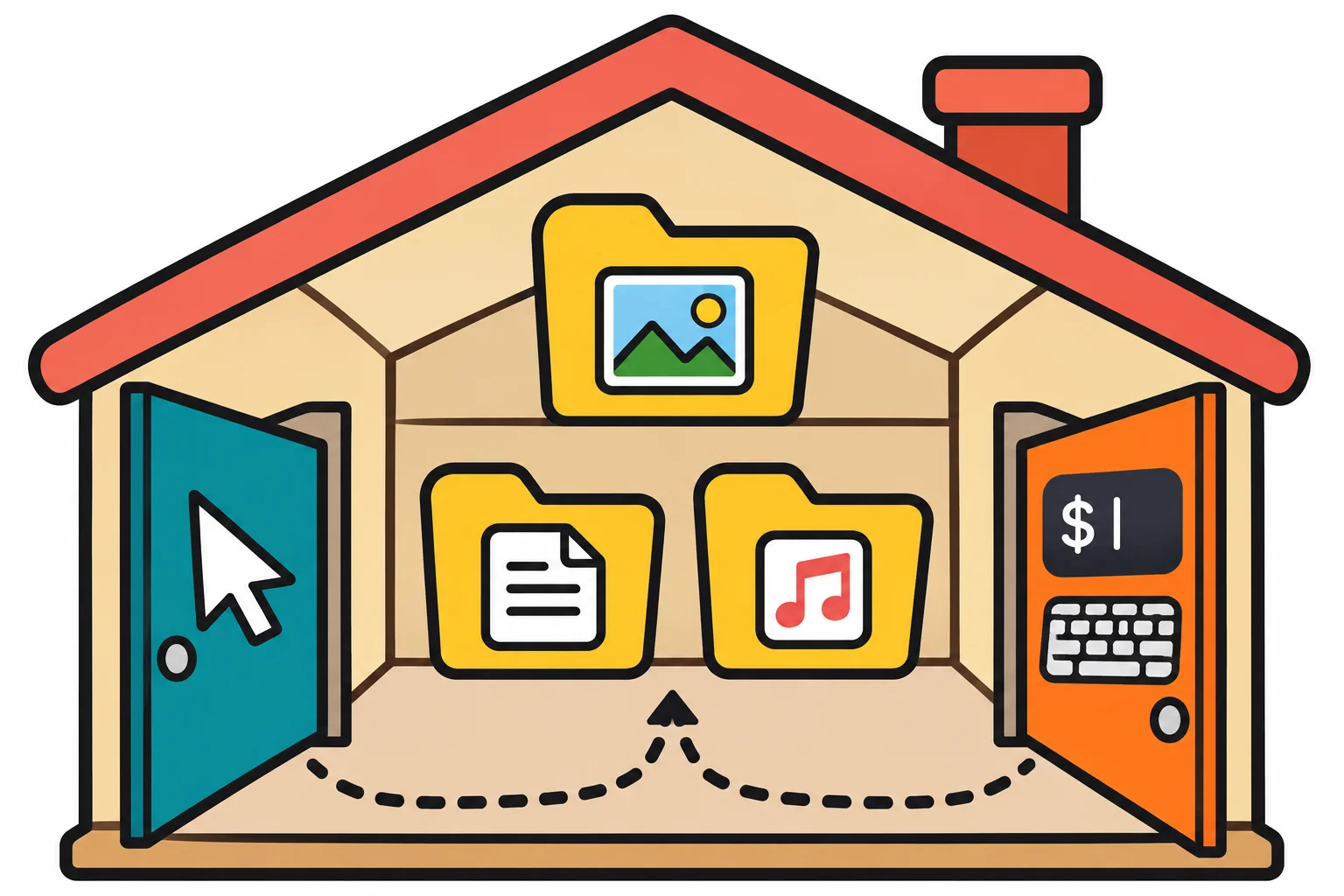
Two doors into the same house
Picture a house with a front door and a back door. You can come in either way, and you end up in the same rooms with the same furniture. The file manager (Finder on a Mac, Files on Ubuntu, File Explorer on Windows) is one door, and the terminal is the other. A folder you make in the terminal appears in Finder a moment later, and a photo you drag into a folder shows up when you list that folder in the terminal.
You can even open one door from the other. In a terminal, each of these opens the folder you're in, in your file manager, where . (read "dot") means "this folder":
open .on a Macxdg-open .on Ubuntuexplorer.exe .in Ubuntu on Windows
What the mouse does best
- Looking. Scrolling through photo thumbnails, previewing a PDF, seeing a folder's pictures at a glance.
- Jobs you do once, in a place you don't know yet. Dragging three files into a folder, or finding a setting on a screen you've never seen.
- Choosing by eye. "The photo where everyone's smiling" is a choice only you can make; no command knows which one that is.
When a lesson in this course teaches a job the mouse does well, it says so.
What the terminal does best
Repeats. The same change to 200 files is one command, not 200 clicks.
Questions about many files at once. A file manager can tell you a folder holds 600 receipts. Ask it how many of them are from the hardware store, and it has no quick answer. The terminal reads all 600 and counts:
grep -rl "hardware store" . | wc -l75You'll learn to read this line in Module 3;
|is read "pipe".Steps you can save and share. A command is text. Paste it into a message, a note or a script, and it does the same thing every time. Directions like "click the third icon, then Settings" break when an app moves its buttons.
Speed, once it's familiar. Your hands stay on the keyboard, and Tab finishes long names for you (Let the Shell Type for You: Tab).
Why a server has no mouse
Every website you visit runs on a computer in a data center somewhere: a web server. A data center holds rows and rows of them, with no screens, keyboards or mice, because nobody sits in front of them. A developer reaches one over the network and gets a terminal on it (Other Computers, in Module 7, shows how). Cloud computers you rent by the hour, a Raspberry Pi in a closet and a game server you run for friends work the same way, and most of them run Linux, with bash waiting for commands.
That's why "comfortable at the command line" shows up in so many job listings, for developers and for the people who keep computers running.
Options, not sides
Here's this course's promise: you'll never be asked to give up the mouse. You'll gain a second way in, and you'll learn to tell which one fits the job in front of you. Plenty of people who work in a terminal all day keep a file manager open beside it.
And here's something people don't expect: the terminal is fun. Once it stops being a mystery, typing one line that does an afternoon's work feels good every time.
Check yourself
2 questions to try on the lesson page.
So what
The mouse and the terminal open the same doors. Knowing both means you can pick the faster way for each job, and work on computers that have no screen at all.