Writing to Files: echo, > and >>
echo prints a line of text, > (read "into") sends it into a file and replaces whatever the file had, >> (read "add to") adds it to the end, and printf writes neat lines from a pattern.
Novice · Unix · Linux · Updated
After this lesson you can
- Write a line into a file with echo and >, and add lines to the end of a file with >>
- Write neat lines with printf, using %s for each value and \n for a new line
Key takeaways
- echo prints the text you give it, followed by a new line.
(read "into") sends a command's output into a file. It makes the file if it's new, and replaces everything in it if it isn't.
(read "add to") adds the output to the end of a file and keeps what was already there.
- printf prints text from a pattern. %s is a slot for one value and \n starts a new line.
A move comes with a to-do list that keeps growing: unpack, find the remote, call the internet company. You could open an editor every time you think of something, but in a terminal one line adds an item to the end of the list. The same trick keeps a log of what you did, or saves a command's answer to read later. Developers write files this way all day, and so does every script in this course.
The examples use the apartment from Deleting Safely: rm and rmdir. These lines go there and write a fresh to-do list (run them again any time you want it back):
mkdir -p ~/terminal-practice/apartment && cd ~/terminal-practice/apartment
printf 'TO DO\n- unpack\n- find the remote\n' > todo.txt
cat todo.txt
TO DO
- unpack
- find the remote
echo: say it back
echo prints whatever you give it, followed by a new line, like an echo in a canyon:
echo "Welcome to our place"
Welcome to our place
The quotes keep the words together as one argument, as in The Shape of a Command. On its own that's not much use. It becomes useful when the words go into a file instead of onto the screen.
> writes into a file
Everything a command prints goes to the screen unless you say otherwise. > (read "into") sends it into a file instead, the way a letter can go into a mailbox instead of being read aloud. This is called redirection. Know what it does before you use it: > makes the file if it's new, and replaces everything in it if it already exists.
Make a sign for the door, then read it:
echo "Welcome to our place" > door-sign.txt
cat door-sign.txt
Welcome to our place
Nothing showed on the screen when echo ran: its words went into door-sign.txt. Write a different sign the same way, and the old words are replaced:
echo "Sam and Maya live here" > door-sign.txt
cat door-sign.txt
Sam and Maya live here
For a sign, replacing is what you want. For a list you're building up, it isn't.
>> adds to the end
>> (read "add to") puts the new line at the end of the file and keeps everything that was there:
echo "- water the plants" >> todo.txt
cat todo.txt
TO DO
- unpack
- find the remote
- water the plants
Each >> adds one more line, so the list grows as you think of things. Like >, it makes the file if it doesn't exist yet.
printf: neat lines from a pattern
echo is fine for one line. printf (print formatted) fills a pattern with values, which makes several neat lines at once:
printf '%s\n' "- buy curtains" "- call the internet company" >> todo.txt
cat todo.txt
TO DO
- unpack
- find the remote
- water the plants
- buy curtains
- call the internet company
Read the pattern '%s\n' piece by piece. %s (read "percent s") is a slot for one value, and \n (read "backslash n") starts a new line. printf uses the pattern once for each value after it, so two values give two lines. A pattern can hold words of its own, too: printf 'Moved in: %s\n' "November 9" prints Moved in: November 9. Put the pattern in single quotes, so the shell passes it to printf exactly as typed.
Unlike echo, printf adds no new line unless the pattern has \n; without it, your next prompt starts right after the text. (In zsh on a Mac, a highlighted % marks the spot instead.) printf also works the same in every shell, which is why this course's setup lines use it.
One arrow or two
The slip everyone makes once is typing one arrow where they meant two. Here's what it does to the list:
echo "- hang the clock" > todo.txt
cat todo.txt
- hang the clock
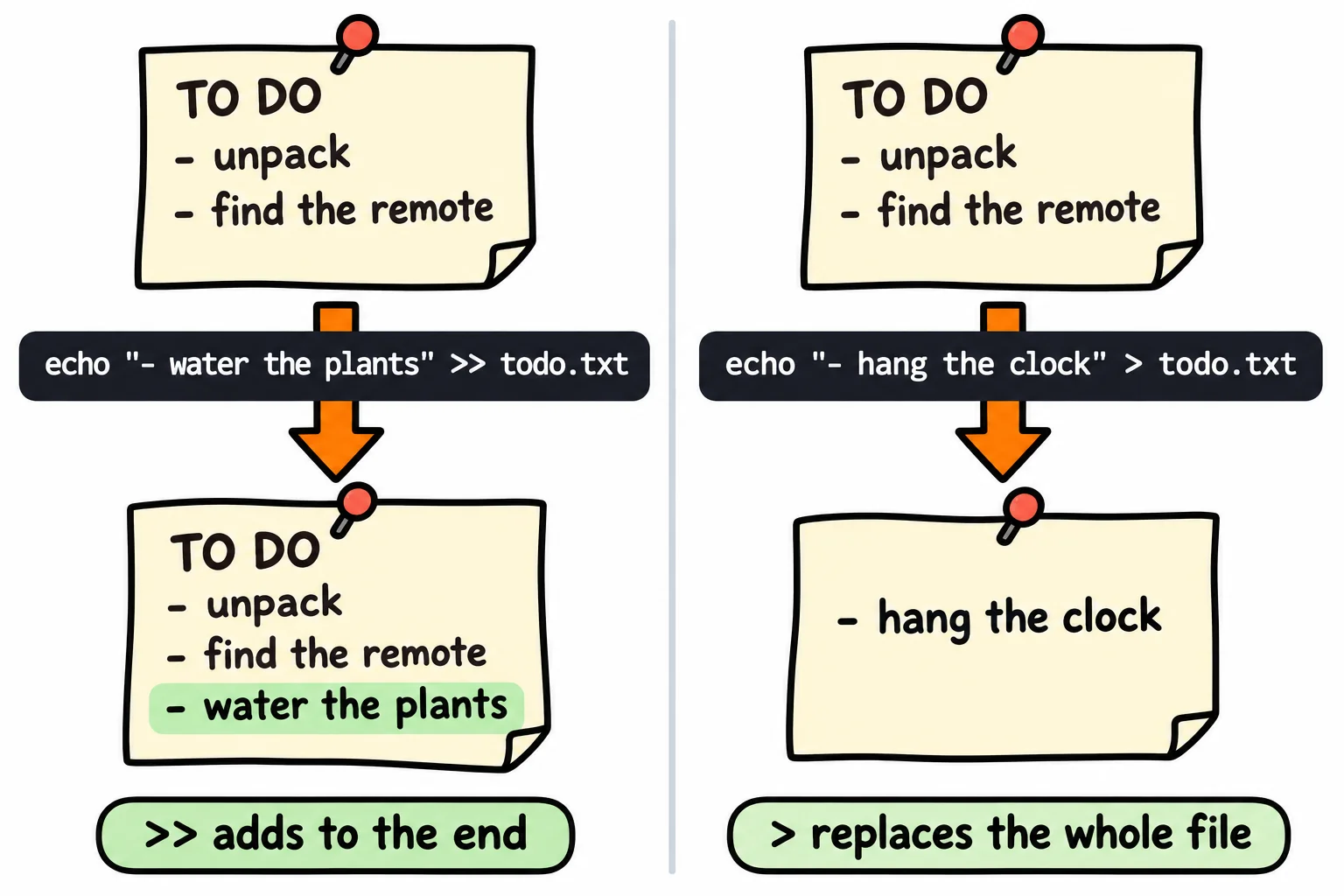
Six lines gone, with no warning. Run the setup lines again to get the practice list back. With a real file, glance at the arrows before you press Enter: two arrows add, one arrow replaces.
Try it in the terminal
Terminal Quest: Moving Day, goals 8 to 9: played right on the lesson page.
Back in Moving Day, make a name sign for the apartment's door, then add "water the plants" to the to-do list without losing what's already on it.
Check yourself
2 questions to try on the lesson page.
So what
With echo, printf, > and >>, any words can become a file: a to-do list, a note, a log. Pipes and Redirection, in Module 3, sends the output of any command into a file the same way.