Details and Summary: Show and Hide
The details and summary elements make a section that opens and closes when it's clicked, such as an FAQ answer or a quiz answer, with no JavaScript and with keyboard support built in.
Apprentice · HTML · Updated
After this lesson you can
- Build a section that opens and closes with details, summary and the open attribute
- Group details elements with name so only one opens at a time
Key takeaways
- A
<details>element is closed until the visitor clicks its<summary>, the label that always shows. The summary goes first inside it. - The browser opens and closes it with a click, a tap, or Enter and Space on the keyboard, and screen readers say whether it's open.
- The
openattribute makes a<details>start open, and the browser adds or removes it as the visitor opens and closes the section. - Give several
<details>the samename, and opening one closes the others: one open at a time.
Think of the last FAQ page you scrolled through: a list of questions, and you clicked the one you cared about to see its answer. Or a quiz app that hides the answer until you tap "Show answer", a store page with "Shipping and returns" folded away, a recipe with its tips tucked under "Cook's notes". All of those are one idea: a section that opens and closes.
For years that took JavaScript. Today it takes two HTML elements, <details> and <summary>, and the browser does the clicking, the keyboard and the screen reader for you. You'll use them on FAQ pages, quiz and flash-card pages, help pages, and anywhere a page has more than most visitors need at once.
A box with a label: `<details>` and `<summary>`
Picture a gift box with a tag tied on. You can read the tag without opening anything, and you open the box only if you want what's inside.
<details>(read "details") is the box. Everything inside it is hidden until it's opened.<summary>(read "summary") is the tag: the label that always shows. It goes first inside the<details>.
<details>
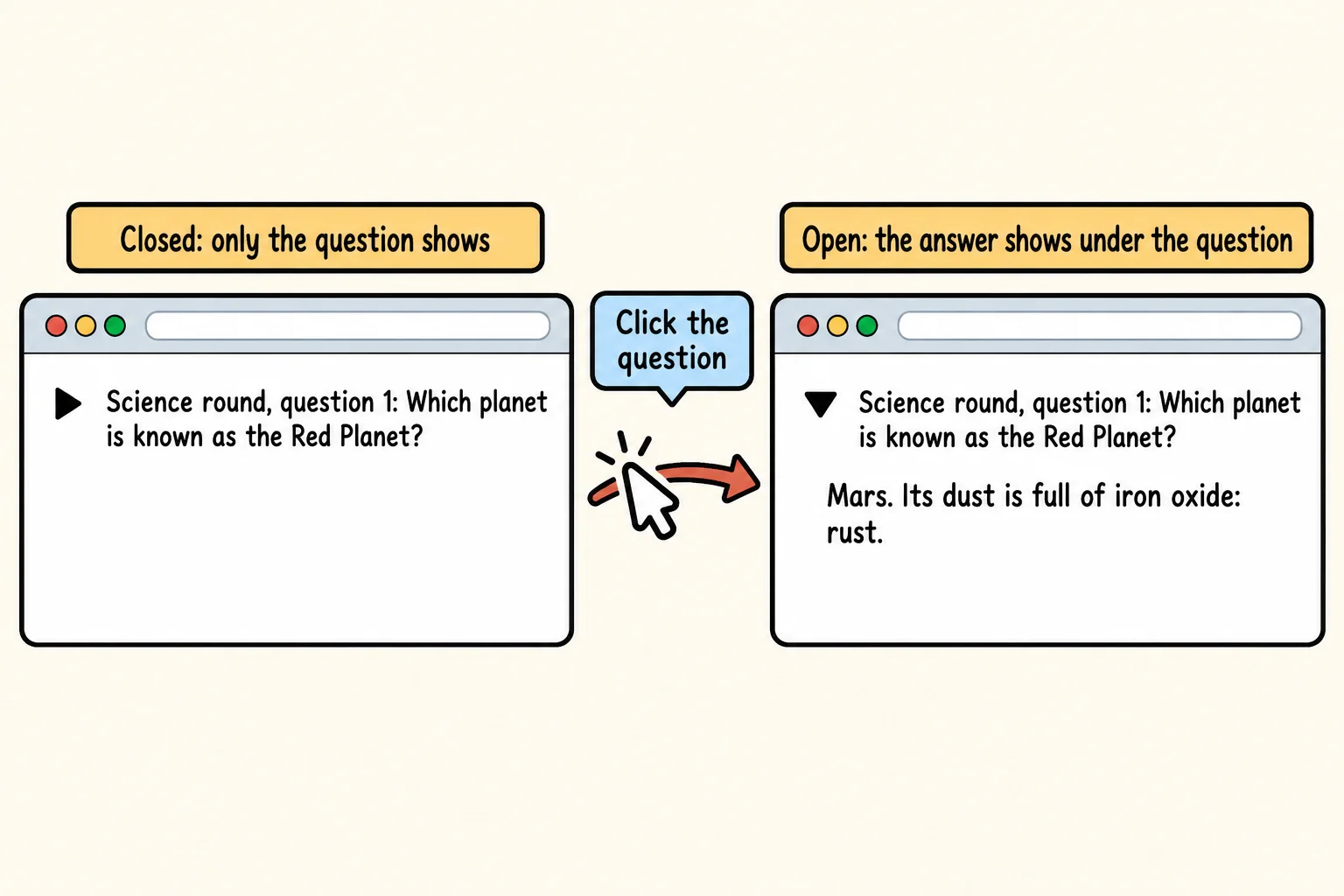
  <summary>Science round, question 1: Which planet is known as the Red Planet?</summary>
  <p>Mars. Its dust is full of iron oxide: rust.</p>
</details>
The browser shows the question with a small triangle in front of it, pointing right (▶). Click the question and the answer appears under it, and the triangle turns to point down (▼). Click again and the answer folds away. In your textbook, or on MDN, this is called a disclosure widget: a control that shows and hides content.
Try it. In your trivia-night page, add three trivia questions, each in its own <details> with the question in the <summary> and the answer in a <p> under it. Open the page with Live Server and click each one.
It works with the keyboard for free
Not everyone uses a mouse. Some people move around a page with the keyboard, and some use a screen reader, a program that reads the page aloud.
A <details> element works for all of them with nothing added:
- Tab moves to the next summary on the page.
- Enter or Space opens or closes the one you're on.
- A screen reader announces the summary as a button and says whether it's expanded or collapsed.
To build the same thing out of <div>s, you would need JavaScript for the click, more for the keyboard, and extra attributes so a screen reader knows what's going on. Most homemade versions miss at least one of those. The built-in one doesn't.
Try it. Click in the address bar of your page, then press Tab until a question is outlined, and open it with Enter. Press Tab again to move to the next question.
Starting open: the `open` attribute
A <details> starts closed. To have one start open, such as the most popular question on an FAQ page, add the open attribute. It's a boolean attribute, like the ones in Attributes: it needs no value, because being there is what counts.
<details open>
  <summary>When is trivia night?</summary>
  <p>Every Thursday at <time datetime="19:00">7 p.m.</time></p>
</details>
The browser keeps open up to date as the visitor clicks: it adds the attribute when the section opens and removes it when it closes. You can watch that happen.
Try it. Add open to one of your questions. Then right-click the page, choose Inspect, find that <details> in the Elements panel, and click its summary on the page a few times. The open attribute disappears and comes back.
One open at a time: the `name` attribute
On a page with ten questions, a visitor who opens them all ends up with a long, messy page. Often you want one open at a time: open question 2 and question 1 folds itself away. This pattern is called an accordion, after the instrument that folds open and shut, and the one-at-a-time kind is an exclusive accordion.
Give every <details> in the group the same name value:
<details name="science-round">
  <summary>Question 1: Which planet is known as the Red Planet?</summary>
  <p>Mars.</p>
</details>
<details name="science-round">
  <summary>Question 2: What gas do plants take in from the air?</summary>
  <p>Carbon dioxide.</p>
</details>
<details name="science-round">
  <summary>Question 3: How many bones are in an adult human body?</summary>
  <p>206.</p>
</details>
Open question 2 and whichever one was open closes. A <details> with a different name, or none, isn't part of the group, so a page can have a group per round. If you put open on two members of a group, only the first one starts open.
Every major browser has supported name on <details> since September 2024. In a browser older than that, each question opens and closes on its own, so nothing breaks; the page only loses the one-at-a-time tidying.
What belongs inside, and what doesn't
Hide what most visitors can skip: answers, long explanations, the fine print. Don't hide what everyone needs, such as the date, the address or the price: a visitor who doesn't think to click never sees it.
Inside a <details> you can put almost anything that goes on a page: paragraphs, lists, pictures, even a table. Keep the summary short, though: it's a label, and someone using a screen reader hears all of it each time they reach it.
Check yourself
2 questions to try on the lesson page.
So what
Two elements give you a section that opens and closes, works with a mouse, a finger and a keyboard, and tells a screen reader what it is, with no JavaScript to write or fix. Reach for them before you build one yourself.