Up Next: Waiting for Data
See how much of a web page you can now control, meet the Photo Gallery project where you'll show it, and find out why a page freezes when code waits the wrong way, and what Module 5's timers, promises and fetch change.
Apprentice · JavaScript · Web Development · Updated
After this lesson you can
- Explain why a page freezes when code waits the wrong way, and what timers, promises and fetch will let your pages do
Key takeaways
- After Module 4 you can change a page through the DOM, answer clicks, keys and forms, check a form, and remember data with localStorage.
- The Photo Gallery project hands you the page and the photos. Your JavaScript builds the thumbnails, the tag filters, a lightbox that works from the keyboard, and saved favorites.
- JavaScript does one thing at a time. A loop that waits keeps it busy, so the page can't answer a click until the loop ends.
- A timer waits without keeping JavaScript busy. Module 5 builds on that with promises, async and await, and fetch, which loads data from the internet.
At the start of this module, your JavaScript printed lines in a terminal and a Console. Look at it now: it builds a page's lists from data, answers clicks and keys, works for keyboard and screen reader users, checks a form kindly, and remembers a reader's books after the browser closes. That's the interactive part of nearly every website you use.
This lesson looks back at what you can do, shows you the project where you'll put it all together, and gives you a first look at Module 5, where your pages learn to wait: for a timer, for a server, for data from anywhere on the internet.
What you can do now
After Module 4, you can:
- find and change any part of a page through the DOM: its words, its classes, whole new elements;
- respond to clicks, keys and form events with
addEventListener, with one listener for a whole list when that's tidier; - work for everyone, with real buttons, a sensible focus order, the Escape and arrow keys, and ARIA attributes such as
aria-pressed; - draw the page from your data, with one render function you call after every change;
- read and check a form, with
value,checked,FormData, the browser's built-in checks,setCustomValidity()and messages tied to their fields; - remember a person's things between visits with localStorage and JSON.
Show what you can do: Photo Gallery
Module 4's project is a Photo Gallery: a page of photos you can fill with your own pictures, the kind a photographer, a travel blog or a pet rescue would put online.
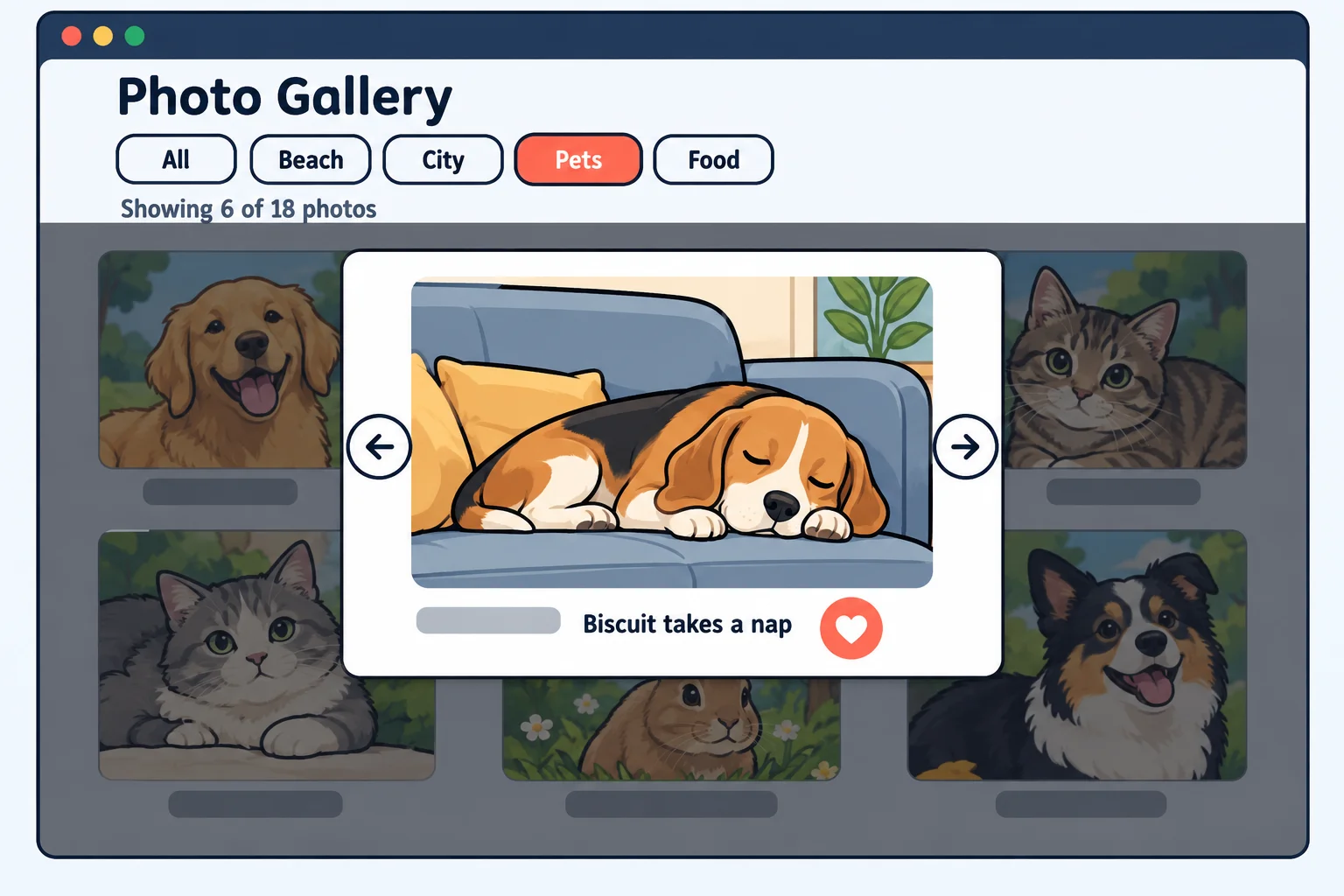
The project hands you the page's HTML and CSS, a folder of sample photos, and a JSON file that lists each photo with its title, its tags and its alt text. Your JavaScript:
- builds the thumbnails from the JSON data, each with its alt text, so a screen reader can describe every photo;
- filters them by tag with buttons that say which one is pressed;
- opens a lightbox, the photo shown large over the page, on click: Escape closes it, the arrow keys move to the previous and next photo, and the focus goes back to the thumbnail it came from;
- remembers favorites in localStorage, so a heart you tick today is still there next week.
Tests check the logic, such as which photos a tag keeps and the next photo after the last one, and a checklist covers the page. When it works, swap in your own photos and you have a gallery to show anyone.
A page that freezes
There's one thing your pages can't do well yet: wait. Picture a coffee shop where the barista stands staring at the espresso machine for the whole minute it takes, and the line grows. The shop isn't broken; it's doing nothing else while it waits. JavaScript works the same way: it does one thing at a time. Here a loop "waits" three seconds by checking the clock over and over, while a one-second timer is waiting its turn:
setTimeout(() => console.log("Reminder: the tea is ready"), 1000);

const start = Date.now();
while (Date.now() - start < 3000) {
  // Busy: checking the clock, over and over, for 3 seconds.
}
console.log("The loop is done, 3 seconds later");
The loop is done, 3 seconds later
Reminder: the tea is ready
setTimeout asks for a function to run after 1000 milliseconds, one second. But the reminder comes out after the loop's line, at three seconds, because JavaScript was busy. On a web page, that busy time is a frozen page: buttons don't answer, typing doesn't show, and the browser may offer to stop the page. Code that keeps JavaScript busy like this is called blocking.
The fix: let a timer do the waiting
The barista's fix is to start the machine, serve the next customer, and come back when it beeps. In code, a timer does the waiting, and JavaScript stays free until it's due:
setTimeout(() => console.log("Reminder: the tea is ready"), 1000);
setTimeout(() => console.log("3 seconds are up"), 3000);

console.log("Free to answer clicks while the timers wait");
Free to answer clicks while the timers wait
Reminder: the tea is ready
3 seconds are up
The last line prints first, straight away: JavaScript asks for the two timers and moves on. Each timer's function runs when it's due, and between them a page would answer every click. Code that starts something now and finishes it later like this is called asynchronous, often shortened to async. Module 5's The Event Loop, in Pictures shows how the browser keeps track of everything that's waiting.
What Module 5 unlocks
Timers are only the start. Module 5 teaches your pages to wait for anything without freezing:
- Promises: an object that stands for a result that isn't ready yet, like the buzzer a restaurant hands you while your order is cooked.
- async and await: a way to write waiting code that reads top to bottom, as if it didn't wait at all.
awaitis read "wait for this". - fetch: asking a server on the internet for data, then showing it, with a loading message while it comes and a friendly message if it fails.
Here's a sneak peek: three lines of a page's script that ask a free web API for a random dog photo. Run in a page, it prints an address such as https://images.dog.ceo/breeds/elkhound-norwegian/n02091467_3160.jpg, a different dog each time:
const response = await fetch("https://dog.ceo/api/breeds/image/random");
const data = await response.json();

console.log(data.message);
You don't need to understand every part of it yet: that's what Module 5 is for. Its project is Trivia Night, a timed trivia game with real questions loaded from the internet, a countdown for every question, and a score at the end.
Check yourself
2 questions to try on the lesson page.
So what
Module 4 put you in charge of the page. Module 5 connects that page to the rest of the internet: weather, maps, music, trivia, anything with a web API, all loaded without the page ever freezing.
Key terms
- Blocking Code
- Asynchronous Code
- Event Loop
- Promise
- Fetch API