Copy and Move: Copy-Item and Move-Item
Copy-Item makes a copy and leaves the original where it was, Move-Item takes the original to its new place, -Recurse copies a folder with everything in it, and -WhatIf shows exactly where a copy or move would land before anything changes.
Novice · PowerShell · Operating System · Updated
After this lesson you can
- Copy or move files and folders with Copy-Item and Move-Item, using -Recurse to copy a folder with everything in it
- Rehearse a copy or move with -WhatIf, and predict what happens when the name at the destination is already taken
Key takeaways
Copy-Itemmakes a copy and leaves the original.Move-Itemtakes the original away to its new place.- Write what, then where:
Move-Item beach-sunset.jpg photos. End the "where" with a file name to give the copy or moved file a new name. Copy-Itemneeds-Recurseto copy a folder with everything in it.Move-Itemalways takes a folder's contents along.- When the name is taken, Copy-Item replaces the file without asking, and Move-Item stops with an error unless you add
-Force. -WhatIfshows the exact path a copy or move would land on, before anything changes.
Your Downloads folder is where everything lands: photos a friend sent, receipts, a class schedule you downloaded twice, an installer from last year. Sorting it in File Explorer means dragging files one at a time, and a drag doesn't always say whether it moved a file or copied it (drag onto another drive, and Windows copies). In PowerShell you say which, in words, and you can ask where everything would land before it moves. The same two commands copy a website's files to a server, or a day's work to a backup folder.
A practice Downloads folder
These lines make a downloads folder in your practice folder, with fourteen made-up files, and leave you inside it. The files are empty: only their names matter here. You can read the lines now, from Making Folders and Files: New-Item. | Out-Null (read "pipe to out null") throws New-Item's answer away, so fourteen rows don't fill the screen.
New-Item -ItemType Directory -Force -Path "$HOME\terminal-practice\downloads" | Out-Null
Set-Location "$HOME\terminal-practice\downloads"
New-Item -ItemType File -Force -Path 'beach-sunset.jpg', 'beach-volleyball.jpg', 'birthday-cake.png', 'bike-shop-receipt.pdf', 'grocery-receipt.pdf', 'class-schedule.pdf', 'class-schedule (1).pdf', 'scan-1.pdf', 'scan-2.pdf', 'scan-10.pdf', 'resume.docx', 'road-trip-playlist.mp3', 'game-setup.exe', 'unfinished-download.tmp' | Out-Null
Get-ChildItem -Name
beach-sunset.jpg
beach-volleyball.jpg
bike-shop-receipt.pdf
birthday-cake.png
class-schedule (1).pdf
class-schedule.pdf
game-setup.exe
grocery-receipt.pdf
resume.docx
road-trip-playlist.mp3
scan-1.pdf
scan-10.pdf
scan-2.pdf
unfinished-download.tmp
The rest of this chapter keeps sorting this folder, one lesson after another.
Copy or move?
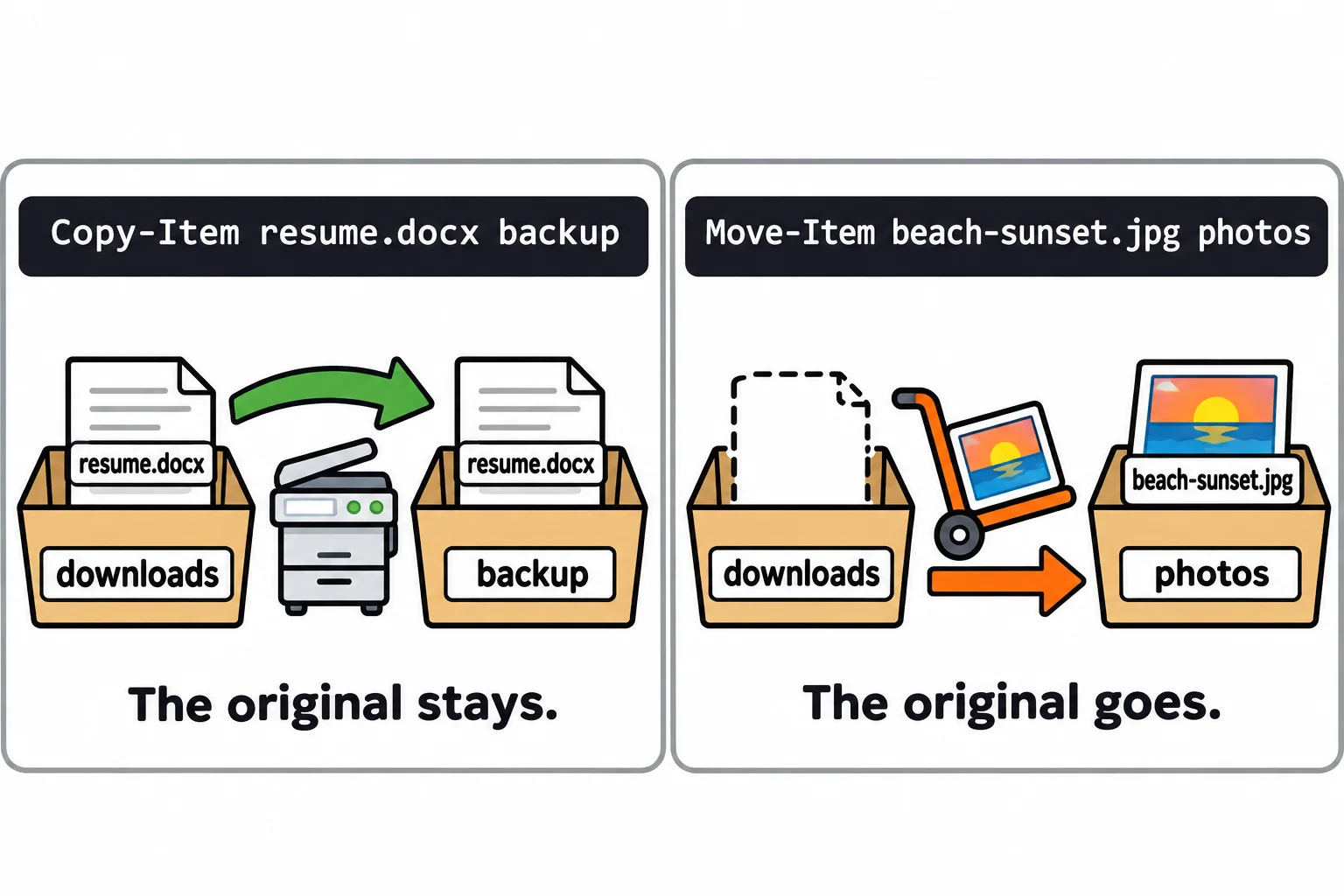
A copy is a photocopy: you get a second one, and the first stays where it was. A move is carrying the box to another room: it's there now, and not here. Copy-Item copies and Move-Item moves, and both are written the same way: what, then where.
New-Item -ItemType Directory photos, receipts, backup | Out-Null
Move-Item beach-sunset.jpg photos
Copy-Item resume.docx backup
Get-ChildItem photos, backup
    Directory: C:\Users\Sam\terminal-practice\downloads\photos

Mode                 LastWriteTime         Length Name
----                 -------------         ------ ----
-a---           8/31/2026  7:15 PM              0 beach-sunset.jpg

    Directory: C:\Users\Sam\terminal-practice\downloads\backup

Mode                 LastWriteTime         Length Name
----                 -------------         ------ ----
-a---           8/31/2026  7:15 PM              0 resume.docx
Copy-Item and Move-Item print nothing when they work, so Get-ChildItem checks the result: the sunset is in photos and gone from downloads, and resume.docx is in backup and still in downloads. End the where with a file name, and the file gets that name on the way: Copy-Item resume.docx backup\resume-old.docx. The short names are copy and cp for Copy-Item, move and mv for Move-Item.
Whole folders: -Recurse
To copy a folder with everything inside it, add -Recurse (read "recurse": go into every folder inside, and every folder inside those):
Copy-Item photos backup -Recurse
Get-ChildItem backup\photos
    Directory: C:\Users\Sam\terminal-practice\downloads\backup\photos

Mode                 LastWriteTime         Length Name
----                 -------------         ------ ----
-a---           8/31/2026  7:15 PM              0 beach-sunset.jpg
Leave -Recurse out, and Copy-Item copies the folder on its own: you get an empty photos folder in backup, with no warning. Move-Item needs no -Recurse, because moving a folder always takes what's inside, the way moving a box moves its contents. Run the copy a second time and PowerShell says backup\photos already exists, but copies the photos into it anyway; nothing is lost.
When the name is taken, and -WhatIf
backup already has a resume.docx. Copy it again, and Copy-Item replaces the one in backup without asking. Move it, and Move-Item refuses:
Move-Item resume.docx backup
Move-Item: Cannot create a file when that file already exists.
Add -Force, and Move-Item replaces it too. Neither command asks first, so when you're not sure, rehearse with -WhatIf, as in Making Folders and Files: New-Item:
Copy-Item resume.docx backup -WhatIf
Move-Item birthday-cake.png pictures -WhatIf
What if: Performing the operation "Copy File" on target "Item: C:\Users\Sam\terminal-practice\downloads\resume.docx Destination: C:\Users\Sam\terminal-practice\downloads\backup\resume.docx".
What if: Performing the operation "Move File" on target "Item: C:\Users\Sam\terminal-practice\downloads\birthday-cake.png Destination: C:\Users\Sam\terminal-practice\downloads\pictures".
Read each Destination. The first lands on the resume.docx that's already in backup, so it would replace it. The second shows the most common slip of all: there's no folder called pictures, so Move-Item would move the photo into a file named pictures, with no extension. Rehearsed, it's a typo you fix; run for real, it's a photo you have to hunt for.
Windows PowerShell 5.1 runs everything in this lesson the same way. On a Mac or Linux, write paths with /, and know that cp and mv run the system's own programs there.
Try it. Copy class-schedule.pdf into backup. Then rehearse moving game-setup.exe into installers, a folder that isn't there yet, with -WhatIf. What does the Destination tell you, and what would you make first?
Try it in the terminal
Terminal Quest: Moving Day, goal 5: played right on the lesson page.
Copy the spare key into the mailbox for your neighbor. Copy, don't move: you need a key too. (The books and the kitchen box are unpacked for you; Wildcards and Filters shows how to move them in one go.)
Check yourself
2 questions to try on the lesson page.
So what
Copy when you want to keep the original, move when you don't, and when you're not sure where it will land, ask with -WhatIf first.